Console Details
Use the Console Details tab to monitor the game process that is running on your console, launch and debug registered titles, cycle your title through the various Process Lifetime Management (PLM) states, save minidumps and run executables on the console as shown in the following figure.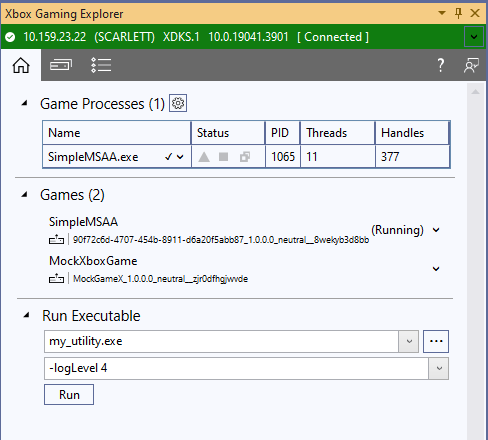
Game Processes
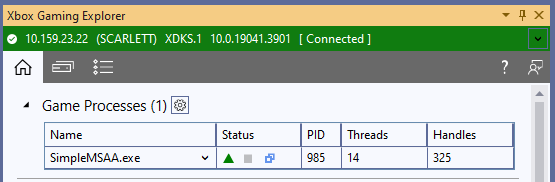
The title process and any utility programs running in the Game OS are listed in the Game Processes table. The columns displayed in the table show a process’s current status along with its process identifier (PID) and the number of running threads and open handles. The set of columns displayed in the table can be changed using the gear icon next to the table heading.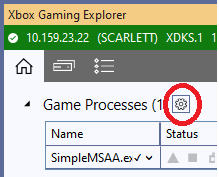
- The triangle icon turns green when a change has occurred in the process data within the last five seconds.
- The square icon turns red when the process has ended.
- The double-boxes icon turns light blue when a debugger is attached to the process.
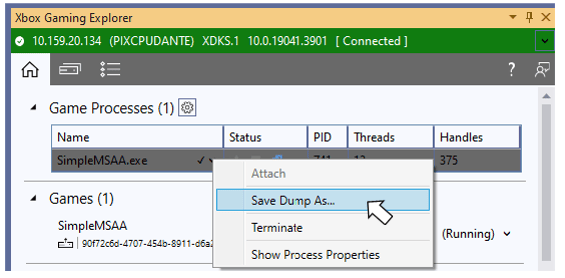
- Attach to the process
- Terminate it the process
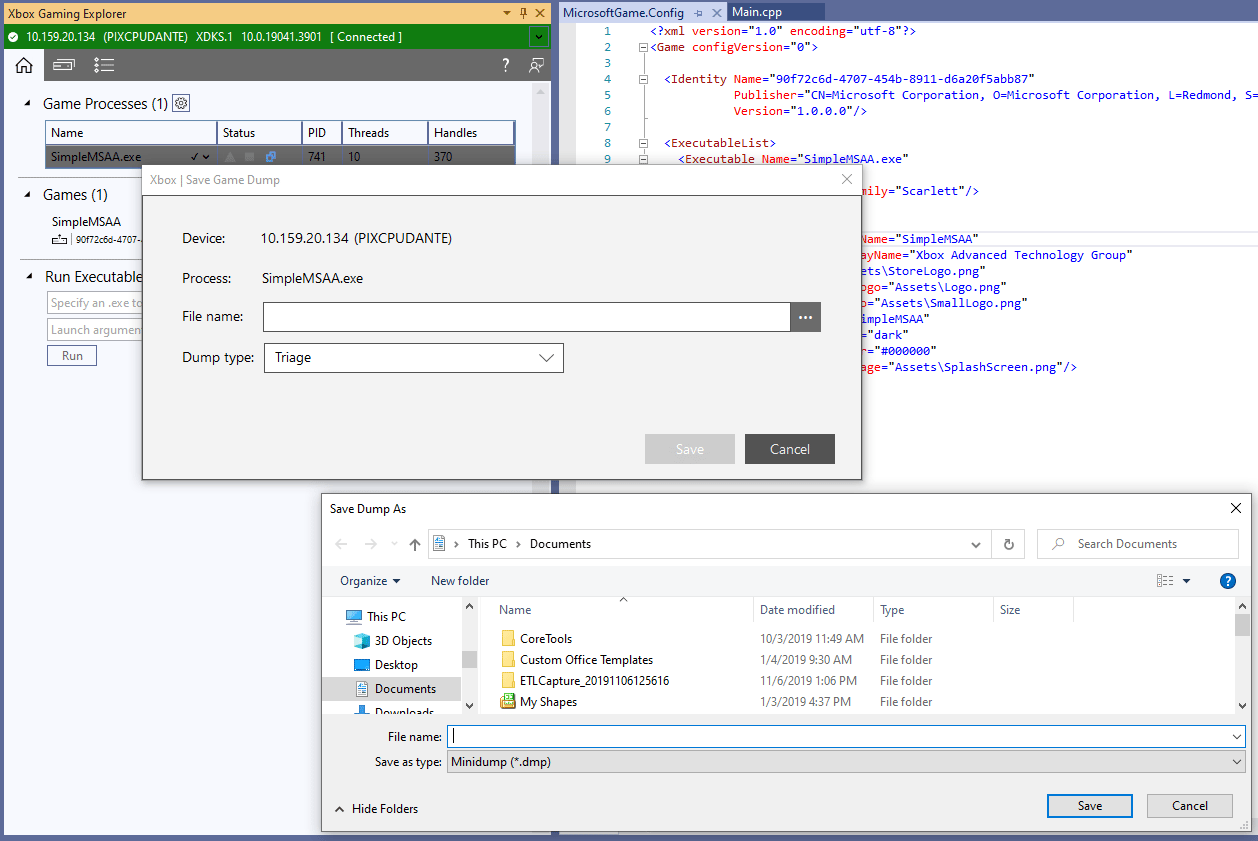
- Save a minidump
- Update the Visual Studio properties window that has information about that process.
Games
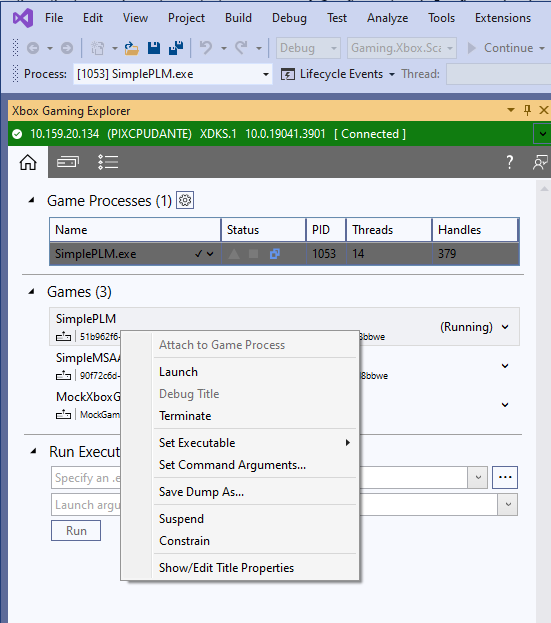
The Console Details tab includes a list of the titles that are registered on the current console. The Games list includes a context menu as shown in the following figure that can be used to perform the following actions:- Launch, Terminate or Attach to a title
- Choose the title’s executable to launch
- Set a title’s command line arguments
- Save a minidump
- Transition a title to a different PLM state
- View a title’s properties in the Visual Studio properties window.
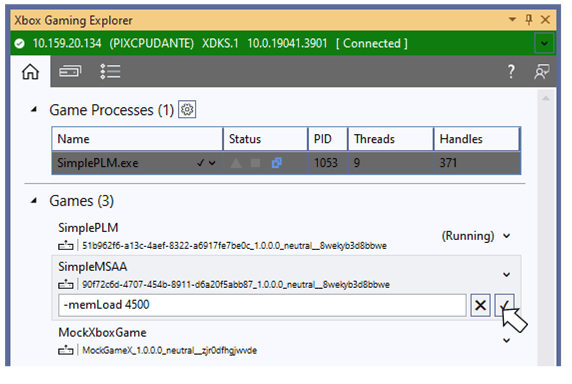
Editing Game Properties
Selecting the Show/Edit Title Properties menu item in the Games section of the console details view populates the Visual Studio properties page with a set of title properties. The properties are grouped into categories. The properties shown in boldface can be edited. The Debugging category contains properties that are common set in various debugging scenarios.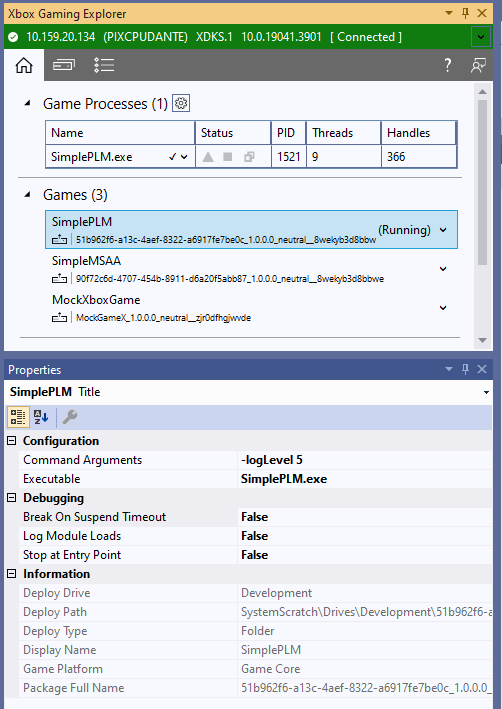
The properties set using the properties page for a game only take effect if the game is launched from the XBOX Gaming Explorer. If you launch a project using F5, these settings won’t take effect. To set these properties for launching via F5, use the properties page that can be accessed by right clicking on your project in the Solution Explorer and selecting the Properties context menu item.
Run Executable
The Console Details tab provides the ability to launch tool executables on the console. These tools include those provided by the operating system or any tools developed by your studio. The tools launched by using the XBOX Gaming Explorer run in the Game OS, not the System OS. Use the Run Executable portion of the Console Details tab to specify the path to your tool on the console, along with any launch arguments. The output from any tool launched using Run Executable is shown in the Gaming output window in Visual Studio. In the following figure, Run Executable has been used to run the operating system utility filever.exe to list version information for all executables in the currently running title.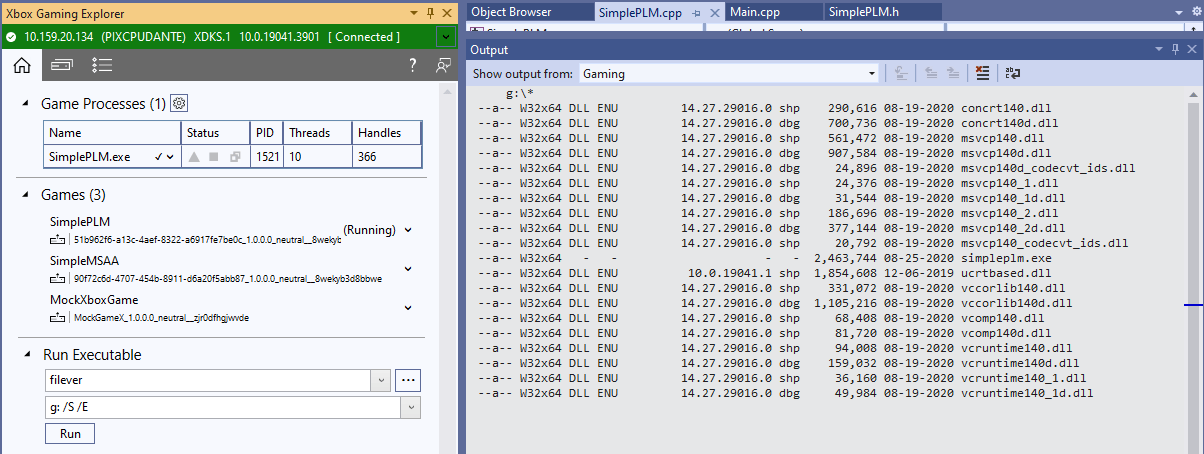
Run Executable can only be used to launch tool executables, not titles. Titles can be launched in a variety of ways, including the Games list in the XBOX Gaming Explorer, the Visual Studio F5 and Ctrl+F5 commands, XBOX Manager, Windows Device Portal, and xbapp.
Consoles
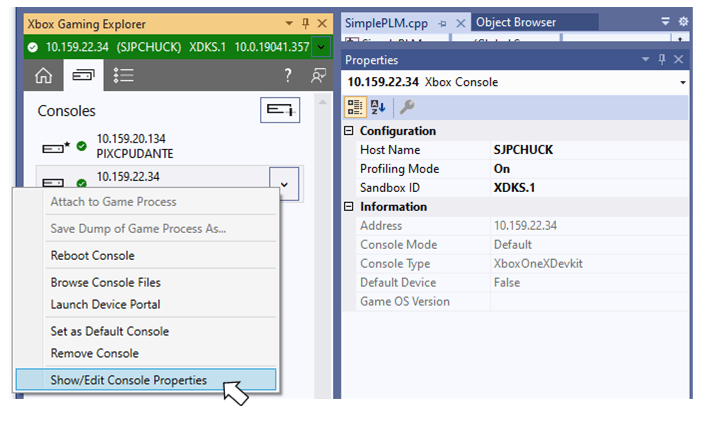
The Consoles tab provides a list of the consoles you can connect to and use with the XBOX Gaming Explorer. If you’ve specified a default console with XBOX Manager or xbconnect, that console appears automatically in the XBOX Gaming Explorer. The default console is identified by an asterisk (*) next to the icon representing the console. Additional consoles can be added by using the Add a Console button on the Consoles tab as shown in the following figure.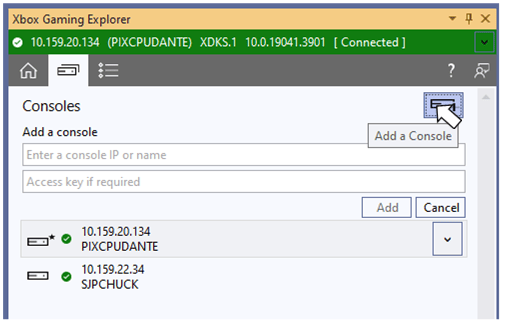
The list of consoles displayed in the XBOX Gaming Explorer and the list of consoles displayed in the XBOX Manager can get out of sync. These lists will be synchronized in a future release.
XBOX Developer Tools Launcher
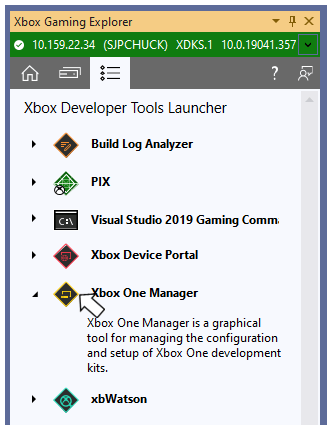
The XBOX Developer Tools Launcher tab as shown in the following figure provides a convenient way to launch other tools that ship in the Microsoft Game Development Kit (GDK). Launch a tool by selecting its name or icon.