
Visual Studio 2019 versions 16.0 through 16.10 are out of support as of October 2022. Version 16.11 is also out of main-stream support.
Installing Visual Studio 2019
The GDK supports development with either the Professional edition or the Enterprise edition of Visual Studio 2019. The Community edition isn’t supported. When installing Visual Studio 2019, select the Game development with C++ workload during setup as shown in the following screenshot.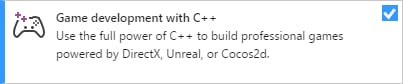
The Visual Studio 2017 v141 toolset is no longer supported as of the October 2024 release.
clang/LLVM for Windows (ClangCl) project support
Visual Studio 2019 also supports clang/LLVM for Windows development. This support requires installing C++ Clang-cl for Windows and C++ Clang-cl for v142 build tools (x64/x86), which are individual components. For more information, see the Microsoft Game Development Kit (GDK) Clang article and the Microsoft Docs.Build Tools edition
Use Build Tools for Visual Studio 2019 to build with the Microsoft GDK headers, libraries, and tools by following the Build With/Out Install instructions.- Use the workload Desktop Development with C++ which installs the Visual C++ compiler for PlatformToolset
v142. You can also select components forClangClsupport per the instructions earlier in this article. - Install the Windows SDK or use it as a NuGet package.
The Build Tools edition doesn’t support extensions, so you can’t install the Microsoft GDK’s VSIX packages for the Build Edition. This limitation means it doesn’t support deployment or debugging, although you can use command-line tools.
Migrating existing Visual Studio 2017 projects to Visual Studio 2019
In most cases, the upgrade wizard provided with Visual Studio can migrate your project to Visual Studio 2019 without any other changes. When you open a Visual Studio 2017 project in Visual Studio 2019, you see the following Review Solution Actions dialog box that prompts you to upgrade. To upgrade the project, select OK.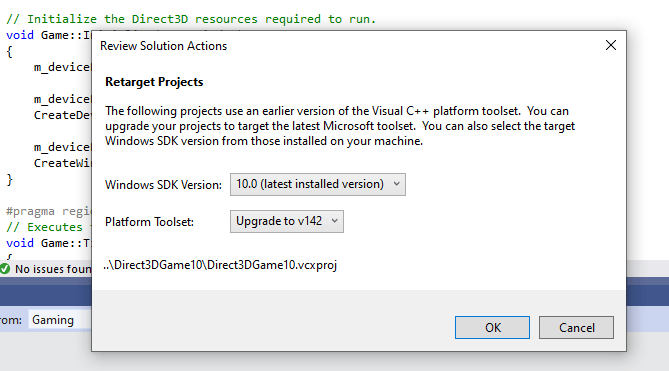
Manually upgrading projects to Visual Studio 2019
If you want to upgrade your project by directly editing your project files (.vcxproj), make the following changes.- Change all instances of
PlatformToolsetfromv141tov142. The following example shows how to make this change.
- Rebuild the project.
Using specific versions
By default, the Visual Studio Installer always downloads the latest release. In an Enterprise setting, you can control the specific version by using an offline layout. For more information, see Controlling updates to Visual Studio deployments. That article also provides information about removing the VS notification icon. Download specific versions of Visual Studio 2019 from Visual Studio 2019 Releases.Known issues
- DirectXMath
*IsNanfunctions can fail with Visual Studio 2019 when built with/fp:fast. The fix is to use Visual Studio 2019 (16.3 or later). Otherwise, you can work around the issue by placing#pragma float_controlstatements around the use of those functions. - Only the 64-bit native compiler toolset is supported for GDK development. In a Visual C++
vcxproj, set this toolset in the globals properties:
- Precompiled headers have known issues in clang/LLVM for Windows versions earlier than v11. Depending upon your PCH and C++ template usage, you might need to add
-fno-pch-instantiate-templatesto successfully build. - .NET Core 2.1 updates delivered through Microsoft Update can block GDK installation. For more information about this issue, see the .NET Core 2.1 end of support notification. To resolve this issue:
- Run Visual Studio Installer
- Select the Modify button for Visual Studio 2019
- Select the Individual components tab and remove the .NET Core 2.1 Runtime (LTS) component
- Retry uninstalling and reinstalling the GDK
Reporting bugs
Report bugs for the Visual C++ compiler (if possible) through Visual Studio Report a Problem…. See Microsoft Docs and the Developer Community website. For details on creating a good bug report for the compiler, see this page.You can add a comment to a public report issue marked as “Microsoft only” if other NDA information is required to reproduce the issue.