XBOX Game Development Docs
Find documentation, tools, and guidance to build and publish games on XBOX.
Recommended docs
Start with the guides that take you from an idea to your first XBOX game.
What’s new
View all updates
GDK
GDK features and release notes
Review features, breaking changes, fixes, and known issues by GDK version.
PlayFab
PlayFab SDK release notes
Review additions and changes to PlayFab SDKs and APIs.
Publishing
Game publishing updates
See changes to publishing guidance, including Partner Center package management.
Use these docs with AI tools
Connect your AI assistant or coding agent to the XBOX docs so it can search and cite current documentation. The XBOX docs Model Context Protocol (MCP) server is available at https://docs.xbox.com/mcp. No API key or sign-in is required.
- Claude Code
- Copilot CLI
- Cursor
- VS Code
- Codex
- Claude
claude mcp list to confirm the connection.You can also give AI tools the docs in other agent-ready formats:

llms.txt
An index of every page in the XBOX docs, formatted for large language models (LLMs).
skill.md
Instructions that teach agents how to use the XBOX docs. To install, run npx skills add https://docs.xbox.com.
Markdown export
Add .md to the end of any page URL to get the page as Markdown. You can also copy a page from the page menu.
From first build to release
Find the guides for your game’s current phase, from your first build to release and live operations. These phases overlap: plan publishing early, test throughout development, and revisit services after launch.
Select a phase to find its guides. Revisit activities as your game evolves.
Pre-production
Choose a development path, set up your tools, and build a prototype before full production.
Start your first build
Build your first title
Getting started guides
GDK and game engines
Download the GDK
GDK samples
Port an existing game
Common pre-production questions
Can a solo developer or small studio publish on XBOX?
Can a solo developer or small studio publish on XBOX?
Yes. ID@XBOX supports independent developers, including solo developers and small studios. Complete partner registration, Partner Center enrollment, game information, and the applicable publishing agreements before console publishing. Start with partner onboarding and the Partner Center enrollment guide.
What tools, hardware, and access do I need to start?
What tools, hardware, and access do I need to start?
Use a Windows development PC and compatible engine and GDK versions. You can explore the public GDK and PC samples before full console approval. Console development requires approved tools and a development kit; a public GDK download doesn’t grant console publishing access. Check installation requirements and resource access.
Can I use Unity, Unreal Engine, or Godot?
Can I use Unity, Unreal Engine, or Godot?
Yes. Choose an engine version and platform integration compatible with your target and GDK release. Console development still requires approved tools and hardware. Godot doesn’t include an unrestricted built-in console exporter; use approved export tooling or a porting provider. Explore engine integration guides.
Can I bring an existing PC or Steam game to XBOX?
Can I bring an existing PC or Steam game to XBOX?
Yes. Plan for engine compatibility, platform integration, testing, and certification rather than assume a one-click port. An existing PC release doesn’t automatically approve your game for console release. Start with the porting guide.
Should I plan for XBOX Play Anywhere?
Should I plan for XBOX Play Anywhere?
If you target PC and console, plan for both platform versions, shared ownership, saves, and cross-device testing early. Participating digital games let players buy once and play across supported devices. Review the Play Anywhere development path before you commit to the scope.
Production
Build features, connect services, and test as your game takes shape.
Build your game's features
Core features
Console features
Accessibility and game principles
Connect players and services
XBOX services
PlayFab
Multiplayer
Test and optimize
Development and testing tools
PIX performance analysis
Error codes
Build toward XBOX Play Anywhere
Start with your game at the bottom, then build upward. Each layer adds to the foundation below it.

Build upward: 1 to 7. Open full-size diagram
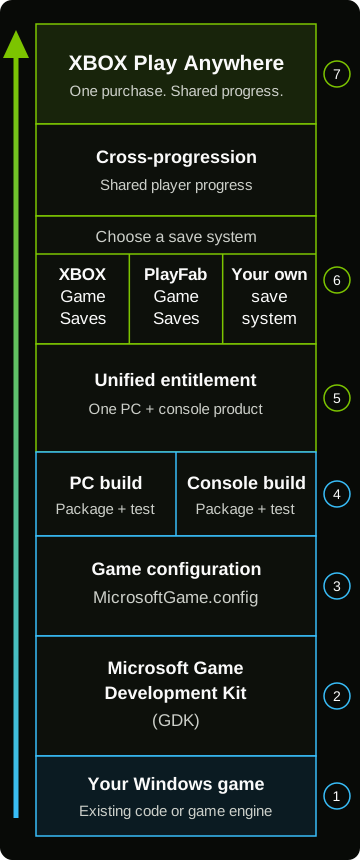
- Start with your Windows game
Use your existing game code or a supported engine as the base for your PC version.
- Add the GDK
Integrate the GDK directly or through your engine. Build and test each platform version. Console development requires approved tools and hardware.
- Configure your game
Use your Partner Center product identity to set up MicrosoftGame.config. Define your game’s identity, executable, and display assets before packaging.
- Package and test PC and console builds
Create separate PC and console packages with the GDK packaging tools. Install and test each package on its target platform.
- Configure one store product
Associate both platform packages with the same Partner Center product. Unified entitlement lets players own both versions with one purchase.
- Connect saves and cross-progression
Use XBOX Game Saves, PlayFab Game Saves, or another XR-052-compliant solution. Keep player identity and save data compatible across your versions.
- Validate your Play Anywhere experience
Bring the layers together. Test shared ownership and progression across PC and console, then follow the publishing requirements.
These are the main building blocks, not a complete release checklist. Confirm platform access, certification, and XBOX Play Anywhere requirements.
Common production questions
What must I configure before packaging my game?
What must I configure before packaging my game?
Set up MicrosoftGame.config with your Partner Center product identity,
executable, and display assets. The manifest is used when registering loose-file builds
and creating packages. Use the
manifest overview
and configuration editor.
Do I need separate PC and console packages?
Do I need separate PC and console packages?
Yes. The GDK packaging tools create MSIXVC or MSIXVC2 packages for PC, and XVC packages for console. Install and test each package on its target platform. Follow the PC packaging guide or console packaging guide.
How do XBOX services and PlayFab fit together?
How do XBOX services and PlayFab fit together?
XBOX services provide platform features such as achievements, player data, and multiplayer. PlayFab provides backend services for identity, progression, economy, and multiplayer. Choose integrations for your game’s features and platform requirements; check service-tier eligibility and limits. Compare XBOX services with PlayFab modes.
What should I test before submitting my game?
What should I test before submitting my game?
Test package installation, player sign-in, saves, and the features your game uses on each target platform. Check performance and the applicable XBOX Requirements while you build, not only before submission. Use the development and testing tools alongside the certification requirements.
Release, commerce and live operations
Publish your game and manage ongoing monetization, store visibility, and release schedules.
Publish and manage your game
Publishing overview
XBOX certification requirements
Publish your game
Manage bundles
Create and publish add-ons
Schedule releases
Common release and live operations questions
What must I complete before I can publish my game?
What must I complete before I can publish my game?
Complete onboarding and the applicable publishing agreements. Prepare packages, age ratings, store listings, pricing, and the other required Partner Center modules, then pass the applicable reviews. Follow the publishing guide to make your game available to customers.
How much time should I allow for certification?
How much time should I allow for certification?
There isn’t one end-to-end duration. Packages, store listings, and pricing and availability have separate reviews; package timing depends on the platform and submission type. Allow time for preparation, fixes, and resubmission before committing to a launch date. Review the certification guidance.
Can I schedule release and store visibility separately?
Can I schedule release and store visibility separately?
Yes. Partner Center has separate settings for when a product becomes purchasable and when its store page becomes discoverable. The discoverable date must be on or before the preorder start date, or the release date if there’s no preorder. Review the schedule options.
How do I sell add-ons or bundles after launch?
How do I sell add-ons or bundles after launch?
Create add-ons associated with your base game, and configure their pricing, availability, and required reviews. Bundles group products; the included products must be published before the bundle, except for the documented Season Pass case. Follow the add-on guide and bundle guidance.
How do I ship updates after release?
How do I ship updates after release?
Submit a Content Update as a complete replacement package in Partner Center, not a separate patch file. Keep the product identity unchanged, use a higher version, and test the update before release. Updates still follow the applicable certification and publishing process. Follow the post-release update guidance.