
- Alloc/dealloc mismatches and new/delete type mismatches
- Allocations too large for the heap
- calloc overflow and alloca overflow
- Double free and use after free
- Global variable overflow
- Heap buffer overflow
- Invalid alignment of aligned values
- memcpy and strncat parameter overlap
- Stack buffer overflow and underflow
- Stack use after return and use after scope
- Memory use after it’s poisoned
Enabling ASan in the compiler
Address Sanitizer is integrated with the Visual Studio project system, the CMake build system, and the IDE. Projects can enable AddressSanitizer by using one extra compiler option/fsanitize=address or by setting a project property in Visual Studio :
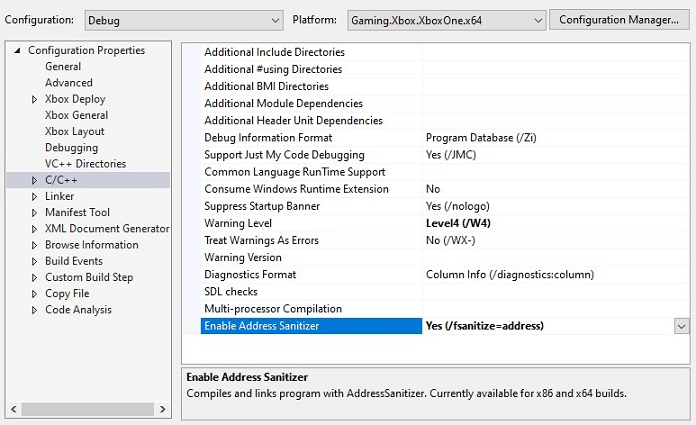
This option is compatible with all levels of optimization and configurations of x64. However, it’s incompatible with
edit-and-continue, incremental linking, and /RTC which must be disabled before compiling with ASan.$(VC_LibraryPath_VC_x64) value is the last one in the list to prevent it being used for other libraries, as shown below:

ASan Runtime Requirements
When a game is built with ASan enabled it requires one additional DLL to be present at runtime, which enables the functionality. By default, when ASan is enabled in the compiler, it will copy the DLL to the output directory for your project and should then be deployed to the console next to the Executable. If needed, the DLL’s can be found manually in the$(VC_ExecutablePath_x64) directory of Visual Studio. XBOX requires one of these two, depending on the build version :
Runtime Debugger Support
When running an ASan enabled game with a debugger attached, if an error is found it will break into the debugger and show a detailed report allowing you to determine where the error occurred. But if you are running without a debugger attached, in an automated test framework for example, then the error information is displayed in the standard output and the game will terminate. This can be helpful, but you might require more state information to find the root cause of the crash, which is where Crash Dump support comes in.If you are running without a debugger attached and require symbols to be resolved at that point then you need to deploy the
llvm-symbolizer.exe file alongside your game EXE. This file can be found in the same location as the ASan Runtime DLL’s listed above.Runtime Crash Dump support
Starting with Visual Studio 16.9.8, or 16.10.2, ASan can be configured to save a crash dump file that contains the metadata associated with the error. The debugger in Visual Studio can parse the metadata that’s saved in the dump file to provide more context for the crash. You can configure this crash dump saving on a per-build basis, store these binary artifacts, and then view them in the IDE with proper source indexing. Crash Dump documentation can be found here: Configuring Crash Dumps (Microsoft Docs) But the approach linked above requires the setting of an environment variable, which isn’t supported on XBOX, so an alternative method was implemented. To add Crash Dump support to your XBOX title you can simply define a function callback which provides the required crash dump filename information to ASan, three examples of which are shown below.The filename usually has a .dmp suffix to follow the Visual Studio IDE conventions
As with the previous function, this override is optional on XBOX, but it is highly recommended if you want to use crash dumps to collect ASan information without a debugger attached. If you provide the dump filename but not a dumptype override, then it will fail to generate a valid crash dump on XBOX.
Example ASan Code
This code demonstrates how easily these functions can be added into an existing codebase and adapted as required:Known Issues
- Visual Studio 2019 (16.11) ASan is not compatible with Game OS.
- The ASan DLL is not compatible with the Game OS and will fail to load with initial releases of both 17.12 and 17.13. This is fixed as of 17.12.6 and 17.13.3.
- A regression in ASan support for the Game OS which resulted in a crash on startup with Visual Studio 2022 was fixed in 17.14.29 and Visual Studio 2026 in 18.4.1.
- Under the debugger when running on XBOX, the following exception message will be emitted on a regular cadence but can be safely ignored.