
XBOX One projects can be set up to allow executables built with different configurations (for example, debug and release) to deploy to and run in the same directory on the XBOX One console.

To enable multiple build configurations in a single deployment

  1. In the project’s properties page, set the Isolate Configuration property to Yes.
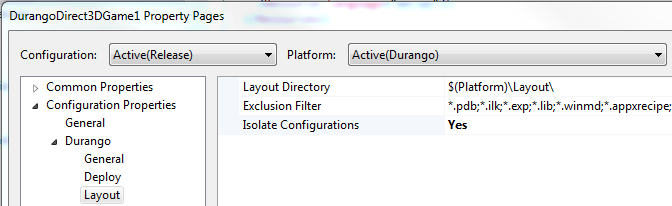
Isolate Configuration property
  1. Give a unique name to each configuration.
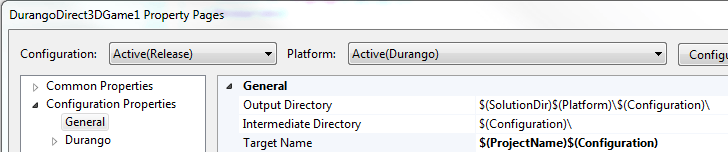
By default, the value of the Target Name property for each configuration is (ProjectName)∗∗.Changethe∗∗TargetName∗∗of∗each∗configurationto∗∗(ProjectName)**. Change the **Target Name** of *each* configuration to **(ProjectName)$(Configuration). Target Name property
  1. Add application elements that correspond to each of the configurations in the project to Package.appxmanifest, which is the default manifest file.
For example, a project with an entry for the release configuration and the debug configuration would have an <Applications section in Package.appxmanifest that looks something like the following example.
[!NOTE] You can specify different visual elements if you want the configurations to appear differently in the launcher.
  1. Add the <Extensions> node to the manifest if your project contains a reference to a WinRT project and you would like to deploy multiple configurations of the WinRT project.
The following example shows <Extensions> configured for two WinRT projects.

Deploying multiple build configurations

After multiple build configurations have been configured as described in this topic, the configurations can be deployed by using the following tools. Visual Studio: Configurations can be deployed by pressing Ctrl-F5 or F5. All configurations are deployed to the console. The currently selected configuration is the configuration that’s launched. xbapp: Running xbapp deploy directory-path on a Layout directory that contains multiple configurations deploys all the configurations and returns multiple Application User Model IDs (AUMIDs). The configuration you want can then be launched by passing its AUMID to xbapp launch. For syntax and more information about xbapp commands, see Application Management (xbapp.exe).
Last modified on September 1, 2026