이 절차는 모든 엔터티를 얻고 Windows Hello와 PlayFab을 통해 인증을 수행하는 방법에 대한 기본 소개입니다. Windows Hello 및 PlayFab 인증의 보다 정교한 예제는
[UWPExample project](https://github.com/PlayFab/UWPExample)를 참조하세요.요구 사항
- MSDN “설정” 가이드에 따라 UWP 개발을 위해 Windows와 Visual Studio를 준비합니다.
- 등록된 PlayFab 타이틀이 있어야 합니다.
- 로그인 기본 사항 및 모범 사례를 숙지해야 합니다.
Windows 10 운영 체제를 사용하고, 확인된 Microsoft 계정으로 로그인하고, PIN과 같은 액세스 인터페이스를 구성하는 것이 매우 중요합니다. 이러한 요구 사항이 충족되지 않으면* 앱이 이유에 대한 유용한 설명 없이 실패합니다.
Visual Studio 프로젝트 준비
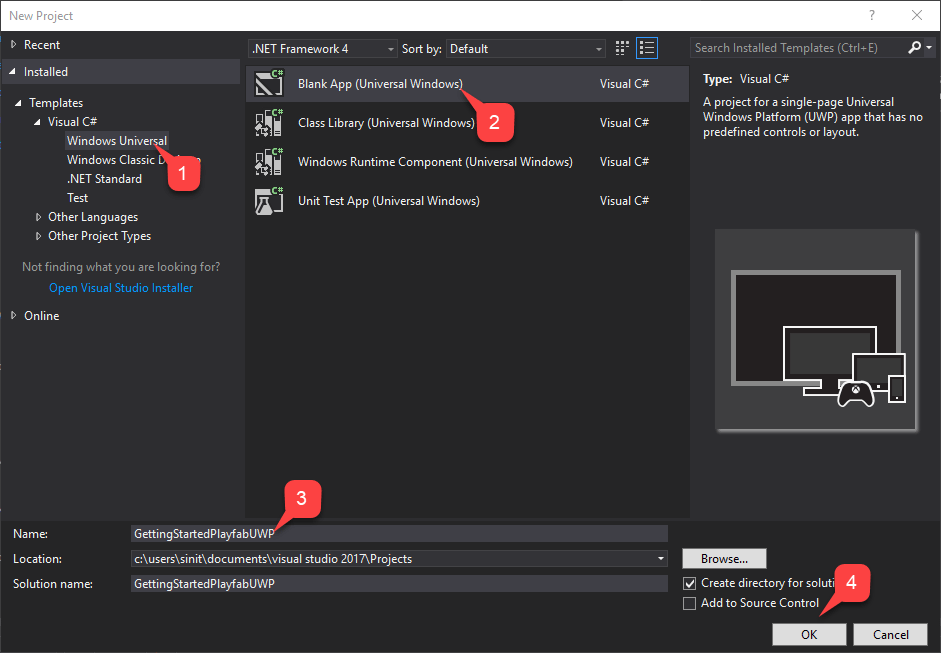
Visual Studio를 시작하고 새 프로젝트를 만듭니다.- Templates에서 Windows Universal을 선택합니다.
- 그런 다음 Blank App (Universal Windows) 유형을 선택합니다.
- 이름을 GettingStartedPlayfabUWP로 지정합니다.
- OK 버튼을 선택하여 제출합니다.
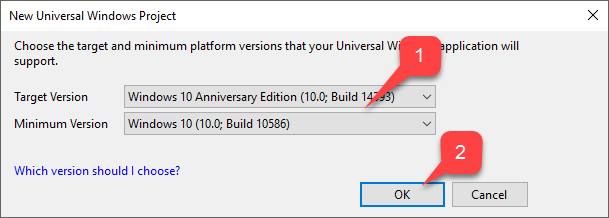
- Project에 맞는 Target Version과 Minimum Version을 선택합니다.
- OK 버튼을 선택합니다.
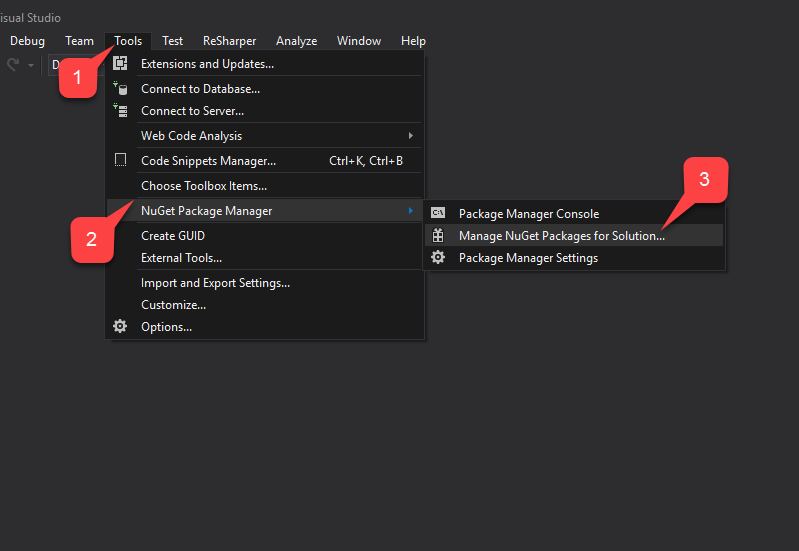
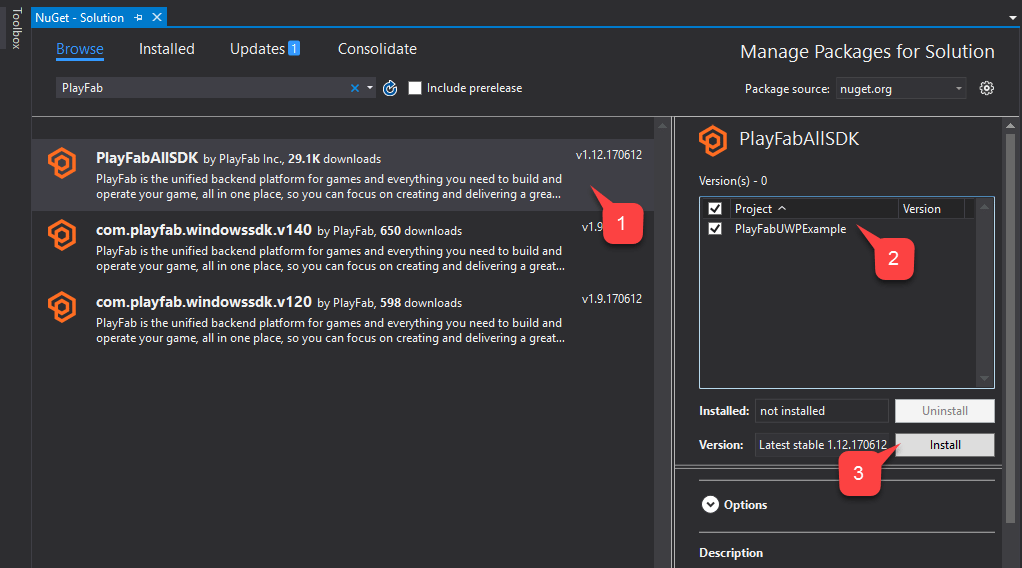
- 먼저 Tools 탭을 선택합니다.
- 드롭다운 메뉴에서 NuGet Package Manager를 선택합니다.
- 그런 다음 Manage NuGet Packages for Solution을 선택합니다.
- Browse를 선택하고 PlayFabAllSDK 패키지를 검색합니다.
- 대상 Project를 선택합니다.
- 그런 다음 Install 버튼을 선택합니다.
- App
- MainPage
구현
App.xaml.cs
이 클래스는 적절한 타이틀 ID를 설정하여 PlayFab SDK를 설정하기만 합니다. 타이틀 ID를 자신의 타이틀 ID로 바꾸는 것을 잊지 마세요.using System;
using Windows.ApplicationModel;
using Windows.ApplicationModel.Activation;
using Windows.UI.Xaml;
using Windows.UI.Xaml.Controls;
using Windows.UI.Xaml.Navigation;
namespace GettingStartedPlayfabUWP
{
// This class is generated upon project creation.
// While template on it's own contains a lot of xml comments, we are only interested in lines 17 and 27
sealed partial class App : Application
{
// Replace PLAYFAB_TITLE_ID with your own
public const string PlayfabTitleId = "PLAYFAB_TITLE_ID";
/// <summary>
/// Initializes the singleton application object. This is the first line of authored code
/// executed, and as such is the logical equivalent of main() or WinMain().
/// </summary>
public App()
{
// This is the only line of functional code we need to add to this class.
PlayFab.PlayFabSettings.TitleId = PlayfabTitleId;
this.InitializeComponent();
this.Suspending += OnSuspending;
}
/// <summary>
/// Invoked when the application is launched normally by the end user. Other entry points
/// will be used such as when the application is launched to open a specific file.
/// </summary>
/// <param name="e">Details about the launch request and process.</param>
protected override void OnLaunched(LaunchActivatedEventArgs e)
{
Frame rootFrame = Window.Current.Content as Frame;
// Do not repeat app initialization when the Window already has content,
// just ensure that the window is active
if (rootFrame == null)
{
// Create a Frame to act as the navigation context and navigate to the first page
rootFrame = new Frame();
rootFrame.NavigationFailed += OnNavigationFailed;
if (e.PreviousExecutionState == ApplicationExecutionState.Terminated)
{
//TODO: Load state from previously suspended application
}
// Place the frame in the current Window
Window.Current.Content = rootFrame;
}
if (e.PrelaunchActivated == false)
{
if (rootFrame.Content == null)
{
// When the navigation stack isn't restored navigate to the first page,
// configuring the new page by passing required information as a navigation
// parameter
rootFrame.Navigate(typeof(MainPage), e.Arguments);
}
// Ensure the current window is active
Window.Current.Activate();
}
}
/// <summary>
/// Invoked when Navigation to a certain page fails
/// </summary>
/// <param name="sender">The Frame which failed navigation</param>
/// <param name="e">Details about the navigation failure</param>
void OnNavigationFailed(object sender, NavigationFailedEventArgs e)
{
throw new Exception("Failed to load Page " + e.SourcePageType.FullName);
}
/// <summary>
/// Invoked when application execution is being suspended. Application state is saved
/// without knowing whether the application will be terminated or resumed with the contents
/// of memory still intact.
/// </summary>
/// <param name="sender">The source of the suspend request.</param>
/// <param name="e">Details about the suspend request.</param>
private void OnSuspending(object sender, SuspendingEventArgs e)
{
var deferral = e.SuspendingOperation.GetDeferral();
//TODO: Save application state and stop any background activity
deferral.Complete();
}
}
}
MainPage.xaml
이 파일에는 기본 페이지의 레이아웃이 포함되어 있습니다. 두 개의 버튼과 텍스트 입력이 세로 방향 그리드에 결합된 매우 단순한 레이아웃입니다. 버튼은 특정 메서드에 바인딩되어 있으며, 텍스트 상자는 이름UsernameInput을 통해 액세스할 수 있습니다.
<Page
    x:Class="GettingStartedPlayfabUWP.MainPage"
    xmlns="http://schemas.microsoft.com/winfx/2006/xaml/presentation"
    xmlns:x="http://schemas.microsoft.com/winfx/2006/xaml"
    xmlns:local="using:GettingStartedPlayfabUWP"
    xmlns:d="http://schemas.microsoft.com/expression/blend/2008"
    xmlns:mc="http://schemas.openxmlformats.org/markup-compatibility/2006"
    mc:Ignorable="d">

    <Grid Background="{ThemeResource ApplicationPageBackgroundThemeBrush}">
        <StackPanel Margin="0,10,10,0">
            <TextBox x:Name="UsernameInput" TextWrapping="Wrap" Text="" PlaceholderText="Username..."/>
            <Button x:Name="RegisterButton" Content="Register With Hello" HorizontalAlignment="Stretch" VerticalAlignment="Stretch" Click="RegisterRequest"/>
            <Button x:Name="LoginButton" Content="Sign In With Hello" HorizontalAlignment="Stretch" VerticalAlignment="Stretch" Click="LogInRequest"/>
        </StackPanel>
    </Grid>
</Page>
MainPage.xaml.cs
이 클래스는 기본 페이지의 기능 클래스이며 예제의 핵심입니다. 코드 주석을 참조하고, PlayFab+Hello 등록 및 로그인 과정을 안내하도록 설계된 여러 메서드를 검토하세요. 코드를 익히기 시작하는 가장 쉬운 방법은 해당 버튼으로 트리거되는 메서드를 검토하는 것입니다.- RegisterRequest
- LogInRequest.
using System;
using System.Linq;
using System.Threading.Tasks;
using Windows.Foundation;
using Windows.Networking.Connectivity;
using Windows.Security.Credentials;
using Windows.Security.Cryptography;
using Windows.Security.Cryptography.Core;
using Windows.Storage.Streams;
using Windows.UI.Popups;
using Windows.UI.Xaml;
using Windows.UI.Xaml.Controls;
using PlayFab;
using PlayFab.ClientModels;

namespace GettingStartedPlayfabUWP
{
    public sealed partial class MainPage : Page
    {
        // Shortcut to get current value of UsernameInput
        public string Username => UsernameInput.Text;

        public MainPage()
        {
            this.InitializeComponent();
        }

        /// <summary>
        /// This method is invoked when you select the Register button
        /// This method illustrates the flow for Registration process.
        /// We operate on 2 entities:
        /// - User Credentials of type KeyCredential
        /// - Public Key of type String
        /// We first check if user with this id already has Credentials. If so, we redirect to login procedure.
        /// Then we create new User Credentials. Check CreateKeyCredential for implementation details
        /// Then we get Base64 encoded Public Key using the new User Credentials. Check GetPublicKeyBase64 for implementation details
        /// Then we execute RegisterWithHello api call call. Check CallPlayFabRegisterWithHello for implementation details
        /// </summary>
        private async void RegisterRequest(object sender, RoutedEventArgs e)
        {
            // Check if the user already exists and if so log them in.
            KeyCredentialRetrievalResult retrieveResult = await KeyCredentialManager.OpenAsync(Username);
            if (retrieveResult.Status == KeyCredentialStatus.Success)
            {
                // Redirect to login procedure
                LogInRequest(sender, e);
                return;
            }

            // Create a new KeyCredential for the user on the device.
            var credential = await CreateKeyCredential(Username);
            if (credential == null) return;

            var publicKey = await GetPublicKeyBase64(credential);
            if (string.IsNullOrEmpty(publicKey)) return;
            // Include the name of the current device for the benefit of the user.
            // The server could support a Web interface that shows the user all the devices they
            // have signed in from and revoke access from devices they have lost.

            var registerResponse = await CallPlayFabRegisterWithHello(publicKey, Username);

            await ShowMessage("Registered and signed in with Session Ticket " + registerResponse.Result.SessionTicket);
        }

        //
        /// <summary>
        /// This method is invoked when you select the Log In button
        /// This method shows entities flow during the sign in process.
        /// We have 4 different entities:
        /// - User Credentials of type KeyCredential
        /// - Public Key Hint of type String
        /// - Challenge of type String
        /// - SignedChallenge of type String
        ///
        /// We first acquire the User Credentials. We do it based on Username. Check GetUserCredentials method for implementation details
        /// Next, we get Public Key Hint based on those credentials. Check GetPublicKeyHint for implementation details.
        /// Next we request a Challenge from PlayFab. Check GetPlayFabHelloChallenge for implementation details
        /// Next we sign the Challenge using User Credentials, so we obtain Signed Challenge. Check GetPlayFabHelloChallenge for implementation details
        /// Finally we use Signed Challenge and Public Key Hint to log into PlayFab. Check CallPlayFabLoginWithHello for implementation details
        /// </summary>
        private async void LogInRequest(object sender, RoutedEventArgs e)
        {
            // Get credentials based on current Username.
            var credentials = await GetUserCredentials(Username);
            if (credentials == null) return;

            // Credentials will give us Public Key. We use it to construct Public Key Hint, which is first important entity for PlayFab+UWP authentication.
            var publicKeyHint = GetPublicKeyHintBase64(credentials);
            if (string.IsNullOrEmpty(publicKeyHint)) return;

            // Get PlayFab Challenge to sign for Windows Hello.
            var challenge = await GetPlayFabHelloChallenge(publicKeyHint);
            if (string.IsNullOrEmpty(challenge)) return;

            // Request user to sign the challenge.
            var signedChallenge = await RequestUserSignChallenge(credentials, challenge);
            if (string.IsNullOrEmpty(signedChallenge)) return;

            // Send the signature back to the server to confirm our identity.
            // The publicKeyHint tells the server which public key to use to verify the signature.
            var result = await CallPlayFabLoginWithHello(publicKeyHint, signedChallenge);
            if (result == null) return;

            // Report the result.
            await ShowMessage("Signed in with Session Ticket " + result.Result.SessionTicket);
        }

        public async Task<string> GetPublicKeyBase64(KeyCredential userCredential)
        {

            IBuffer publicKey = userCredential.RetrievePublicKey();

            if (publicKey == null)
            {
                await ShowMessage("Failed to get public key for credential");
                return null;
            }

            return CryptographicBuffer.EncodeToBase64String(publicKey);
        }

        public string GetPublicKeyHintBase64(KeyCredential userCredential)
        {
            HashAlgorithmProvider hashProvider = HashAlgorithmProvider.OpenAlgorithm(HashAlgorithmNames.Sha256);
            var publicKey = userCredential.RetrievePublicKey();
            IBuffer publicKeyHash = hashProvider.HashData(publicKey);
            return CryptographicBuffer.EncodeToBase64String(publicKeyHash);
        }

        public async Task<KeyCredential> GetUserCredentials(string userId)
        {
            // Open credential based on our Username and make sure it is successful
            KeyCredentialRetrievalResult retrieveResult = await KeyCredentialManager.OpenAsync(userId);

            if (retrieveResult.Status != KeyCredentialStatus.Success)
            {
                await ShowMessage("Error: Unable to open credentials! " + retrieveResult.Status);
                return null;
            }

            return retrieveResult.Credential;
        }

        public async Task<string> GetPlayFabHelloChallenge(string publicKeyHint)
        {
            // Request challenge from PlayFab and make sure response has no errors
            var challengeResponse = await PlayFab.PlayFabClientAPI.GetWindowsHelloChallengeAsync(new GetWindowsHelloChallengeRequest
            {
                PublicKeyHint = publicKeyHint,
                TitleId = PlayFab.PlayFabSettings.TitleId
            });

            if (challengeResponse.Error != null)
            {
                await ShowMessage($"Error during getting challenge: {challengeResponse.Error.Error}");
                return null;
            }

            return challengeResponse.Result.Challenge;

        }

        public async Task<string> RequestUserSignChallenge(KeyCredential credentials, string challenge)
        {
            IBuffer challengeBuffer = CryptographicBuffer.DecodeFromBase64String(challenge);
            KeyCredentialOperationResult opResult = await credentials.RequestSignAsync(challengeBuffer);

            if (opResult.Status != KeyCredentialStatus.Success)
            {
                await ShowMessage("Failed sign the challenge string: " + opResult.Status);
                return null;
            }

            return CryptographicBuffer.EncodeToBase64String(opResult.Result);
        }

        public async Task<PlayFabResult<LoginResult>> CallPlayFabLoginWithHello(string publicKeyHint, string signedChallenge)
        {
            var loginResponse = await PlayFab.PlayFabClientAPI.LoginWithWindowsHelloAsync(new LoginWithWindowsHelloRequest
            {
                ChallengeSignature = signedChallenge,
                PublicKeyHint = publicKeyHint
            });

            if (loginResponse.Error != null)
            {
                await ShowMessage($"Failed to log in: {loginResponse.Error.Error}");
                return null;
            }

            return loginResponse;
        }

        public IAsyncOperation<IUICommand> ShowMessage(string messageString)
        {
            MessageDialog message = new MessageDialog($"{messageString}");
            return message.ShowAsync();
        }

        public async Task<PlayFabResult<LoginResult>> CallPlayFabRegisterWithHello(string publicKey, string username)
        {
            var hostNames = NetworkInformation.GetHostNames();
            var localName = hostNames.FirstOrDefault(name => name.DisplayName.Contains(".local"));
            string computerName = localName.DisplayName.Replace(".local", "");

            var registerResult = await PlayFab.PlayFabClientAPI.RegisterWithWindowsHelloAsync(new RegisterWithWindowsHelloRequest
            {
                DeviceName = computerName,
                PublicKey = publicKey,
                UserName = username
            });

            if (registerResult.Error != null)
            {
                await ShowMessage(registerResult.Error.GenerateErrorReport());
                return null;
            }

            return registerResult;
        }

        public async Task<KeyCredential> CreateKeyCredential(string username)
        {
            KeyCredentialRetrievalResult keyCreationResult = await KeyCredentialManager.RequestCreateAsync(username, KeyCredentialCreationOption.ReplaceExisting);
            if (keyCreationResult.Status != KeyCredentialStatus.Success)
            {
                // User has authenticated with Windows Hello and the key credential is created.
                await ShowMessage("Failed to create key credential: " + keyCreationResult.Status);
                return null;
            }

            return keyCreationResult.Credential;
        }

    }

}
테스트
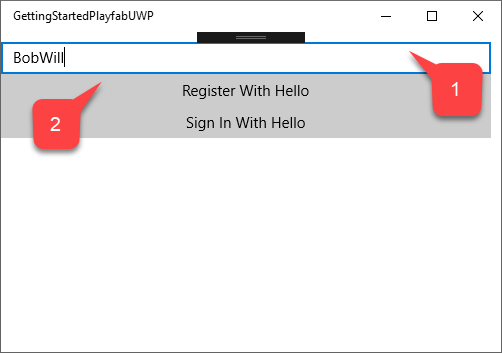
애플리케이션을 실행하려면 다음을 수행합니다.- 사용자 이름을 입력합니다.
- Register With Hello 버튼을 선택합니다.
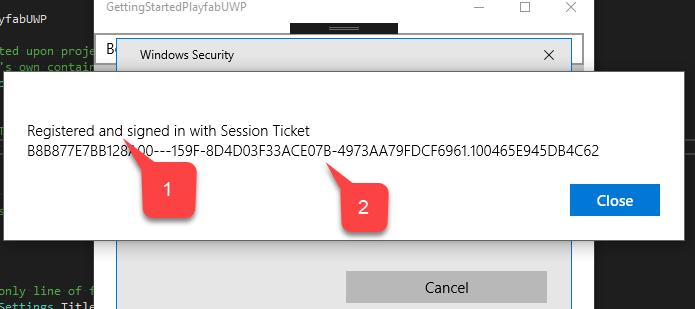
- ID가 확인되면 계정이 Registered and signed in되었다는 확인 메시지가 표시됩니다.
- Session Ticket도 함께 표시됩니다.
- Sign in With Hello 버튼을 선택합니다.
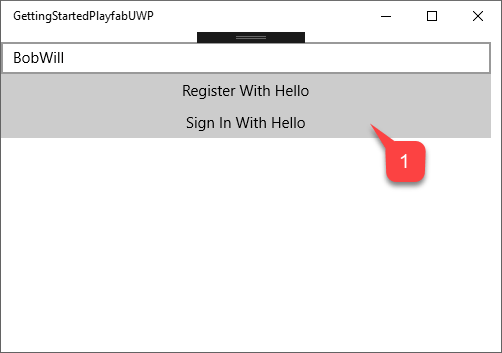
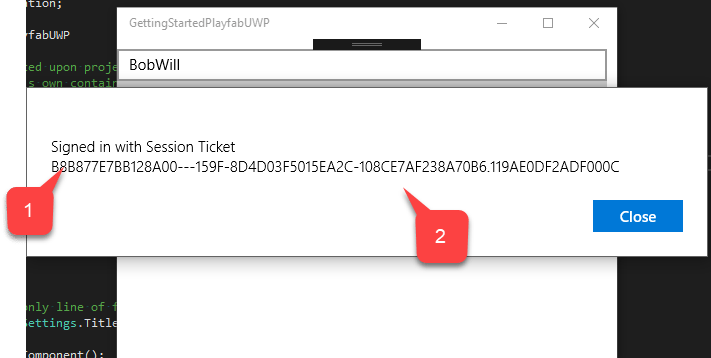
- ID가 확인되면 계정이 Signed in되었다는 확인 메시지가 표시됩니다.
- Session Ticket도 함께 표시됩니다.