
Fix for using LoginWithGoogleAccount on Play Games Plugin for Unity v0.11.x
This article describes a workaround when you’re getting errors back when using LoginWithGoogleAccount API after upgrading to a version of the Play Games Plugin for Unity. The error occurs when existing players didn’t migrate to use LoginWithGooglePlayGamesServices after you’ve upgraded Play Games Plugin for Unity to a version greater or equal than v0.11.x. The reason is because Google removed the possibility of adding extra scopes on plugin versions greater or equal than 0.11.x. This workaround should be considered as a fallback alternative since having to sign-in through the browser could affect player’s experience.Before we start
Following these high level steps to fix authentication when using the newest version of the plugin.- Manually calling the Google OAuth2 APIs
- Perform the player’s auth in a browser tab
- Get a redirection auth code back to the game using Android deep linking.
Recommendation
While you’re still using version 0.10.x of the plugin, migrate your users to use LoginWithGooglePlayGamesServices API. Use the following steps as a fallback method for the remainder of your players after upgrading to version 0.11.x or later of the plugin.Fix Steps
-
Add Android intent to your Game using Deep Linking. (Steps adapted from Unity - Manual: Deep linking on Android (unity3d.com))
a. In the Project window, go to Assets > Plugins > Android.
b. Create a new file and call it AndroidManifest.xml. Unity automatically processes this file when you build your application.
c. Copy the following manifest sample into the new file, update the data element with your app’s URI and save it. For more information on how to build a proper data tag, see this article.
d. Make sure the autoVerify property exists on the intent-filter tag.
- In order for deep linking to work, starting in Android 12, Google is now requiring developers to host an assetlinks.json file in a well-known location to successfully redirect to your app. For example, if your redirect URI is https://mytestapp.com/path1/subpath, you should host a valid assetlinks.json file in https://mytestapp.com/.well-known/assetlinks.json, otherwise deep linking doesn’t work and you don’t get redirected back to your app to continue. For details on how to create an assetlinks.json file see Verify Android App Links.
-
Add Deep Linking processing to your Game. (Steps adapted from Unity - Manual: Deep linking (unity3d.com)).
-
Add some code to launch a browser to the Google OAuth2 API and let the player sign-in via the browser. If the player is already logged in on their browser the transition is seamless, otherwise they need to input their credentials.
The redirection URI must match with the Android intent filter we added in step 1. So, when the user finishes authentication, the browser navigates to that redirect URI and the browser should ask the user if they want to navigate back to the application.
-
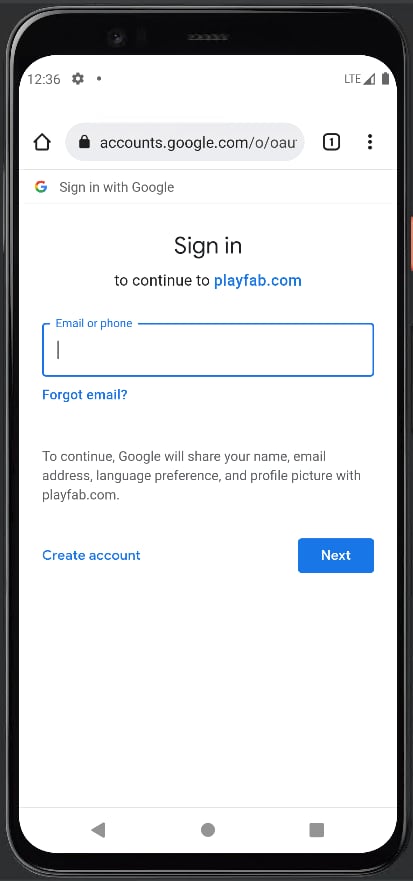
Now, you should be ready to test this out. So, when you trigger the auth you should get a browser open and user must sign-in accordingly. Unless browser data is deleted, this step should be a one-time process.
-
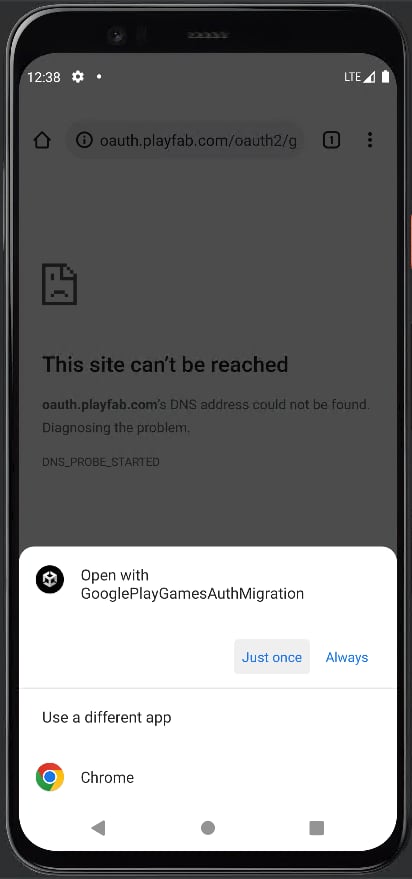
After the user completes the authentication, the browser will ask on which application should open the redirect URL.
-
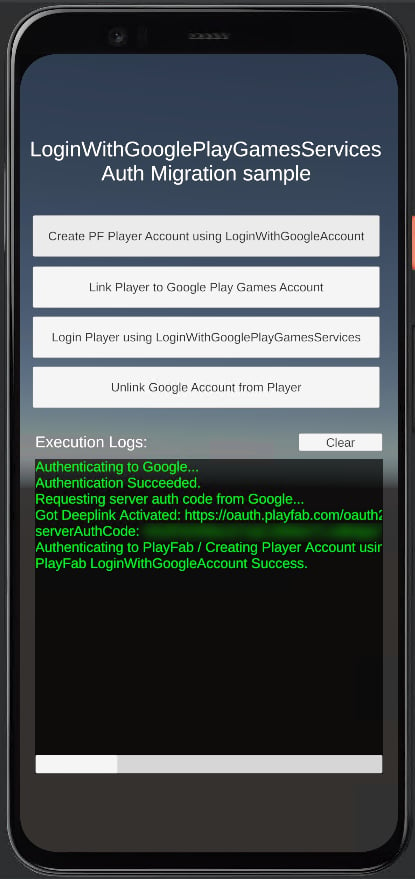
This action navigates back to our application and we can get the code from the query parameters on the redirect URL and proceed to call LoginWithGoogleAccount.
- Lastly, we recommend using this method as a fallback alternative for any users that couldn’t be migrated using the migration steps.