
Requirements
You’ll need:- A Google account for testing.
- A Registered
[PlayFab](https://developer.playfab.com/)title. - Familiarity with Login basics and Best Practices.
- At the minimum, a server with a valid domain name to act as a static HTML file. Consult the Running an HTTP server for testing tutorial for information on how to set one up.
Server and domain
This guide requires a server with a valid domain to follow. If you don’t have a registered domain and remote web server yet, follow our Running an HTTP server for testing tutorial for information on how to set one to run a local web server with a valid domain name. Throughout this guide, we’ll assume your domain is[http://playfab.example](http://playfab.example).
Registering a Google API project
Start by navigating to the Google API Console:- Navigate to CREATE PROJECT and select it.
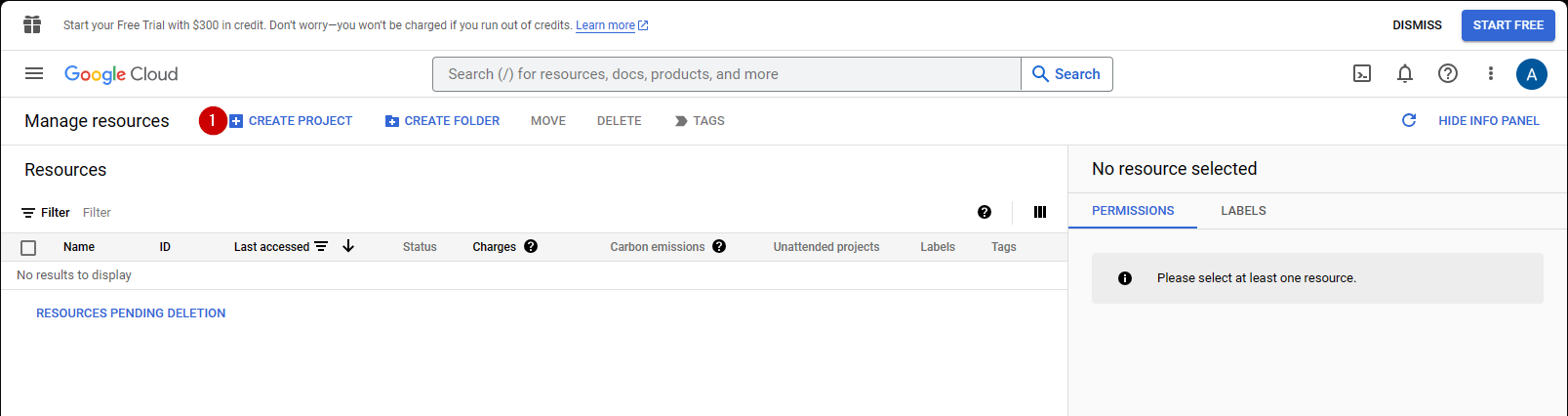
- Fill in the field under Project Name.
- Select the Create button.
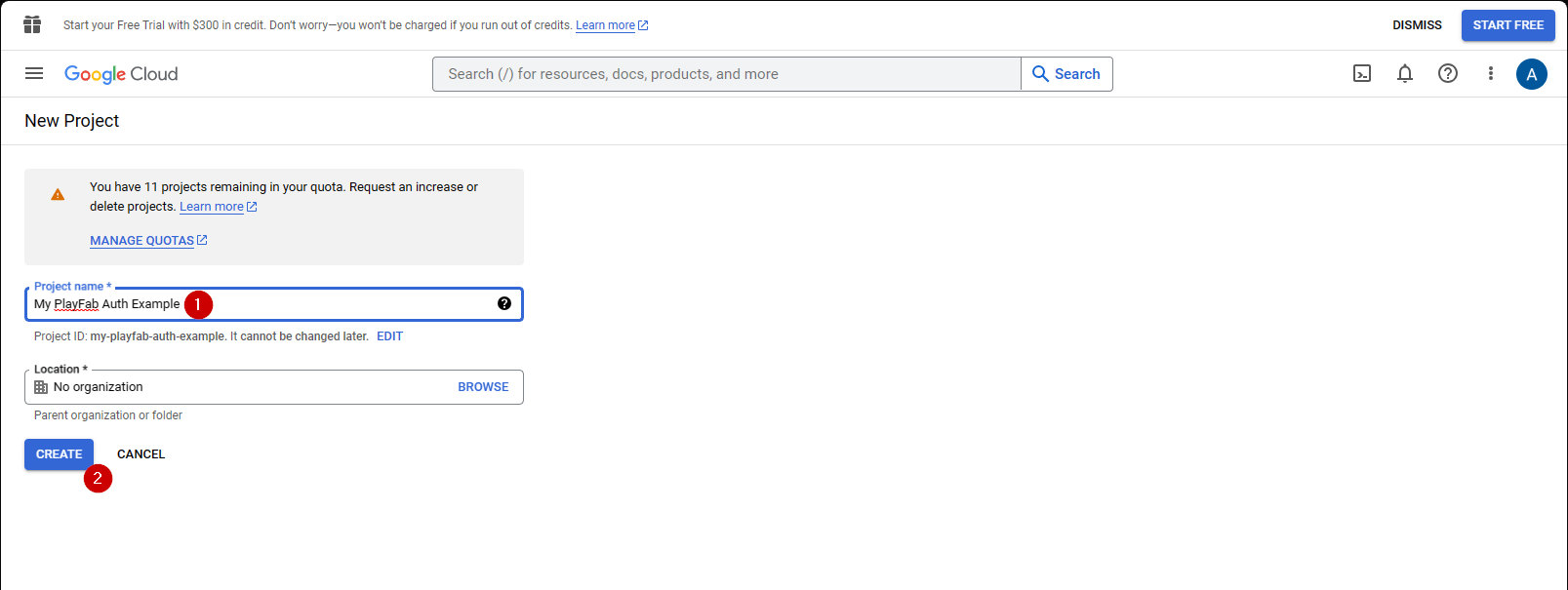
It’s normal for API Manager to take 10-20 seconds to generate the project.
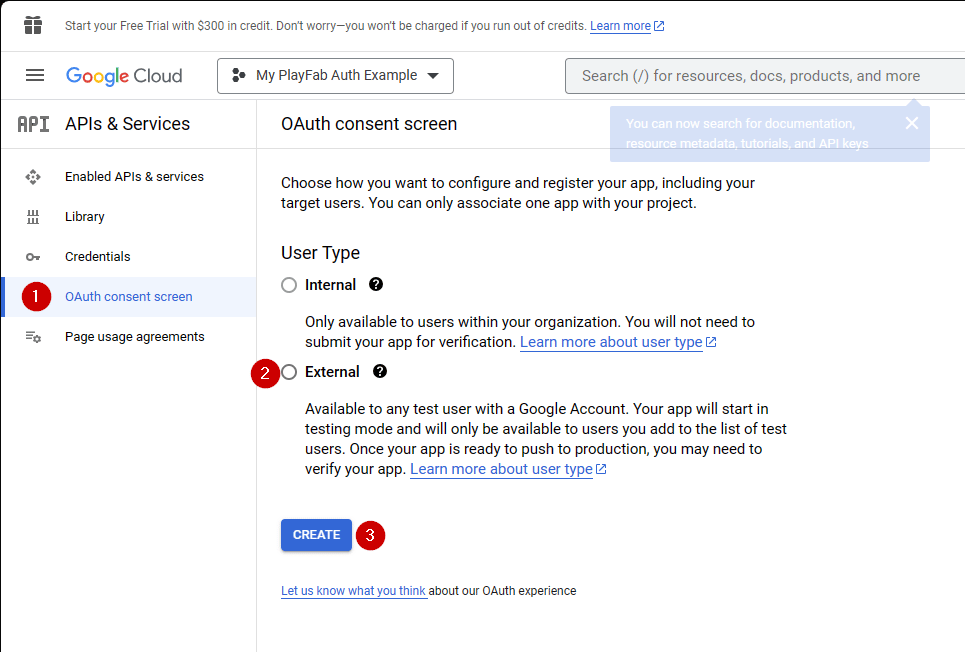
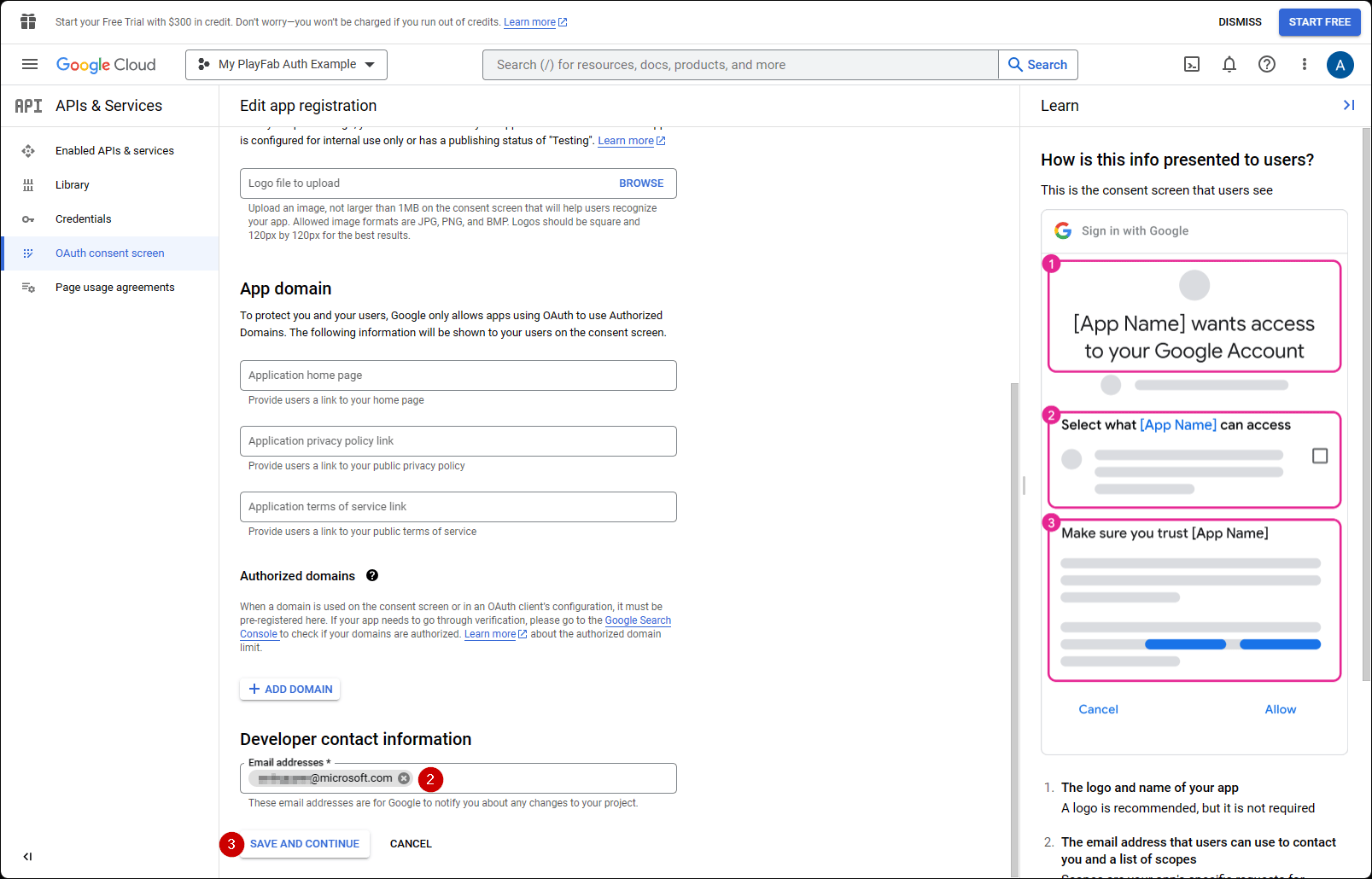
- Navigate to the OAuth consent screen.
- Select External under User Type
- Then select Create.
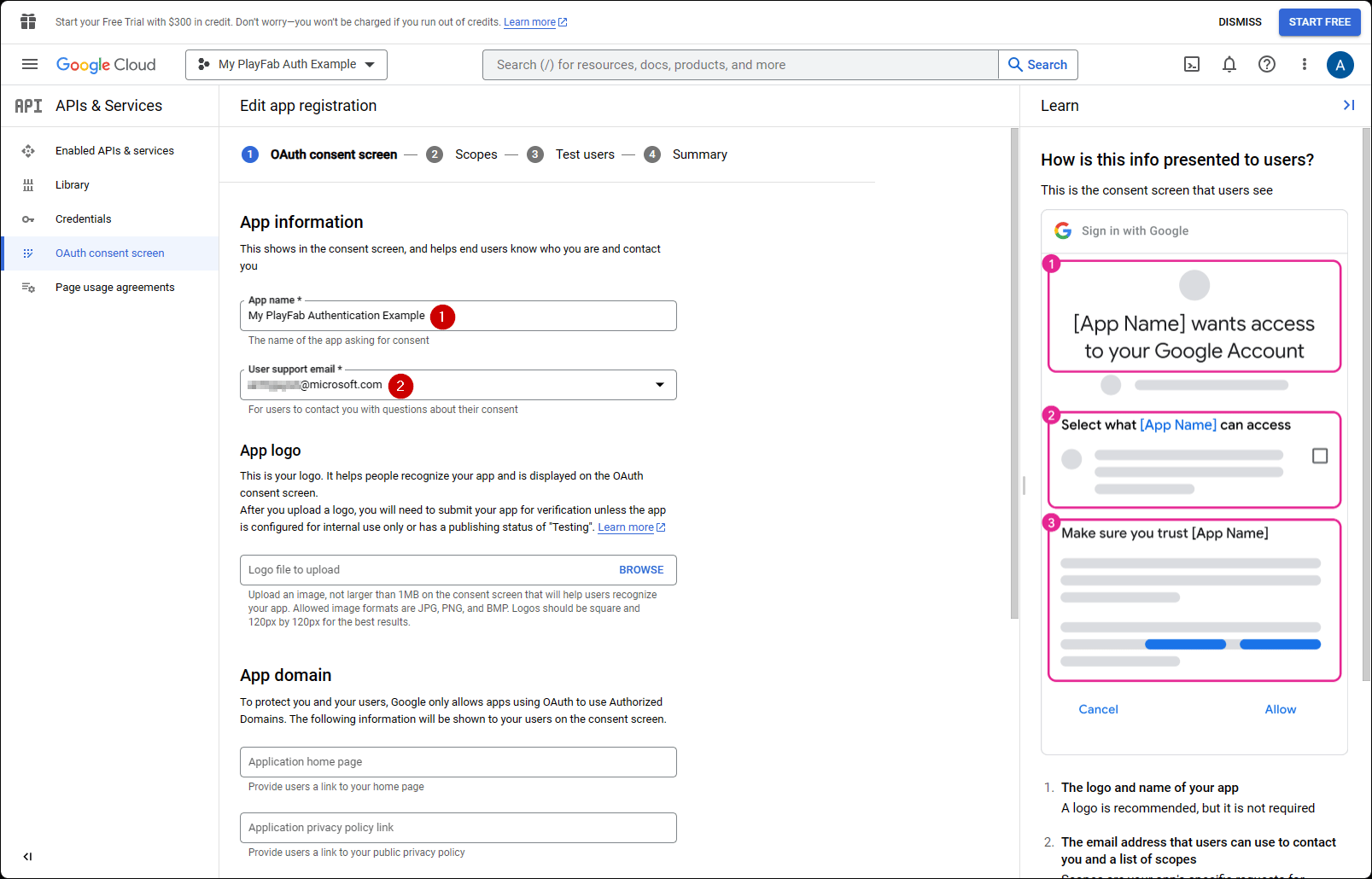
- Fill out an App Name
- Make sure there are emails for user support email and Developer Contact Email
- Then select SAVE AND CONTINUE
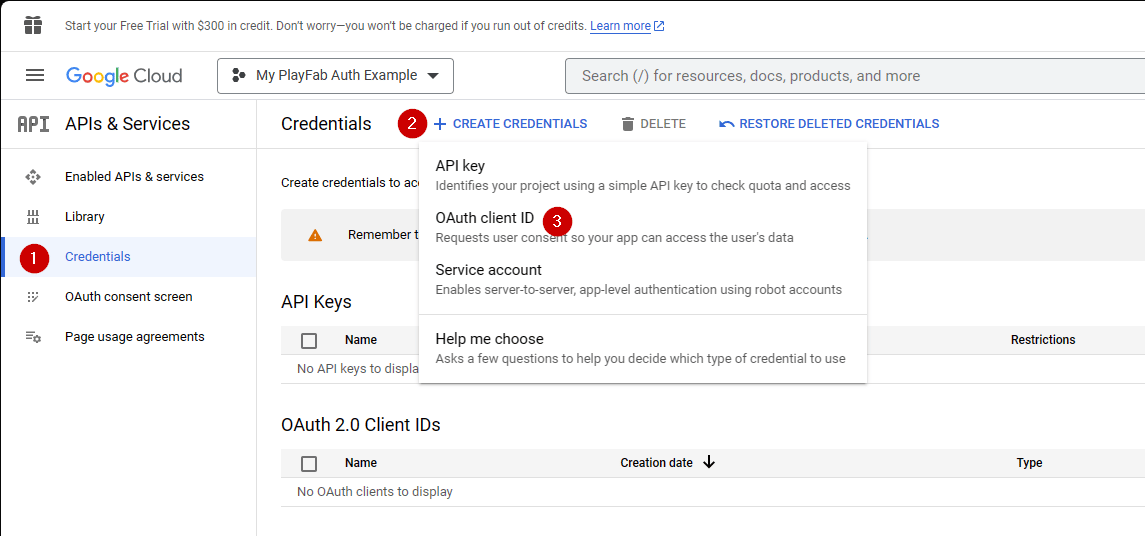
- Next, navigate to Credentials.
- Select Create credentials.
- Then select OAuth client ID.
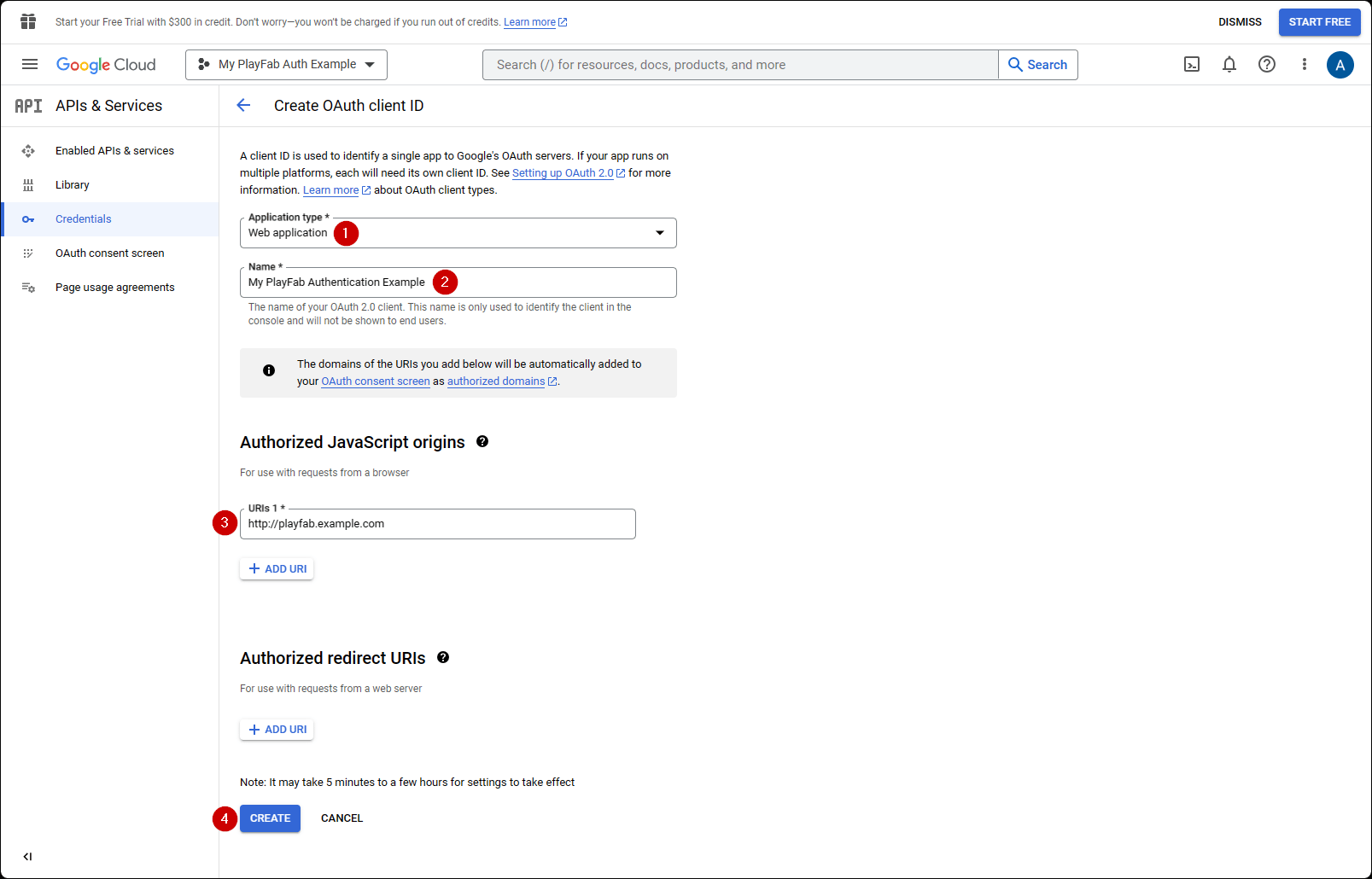
- Select Web Application as your Application type.
- Give your application a Name.
- Add your domain to Authorized JavaScript origins -
[PlayFab](http://playfab.example.com)in our case. - Finally, select the Create button to commit your changes.
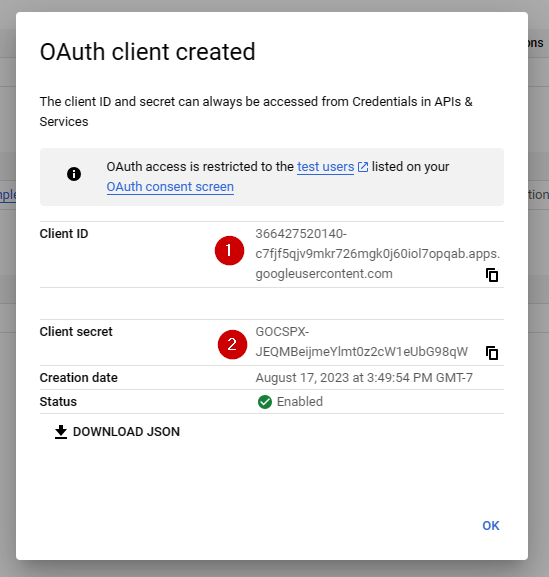
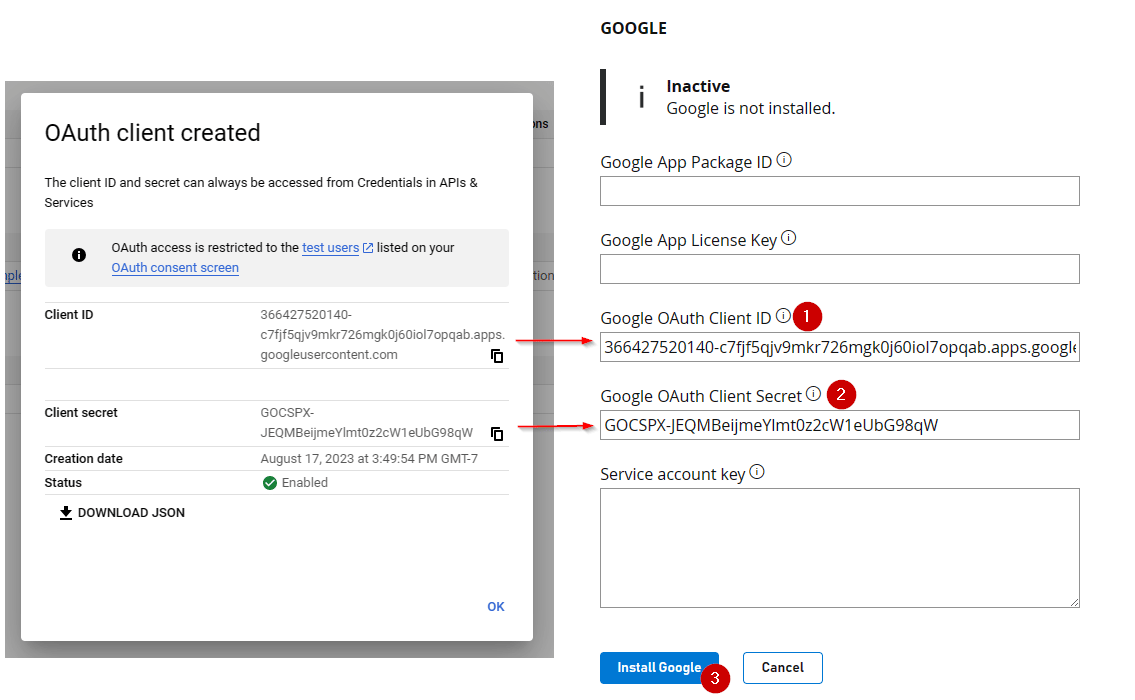
- The client ID
- The client secret.
Be sure to copy and save these values in a safe place that is easily accessible, as they’ll be used in the authorization process shown later in this tutorial.
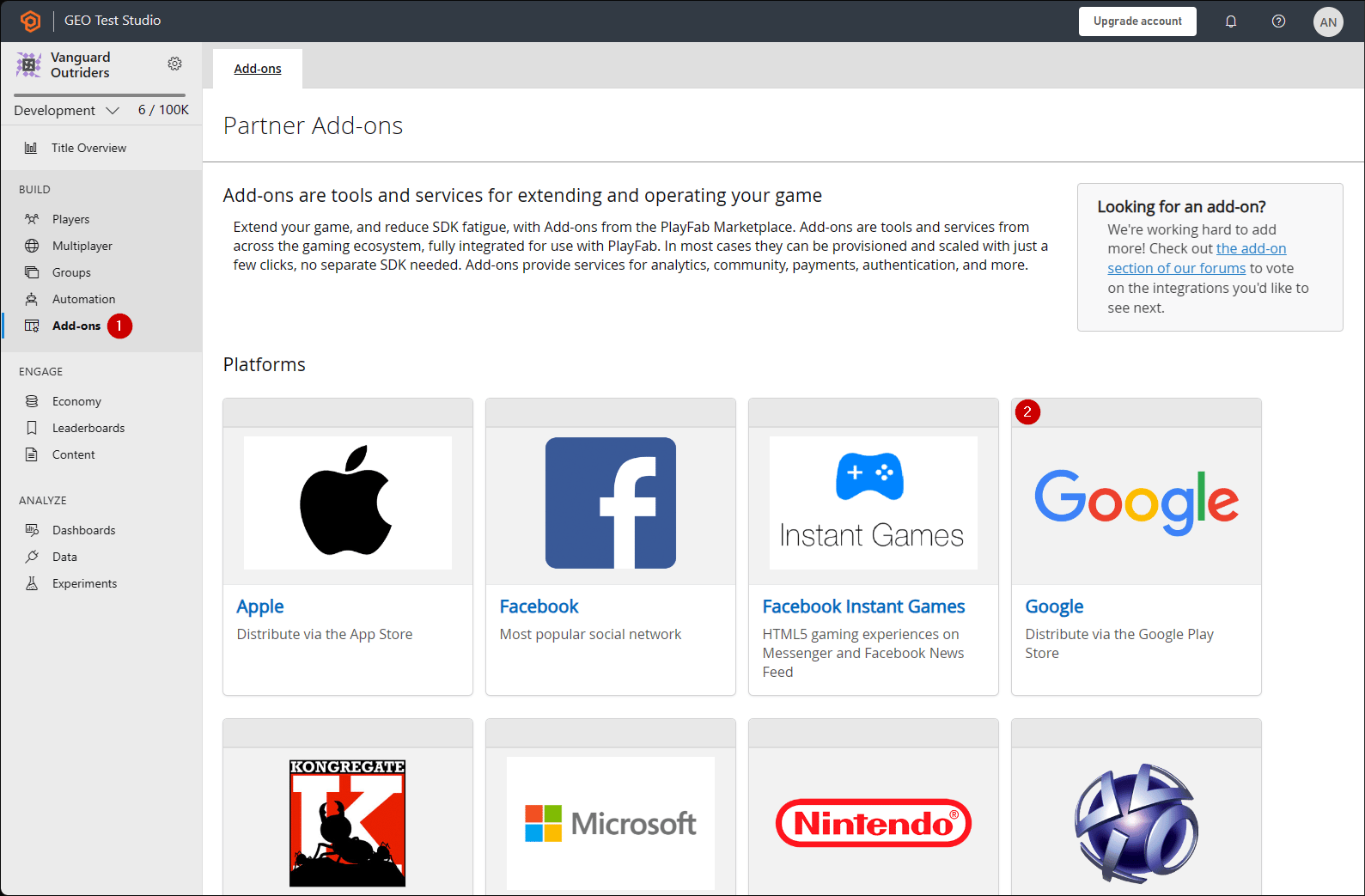
- Navigate to Add-ons in the menu.
- Locate and open the Google Add-on icon/link.
- Fill in the Client ID.
- Fill in the Client secret.
- Then select the Install Google button.
As of July 2017, Google API Manager has a bad habit of not hooking the Allowed JS origin domain properly. If you receive the following error: “idpiframe_initialization_failed”, details: “Not a valid origin for the client: somedomain.com…” Remove the credentials and recreate them. There’s no need to delete the entire project - just the credentials.
Testing using an access token
In this example, we show how to test the LoginWithGoogleAccount API using the classic access token approach. Use the HTML code provided below for your testing.Make sure* to replace
YOUR_CLIENT_ID and YOUR_PLAYFAB_TITLE with your own values.the AccessToken param is missing in the LoginWithGoogleAccountRequest object in the TypeScript typings files. If you are using TypeScript with the Node SDK, you can create a custom type
interface LoginRequest extends PlayFabClientModels.LoginWithGoogleAccountRequest { AccessToken: string; } and cast the type when using the API PlayFabClient.LoginWithGoogleAccount( { AccessToken: accessToken, CreateAccount: true, } as LoginRequest, onPlayFabResponse);The sample below uses the Google Sign-In platform library. According to the Google Identity public documentation site, the Google Sign-In JavaScript platform library for Web will be deprecated March 31, 2023. This sample won’t work for newly created Google clients moving forward - refer to the prior code sample, which uses the newer Google Identity Services library!
http://playfab.example in our case).
- Once the page opens, select G Signed In, and follow the general Google authentication flow.
- When this is finished, the script will try to authenticate on the PlayFab side and output the result.
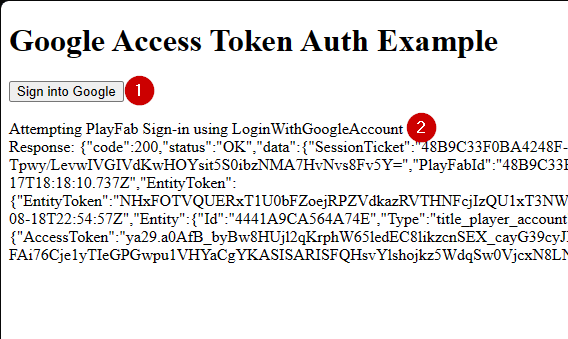
If you already have a Google authentication session running, you won’t have to select G Signed In. Everything will happen automatically.