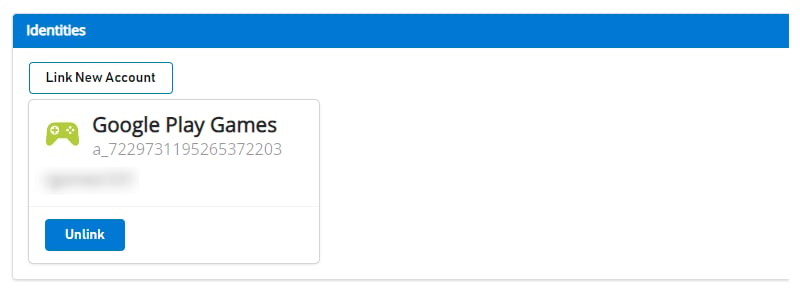
LoginWithGooglePlayGamesServices API Migration Procedure
The migration consists of switching to LoginWithGooglePlayGamesServices since Google is encouraging developers to migrate to this way of authentication. After migrating the players, there will be no dependency on LoginWithGoogleAccount API and developers should be able to upgrade to the latest plugin version. For more information, see Google Official Documentation.High Level Steps
- Choose the right version of “Play Games Plugin for Unity”.
- Initialize Play Games Platform and Authenticate user.
- Login into PlayFab using LoginWithGoogleAccount.
- Link your Google Play Games profile with PlayFab Player account.
- Verify user can log in using LoginWithGooglePlayGamesServices API.
- (Optional) Unlink your Google Account profile from the PlayFab Player account.
Migration Steps
Choose the right version of “Play Games Plugin for Unity”
Newest versions of the plugin don’t work for migration since Google isn’t allowing to request extra scopes anymore, so PlayFab’s LoginWithGoogleAccount API no longer works. These migration steps were tested and documented using version 0.10.14 of “Play Games Plugin for Unity”, which can be found here: playgameservices/play-games-plugin-for-unity at v10.14 (github.com) For plugin installation and configuration steps, refer to plugin’s READMEInitialize Play Games Platform and Authenticate Player
Refer to Configuration & Initialization Play Games Services section from README and request “profile” scope as part of the PlayGamesClientConfiguration.Login into PlayFab using LoginWithGoogleAccount
Log in to existing Player’s account using LoginWithGoogleAccount Authentication API. In order to login successfully, you need to provide a Server Auth Token, which can be requested through GetServerAuthCode method.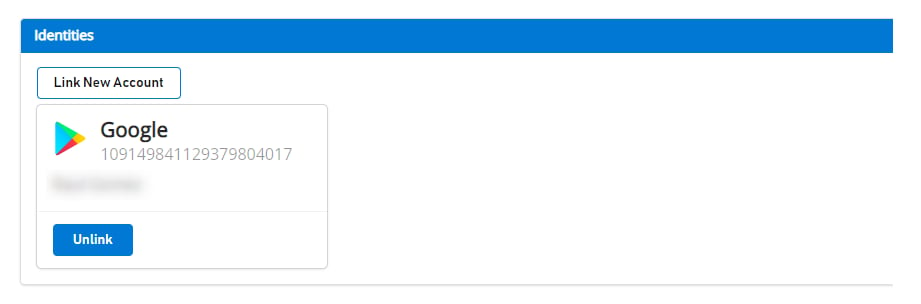
Link player’s Google Play Games profile with PlayFab Player account
In this step, you link the player’s Google Play Games account with the existing player’s PlayFab account that was previously linked only to the Google Account.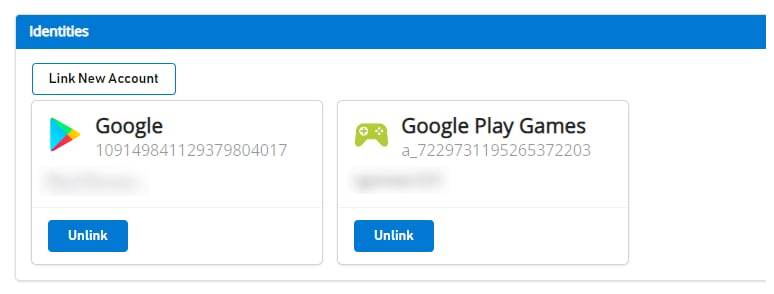
Verify player can log in using LoginWithGooglePlayGamesServices API
(Optional) Unlink your Google Account profile from the PlayFab Player account
This step is optional. However, if you already confirmed that Google Play Games Services profile is linked to the player account and that it can successfully log in to PlayFab, then you probably want to unlink any previous Google Account profiles linked to the player’s profile using UnlinkGoogleAccount API, and move to use only LoginWithGooglePlayGamesServices API.