Requirements
- A registered Kongregate account.
- Familiarity with the Kongregate Developers Guide.
- A registered PlayFab title.
- Familiarity with Login basics and Best Practices.
Setting up a Kongregate app
Kongregate requires you to upload a preview version of the app, before you gain access to the necessary API information. To do this, we need to prepare anindex.html file with the following content.
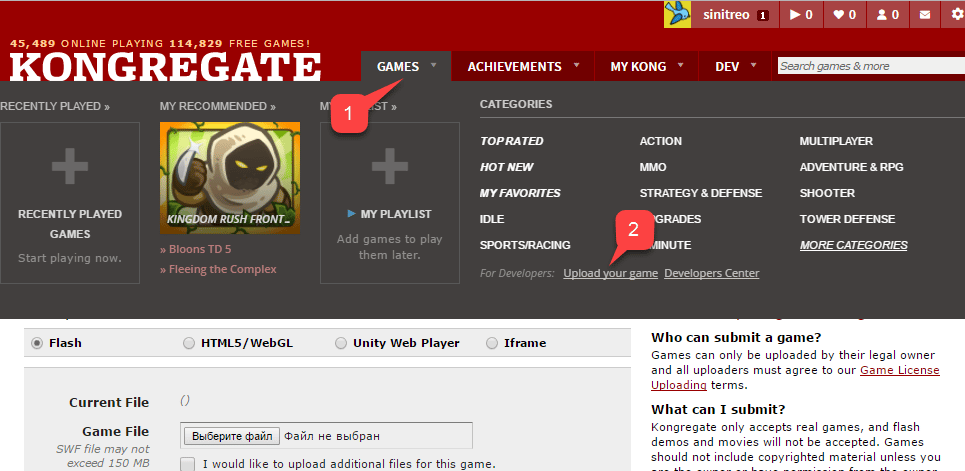
- Select the Games tab.
- Select the Upload your game button.
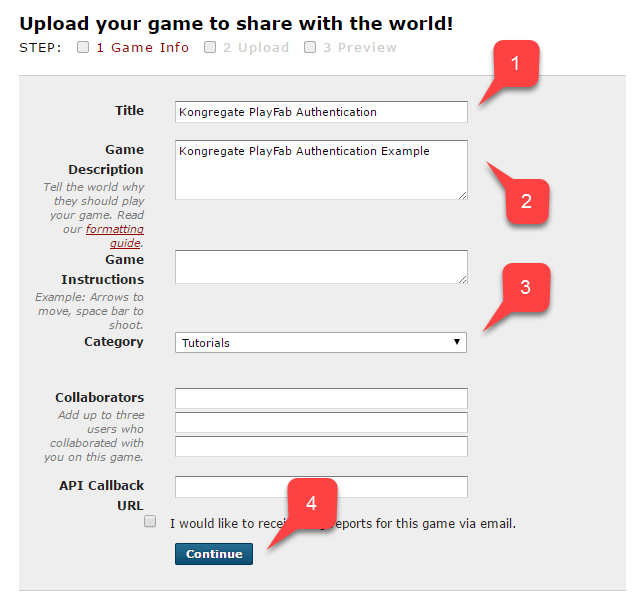
- Enter the Application Name in the Title field.
- Then enter a Game Description in the field provided.
- Select a Category.
- Submit the new app by selecting the Continue button, as indicated in the example provided below.
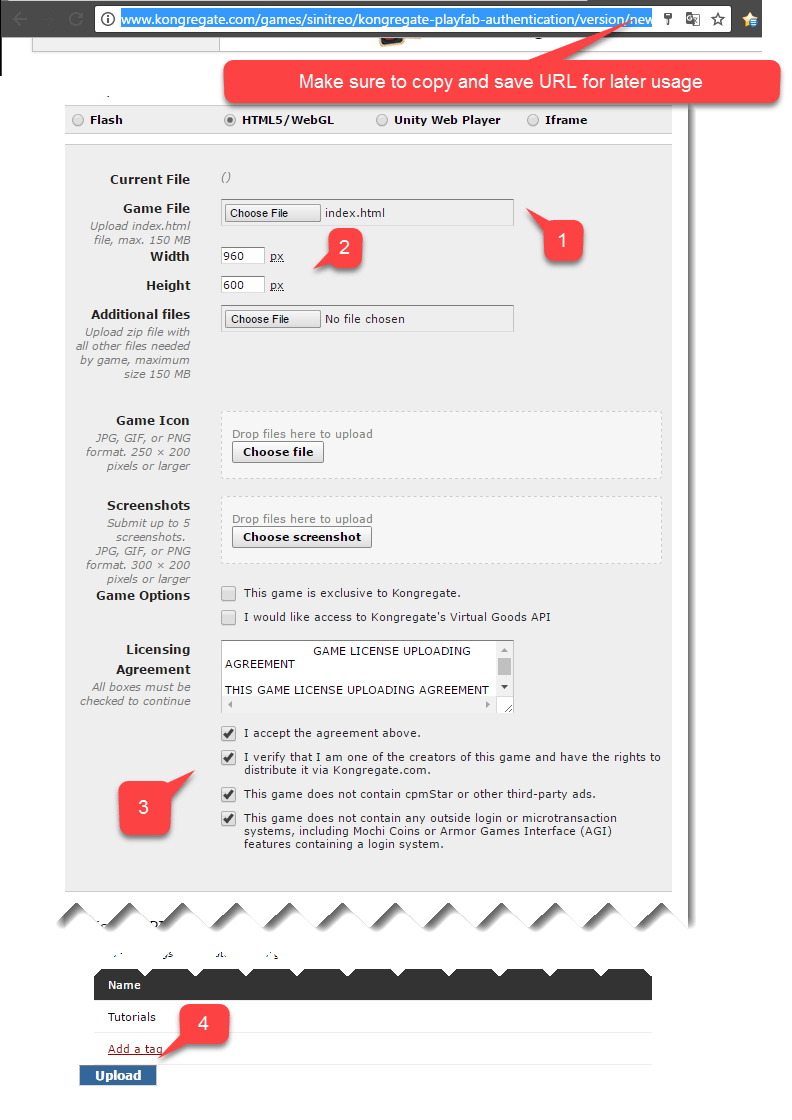
- Once this is done, select the prepared index.html file as your Game File.
- Then set up the screen size.
- Make sure to accept all the required licenses.
- Upload your application by selecting the Upload button, as shown in the example provided below.
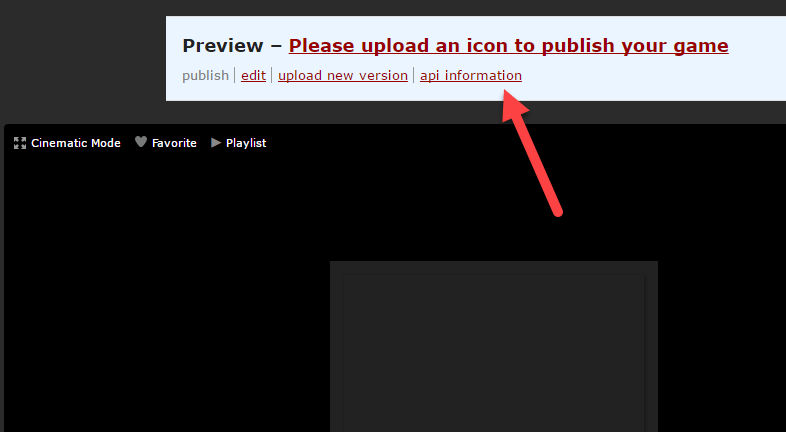
- Once the preview opens, ignore the content and open the api information link.
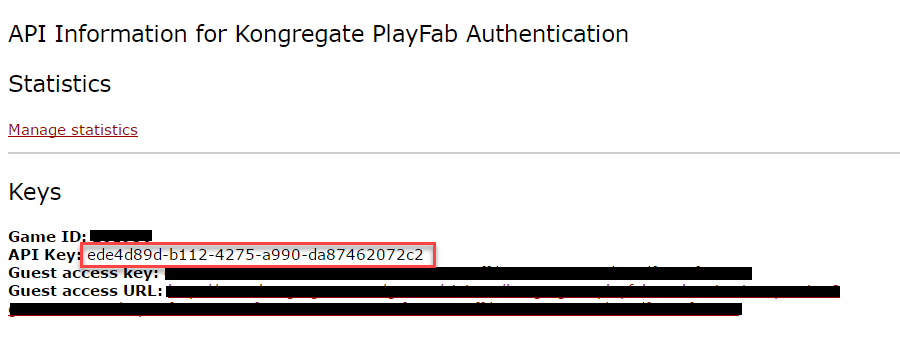
When the API Information page opens, locate the API Key and save it in a safe and easily accessible place for later use.
Configuring PlayFab title
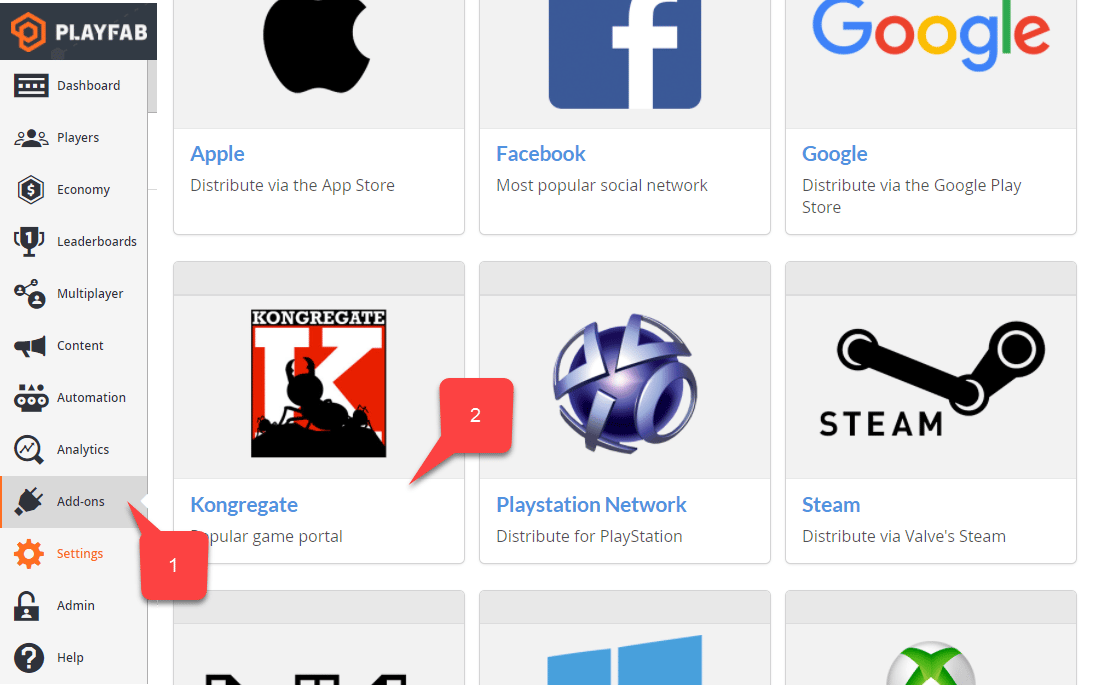
In your PlayFab title Game Manager:- Navigate to Add-ons.
- Find and select Kongregate.
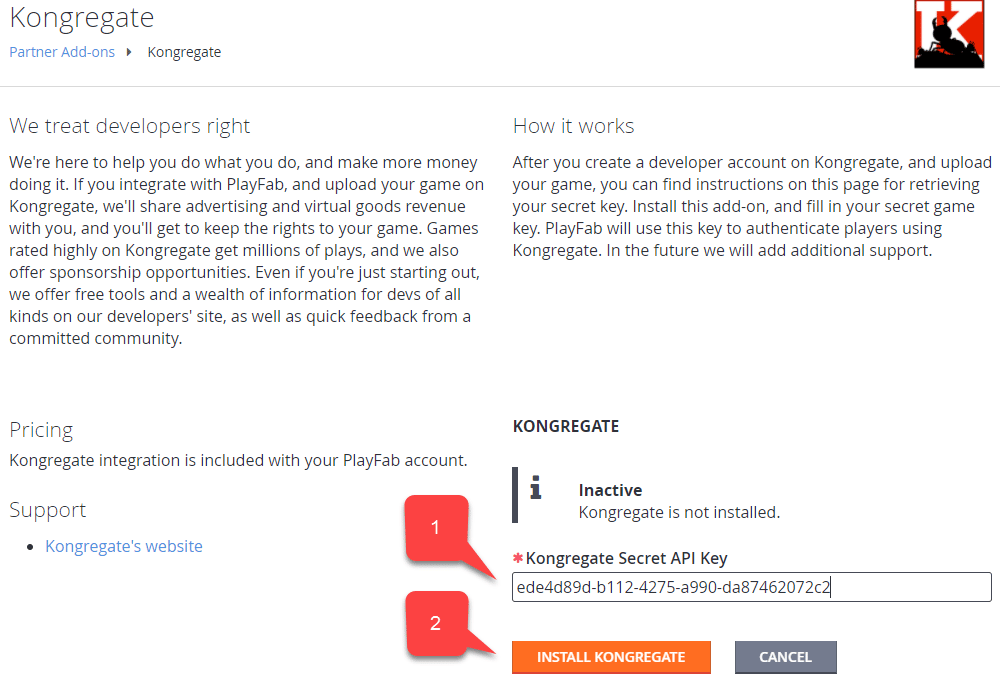
- Enter the API Key you acquired in the previous section.
- Select Install Kongregate.
Preparing some code
Use the example code shown below to populate theindex.html for your game.
Testing
Remember that URL we asked you to save in a safe and accessible place a little earlier? Use it now to access your Application Upload page.- Select index.html as your Game File.
- Set up the screen size.
- Make sure to accept all the required licenses.
- Upload your application by selecting the Upload button.
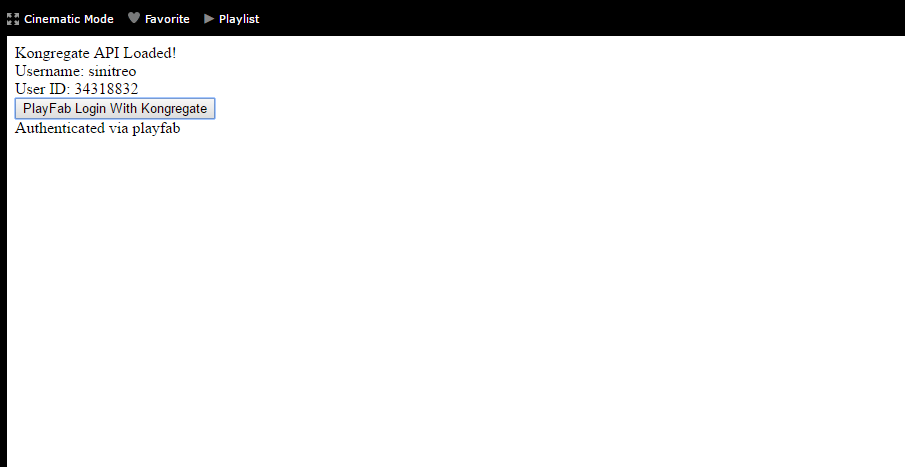
- When that has happened, select the PlayFab Login With Kongregate button.
- After a brief pause, you should receive an Authenticated via PlayFab message.
- At this point, you have successfully logged in using PlayFab and Kongregate!