Requirements
- A registered Kongregate account.
- Familiarity with the Kongregate Developers Guide.
- A registered PlayFab title.
- A Unity project with PlayFab configured for your title.
- Unity WebGL support installed.
- Familiarity with Login basics and Best Practices.
Setting up a Kongregate app
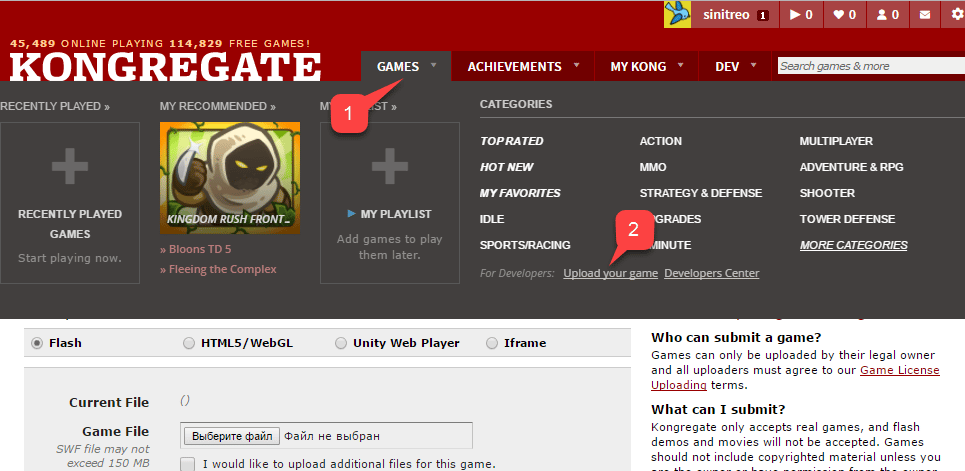
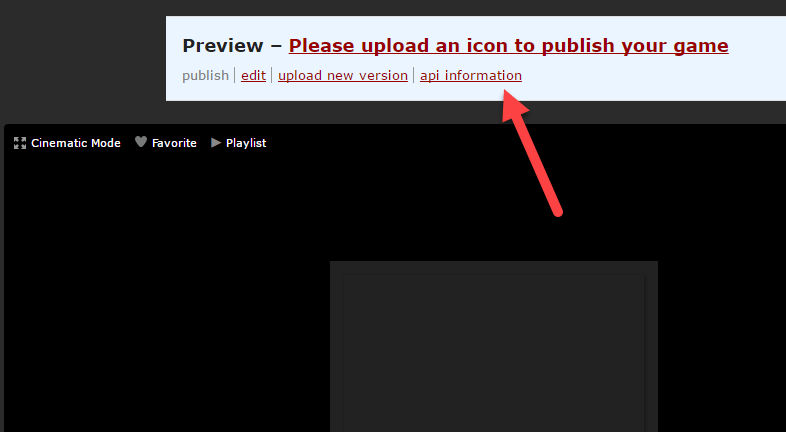
Kongregate requires you to upload a preview version of the app, before you gain access to the necessary app information. Our first step is to prepare an index.html file with the content shown below.- Select the Games tab.
- Then select the Upload your game button.
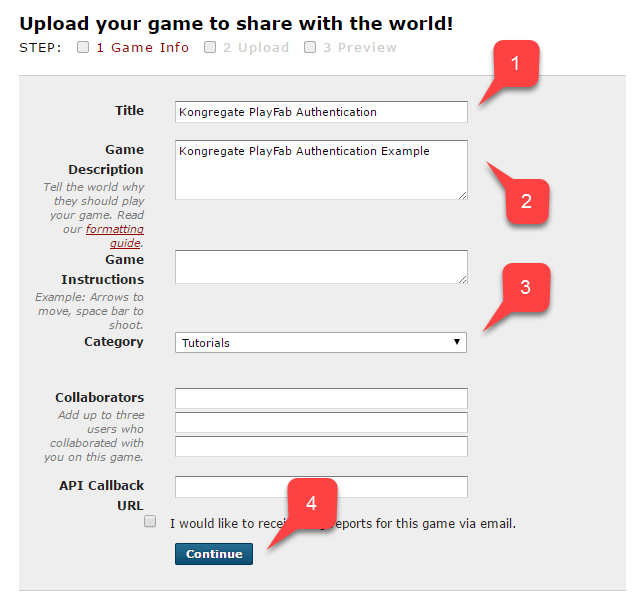
- Make sure to enter the Application Name.
- Enter a Game Description.
- Then select a Category.
- Submit the new app by selecting the Continue button.
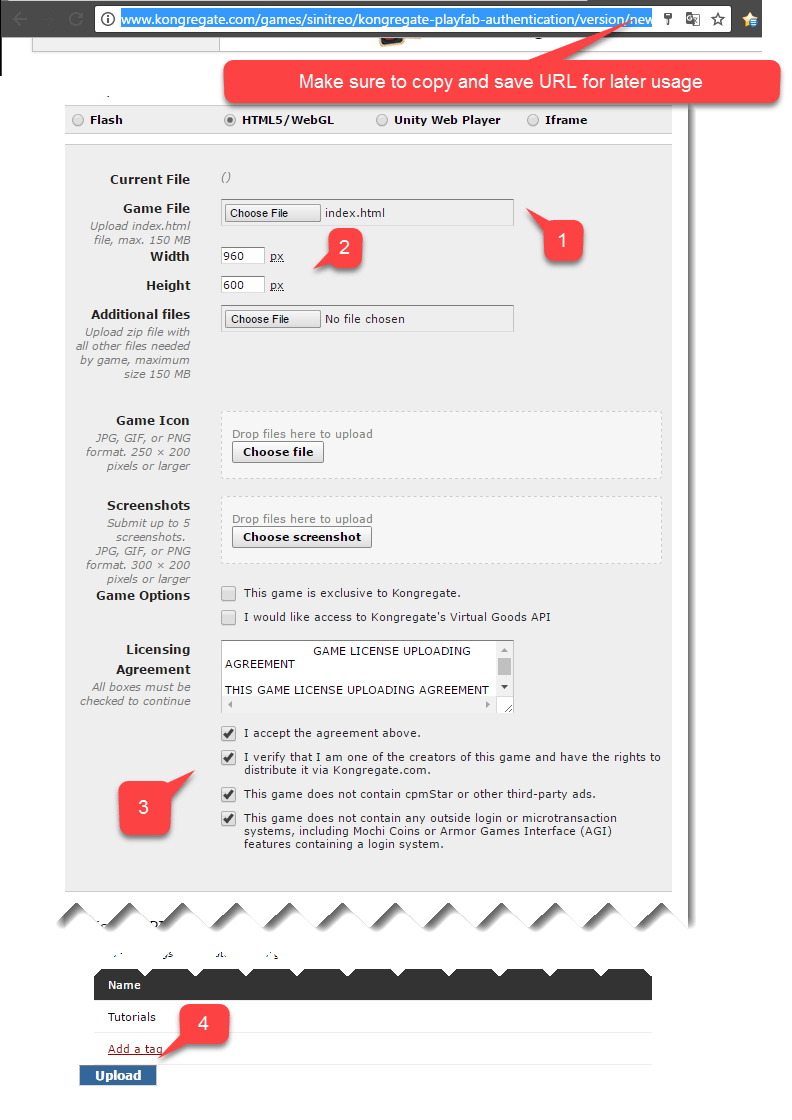
- Once this is done, select the prepared index.html file as your Game File.
- Then set up the screen size.
- Make sure to accept all the required licenses.
- Finally, upload your application by selecting the Upload button.
Configuring PlayFab title
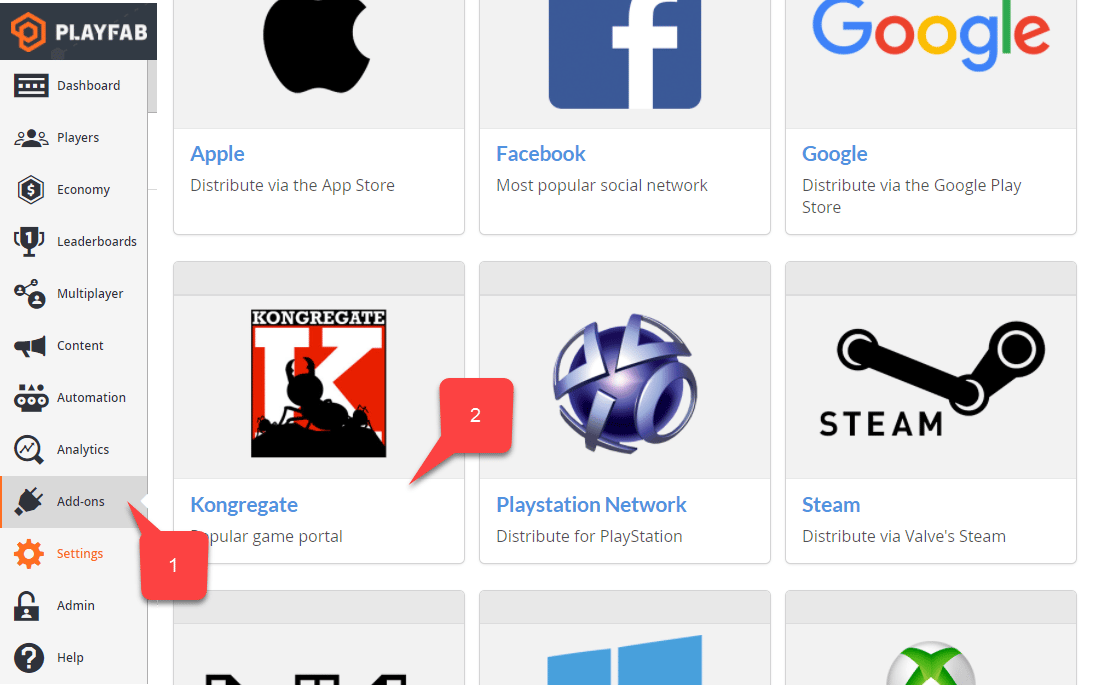
In your PlayFab title Game Manager:- Select Add-ons from the menu on the left.
- Locate and select the Kongregate icon.
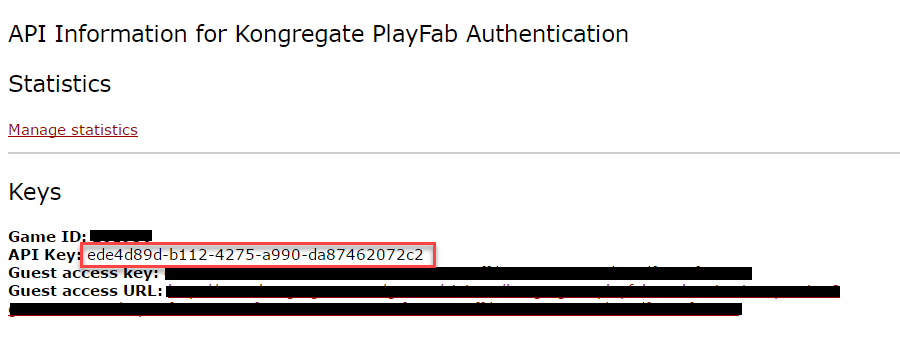
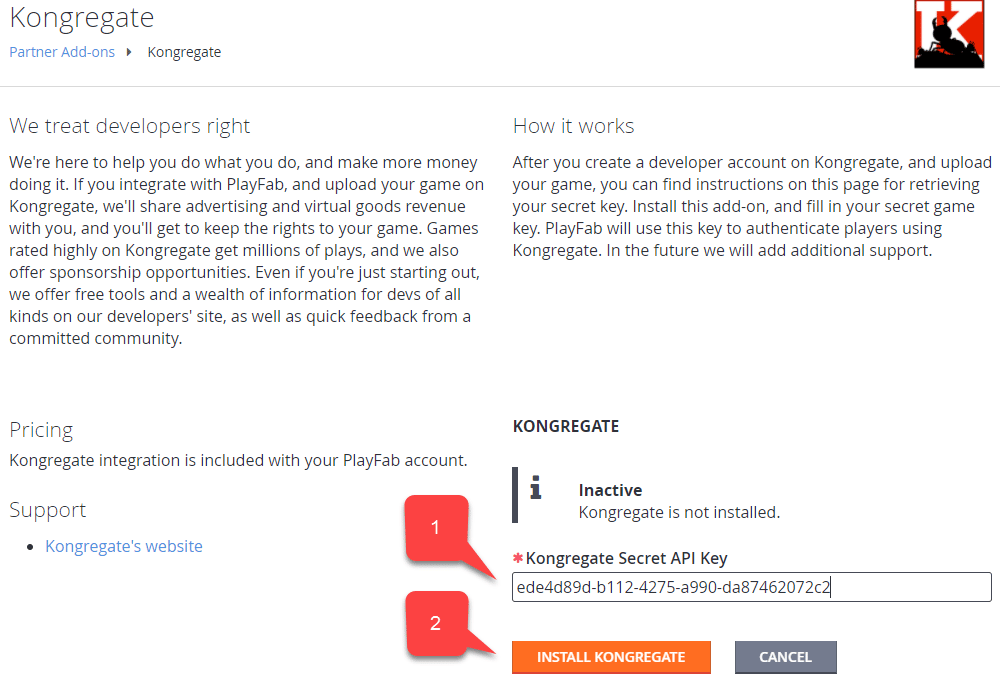
- Enter the API Key you acquired in the previous section.
- Select the Install Kongregate button.
Setting up a Unity project
Use this Unity setup checklist:- [OPTIONAL] Install the PlayFab Editor Extensions.
- Set up your
TitleIdin thePlayFabSharedSettingsScriptable Object.
- Set up your
- For Unity 5.6+, download the Kongregate Preloader WebGL Template, and place it inside the
Assets/WebGLTemplatesfolder (2). - For Unity < 5.6, download the Kongregate Preloader WebGL Template 5.5 and below, and place it inside the
Assets/WebGLTemplatesfolder (2).
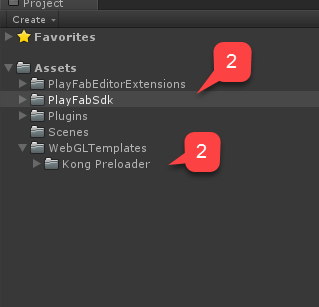
- For testing purposes, use a screen-scaling canvas with a couple of text labels.
We will only need one text label to display debug messages.
- Create an empty GameObject, and rename it to Kongregate.
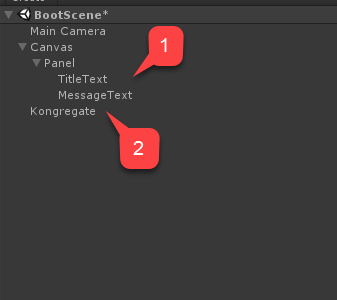
GameObject will contain a KongregateHandler component with a wired text label for debug messages.
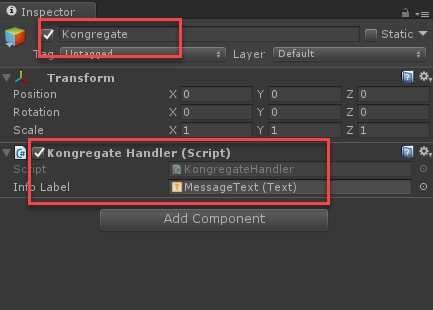
KongregateHandler component is provided below.
Testing
The only way you can truly test the integration is by uploading your prototype to Kongregate.- Open the Build window and make sure WebGL is selected from your menu.
- Then open the Player Settings by selecting the button.
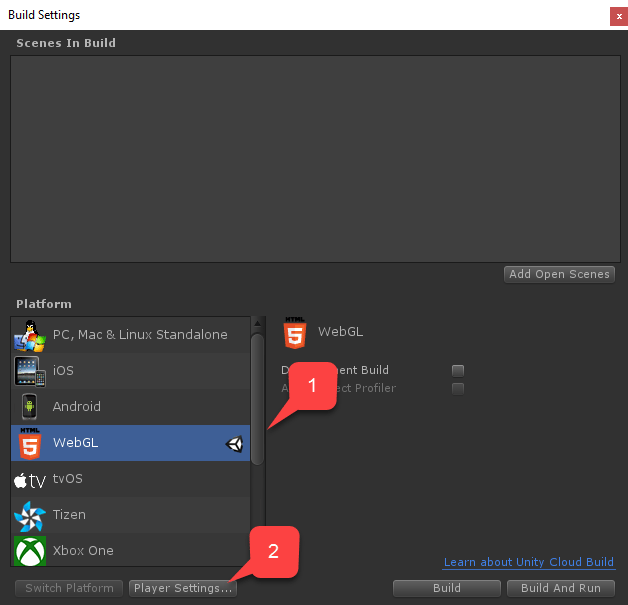
- Verify that you have the size set up correctly.
- Then select the Kongregate Preloader Template.
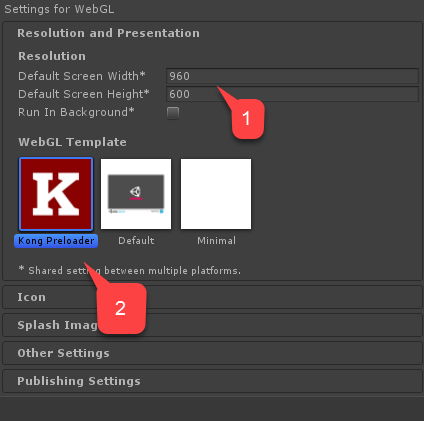
- You will end up with index.html and a bunch of other files (depending on Unity version).
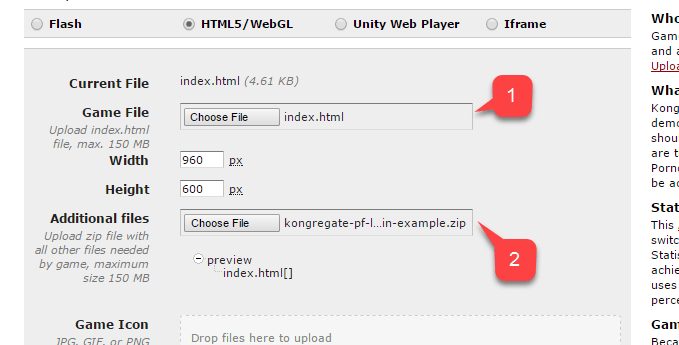
- Take all the files except index.html and place them inside a zip archive, as shown in the example provided below.

- Select index.html as your Game File.
- Then select the zip archive as Additional files.
- Accept the licenses and upload.