
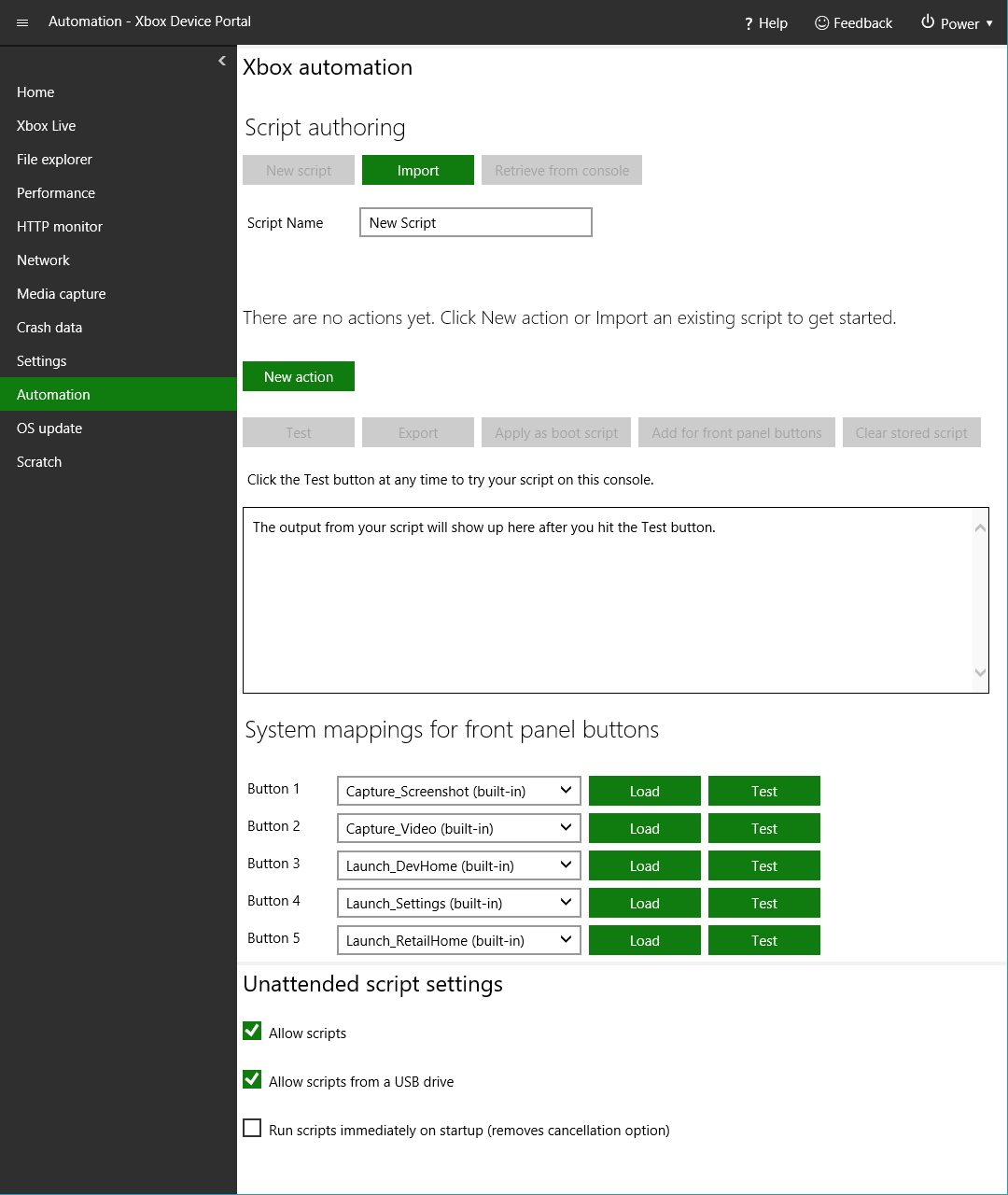
- Open the script authoring tool
- Create a new script
- Add, edit, and reorder script actions
- Export and import scripts
- Deploy and clear a boot script
- Cancel a boot script
- Invoke scripts from the XBOX One X dev kit front panel
Open the script authoring tool
The script authoring tool is included in XBOX Device Portal (Windows Device Portal on XBOX) and is hosted in XBOX Manager. To open the tool in XBOX Device Portal, go to the Automation workspace on the left pane as shown in figure 2. Figure 2. Workspaces in XBOX Device Portal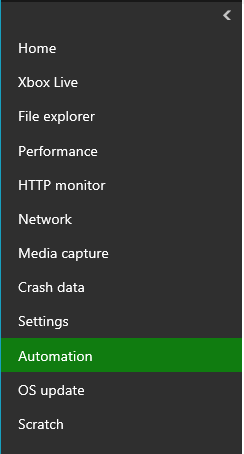
- Select Menu on the upper-left corner, and then select New workspace.
- Enter a name for the new workspace, and then select Add.
- On the new workspace, select Menu, and then select Add tools to workspace.
- On the tools list, select XBOX automation and XBOX unattended settings, and then select Add.
Create a new script
If you’re already working on a script, consider either exporting or deploying the script that you’re working on before you select New script. To create a new script, select New script under Automation or your custom workspace. This clears the current script and resets Script Name to “New Script”.CAUTION: When you go to a different XBOX Device Portal workspace, it has the same effect as selecting New script. To avoid losing your work, open your new workspace in a new browser tab.

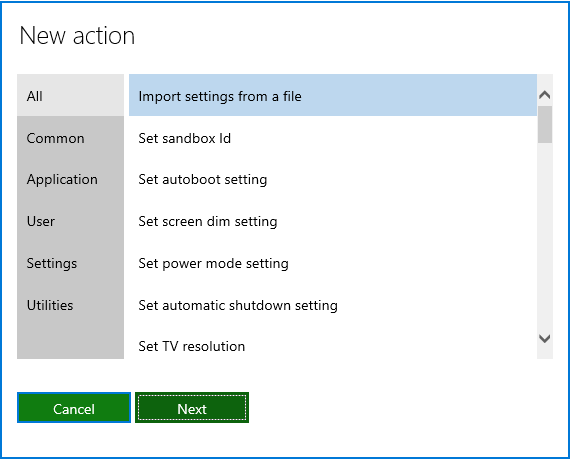
Add, edit, and reorder script actions
Script actions are individual automation tasks that you can combine to create a script. . The script editor maintains a table of actions that you’ve added. This table is blank in a newly created script. As you add new actions, new lines are added to the table as shown in figure 3. Figure 3. Actions table in the script authoring tool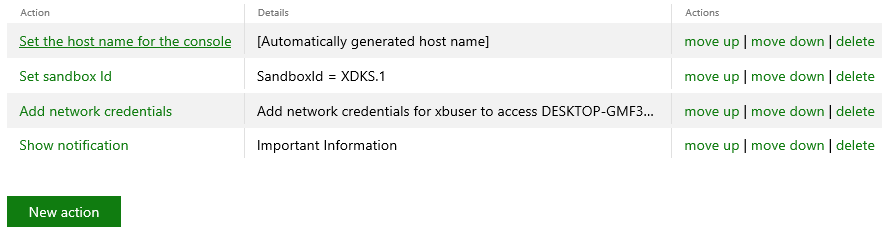
Export and import scripts
To save your script, select Export, and then save the script by using the standard file dialog box. The script is saved in a text file named “scriptname.xboxunattend”. (Note that the Export button isn’t available if the script doesn’t contain any actions.) Saved scripts can be imported and deployed later to another console or a USB drive. To edit previously exported scripts, import them into the script authoring tool. To import a script, select Import, and then browse to the .xboxunattend file that contains the script.Deploy and clear a boot script
To automatically run a script every time you restart your dev kit, import the script into the tool, and then select Apply as boot script. This copies the script to a command script named xd:\boot\boot.cmd on your dev kit. Every time that your dev kit restarts, it opens either Developer Home on the console (Dev Home) (the default for dev kits) or the retail Home screen, depending on the preferences you’ve selected, and then runs your boot script about 20-30 seconds later. To remove the current boot script from the console, select Clear stored script. This button is available whenever XBOX Device Portal is connected to a console that has a boot script deployed.Cancel a boot script
When the dev kit is restarted, the system shows the following notification, as shown in figure 5, by default before the boot script is run. Figure 5. Boot script notification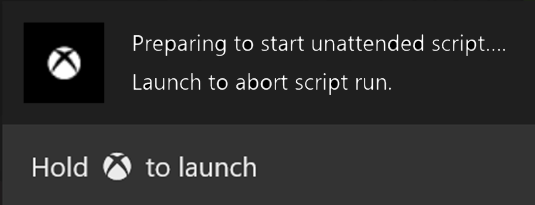
Invoke scripts from the XBOX One X dev kit front panel
The XBOX One X dev kit has a built-in front panel display and five programmable buttons. You can configure any of these buttons to perform a custom action when the button is pressed. This includes both built-in actions and custom actions that you create by using the script authoring tool. To map a script to a button on the front panel, select Add for front panel buttons in the script authoring tool to copy the script to the dev kit. Then, follow the instructions in Managing console automation to remap the button to your custom script.This feature appears only when XBOX Device Portal is connected to an XBOX One X dev kit.