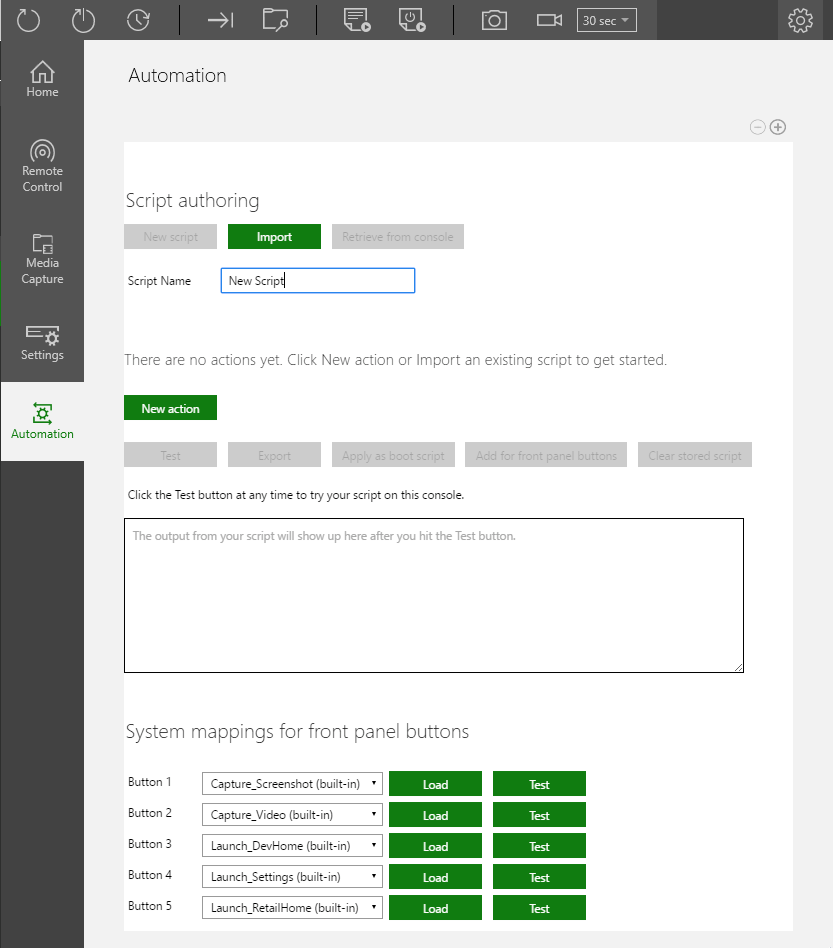
The Automation tab in XBOX Manager, shown in the following screenshot, hosts the XBOX Device Portal (Windows Device Portal on XBOX) UI for unattended scripts (and for XBOX One X Development Kits and front panel scripts). When connected to dev kits that have a front panel display, the display is available on the Automation page for remote testing and control. The Automation tab is available only when the XBOX Device Portal is enabled on your console. Screenshot of the Automation tab in XBOX Manager

Create a new script

  1. Select New script (shown as follows). Screenshot of the New script button
  2. Enter a new script name. The default name is New Script.
  3. Add a new action to the script. Select New action (shown as follows).
Screenshot of the New action button
  1. Select the action for the script from the New action window that appears (shown as follows), and then select Next.
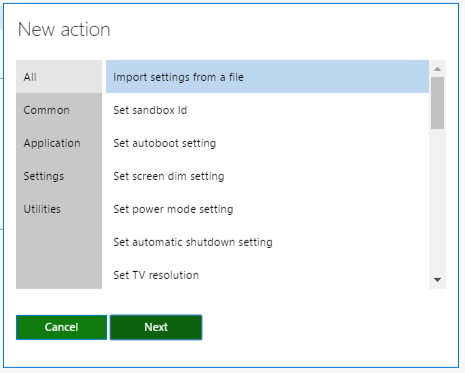
Screenshot of the New action window
  1. Set any parameters for the action (shown as follows).
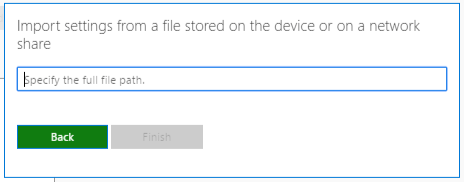
Screenshot of new action parameters
  1. Repeat steps 3 through 5 to add more actions to the script.
  2. Optionally, to set the script to launch at startup, select Apply as boot script (shown as follows).
Screenshot of the Apply as boot script button
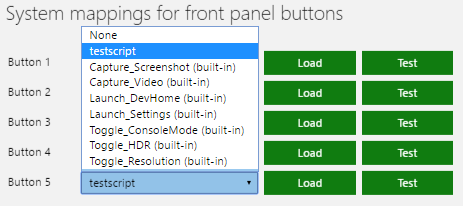
  1. Optionally, to apply the script to one of the front panel buttons, click Add for front panel buttons (shown as follows), and then select the script in the System mappings for front panel buttons section (shown as follows).

Screenshot of the Add for front panel buttons button Screenshot of the System mappings for front panel buttons section
Last modified on August 20, 2026