
Users and accounts
A user is a specific, physical person who interacts with a device. On XBOX, a user is associated with an XBOX account, which is the same account used for XBOX sign-in and Microsoft Store purchases. Multiple users can sign in to an XBOX console, and each can have a separate XBOX account (unless playing as a guest). On Windows, a user can sign in with different Microsoft accounts across multiple touch points.- A Windows sign-in session
- The XBOX app (including XBOX services enabled games)
- Microsoft Store
- Web browsers
Sharing model and policy for the XBOX device family
Customers expect the following sharing policies and behaviors established for the XBOX One and XBOX Series family of consoles. These policies apply to all games and game add-ons excluding consumables.XBOX Home console sharing
Home console (Settings > Personalization > My home XBOX), the purchaser of digital content on XBOX can share access with anyone else who signs in to the console. While other accounts use the content, the purchasing account doesn’t need to be signed in. This sharing applies to games, durable add-ons, and content enabled as part of a subscription (Ex: XBOX Game Pass). Specifically, for durable add-ons (that is, downloadable content (DLC)) obtained through Microsoft Store, a game must not determine access to the content based on the direct entitlement of the signed-in account. Instead, the game must rely on the XstoreAcquireLicense APIs to enforce access to a durable as the licensing APIs report proper sharing access. Ownership of consumable add-ons is entirely per account and isn’t shared.XBOX digital content on any console
When signed in and connected to the internet on a console that isn’t the user’s Home Console, a roaming license is obtained. All users currently signed into that console have full access to the purchaser’s library of digital games and durable content. When the purchaser’s account signs out, all roaming licenses for their content become invalid and unusable by other accounts on the device. If the purchaser isn’t signed in and someone who isn’t an owner attempts to launch the title, the system shows the following message.Do you own this game or app? If you have a game disc, insert it now. If you purchased this online, make sure you are signed in to XBOX services. If you do not have the rights to play it, you can purchase it at the Microsoft Store (0x803f8001).A link to the Microsoft Store page of the title is provided to the user to purchase their own entitlement. If a user is playing a title they don’t own and the owner account signs out, the license is lost. The system terminates the game and displays the “Do you own this game or app?” message.
XBOX Game Pass sharing
The multiplayer and social benefits of XBOX Game Pass are shared with any other XBOX accounts that are signed in to the Home console without requiring the XBOX Game Pass subscriber to be signed in. On other consoles, these benefits are shared with any XBOX accounts, if the subscriber is signed in and connected to XBOX services.Consumables sharing policy
Consumables aren’t shared between users and are tied to only the purchasing account. Some monetization models and incentives for premium bundles can be implemented by using consumables because those items are intended to be granted to only the purchaser and not shared with others. Examples include double XP weekends; exclusive cosmetic items; or one-time, in-game resource allotments. Some free-to-play game models also focus on per-user monetization for upgrades and items because there’s no up-front cost to play the game for any user. The recommendation for implementing a single-purchase per-user product is offering in-game products purchased with virtual currency (consumables). See Consumable-based ecosystems.Windows sharing policy
Games on Windows, regardless of whether they’re configured for XBOX Play Anywhere, are governed with specific licensing behavior for Windows apps. These terms affect both the installation and the ability to license—that is, concurrent execution—of the content. There are two main behavior profiles for paid content: Windows default and restrictive licensing. Following are the different licensing behaviors for sharing on Windows. Default: All accounts on up to 10 devices can launch the title concurrently. Restrictive licensing:- Offline PC: All accounts on this device can launch the title.
- All other PCs: The purchasing account must be signed in to the Microsoft Store app to launch the title, and only one instance of the title can be active at one time on any other PC.
Windows default
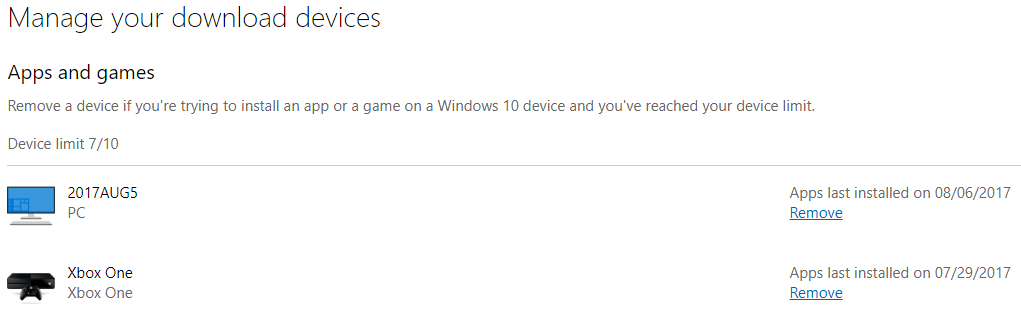
Default installations
By default, paid apps can be installed on up to ten Windows devices. Installation requires the purchasing account to be signed in to Microsoft Store. This limitation is on the account, not the title. When the purchaser signs in to a new device and downloads content onto it, the device is added to the account’s download device pool. If the account attempts to download the content to another device after ten active installs, a message informs them to remove a device from the pool before proceeding. The notification in the title’s product details page indicating the title follows this behavior can be seen here:Installation Get this app while signed in to your Microsoft account and install it on up to ten Windows devices.The XBOX console is included in the device pool. This pool can be viewed and managed on accounts.microsoft.com as shown in the following screenshot.
Default license concurrency
After the title is installed on the device, it can be launched without restriction. The default license model allows the title to run on up to 10 devices at a time. It doesn’t matter whether the purchasing user is signed in to Microsoft Store, the XBOX app, or anywhere in Windows. Therefore it’s possible for 10 unique XBOX users to play under the single purchaser’s license. But single-point of presence (SPOP) is enforced so that each XBOX account can only be running one game instance at a time. A single XBOX account can’t be signed into the game concurrently across two devices.Restrictive licensing
Restrictive licensing installations
In contrast to the Windows default, publishers can request the title be configured with the restrictive licensing policy. This policy adds concurrency checks to limit how many devices can run the app at the same time. We recommend this policy for all non-free games. When restrictive licensing is enabled, the following message appears on the product detail page.Installation Install on your home XBOX console and a Windows PC and have access when you’re connected to your Microsoft account.The XBOX installation and sharing behavior remain unchanged as previously described in this article. On Windows, restrictive licensing means the 10-device limit is lifted. The title can be installed on an unlimited number of devices.
Restrictive licensing concurrency
Restrictive licensing imposes restrictions on the behavior of the title. Specifically, it limits the ability for multiple installations of the app to run concurrently based on a single entitlement. With titles using this model, only two Windows PC instances of the title can run at any one time. The two instances would be the offline PC’s license and the roaming license of the purchaser. The Microsoft Store app provides an option to designate a specific Windows device to be the account’s offline PC. The following screenshot shows offline permissions to manage devices.
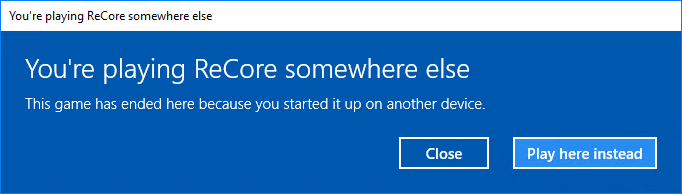
The offline PC isn’t subject to this concurrency enforcement.