
Playtest is in Preview. The Preview supports prerelease games on XBOX for PC. Capabilities, requirements, and the Partner Center experience might change before general availability (GA). To join the Preview, contact your XBOX representative or request access from the Playtest landing page in Partner Center, located under Services in the product-level left navigation.
- Internal QA across distributed teams.
- Closed playtests with selected partners, press, or invited communities.
- Replacing sandbox-based workarounds, duplicate “test” products, or testing flows that live outside the publishing pipeline.
During Preview, Playtest is only available for XBOX on PC. XBOX console support is planned for Fall 2026.
- What you can do with Playtest
- How to enable and create a playtest
- How to manage and update a playtest
- How a playtest interacts with your game’s XBOX services.
What you can do during Preview
Using Playtest in Partner Center, you can:- Create, edit, publish, and shut down playtests.
- Distribute prerelease packages.
- Packages are encrypted and licensed independently of your main game and don’t affect the game you prepare for release.
- Control playtest access by using audience groups, so only invited players can install and play the build.
- Share the playtest with testers by using a deep link.
- Iterate without disruption: update the package, playtest dates, or audience, and publish changes without recreating the playtest or inviting testers again.
- Run multiple playtests simultaneously for the same product.
Get started
Before you can create your first playtest, you must:- Request Preview access in Partner Center.
- Review the prerequisites for a playtest.
Request access to Playtest in Partner Center
Preview access is approved at the Partner Center account level. To request access:- Sign in to Partner Center.
- Select the Apps and games workspace.
- Select a game product.
- In the product-level navigation, expand Services, and then select Playtest.
- On the Playtest landing page, submit your access request.
Prerequisites for a playtest
Before you create a playtest, make sure that:- Your Partner Center account is approved for Playtest Preview access.
- You create an XBOX Game in Partner Center. For more information, see Create a game and configure game setup.
- You complete the age ratings module for the game.
- Build a package and upload it to any branch in the Packages module.
- If the playtest needs XBOX sign-in or other XBOX network features, enable full XBOX services and publish the game’s XBOX services - Gameplay settings to the RETAIL sandbox. Full XBOX services aren’t required to publish a playtest.
- Important: Before you publish XBOX services, review the considerations in XBOX services and Playtest.
- You know who your testers are and you have, or can create, an audience group which includes them. For more information, see Manage your playtest audience.
Playtest gallery
When you select Playtest on your game’s page navigation, you go to the Playtest gallery. This page displays the playtests that are created for the game. For each playtest, you can view:- The playtest status
- The start and end dates
- The audience type and audience groups
- The game package name and version
- Edit: Change the playtest’s configuration.
- Share: Get the deep link that testers can use to access the playtest on their device.
- Delete: Delete the playtest.
Create a new playtest
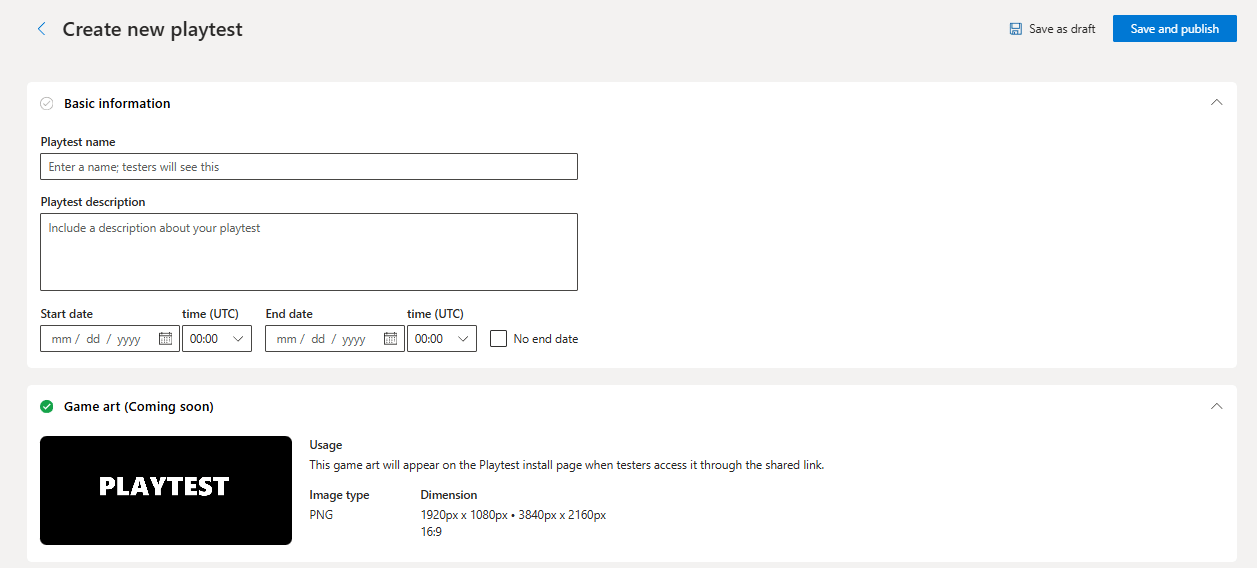
You create and publish playtests entirely in Partner Center. It typically takes less than 5 minutes to set up a playtest after you meet the prerequisites. The Create new playtest page contains all settings for a playtest. Configure the basic information, game art, package, and audience on this page. You can save an incomplete playtest as a draft or publish it when the required information is complete.- Sign in to Partner Center.
- Select the Apps and games workspace.
- Select the game you want to associate the playtest with.
- Under Services in the left navigation, select Playtest.
- Select Create new playtest.
- In Basic information, provide the playtest details:
- Playtest name: The name of the playtest. This name is visible to testers. We recommend choosing a name that’s different from your main game, so testers know which playtest build they’re installing.
- Playtest description: A description of the playtest.
- Start date and time: The date the playtest is accessible by testers.
- End date and time: The date the playtest is no longer accessible by testers.
- For a long-running playtest, select No end date. You can still end the playtest manually at any time.
- For more information about what the Start and end dates control, see Playtest lifecycle and states.
- In Packages, choose the package you want to put in front of testers:
- Select the branch that contains the package.
- Select the package.
- During Preview, only msixvc packages for XBOX on PC are available.
- Playtest packages are encrypted and licensed independently of your main game. You can update the package later without recreating the playtest. For more information, see Update and iterate on a playtest.
- In Audience, choose an existing customer group. Only members of an assigned group can install and launch the playtest package.
- If you need a new group, select Manage or edit in customer groups, and then select Create new group.
- Enter a group name, select Known user group, and add your testers. During Preview, Known device groups aren’t supported.
- Select Save, return to the playtest configuration, and select the customer group you created.
- For more information about playtest audiences, see Manage your playtest audience.
- Review the basic information, package, and audience. Address any errors or warnings shown on the page.
- At the top of the page, select one of the following actions:
- Save as draft: Save the playtest without publishing it. You can return to complete or publish it later.
- Save and publish: Validate and publish the playtest.
Share a playtest with testers
After you publish a playtest, your testers install and launch it via a deep link that you share with them.During Preview, testers access a playtest only through the deep link you share. Playtests aren’t discoverable in the Microsoft Store. Integration with the Library is planned for Fall 2026.
- Go to the Playtest page for your game.
- Select the … icon for the playtest.
- Select Share.
- Copy the deep link.
msxbox://playtest/?productId={ID}
Share and use the deep link
Distribute the link to your testers however you prefer: email, an internal portal, or any other channel.- The link only works for testers who are members of an assigned audience group. Anyone else who opens the link sees the Product Not Found screen in the XBOX app.
- The deep link isn’t a credential on its own, but treat it as sensitive.
Manage your playtest audience
Audience groups control who can install and launch a playtest build. Every playtest is associated with one or more audience groups. Only members of those groups have access.How Playtest controls access
- Audience groups (also called Customer Groups in Partner Center) are the access-control mechanism for playtests.
- Each playtest is associated with one or more audience groups.
- Each audience group can be selected for multiple playtests.
- Only members of the assigned audience group or groups can install and launch the playtest build.
What testers see
Members of an audience group included in a playtest can use the deep link you share to install and launch the playtest. For more information, see Share a playtest with testers. The XBOX app on PC validates the tester’s audience-group membership and installs the playtest build. Anyone who isn’t a member of an assigned audience group sees the Product Not Found screen in the XBOX app when they open the deep link. All playtests for a product share the same package family name (PFN). A tester can be a member of multiple playtests for the product, but only one playtest build can be installed at a time. Switching to another playtest updates the installed package to that playtest’s build.Audience size
Playtest supports audiences of up to 10,000 players. Certification isn’t required. For more information, see Comparing prerelease testing options.Update and iterate on a playtest
A published playtest can be updated as necessary. Common changes, such as updating the package, modifying the playtest dates, or adjusting the audience, don’t require you to recreate the playtest or invite testers again. Existing testers receive the new build through the standard update flow on XBOX.What you can edit
- Title and description.
- Dates: Modify the start or end date of the playtest.
- Package: Assign a newer (or different) package.
- Audience: Add or remove audience groups.
How to update a playtest
- Go to the Playtest page for your game.
- Select the … icon for the playtest.
- Select Edit.
- Edit the playtest as necessary.
- At the top of the page, select Save and publish to publish the changes.
What testers experience
- If you publish a new package, testers who already installed the previous version receive the new package through the standard update flow in the XBOX app. They don’t need to reinstall or reaccept the deep link.
- Playtest checks audience membership approximately every 10 minutes. Testers added to a newly assigned audience group receive access after the updated membership is detected.
- If you remove a tester from an audience group, Playtest stops issuing new licenses after the updated membership is detected. An existing license can remain valid for up to 30 minutes, so an in-progress session or launch might continue during that lease period.
Create or update an audience group
- Sign in to Partner Center.
- Select the Apps and games workspace.
- Select Customer Groups on the page’s navigation menu.
- Select Create new group, or select an existing one.
- Configure the group members. You can add or remove members as necessary.
- Select Save. The group is now available to select when you configure a playtest.
Shut down a playtest
A playtest ends in one of two ways. Both paths revoke access for testers and reset the playtest’s availability.- It ends automatically when its configured end date passes.
- It ends manually when you delete it from Partner Center.
How to delete a playtest
- Go to the Playtest page for your game.
- Select the … icon for the playtest.
- Select Delete.
- Confirm the playtest’s deletion.
What happens to testers after shutdown
- Playtest stops issuing new licenses. An existing license can remain valid for up to 30 minutes.
- The installed package remains on the tester’s device until they uninstall it. After the existing license expires, the build no longer runs.
Can a deleted playtest be restored?
No. Once a playtest is deleted, it can’t be restored. If you want to test the same build again, create a new playtest.Playtest lifecycle and states
This section is the reference for the states a playtest moves through, what each state means, what actions are possible, and what testers see.Operational states vs. display states
A playtest has three operational states:- Draft
- Published
- Deleted
- Scheduled: The playtest start date is in the future.
- Live: Current time is within the active date range.
- Ended: The playtest end date is in the past.
- Publishing: A publish or republish is in progress.
- WaitingOnIngestion: The selected package is still being ingested. Publishing continues after package ingestion completes.
- Deleting: A shutdown is in progress.
- PublishFailed: an error occurred during publish.
State reference
How does Playtest affect your main game
- A playtest doesn’t modify your main game’s, such as its Store listing, or Pricing and availability. Existing XBOX app integrations are untouched.
- A playtest doesn’t grant or revoke access to players of your main game, unless they’re included in an audience group selected for a playtest.
XBOX services and Playtest
Full XBOX services aren’t required to publish a playtest. If your playtest uses XBOX sign-in or other XBOX network features, enable full XBOX services and publish the associated main game’s XBOX services - Gameplay settings to the RETAIL sandbox. Before you publish XBOX services, think carefully about whether playtesters should see the configuration.XBOX services and the RETAIL sandbox
A playtest publishes to the RETAIL sandbox, which is the same live, production environment that players use for released games. During a playtest, XBOX services behave exactly as they do for a generally available game:- Playtesters sign in using their real XBOX account
- XBOX network features, including presence, friends and social activity, achievements and gamerscore, and leaderboards, are active.
- These features might be visible to players outside your playtest. For more information, see Hide unfinished features with XBOX embargo.
Hide unfinished features with XBOX embargo
Because a playtest shares XBOX services with the main game, anything visible in your XBOX services - Gameplay settings, such as achievements, presence strings, or new content, is also visible to playtesters and other XBOX players. To hide unfinished or confidential content, configure XBOX embargo. Embargo also prevents screenshot and video capture, and prevents the game from appearing in presence, which is useful for confidential builds. For more information, see Configure embargo dates.Achievements
All achievements published to the RETAIL sandbox, including achievements published for use in a playtest, must comply with the XBOX Requirements (XRs) for achievements and gamerscore. After an achievement is published to the RETAIL sandbox, it can’t be removed, and its unlock rules and rewards can’t be changed. Text strings (name, description) and artwork (icons, background) can still be modified. If your achievements are final, but you don’t want them to be visible when you start playtesting, configure XBOX embargo for your game. For more information about the XRs for achievements, see Achievements and Awards.Sandboxes
Playtests publish to the RETAIL sandbox. There’s no separate sandbox setup step.Playtest vs. other prerelease options
Playtest is one of several ways to run prerelease content on XBOX endpoints for testers. Use the following comparison to pick the right tool for your scenario. For the full set of prerelease testing options, see Prerelease testing options.
* Only applies to Private Audience configurations with a restriction end date.
** Redeemable-token enrollment is planned for GA. See Audience size.
When to choose Playtest
Choose Playtest for prerelease testing if:- You want to put a prerelease build in front of testers without publishing your main game, submitting for certification, or configuring a PDP in the Microsoft Store.
- You want to publish a prerelease build on PC without updating the supported platforms on your PDP.
- You want to run multiple parallel tests for the same product.
- You want to iterate fast by updating builds without recreating a test program or inviting testers again.
- Your audience has up to 10,000 players.
When to choose alternative options
Frequently asked questions
This section provides answers to some common questions about Playtest. If your question isn’t covered here, contact your XBOX representative.Do you need to publish your main game in the Microsoft Store to create a playtest?
No. Playtest works independently of your main game. You don’t need to publish a PDP in the Microsoft Store, or publicly release your game before you create a playtest. Standard XBOX publishing requirements, such as age ratings, still apply in the playtest’s associated main game.Does a playtest package appear in the XBOX Store or in players’ libraries?
During Preview, no. Access to playtest builds is through a deep link only. See Share a playtest with testers.Do XBOX services work during a playtest?
Yes. Full XBOX services aren’t required to publish a playtest, but they’re supported in the RETAIL sandbox. If your playtest uses XBOX sign-in or other XBOX network features, enable full XBOX services and publish the associated main game’s gameplay settings to RETAIL. See XBOX services and Playtest.Does publishing a playtest affect your main game or its PDP in the Microsoft Store?
No. A playtest is additive. Packages are encrypted and licensed independently of your main game. Store listings and XBOX app integrations are untouched.Can you change achievements after publishing them for use in a playtest?
A playtest publishes to the RETAIL sandbox, so achievements you publish must comply with the XRs for achievements and gamerscore. After you publish achievements to the RETAIL sandbox, you can only change text and art. You can’t change achievement unlock rules or rewards, and you can’t remove achievements. If you need to iterate on achievement design during a playtest, contact your XBOX representative about a development-time validation override. See Achievements.Do you have to declare PC support on your main game to run a PC playtest?
No. If your main game currently only supports XBOX consoles, you can run a PC playtest without adding PC support to the public product configuration.Can you run multiple playtests for the same product at the same time?
Yes.A tester can be a member of audience groups selected in multiple playtests, but only one playtest build for a product can be installed at a time. To switch playtests, the tester opens the deep link for the other playtest, which updates the installed package to that playtest’s build.