Custom assets for high contrast mode
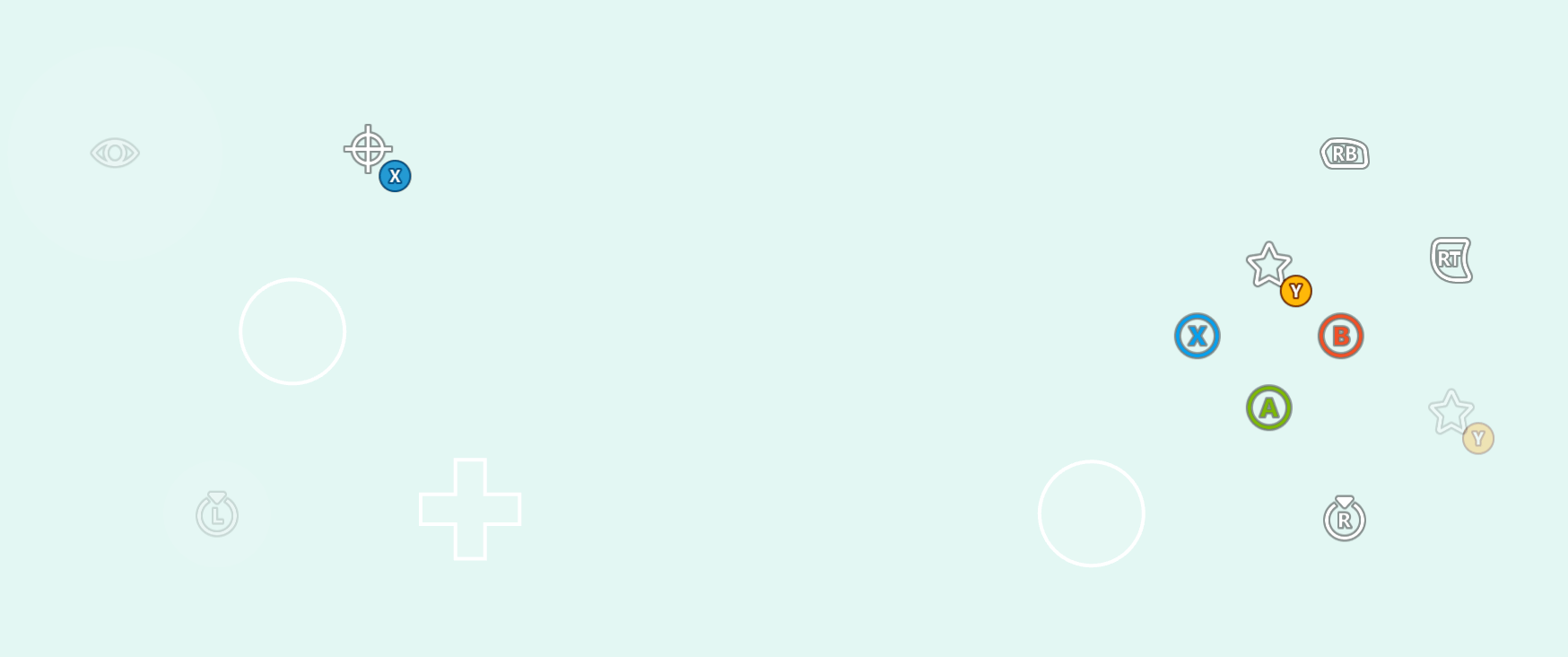
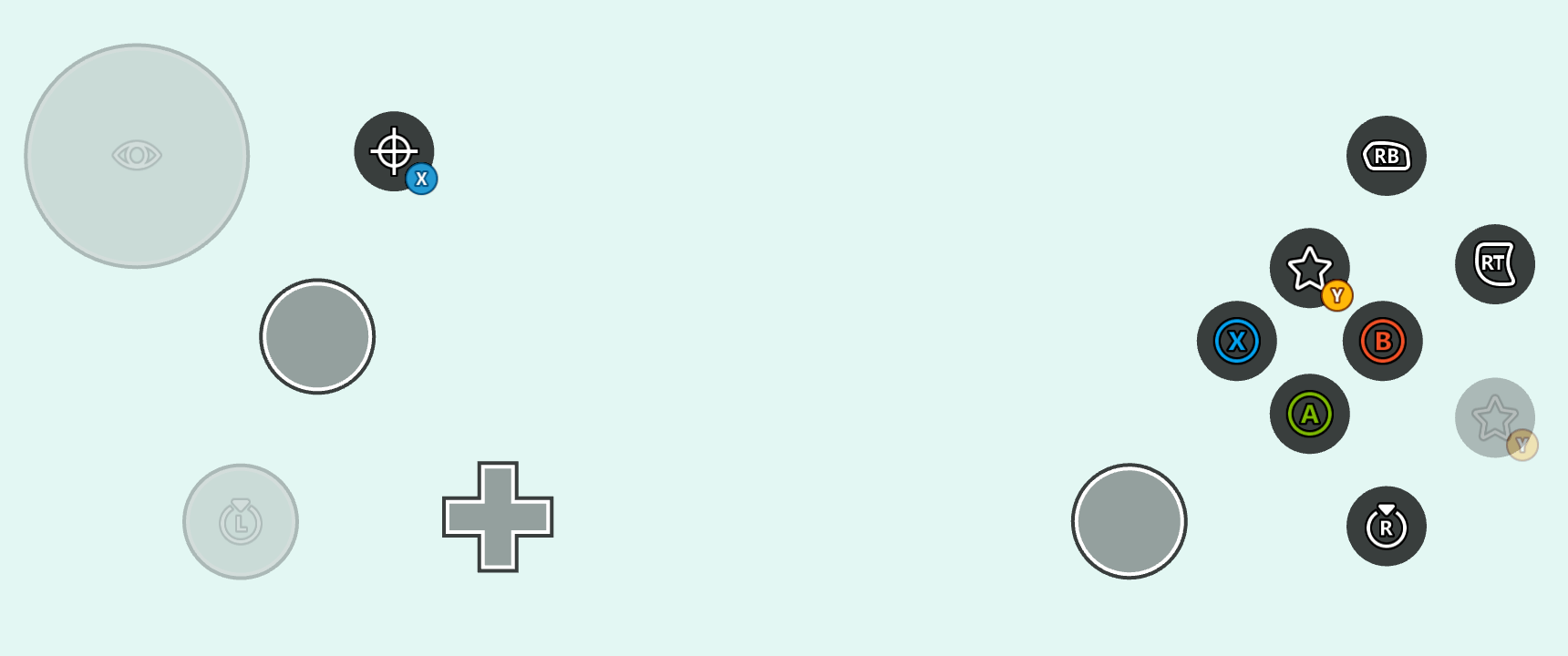
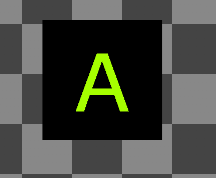
When using custom assets in your touch adaptation bundle, you can include high contrast asset variants for each of your standard contrast assets. These high contrast assets variants are then rendered whenever high contrast mode is enabled. Assets are marked as a high contrast variant by including a.hc suffix following your asset’s name and preceding the file extension. For example, consider myAsset.png (left) and its high contrast variant, myAsset.hc.png (right):

.hc suffix. For example, a button styled with the assets from above might be configured like this:
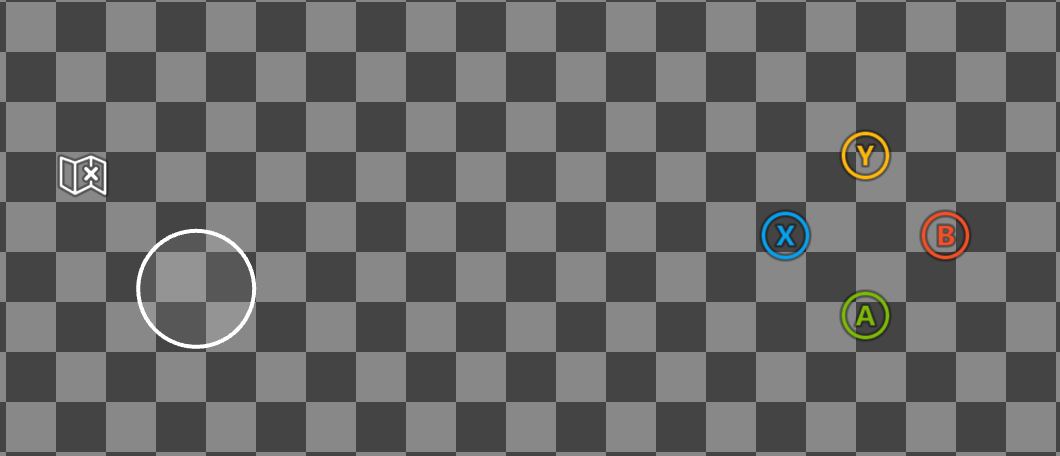
myAsset.png or myAsset.hc.png dependent on if high contrast mode is disabled or enabled, respectively. This styling will yield the following when high contrast mode is disabled:

Overriding system colors for high contrast mode
Color palettes within your touch layouts or context file can be used to override the system colors. Controls implicitly sample the system colors when styling, meaning any overrides will affect the global styling of all controls (unless a control has its own override within a customstyles block).
For example, the following layout overrides some of the system colors to achieve custom styling when high contrast mode is enabled:
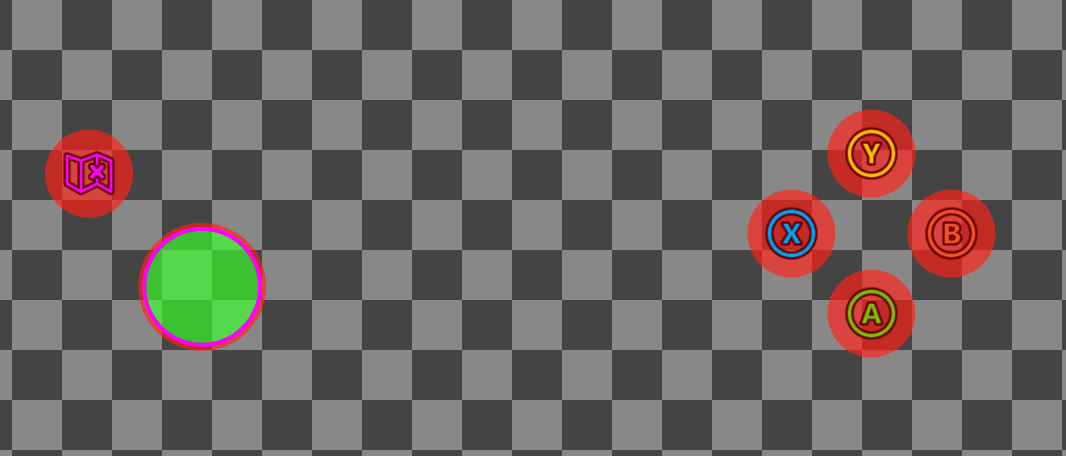
highContrast block that will only be applied when high contrast mode is enabled:
system_contentPrimarywill override the styling applied to our joystick middle stroke and map icon tint.system_contentSecondarywill override the styling applied to our joystick fill.system_contrastPrimarywill override the styling applied to our joystick outer stroke and button backplates.
Enabling high contrast mode
You can test high contrast mode on any of the web, android, or windows content test applications (CTA).Web CTA
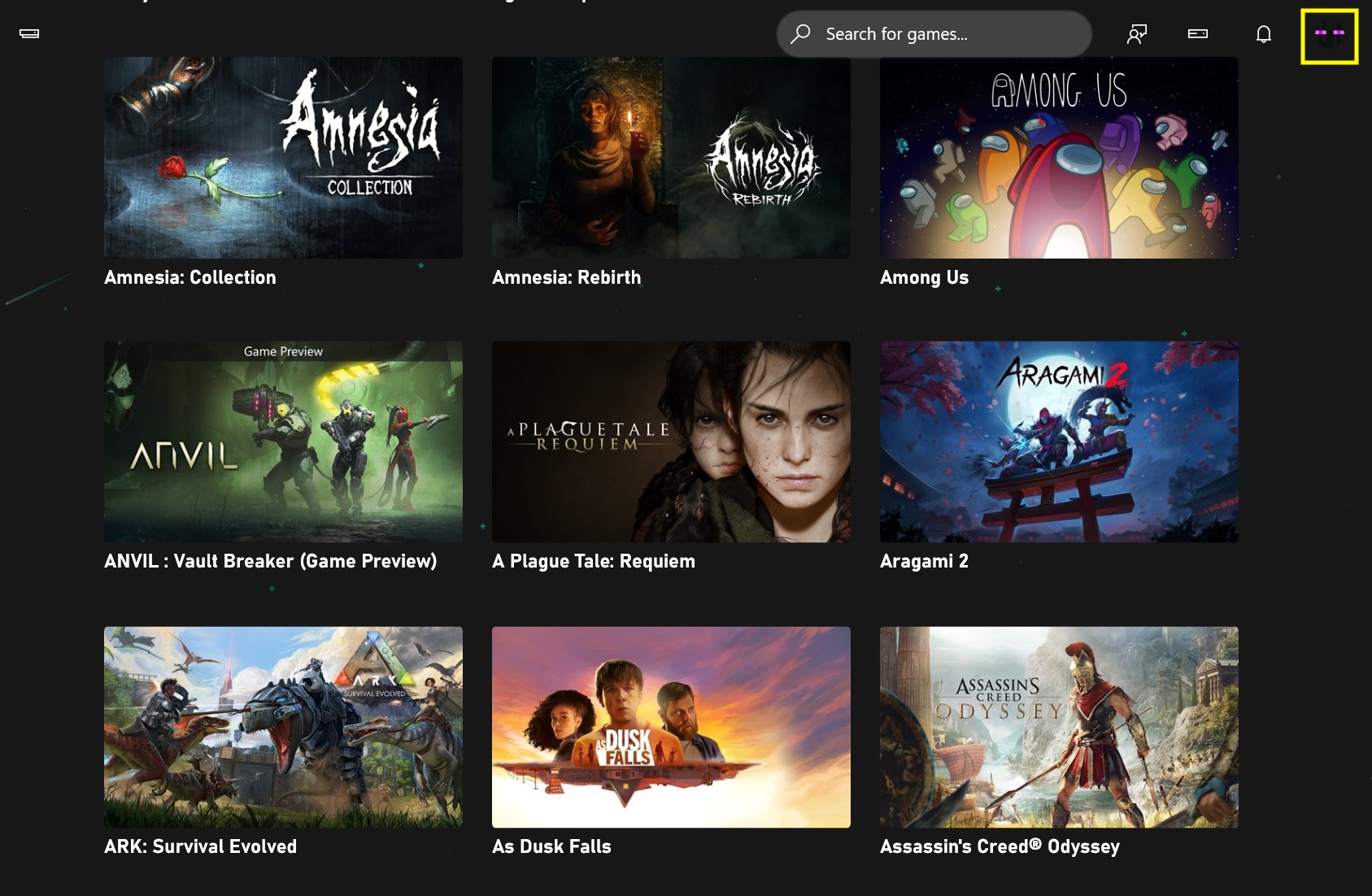
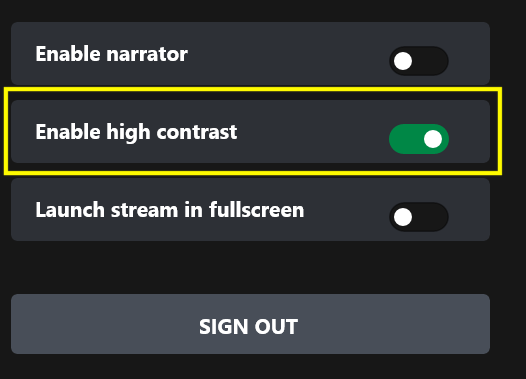
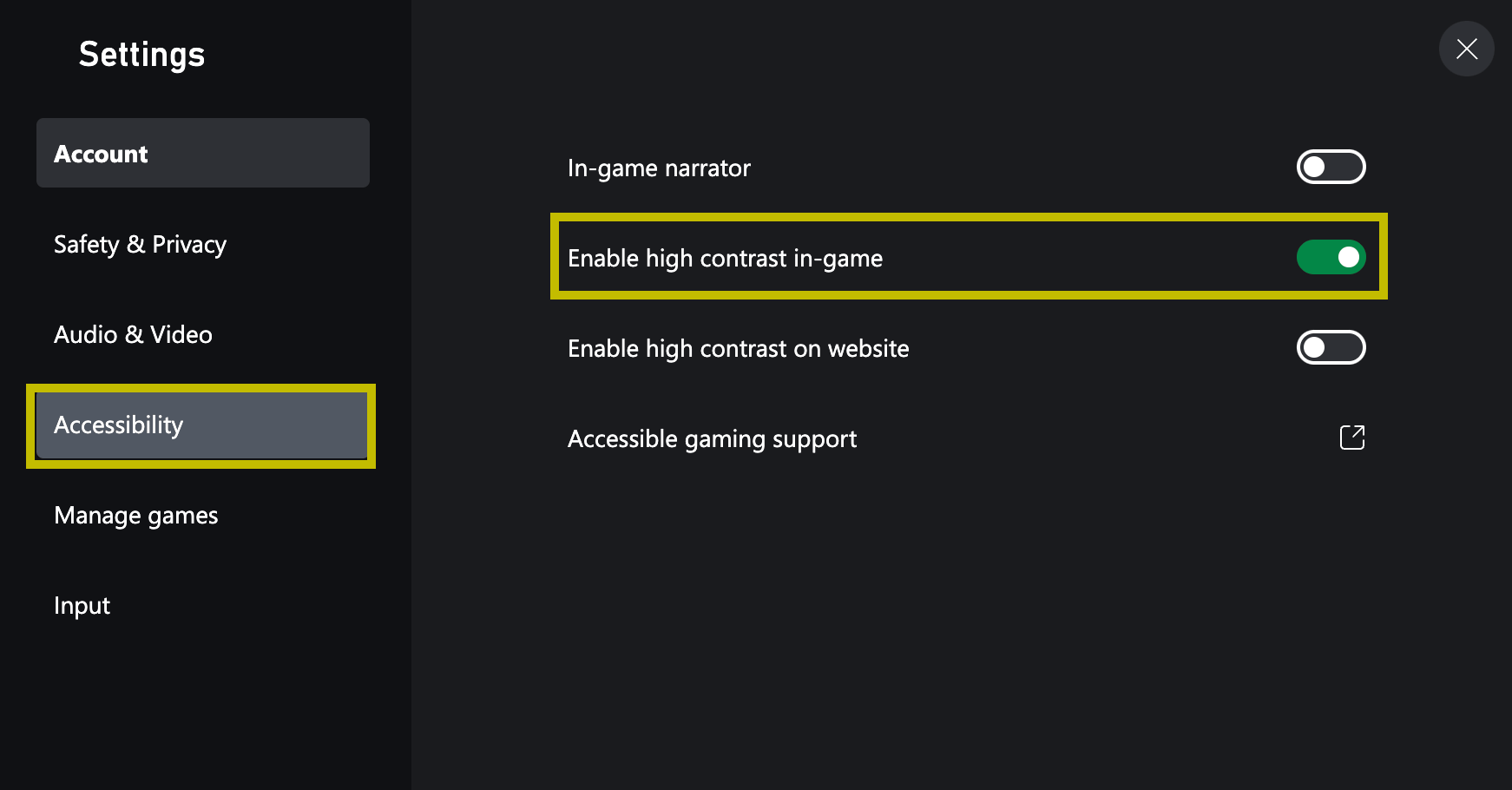
High contrast mode can be enabled on the web CTA by: Clicking on your profile and navigating to “Settings” window: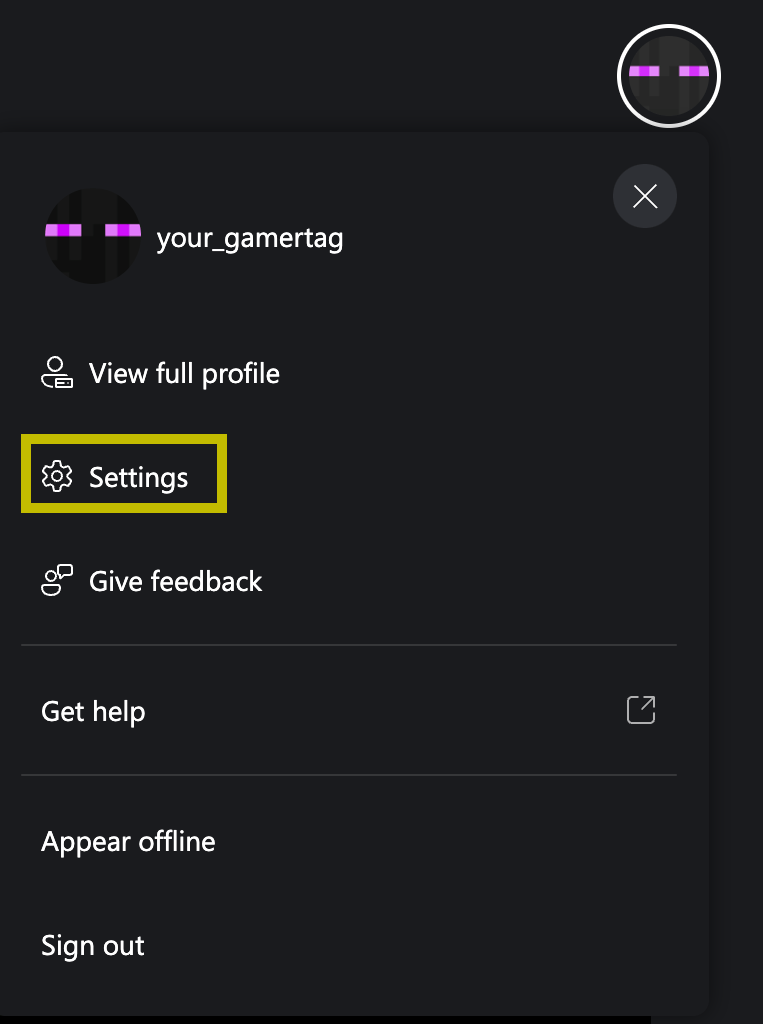
Android CTA (Deprecated)
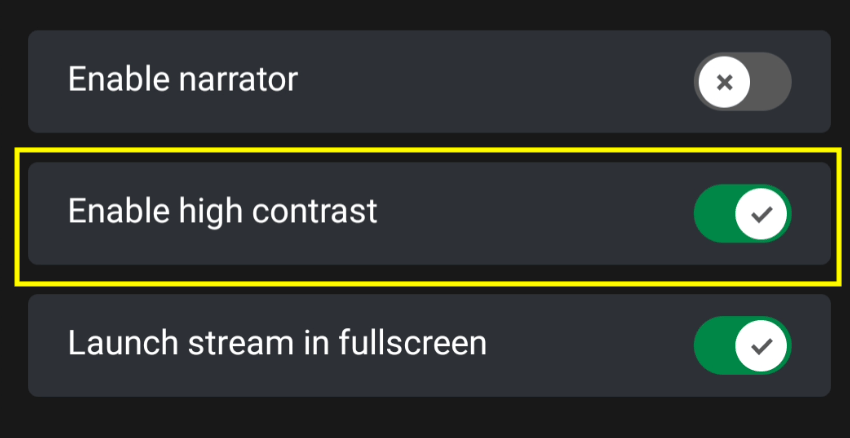
High contrast mode can be enabled on the android CTA by: Clicking on your profile: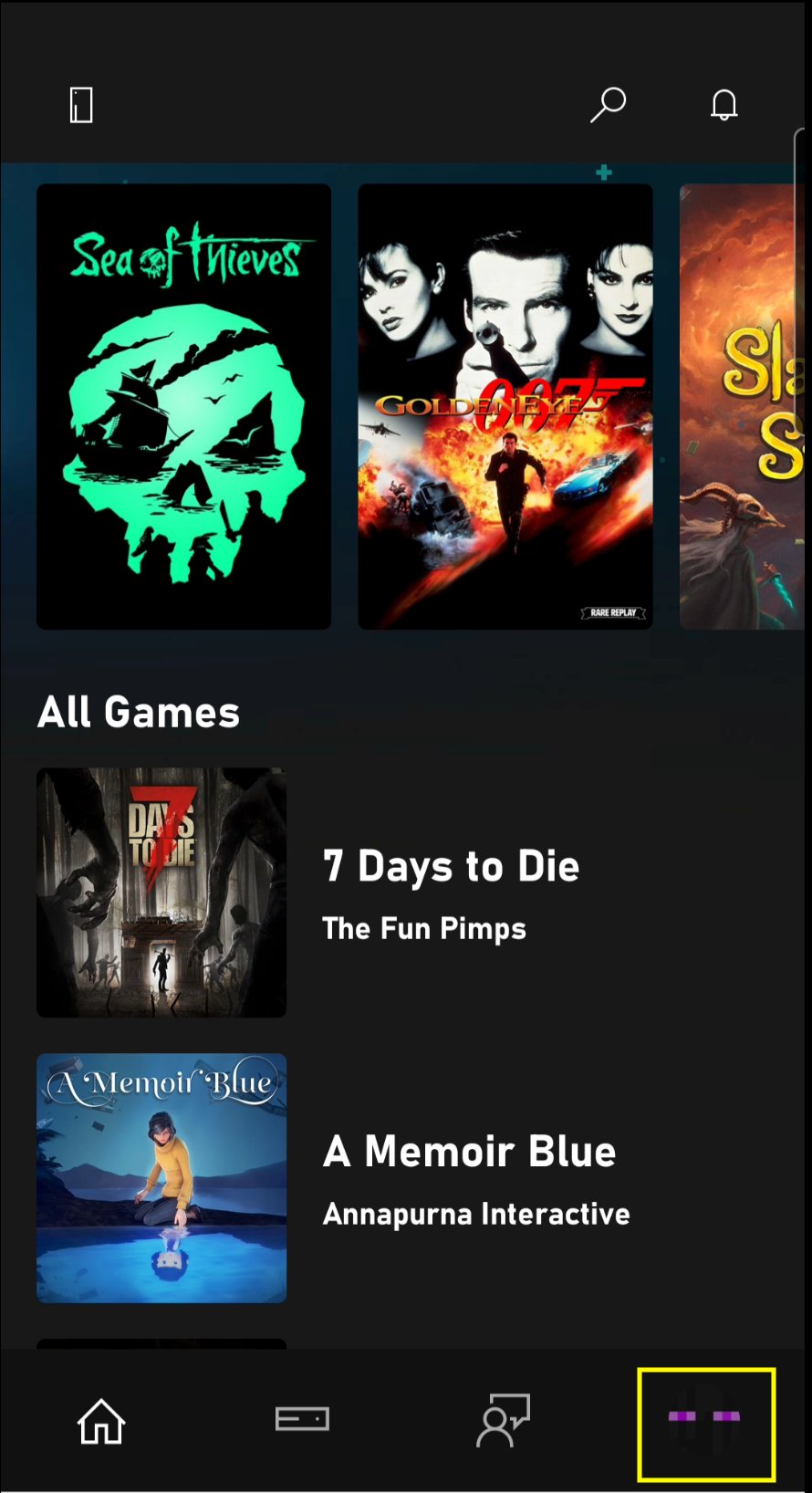
Windows CTA (Deprecated)
High contrast mode can be enabled on the windows CTA by: Clicking on your profile: