
The Android Content Test Application (CTA) is being deprecated and will no longer be supported starting early 2025. Please use the web version which has overall parity and can provide a better testing experience. Thank you for your support and understanding. If you have any questions or concerns, please reach out to your Microsoft representative.
Get the Android CTA
The download link may stop working in 2025 due to “the retirement of Visual Studio App Center”.
You will need to meet the following pre-requisites to be able to use the Content Test Application (CTA).
Open the CTA
You can find the CTA on your Android device as Streaming (Test App) as shown in the following screenshot.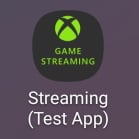
Access the CTA
To begin testing, sign in to the app with a Microsoft account. While signed in to the app, you can identify feedback and issues, and authenticate your permissions for any private offering of XBOX Game Streaming.Sandbox test accounts aren’t supported in the CTA.
Connect your dev kit
You can validate the locally installed version of your game in a streaming environment by connecting to your dev kit.Ensure that your Android device that’s running the CTA, and your dev kit, are connected to the same network.
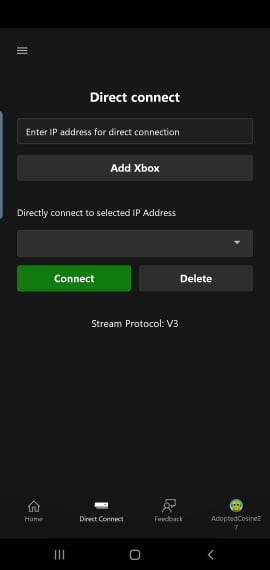
Connect to a private offering on XBOX Game Streaming
Alternative tool: Web Content Test Application (CTA)
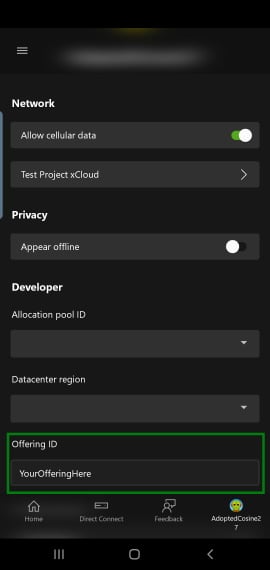
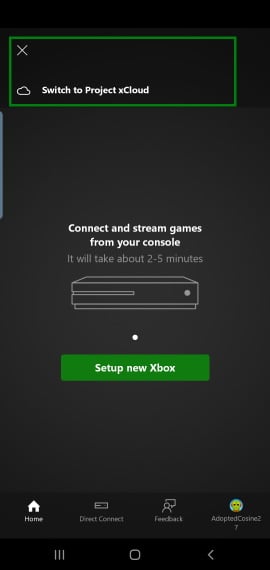
Offerings currently do not automatically route users to the closest available data center. In order to control this, use the region dropdown in the settings menu to select where to stream from.
Developer Settings
From the home page, developer settings can be accessed by clicking on the user’s profile picture and then looking for the developer category. This settings area allows developers to change the private offering or override stream configuration settings. Stream Configuration Overview includes more information about the specific stream configuration settings that can be overridden.Troubleshooting
There are some common issues and solutions when setting up the CTA on your Android device.I didn’t receive the link to install the CTA
Contact your Microsoft Account Representative to ensure that the correct Microsoft account was used during the registration process. You can check to see if you have access to the app from the App Center Install Portal.I can’t connect to my dev kit
Ensure that you’ve followed the steps in the Setting up your XBOX Development Kit for Streaming topic. Use the following steps to setup network connectivity between your client device and dev kit.- Ensure that the dev kit has public internet access (access to XBOX services is required).
- Check that the IP address that’s used to connect from the client device is the main IP address of the dev kit that’s displayed in Dev Home.
- Test the connection between the dev kit and Android device by using Internet Control Message Protocol (ICMP) for a nearby router. The Google Play Store has multiple apps that are available for checking network connectivity and latency.
The following network connection settings can affect your ability to successfully stream your game.
- UDP Protocol connectivity is required. Streaming from a devkit utilizes UDP port 9002. Additionally, streaming from a private offering may use UDP ports 1024 through 1191.
- NAT and network proxies are generally not an issue but can impact performance.
- HTTP (TCP only) proxies aren’t supported.
I don’t have access to the private offering
If you can’t access your studio’s private offering to validate your game directly from XBOX Game Streaming, ensure that you’re signed in to the CTA with the Microsoft account that’s authorized.I can’t sideload Touch Adaptation Layouts to the CTA
- Ensure that the PC running the Touch Adaptation Kit command line tool is on the same network as the device running the CTA.
- The Touch Adaptation Kit command line tool server uses TCP port 9269 by default. Ensure that this port is either unblocked or customize the port using the —port command line option.