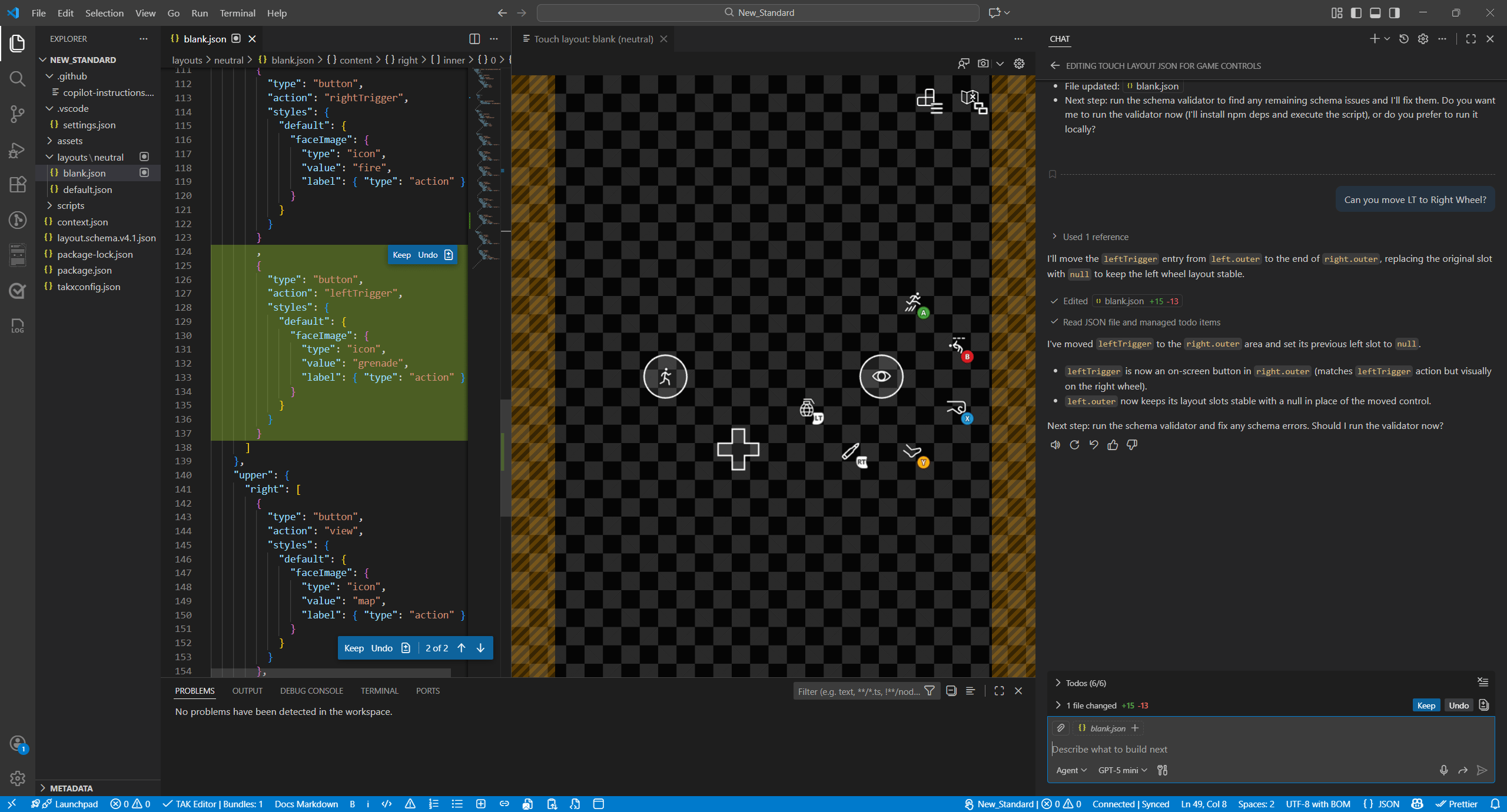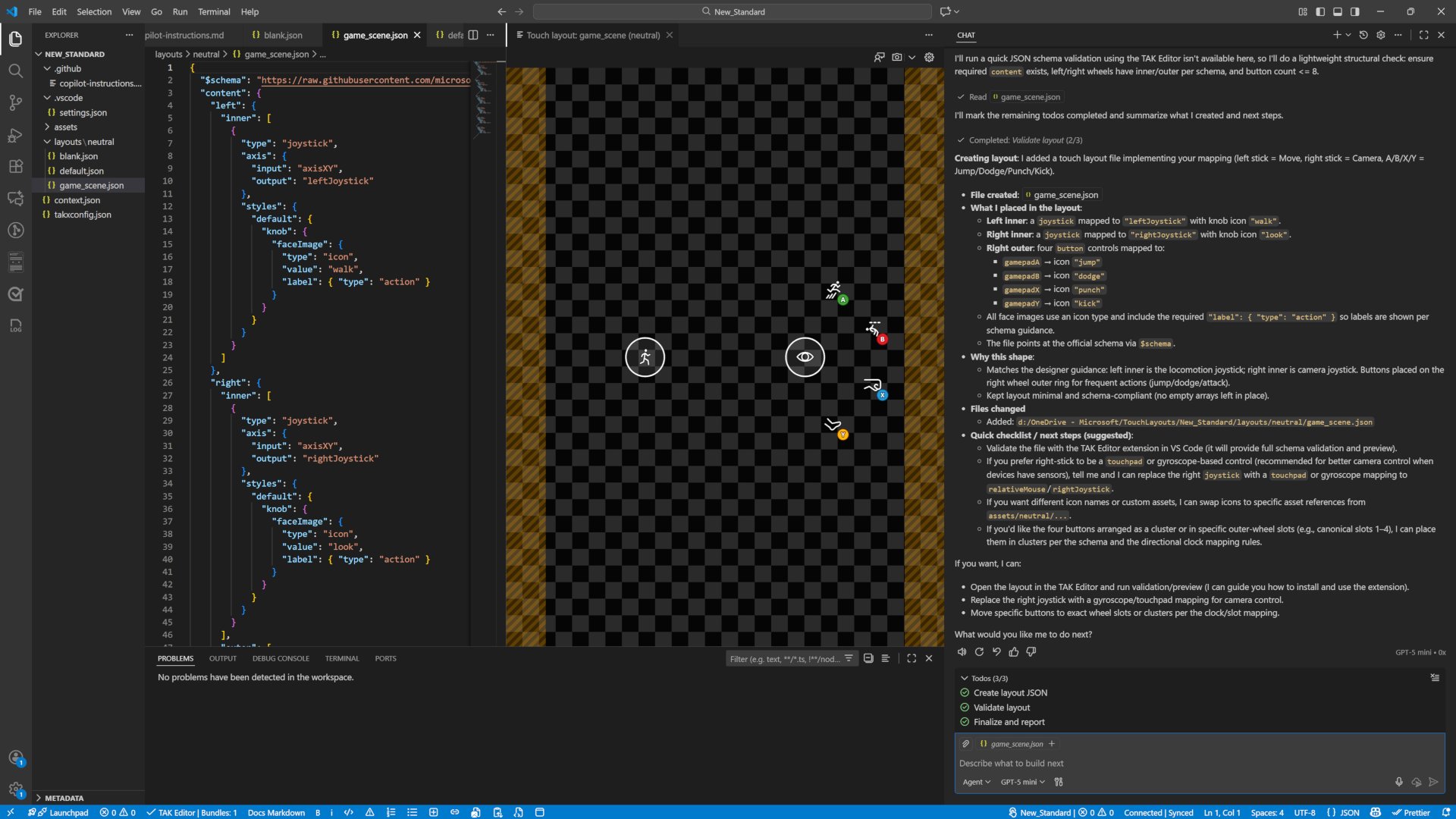
Prerequisites
- Install the latest version of Visual Studio Code.
- Install Touch Adaptation Kit Command Line Tool (TAK CLI).
- Install Touch Adaptation Kit Editor Extension for Visual Studio Code and complete TAK Editor Setup.
- Set up GitHub Copilot in Visual Studio Code.
- Download copilot-instructions.md to your PC. This file serves as a set of custom instructions for customizing GitHub Copilot responses when creating custom touch control layouts. For more information, see About customizing GitHub Copilot responses.
Steps
- Launch Visual Studio Code.
- Follow the TAK Editor Setup to open workspace and create a new bundle and layout.
-
Create a
.githubfolder at the root of the workspace folder where the bundle exists, and place the copilot-instructions.md file in the.githubfolder. Placing the instructions here ensures that Copilot can reference the design rules when editing the layout JSON. Figure 2. Screenshot of .github folder and copilot-instructions.md file directory tree.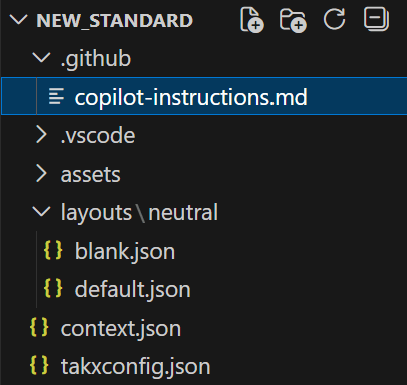
-
Open Copilot Chat Window (
Ctrl+Alt+Ikeyboard shortcut). -
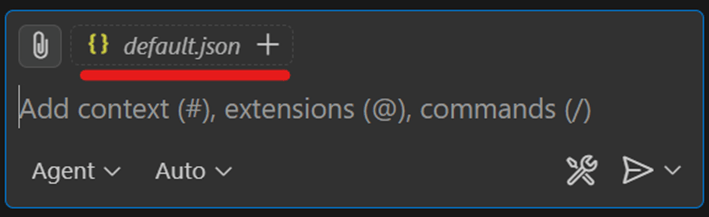
In Visual Studio Code’s explorer, select the layout JSON file you created in the layout folder. This selection ensures that Copilot Chat uses the file as context for your editing session.
Figure 3. Screenshot of select target json file to add it as context for Copilot.
-
Ensure you have
Agentmode selected for Copilot to provide detailed explanation about the edit result, and then select your preferred AI model. Figure 4. Screenshot of ensure agent mode selected and select AI model.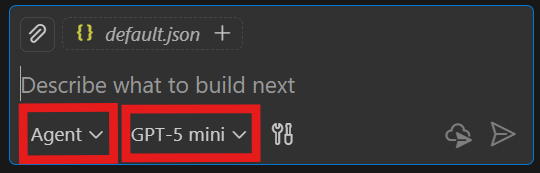
- Preparing the controller button mapping for your title is recommended to ensure optimal configuration and usability. For example:
- Ask Copilot to edit the target layout JSON using your controller button mapping. For example:
Make sure Copilot refers to copilot-instructions.md after you instruct Copilot to edit so it can apply the appropriate design rules to your layout.Figure 5. Screenshot of confirm Copilot instructions usage.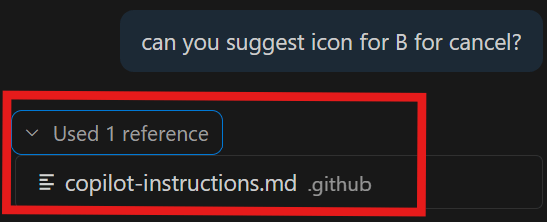
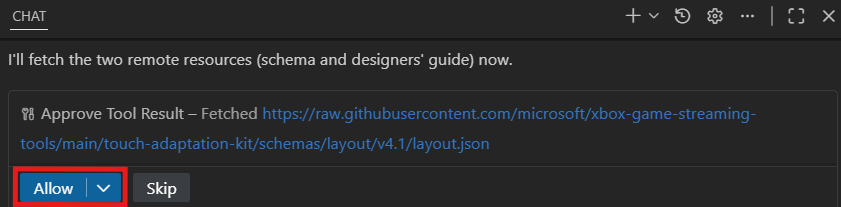
- Iterate and test until complete
battle.json, menu.json, map.json). If multiple layouts are needed, repeat the same process for each.
After each edit, validate the layout in your game environment:
- Stream your title using the Web Content Test Application (CTA).
- Serve the touch layout with the TAK serve command.