Overview
After you’ve built your touch layouts, you’ll want to interact with them in your game.Prerequisites
To deploy and view your layouts, you’ll need to have:- A Windows PC that has the Touch Adaptation Kit Command Line Tool (tak.exe).
- A device with the Web Content Test Application, Android Content Test Application (Deprecated), or the Windows PC Content Test Application (Deprecated).
- A set of layouts that you would like to deploy and view.
Deploying your layouts
1. Serve the layouts
On the Windows PC that has the Touch Adaptation Kit Command Line Tool (tak.exe), utilize the Serve Command to make the layouts available to devices that request them.2. Configuring the Content Test Application to load
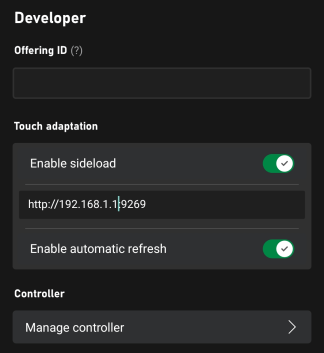
In the settings of your Content Test Application, enter the configuration for the Touch Adaptation Settings (in the Developer section).- Make sure Enable sideload is toggled on.
- Enter the address to the PC (including port) that’s serving the layouts.
If you’re using the Web Content Test Application with Safari or to connect to a remote PC running the serve command, ensure that the sideload address starts with
https and that the --certificate-file option was used. See Serve Command for more information on starting secure (HTTPS) sideload servers.- Enable autorefresh if you want changes that are made to the layouts to be immediately updated on all connected clients (otherwise, updates will only happen when a new streaming connection is started).
3. Stream your game
Upon each streaming connection, the CTA will connect to the TAK server and download the latest layouts.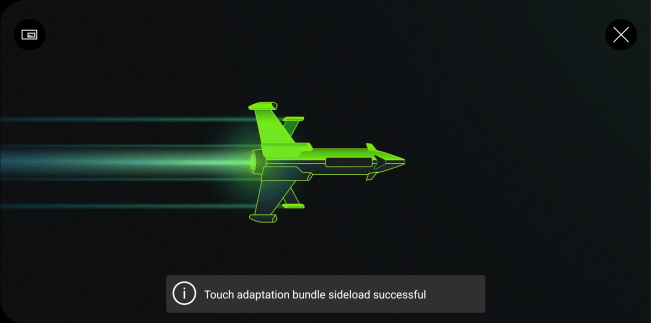
serve command.
4. Select your layout
After a streaming session has been started, you can select the touch layout to be utilized by selecting Developer and then TAK from the in-stream overlay by selecting the... button at the top-left corner.