要求
- 已注册的 Kongregate 账户。
- 熟悉 Kongregate 开发者指南。
- 已注册的 PlayFab title。
- 熟悉登录基础和最佳实践。
设置 Kongregate 应用
Kongregate 要求你上传应用的预览版本,然后才能访问必要的 API 信息。 为此,我们需要准备一个具有以下内容的index.html 文件。
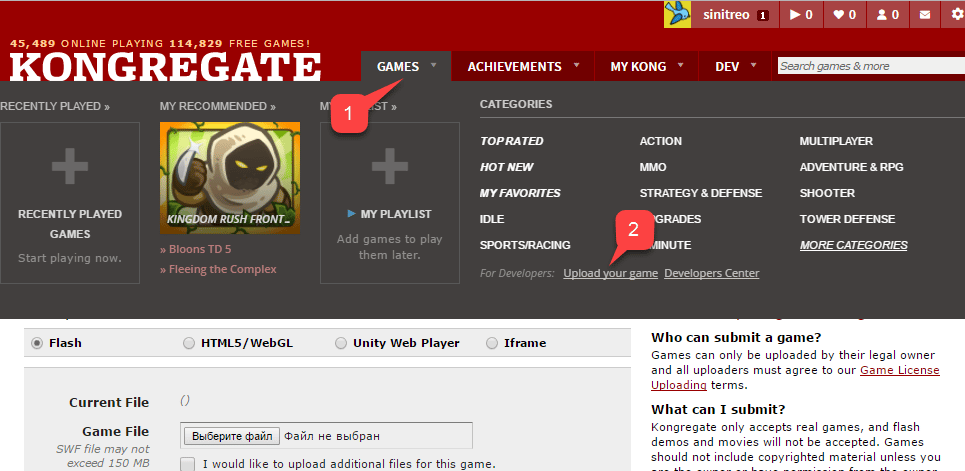
- 选择 Games 选项卡。
- 选择 Upload your game 按钮。
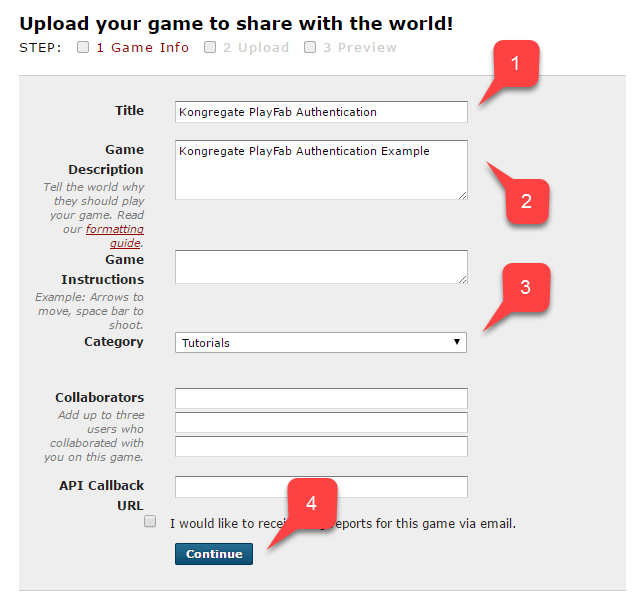
- 在 Title 字段中输入应用程序名称。
- 然后在提供的字段中输入游戏描述。
- 选择一个类别。
- 通过选择 Continue 按钮提交新应用,如下例所示。
- 完成后,选择准备好的 index.html 文件作为你的 Game File。
- 然后设置屏幕大小。
- 请务必接受所有必需的许可证。
- 通过选择 Upload 按钮上传你的应用,如下例所示。
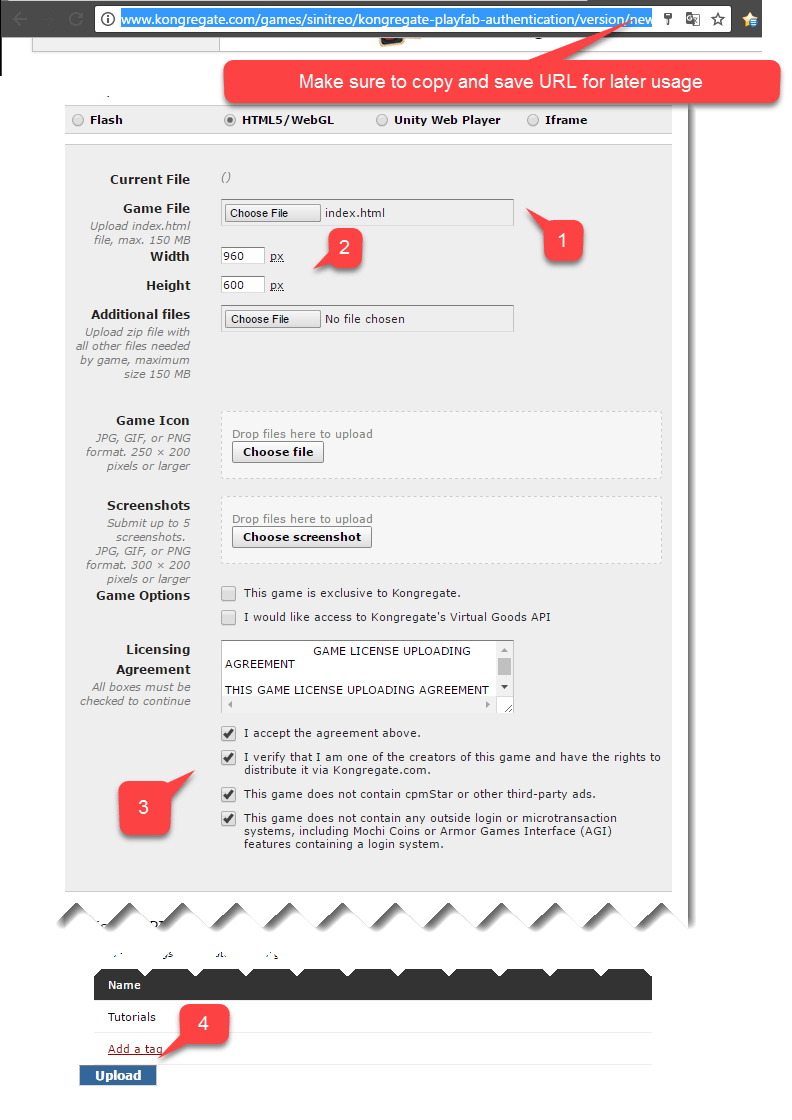
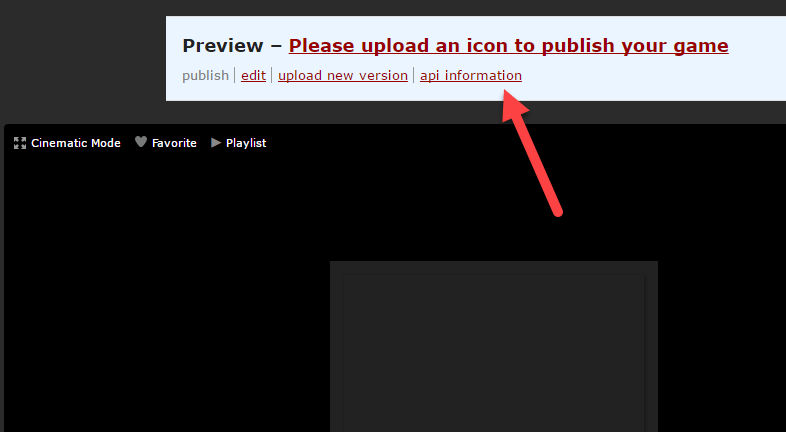
- 预览打开后,忽略内容并打开 api information 链接。
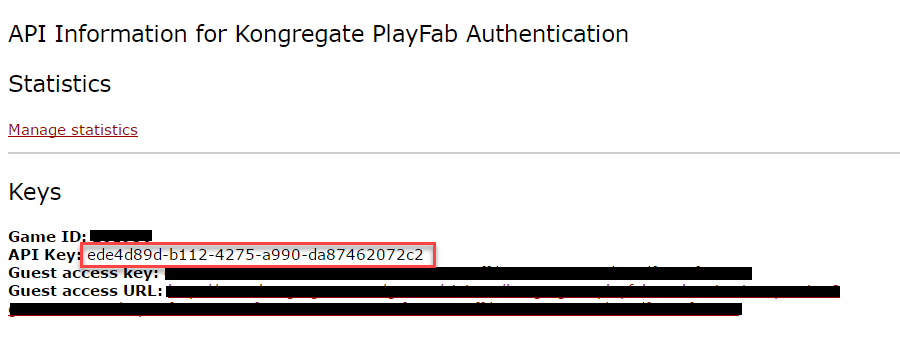
当 API Information 页面打开时,找到 API Key 并将其保存在安全且易于访问的位置以供以后使用。
配置 PlayFab title
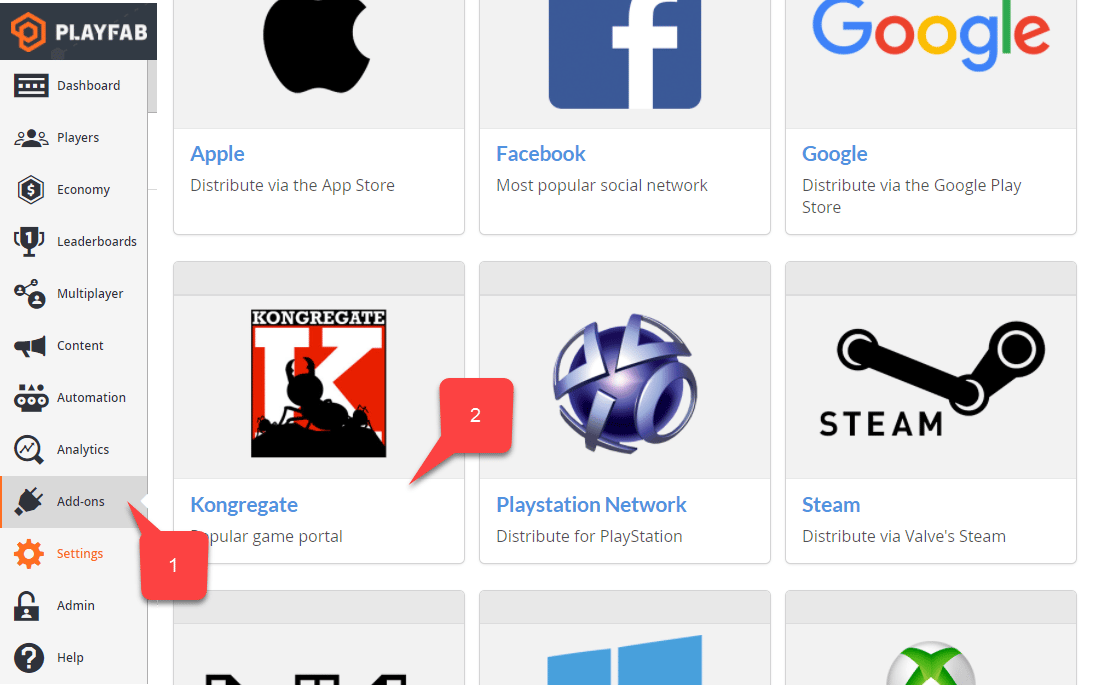
在你的 PlayFab title Game Manager 中:- 导航到 Add-ons。
- 找到并选择 Kongregate。
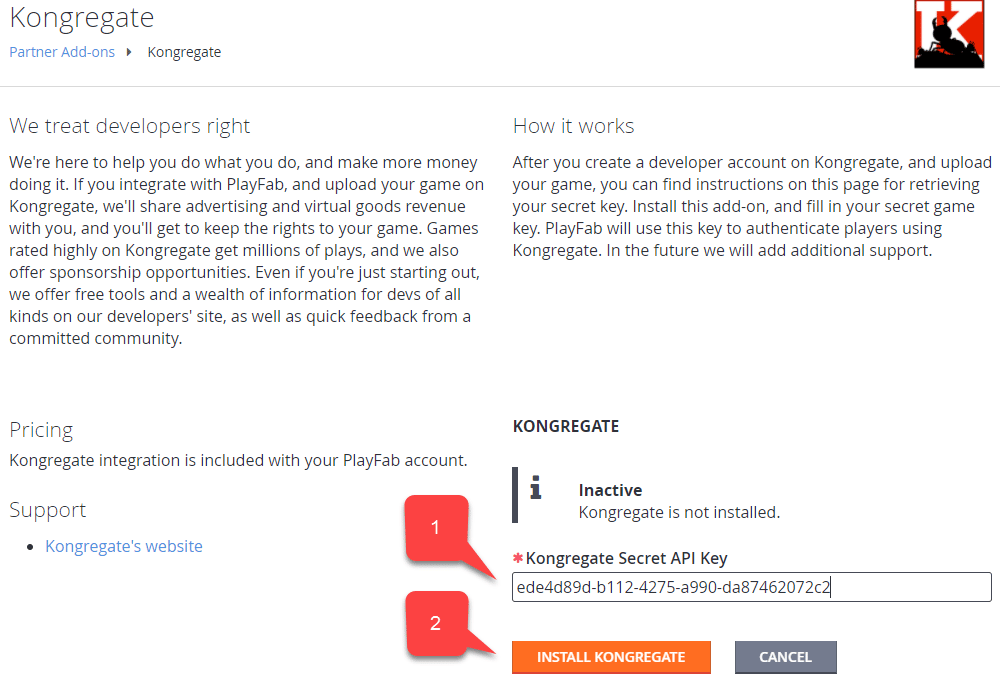
- 输入你在上一节中获取的 API Key。
- 选择 Install Kongregate。
准备一些代码
使用下面显示的示例代码填充你游戏的index.html。
测试
还记得我们不久前请你保存在安全且易于访问位置的 URL 吗?现在使用它访问你的 Application Upload 页面。- 选择 index.html 作为你的 Game File。
- 设置屏幕大小。
- 请务必接受所有必需的许可证。
- 通过选择 Upload 按钮上传你的应用。
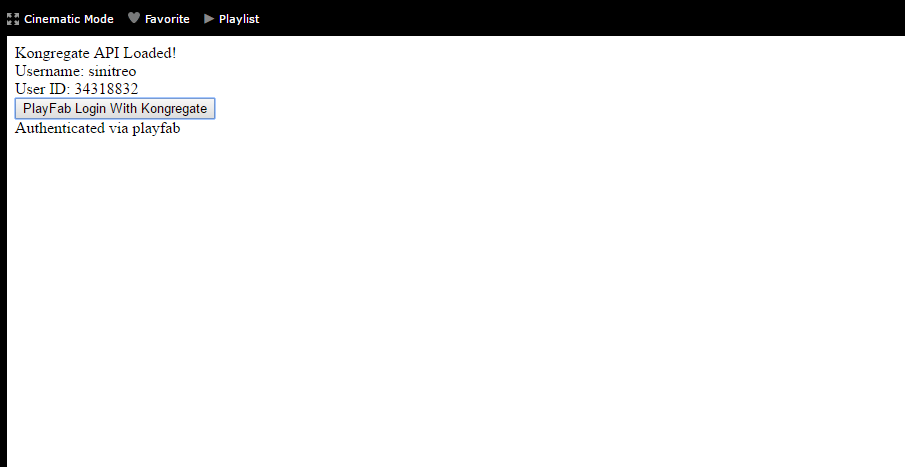
- 发生这种情况后,选择 PlayFab Login With Kongregate 按钮。
- 短暂停顿后,你应收到 Authenticated via PlayFab 消息。
- 至此,你已成功使用 PlayFab 和 Kongregate 登录!