
XUser object. On PC, the identity is tied to the account signed in to the Microsoft Store app and used for purchases.
On PC, the account identity between the Microsoft Store app can be different than the account signed in to XBOX Live and playing the game.
- User Collections ID to authenticate with the Microsoft Store Collections service
- User Purchase ID to authenticate with the Microsoft Store Purchase service
- Configure a Microsoft Entra ID application.
- Associate your Microsoft Entra application ID with your client app in Partner Center.
- In your service, create Microsoft Entra ID access tokens that represent your publisher identity.
- In your game, create a User Store ID key and that represents the identity of the user and pass this key back to your service.
- Authenticate requests to the Microsoft Store APIs.
- Renew a User Store ID key when it expires.
- Your service: Secure back-end that creates Microsoft Entra access tokens and calls Store APIs.
- Your game: Client that creates User Store ID keys for the signed-in user and passes them to your service.
The Microsoft.StoreServices .NET library and sample
To streamline integration, use the Microsoft.StoreServices on GitHub. The library handles authentication and key flows, and provides wrappers for Store service calls. The sample includes end-to-end patterns for consumables, refund reconciliation, and key renewal.Step 1: Configure a Microsoft Entra ID application
Before you can use the Microsoft Store APIs, create a Microsoft Entra web application that identifies your service when calling the APIs. From the registered web app, get the tenant ID, application ID, and secret key to generate the required access tokens in future steps.You can reuse the web app’s tenant ID, application ID, and secret key across multiple games and products under your publisher. You don’t need to create a new one for each game.
- If you haven’t already, follow the instructions in Quickstart: Register an application with the Microsoft identity platform to register a Web app / API application with Microsoft Entra ID.
[!NOTE] When you register your application, choose Web app / API as the application type. This type enables you to retrieve a key (also called a client secret) for your application. To call the Microsoft Store APIs, you must provide a client secret when you request an access token from Microsoft Entra ID in a later step.
- In the Azure Management Portal, go to Microsoft Entra ID. Select your directory, App registrations in the left pane, and then your application.
- Copy the Application (client) ID and Directory (tenant) ID values for use later.
- Create and copy a new client secret under Certificates & Secrets from the left pane.
Step 2: Associate your Microsoft Entra application ID with your client app in Partner Center
- Sign in to Partner Center, and then select your game.
- Select Services > Product collections and purchases. Enter your Microsoft Entra application ID into one of the available Client ID fields.
- Select Save.
- Republish the game and its add-ons to the store.
Add-on products inherit the Client IDs saved to their parent game’s Product collections and purchases page. Game Bundle products have their own Product collections and purchases page where you need to add the Client IDs.
Step 3: Creating Microsoft Entra ID access tokens
All API requests need a Bearer token, known as the Service access token, in the Authorization header. The other access token needed depends on which services or API you’re calling.Create Microsoft Entra ID access tokens only in the context of your service, not in your app. If you send your client secret to your app, it could be compromised.
Understanding the different access tokens and audience URIs
Each access token is associated with a different audience URI used to create it.Never send service access tokens that use the
https://onestore.microsoft.com/.default audience to the client. Store them securely within your service.Creating access tokens
To create the access tokens, use the OAuth 2.0 API in your service. Follow the instructions in Microsoft identity platform and the OAuth 2.0 client credentials flow to send an HTTP POST to thehttps://login.microsoftonline.com/<tenant_id>/oauth2/v2.0/token endpoint. The following example shows a sample request.
- Set
client_idandclient_secretto your app registration values from Azure Management Portal. - Set
resourceto the audience URI for the token type you need. See Understanding the different access tokens and audience URIs.
Step 4: Create a User Store ID key
To identify the user in the request, your service obtains a User Store ID key. User Store ID is used as a general term for either a User Collections ID or a User Purchase ID. The only difference between these keys is which corresponding service they can authenticate with. You can generate User Store ID keys on the client by using GDK APIs or on your service. This section focuses on creating User Store ID keys on the client through the GDK APIs. For more information about how to generate User Store ID keys on your service, see Requesting a User Store ID from your service with X-tokens or OAuth 2.0. User Store ID keys are JSON Web Tokens (JWT) that represent the user signed in to the Microsoft Store App. For more information about the claims in this key, see Claims in a User Store ID key.Each User Store ID key is valid for 30 days. Your service can renew the key before it expires. If your service requires continued access to query the user’s entitlements, renew your Microsoft Store ID keys rather than create new ones. For more information, see Renewing a User Store ID key.
To create a User Collections ID key for the Microsoft Store Collections service
The User Collections ID key enables you to query products owned by a user and manage consumable products by using the Collections APIs. For more information about consumable management, see Managing consumable products from your service.- Pass a Collections access token that you created in Step 3 to the game.
- In the game, call XStoreGetUserCollectionsIdAsync to retrieve the User Collections ID key. Pass the Collections access token as the
serviceTicketparameter. Optionally, pass your internal user identifier inpublisherUserId. - After your app successfully creates a User Collections ID key, pass the key back to your service.
To create a User Purchase ID key for the Microsoft Store Purchase service
The User Purchase ID key enables you to query products owned by a user and manage consumable products by using the Purchase APIs. For more information about consumable management, see Managing consumable products from your service.- Pass a Purchase access token that you created in Step 3 to the game.
- In the game, call XStoreGetUserPurchaseIdAsync to retrieve the User Purchase ID key. Pass the Purchase Access Token as the
serviceTicketparameter. Optionally, pass your internal user identifier inpublisherUserId. - After your app successfully creates a User Purchase ID key, pass the key back to your service.
Step 5: Authenticate calls to the Microsoft Store APIs
For instructions, see Authenticating with Microsoft Entra ID and User Store IDs.Step 6: Renew a User Store ID key when it expires
For instructions, see Renewing a User Store ID key.Additional information
Diagram of creating a User Store ID key
The following diagram illustrates the process of creating a User Store ID key.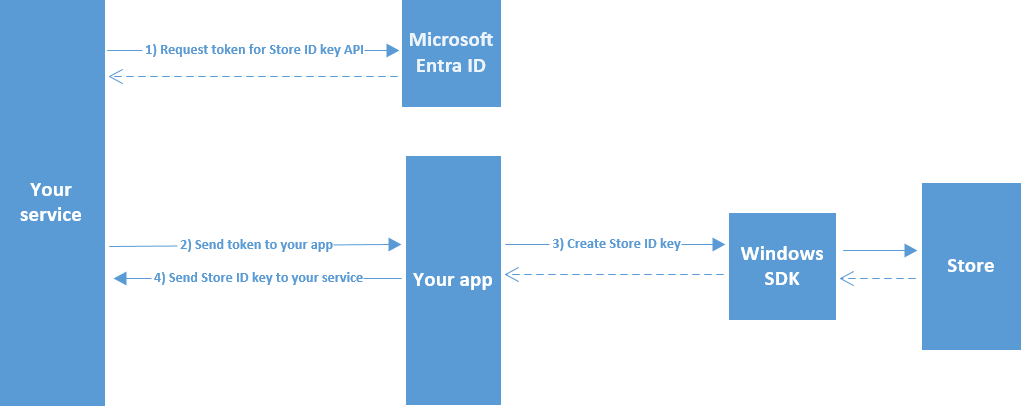
Claims in a User Store ID key
A User Store ID key is a JWT that represents the identity of the user whose product ownership information you want to access. When you decode it by using Base64, a User Store ID key contains the claims shown in the following table.
The following example shows a decoded User Store ID header.
kid claim as opaque values in client and title services. The Store APIs validate the signature.
Example of a decoded User Store ID claim set.