
Prerequisites
- TAK Editor is installed and set up.
- At least one bundle with a layout exists in the workspace folder(s) open.
Preview layouts
Previewing a layout is as simple as opening the layout file in the editor, through the VS Code Explorer. By simply clicking on a layout file within thelayouts directory of a bundle, the JSON contents of the layout will be displayed in one tab, and a live preview of the layout will automatically appear in a tab next to it.
If there are errors in the layout file, they will be displayed in the VS Code Problems Panel. The preview will not be updated until the errors are resolved. This is explored in more detail in the Status, Errors, and Warnings section.
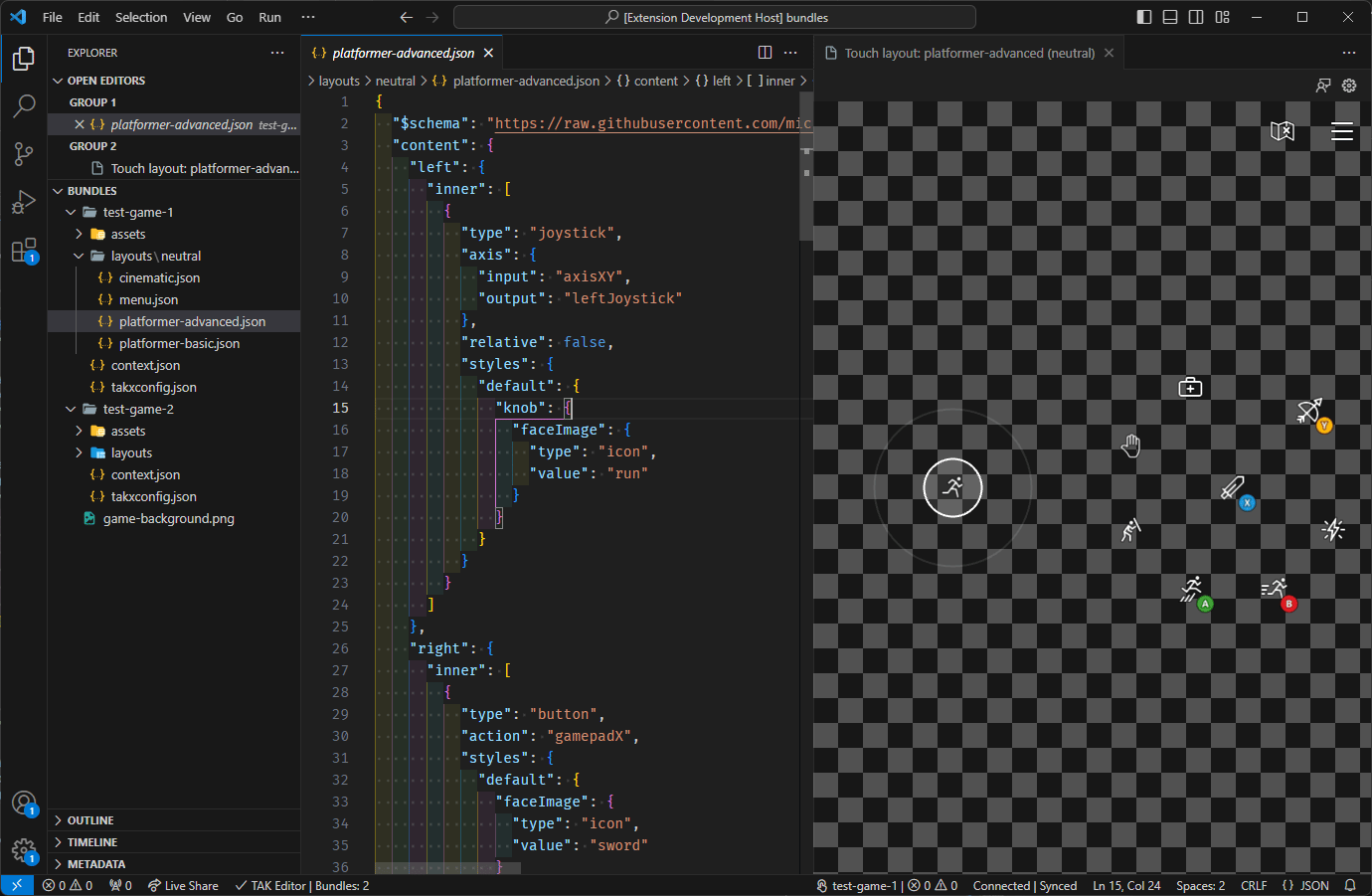
-
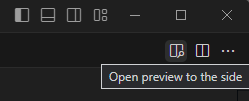
By clicking on the “Open Preview” button in the top-right corner of the layout file:
-
By executing the “Touch Adaptation Kit: Open preview to the side” command through the Command Palette.

Status, Errors, and Warnings
Verification Status
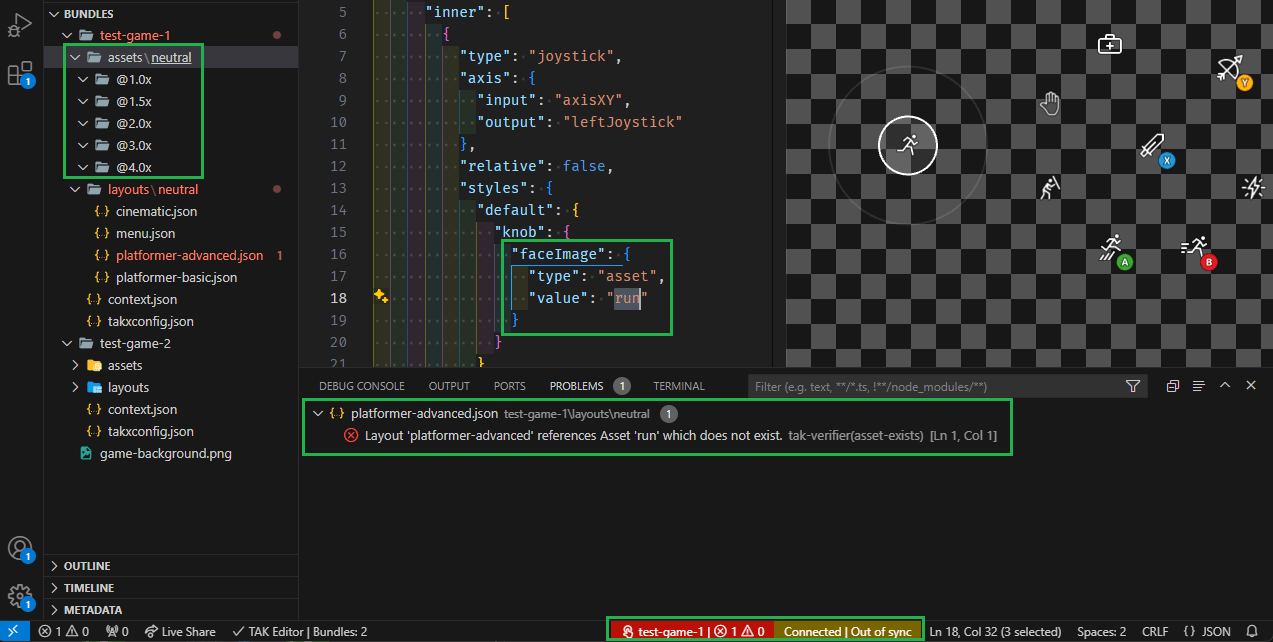
As modifications are made to the layouts, assets, and other files within a bundle, the extension will continuously verify the contents of the bundle for validity against a pre-defined set of rules to which all bundles must adhere. This is done in the background and re-evaluated whenever a file nested within a bundle is saved or changed in any other way (e.g., renamed). The status of this verification is reported through a status bar item located at the bottom-right edge of the window.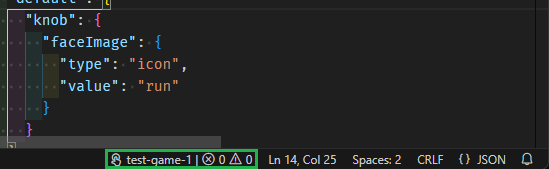
Synchronization Status
The preview panel has an active bundle sideload connection to the TAK CLI. You can read more about how this works in the TAK CLI documentation. The status of this connection is reported through a status bar item located at the bottom-right edge of the window, next to the verification status bar item. This status will only appear when the preview panel is open.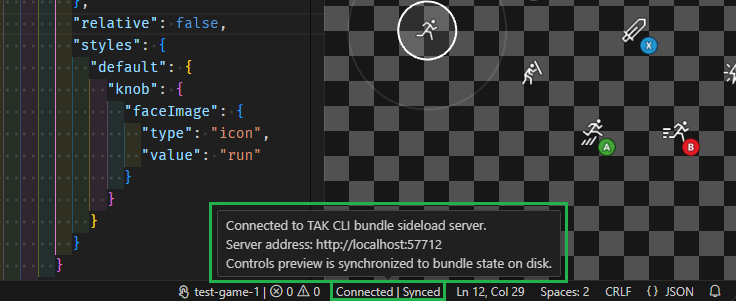
Errors and Warnings
The VS Code Problems Panel will display a list of all the issues found in the bundle. This includes all issues that are found during the verification process. When an issue exists, clicking on either of the verification or synchronization status bar items will open the Problems Panel and display the list of issues. Each issue will have a description and a location in the bundle where the issue was found. For example, in the following screenshot, one error exists in the bundle where the layout fileplatformer-advanced.json is referencing and asset (run.png) that does not exist in the bundle:
Next step
[!div class=“nextstepaction”] Customizing the preview