
- Set the TAK CLI path in the extension.
- Open a folder or workspace in Visual Studio Code
- This is where bundles will be created and edited.
Most of the functionality of this extension can be accessed through commands executed in the VS Code Command Palette. The Command Palette can be accessed by pressing
Ctrl+Shift+P on Windows or Cmd+Shift+P on macOS. It is recommended to familiarize yourself with this interface, as it will be used frequently throughout this guide.Set TAK CLI path
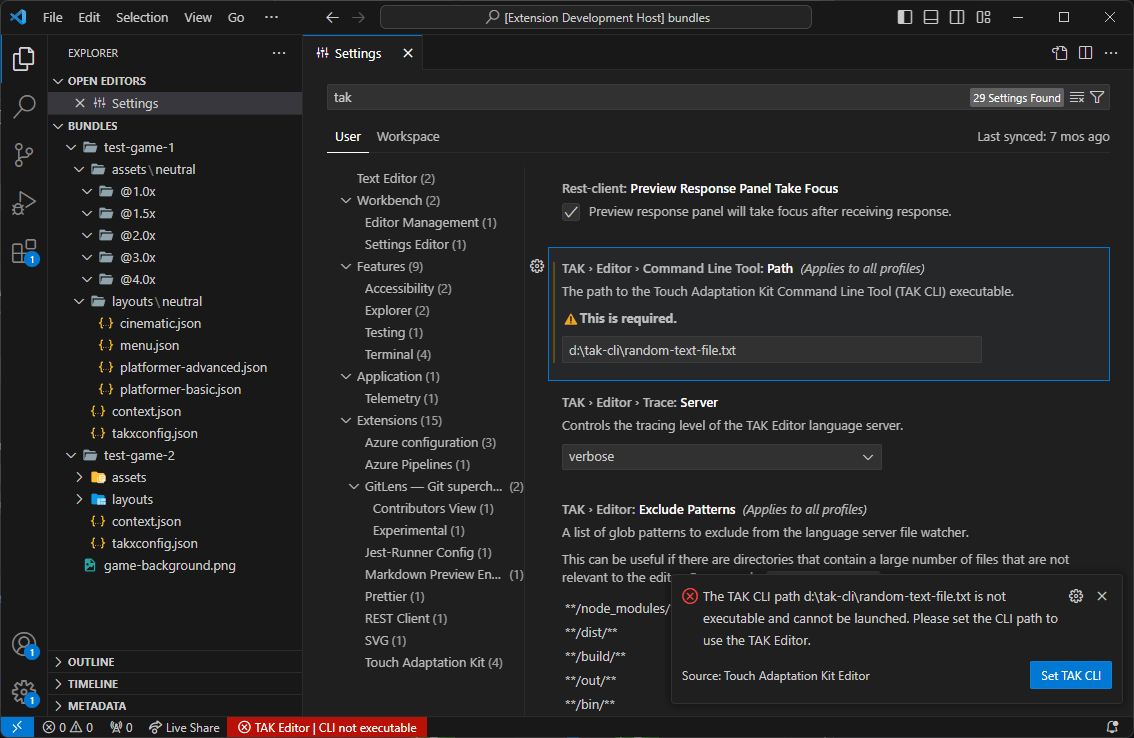
Once the TAK CLI is downloaded on the machine, its path must be set in the extension settings. The extension will launch the TAK CLI in the background to perform various operations, such as creating bundles. This can either be done through executing a command in VS Code, or by manually setting the path in the VS Code User Settings (Setting ID:TAK.editor.commandLineTool.path).
To set the path through the command:
-
Open the Command Palette (
Ctrl+Shift+Pon Windows orCmd+Shift+Pon macOS). -
Search for “Set TAK CLI” and select the “Touch Adaptation Kit: Set TAK Command Line Tool (TAK CLI) Path” command.

-
A file picker will open. Navigate to the location where the TAK CLI is downloaded and select the executable file (
tak.exeon Windows,takon macOS):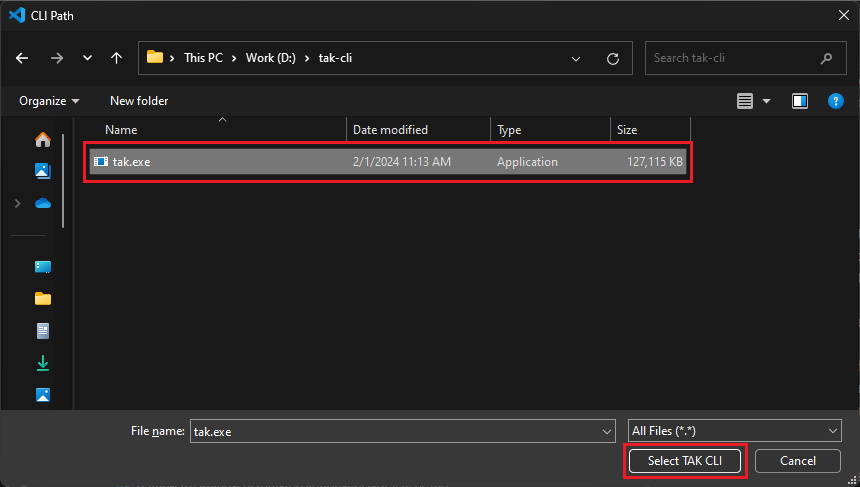
Open a folder or workspace
A folder or workspace must be opened in Visual Studio Code to work on bundles. Think of this as the parent directory that will contain the bundle(s) for your game(s). To open a folder, click on the “File” menu in the top-left corner of the window, and select “Open Folder”. Navigate to the location where you want to create bundles (or an existing folder that contains bundles), and click “Select Folder”. To open a workspace, click on “File” and then select “Open Workspace from File”. Note that this will require an existing workspace file (with the.code-workspace extension) to be present on the machine. If you don’t have a workspace file, you can create one by selecting “Add Folder to Workspace…” from the “File” menu and adding the desired folders. You can then save the workspace by clicking on “File” and selecting “Save Workspace As…”.
Troubleshooting
A status bar item (with the label “TAK Editor”) will appear at the bottom left corner of the window to indicate the status of the extension. This allows you to quickly identify if the TAK CLI path is set correctly, and if the extension is able to communicate with the CLI. If everything is set up correctly, the status bar item will show a checkmark and display the number of touch adaptation bundles found in the workspace, if any.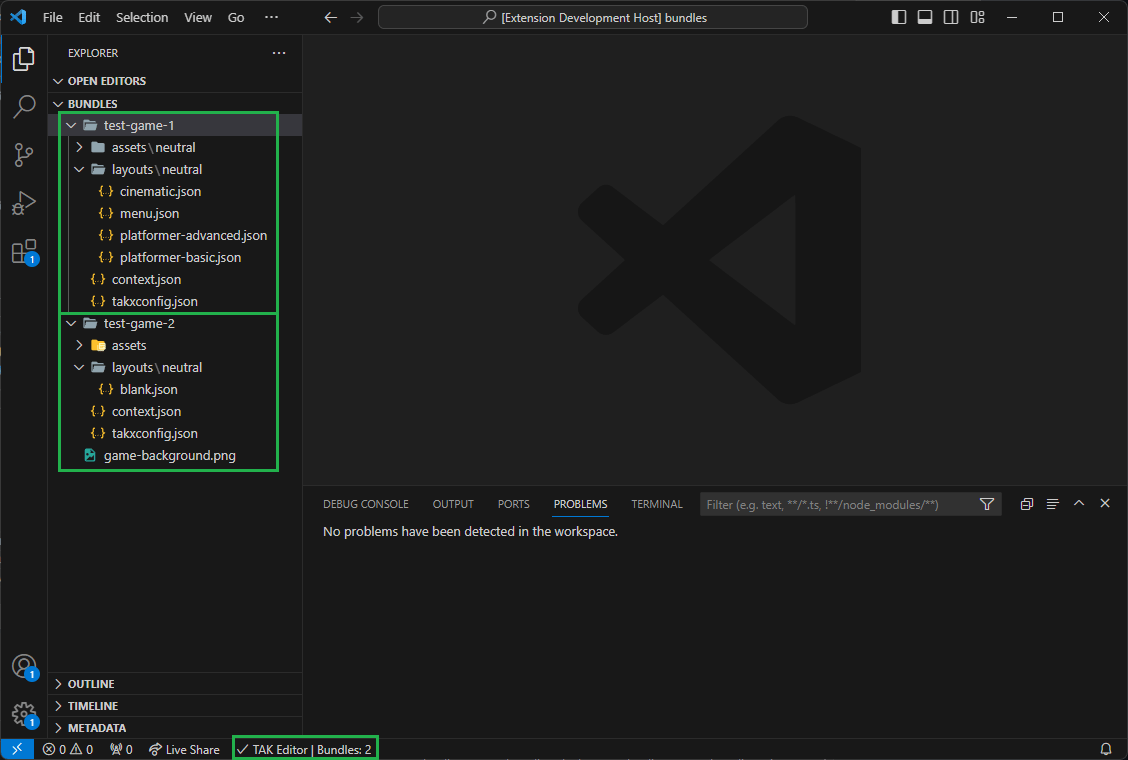
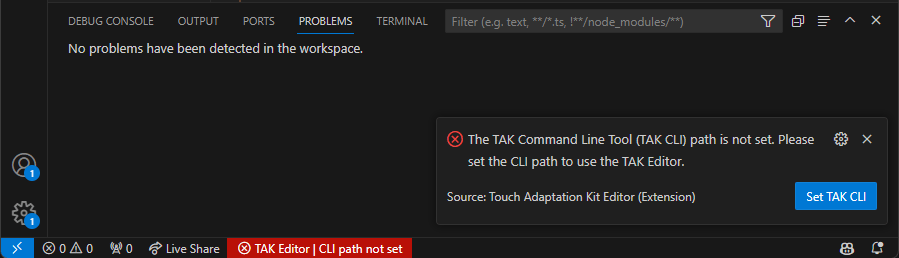
TAK CLI Path Not Set
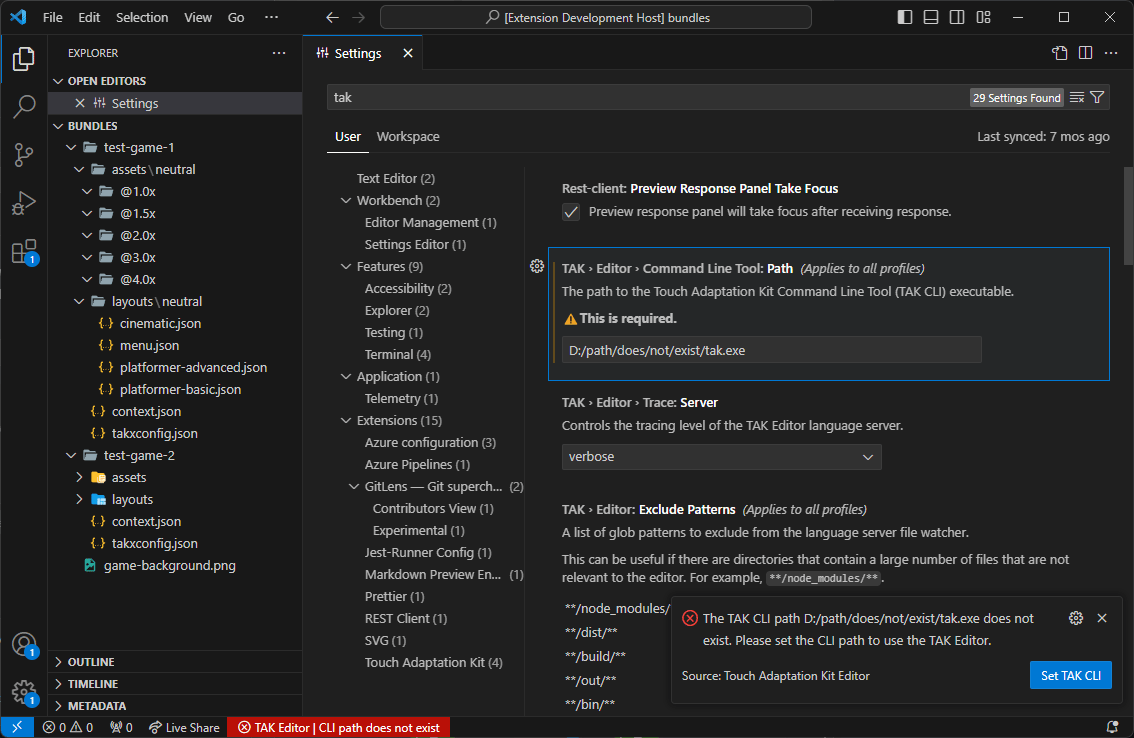
TAK CLI Path Does Not Exist
TAK CLI Not Executable
TAK CLI Version Undetermined

TAK CLI Version Outdated

Next step
[!div class=“nextstepaction”] Create a new Touch Adaptation Bundle