
Background
Customizing the background with a color or image can be done in two ways: via the preview settings, or executing a command in the Command Palette.Via Preview Settings
- Open a layout file for a bundle in the editor, to launch the preview.
-
Click on “Open Settings” in the top-right corner of the preview panel:
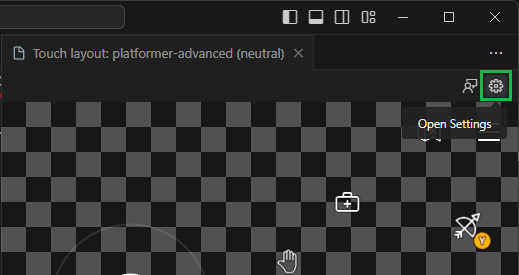
-
A modal will appear with options to customize the background. A color or an image can be assigned:
-
Color: Click on the color picker to select a color. Alternatively, a color can be entered in the input field. The color can be specified in any of the formats supported by CSS (e.g.,
#0000ffff,rgba(0, 0, 255, 1),hsl(240, 100%, 50%), orblue).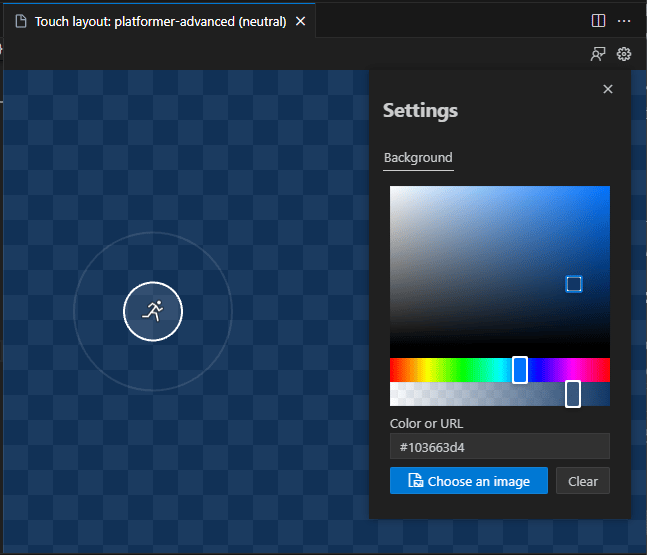
-
Image: Click on “Choose an image” to open a file picker. Navigate to the location of the image and select it. Alternatively, the URL of an image may be entered in the input field.
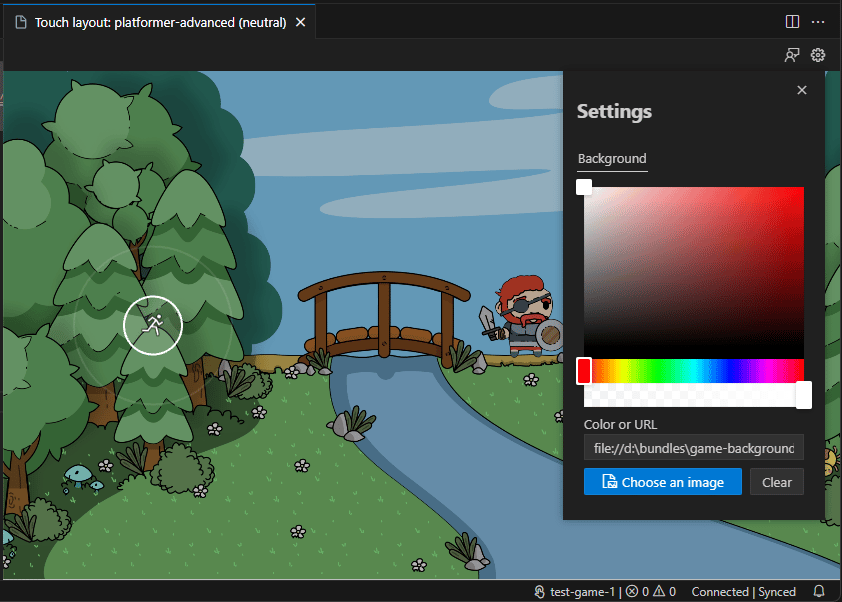
-
Color: Click on the color picker to select a color. Alternatively, a color can be entered in the input field. The color can be specified in any of the formats supported by CSS (e.g.,
Via Command Palette
- Open a layout file for a bundle in the editor, to launch the preview. This command is only available when the preview is open.
-
Launch the Command Palette (
Ctrl+Shift+Pon Windows orCmd+Shift+Pon macOS). -
Search for “Background” and select “Touch Adaptation Kit: Set preview background”:

-
Select one of the options available:
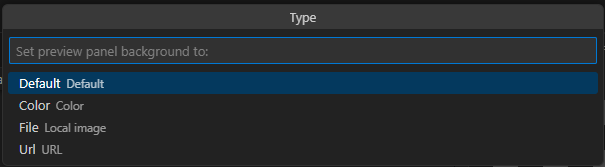
Default: Resets the background to the default transparent checkerboard pattern.Color: Assigns a color to the background. It must be entered as text in the format of a CSS color value.Image: Assigns an image to the background. A file picker will open to select an image.URL: Assigns an image to the background using a URL. A text input will appear to enter the URL.
Next step
[!div class=“nextstepaction”] Pack bundles for submission to XBOX