
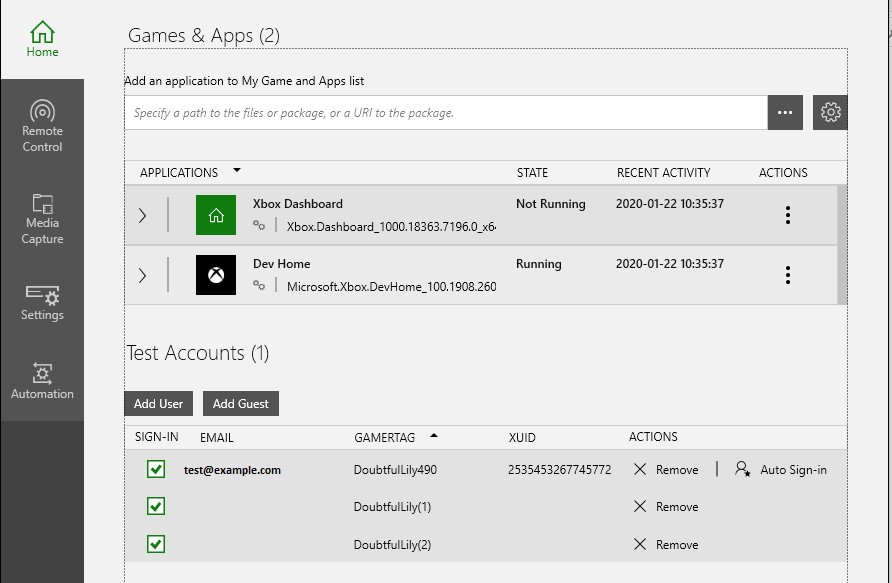
Use the Test Accounts section of the home tab to sign in users and create guest users on a console.

Add a new user

  1. Run XBOX Manager from the start menu shortcut created by setup.
  2. In the console selector, click the console you want to sign in a user on.
  3. Click the Home tab.
  4. Under the Test Accounts section, click Add User.
  5. In the Sign in user dialog, type in the user email address and password, then click the Sign in user button.

Sign in a guest user

  1. Sign in a user following the previous steps.
  2. After a user signs in, click the Add Guest button.
  3. A new guest appears under the signed-in user.

Sign in or sign out an existing user

You can toggle the state of an existing user by clicking the checkbox in the SIGN-IN column. Signing out a user will automatically sign out all guest accounts associated with that user. Signing out a guest user will remove the guest user only from the user list.

Remove a user from the console

To remove a user from the console, click Remove in the ACTIONS column. This removes the user from the list of users in the Test Accounts section and from the list of users on the console itself.

Set a default user

To set a default user, click Auto Sign-in in the ACTIONS column for the user. Setting the default user causes that user to automatically sign in each time the console boots. The default user has a check mark next to the Auto Sign-in action in the ACTIONS column.

Sort the user list

To sort the user list, click the Email, Gamertag, or XUID column headers.

Maximum number of users

There is a limit of 16 signed-in users on a console. This total includes all users and all guests. The Add User and Add Guest buttons will be grayed out when this limit is reached.

See also

XBOX Manager
Last modified on August 20, 2026