
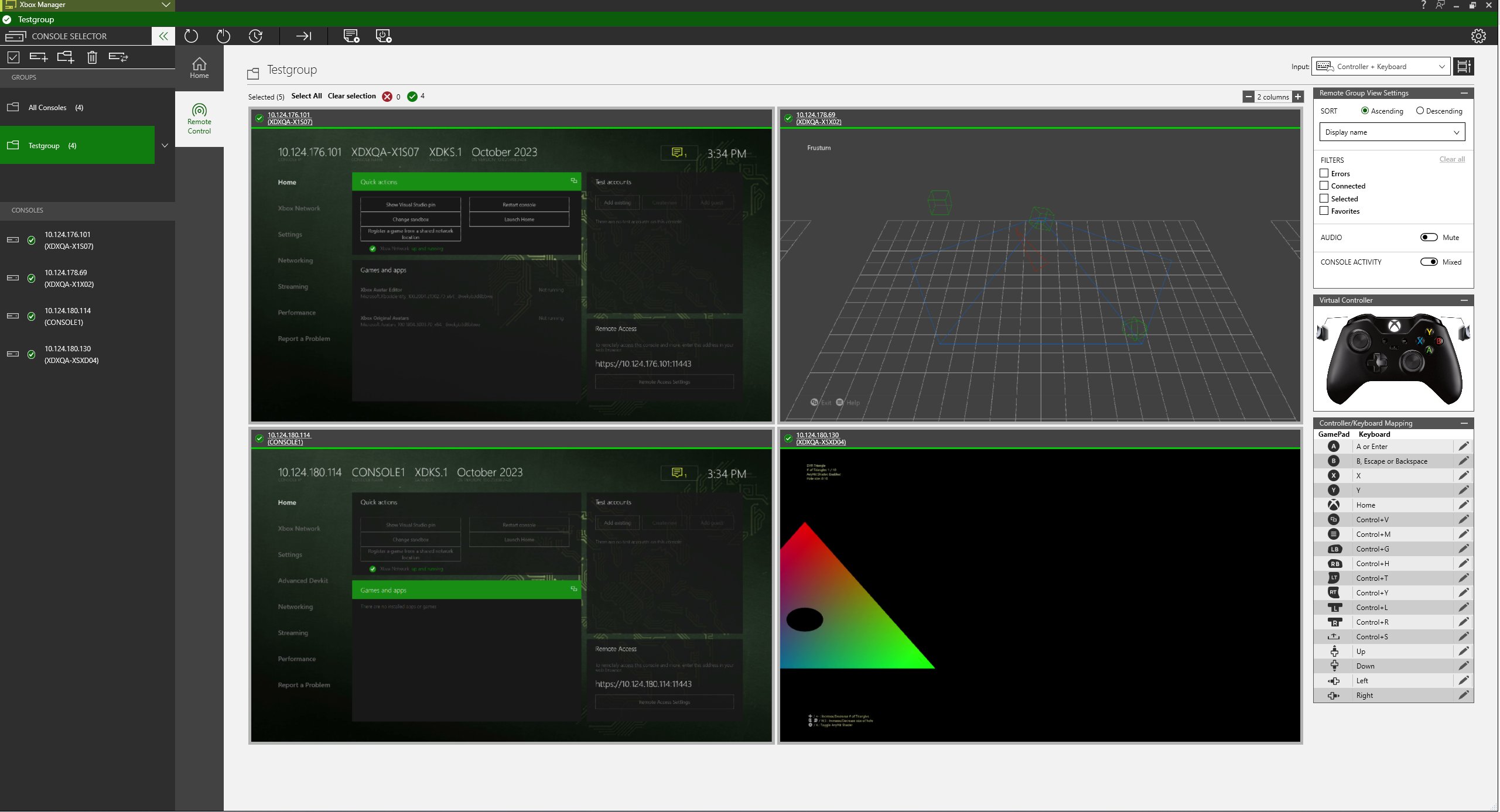
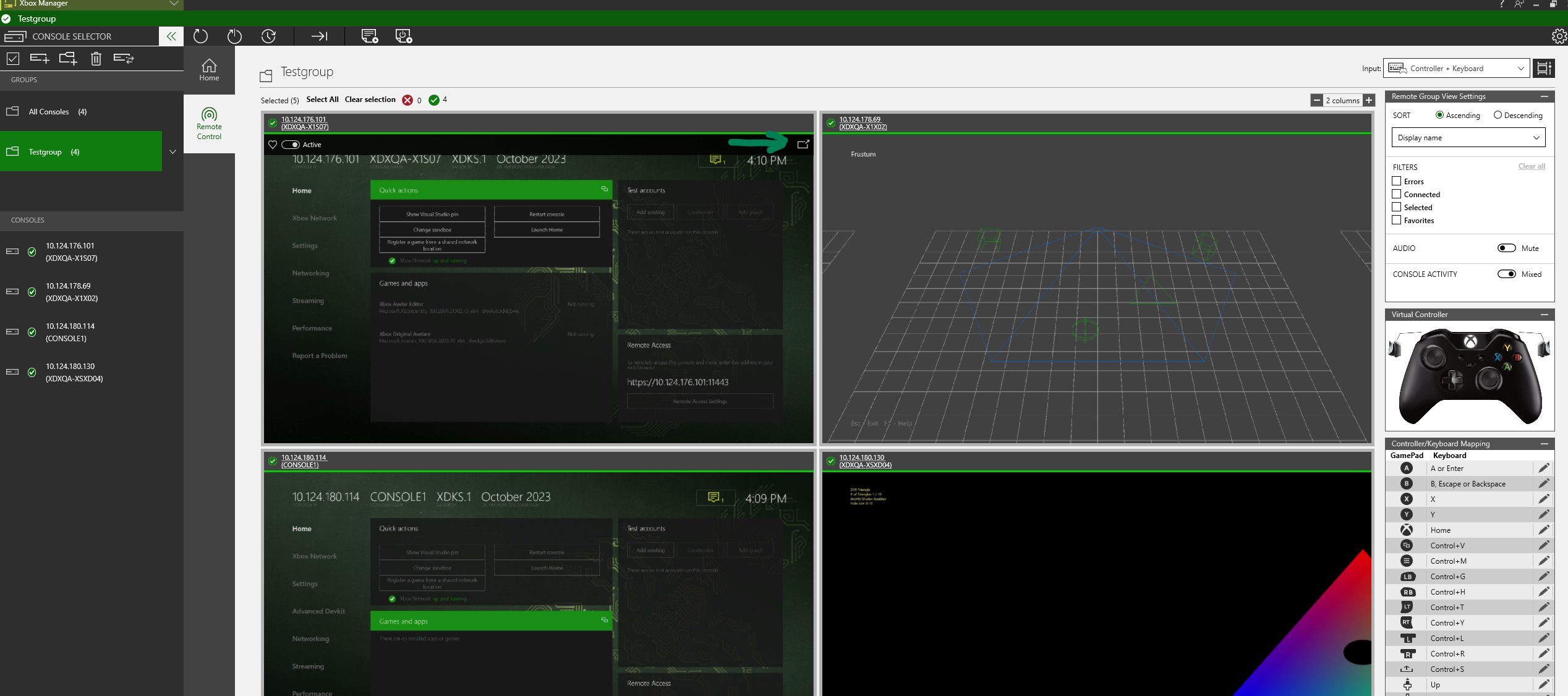
The console names, IP addresses, and images that are in the Remote Control tab are links. To go to the Remote Control tab, you can single-click the console name or IP address, or double-click the console image. From there, you can interact with the selected group of consoles as shown in the following screenshot.
- a physical XBOX 360 or XBOX One controller plugged into the development PC
-
the virtual gamepad: To use this option, select Controller + Keyboard from the Input menu:
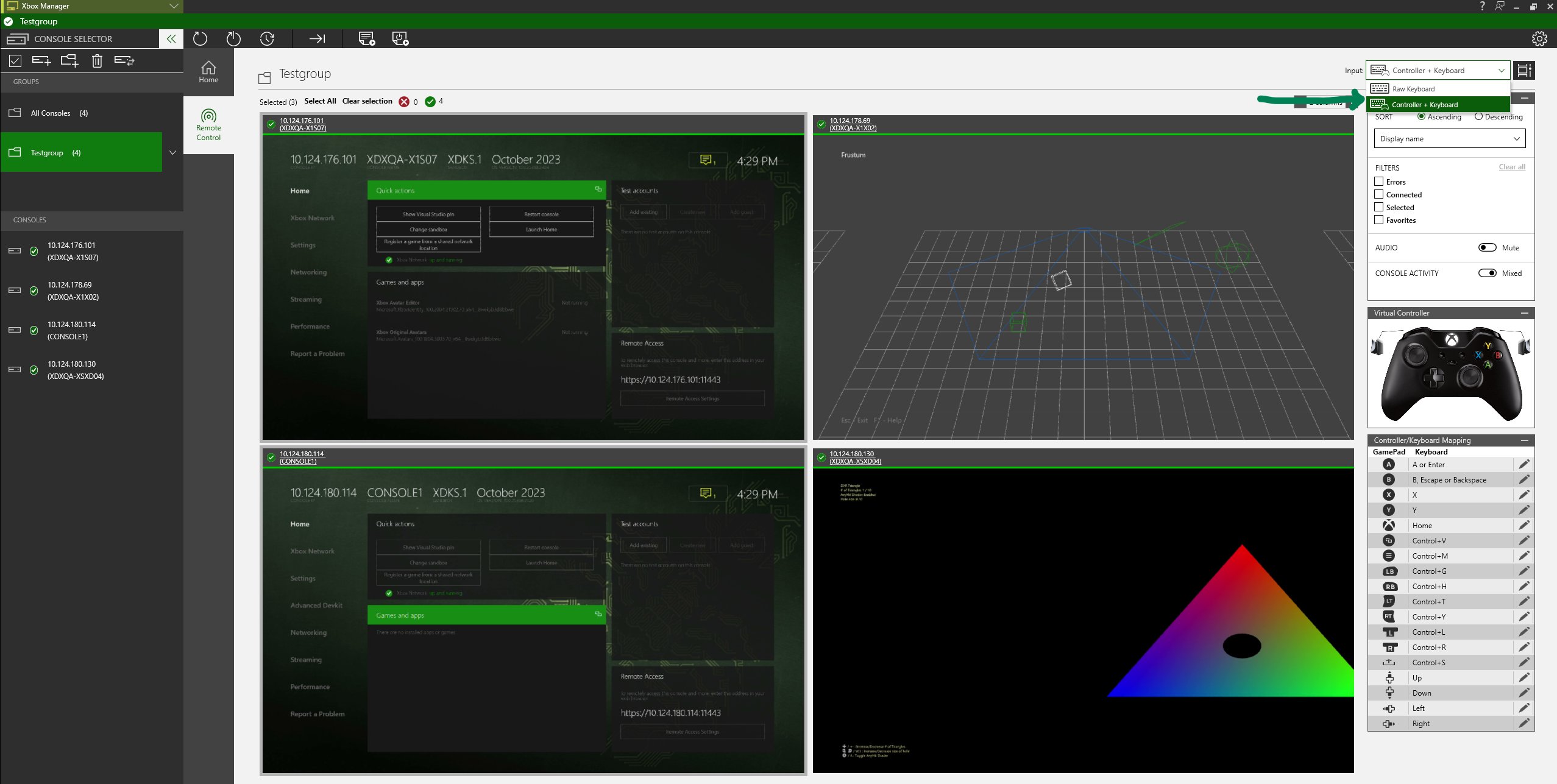
Up to four controllers can be mapped to one or more consoles.
- Thumbnail display of the console screens
- Streaming panel
- Remote group view settings
- Sending input to the consoles
- Controller drivers
Thumbnail display of the console screens
Select a console group from the CONSOLE SELECTOR panel, and then use the Remote Control tab to show what’s on each console’s screen within that group. If the Console View switch is set to On, the console’s screen is mirrored in XBOX Manager. Thumbnails for each console are displayed in a two-column configuration by default. Change the number of columns from the Consoles per row option by entering the number of columns or by using the plus and minus buttons.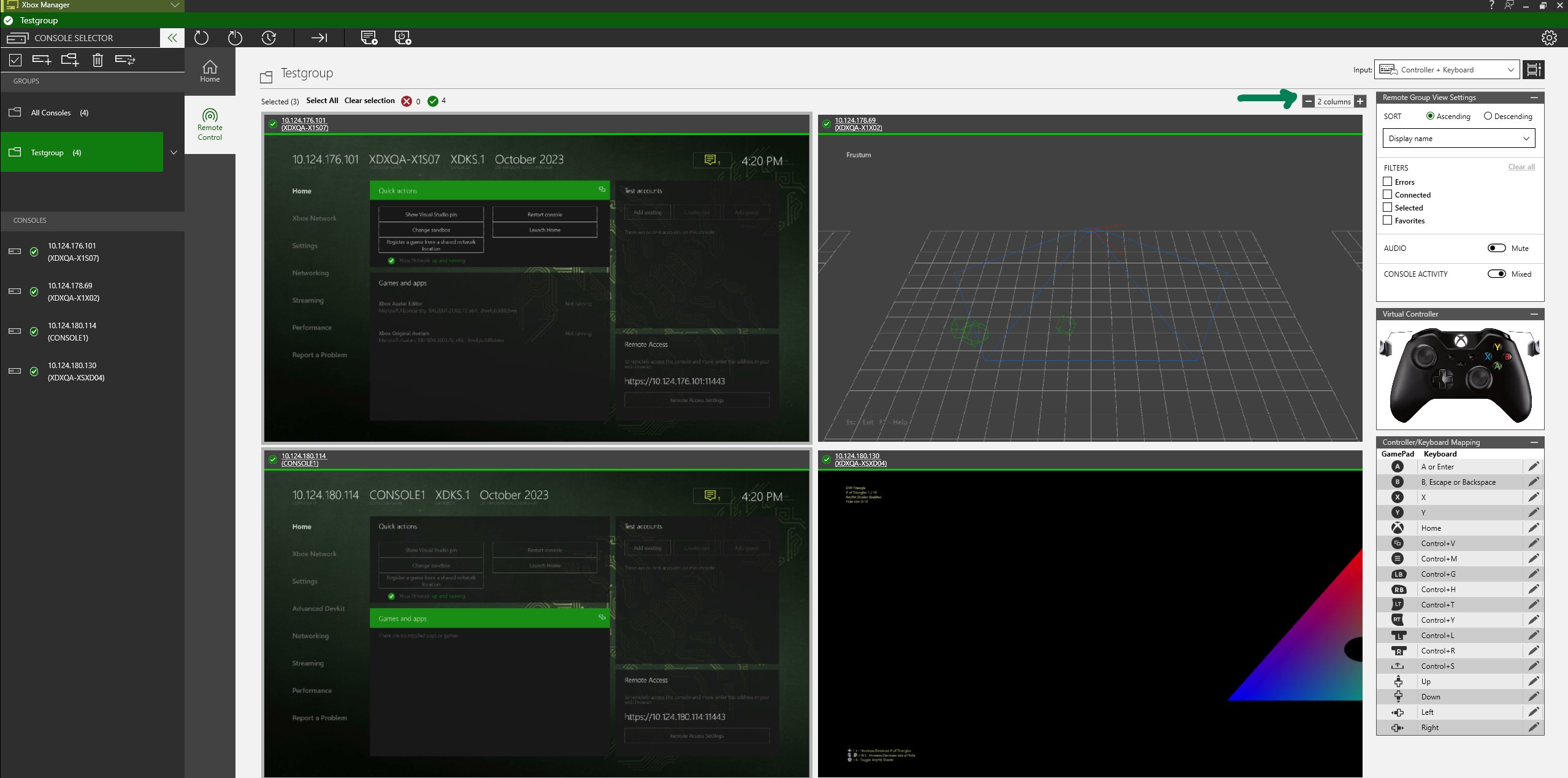
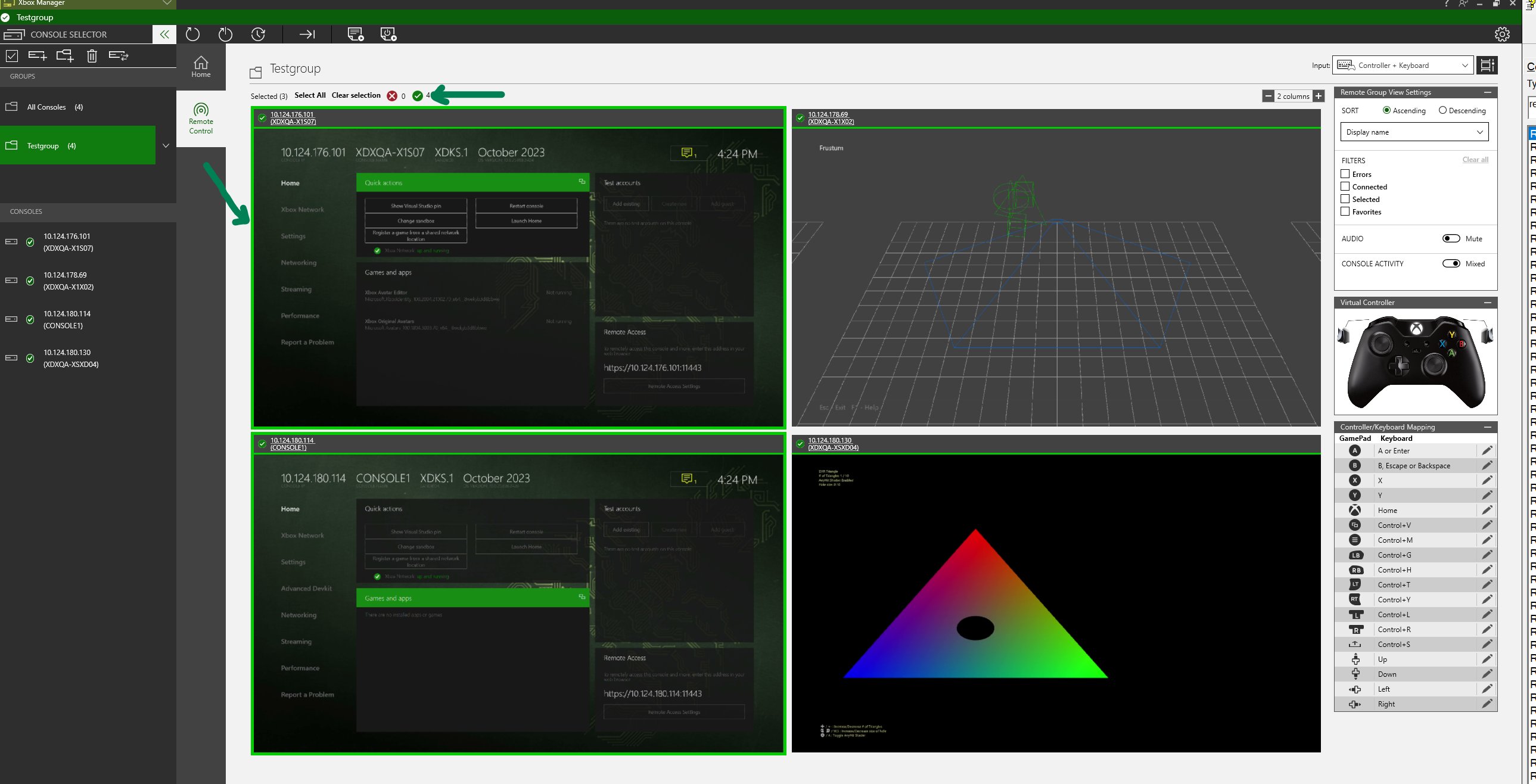
- In the Console list view, click the consoles you would like to view at the maximum FPS.
- Click on the expand button in the top right hand corner to view selected console at high FPS. The selected console will be popped out into a separate window at full fidelity.
If your development PC is running a Windows N edition, you must manually install the Media Feature Pack to enable Remote View.If the Media Feature Pack is not installed, XBOX Manager reports the following error in the Remote Control pane:
Could not find a required dll. The Media Feature Pack is required, see: https://support.microsoft.com/help/3145500"Remote group view settings
The Remote group view settings panel on the right is used to sort, filter, and control audio for the console group. You can filter this setting by console connection statuses, console errors, and selection statuses. The audio settings simultaneously mute and unmute all consoles that are in the group.Sending input to the consoles
Use the Remote Control tab to send controller input. However, raw keyboard input will not work in group remote view.Gamepad input
Select Controller + Keyboard. You can then generate gamepad input with XBOX Manager by using one of the following three ways.- Connect a controller to the development PC, and then XBOX Manager can pass button presses from that controller to the console.
- Use the mouse to interact with the Virtual Controller image in the Remote Control tab.
-
Use the keyboard that’s plugged into your development PC to emulate gamepad button presses by using the following steps.
- Select the remote console view (the image of the console), or the Virtual Controller image.
- Emulate gamepad input by pressing the appropriate key on your keyboard that coincides with the button press on the gamepad as shown in the following table.
If you have the Open Game bar using Nexus on a controller setting selected in the Game bar, the XBOX button press isn’t sent to the console from the Remote Control tab. To enable XBOX button presses, select Windows+G to open the Game bar, select Settings (gear icon), and then clear the Open Game bar using Nexus on a controller option.