
You can use the Tools SKU to upgrade the tools from the Microsoft Game Development Kit without upgrading other GDK components (for example, headers, libraries, and Game OS). However, the Overlay Folders feature depends on support from the Game OS, which is released as part of the GDK but not the Tools SKU.
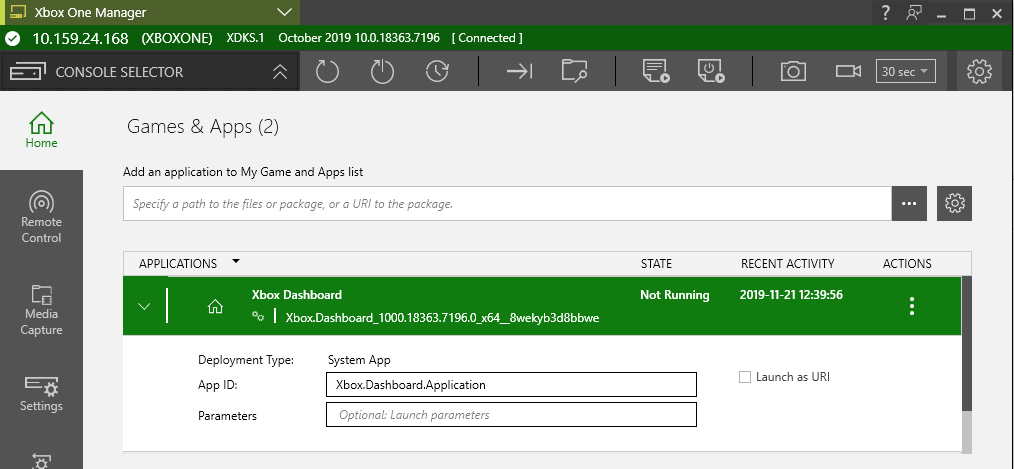
If your app has an overlay folder that’s configured, the app icon in the Games & Apps tab appears with the Overlay Folder indicator in its lower-right corner. The text “Overlay Active” appears below the app status. These cues are provided to help you remember that you’ve configured an overlay folder for your app.
Deploying apps
- Deploying an app by using the deploy or install app interface
- Initializing push-deployment of an app
- Differentiating deployment types
Deploying an app by using the deploy or install app interface
Use the following steps to deploy or install an app to the console from XBOX Manager.- Open XBOX Manager from the Start menu shortcut.
- Select the console that you want to deploy your app to from the list on the left side.
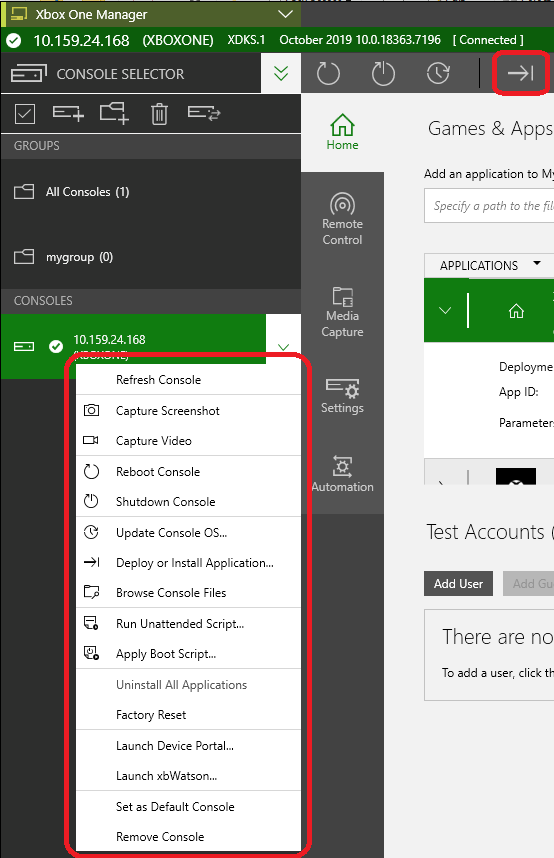
- Right-click the selected console, and then select the Deploy or Install Application button or select Deploy or Install Application in a console’s context menu as shown in the following screenshot.
-
Use the following options to select the deployment type that you want to use.
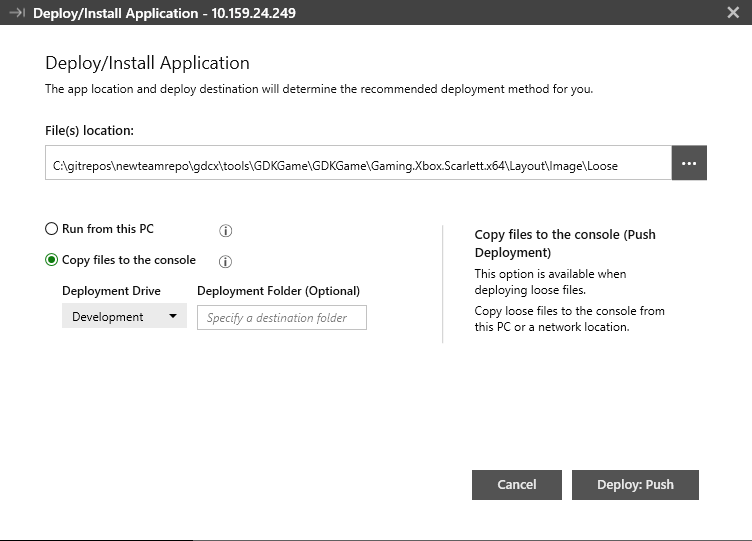
- Copy files to the console uses push-deployment and copies the unpackaged app files to the console from the development PC or a network location. When using this option, specify the location of the Loose directory that contains the app files as shown in the following screenshot.
[!NOTE] The Loose directory is in your Visual Studio project directory. If your project is in C:\Projects\Triangle2D, deploy the C:\Projects\Triangle2D\Triangle2D\Durango\Layout\Image\Loose directory.
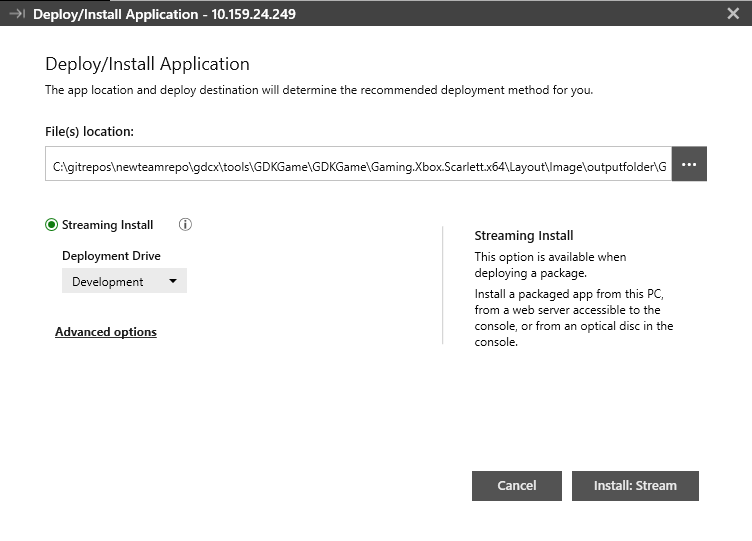
- Streaming Install installs a packaged app from the development PC, from a web server that’s accessible to the console, or from an optical disc in the console. When using this option, you must specify the location of the app package. You have the option to specify the location of the mapping file as shown in the following screenshot. Be aware that the
/lswitch isn’t supported on dev kits.
- Run from this PC registers a Loose package that runs from a network share or a folder on your development PC as shown in the following screenshot. This is the fastest deployment option. For more information, see Deploying your title to your XBOX Development Kit.
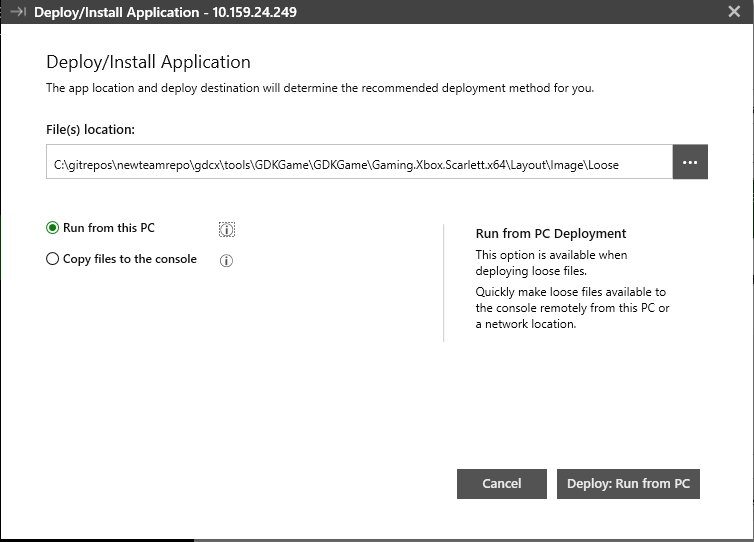
-
Select Deploy: Run from PC after you’ve chosen your file location. The status bar at the top of the screen displays the installation progress.
[!NOTE] If a console has multiple deployment drives, the Deploy/Install Application window has a drop-down list named Deployment Drive that you can select to deploy the app to a specific location. The default value is taken from the default storage device setting of the console.
- When deployment has been completed, select the Games & Apps tab to view the deployed app that’s on the console. You can perform other actions with the app from this screen as shown in the following screenshot.
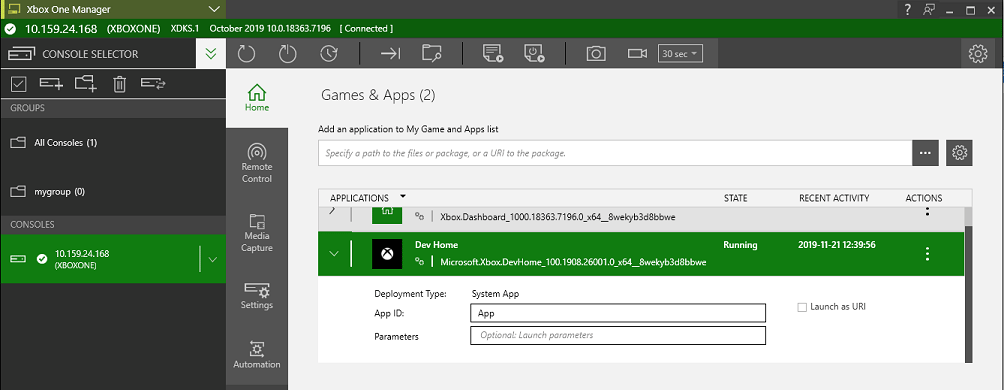
Initializing push-deployment of an app
To deploy an app, move the app’s Loose folder to XBOX Manager to initiate push-deployment, or move the app’s .xvc file to initiate streaming installation.Differentiating deployment types
After a title is deployed, the app list displays the build type for your title as part of the Type column as shown in the following screenshot. For more information about deployment types, see Deploying your title to your XBOX Development Kit.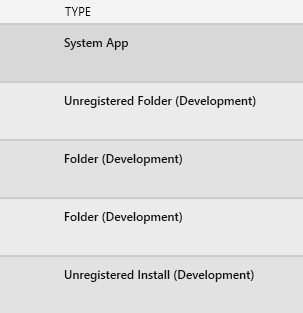
Opening apps
You can use XBOX Manager to remotely open apps that are on a console and set the current running state of those apps.To open an app
Use the following steps to open an app on the console through the Games & Apps tab of XBOX Manager.- Open XBOX Manager from the Start menu shortcut.
- Select the console that you want to open the app on.
- Select the Games & Apps tab.
- Select the app that you want to open.
- Optional steps: specify any launch parameters in the Parameters box.
- Optional step: configure an overlay folder path by using the Overlay Folder box.
- Optional step: select the Launch as URI check box.
- Select the Actions drop-down list, and then select Launch.
- After the app starts, select the Actions drop-down list to change the app state by selecting Constrain, Suspend, Terminate, Unconstrain, or Resume.
You can’t suspend your title when Fast Iteration Mode is enabled. Turn off Fast Iteration Mode by using the Enable fast game launch setting before suspending the title.
Uninstalling all developer-installed apps
You can use XBOX Manager to uninstall all developer-installed apps from a console or console group by using the Uninstall All Applications command.To uninstall all apps from a console or console group
Use the following steps to uninstall an app from a console or console group by using XBOX Manager.- Open XBOX Manager from the Start menu shortcut.
- Select the console or console group that you want to remove an app from.
- Right-click the selected console, and then select Uninstall All Applications from the context menu of a console as shown in the following screenshot.
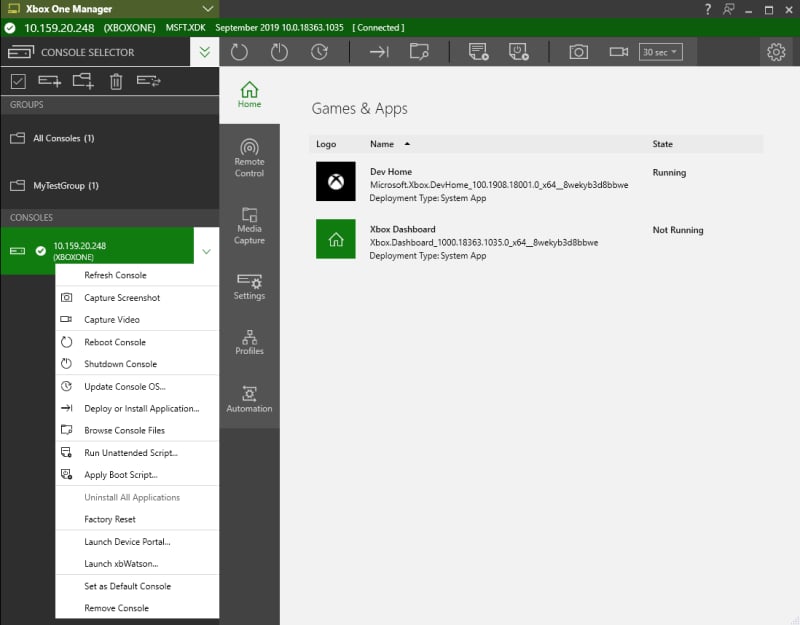
This process is the equivalent of running xbcleanup.exe /U.
Browsing console files
You can view file shares for the console that’s selected by using XBOX Manager.To browse console files
Use the following steps to view and browse a selected console’s files.- Open XBOX Manager from the Start menu shortcut.
- Select the console that has the files that you want to browse.
- Right-click the selected console, and then select Browse Console Files or select Browse Console Files in the context menu for the selected console as shown in the following screenshot.
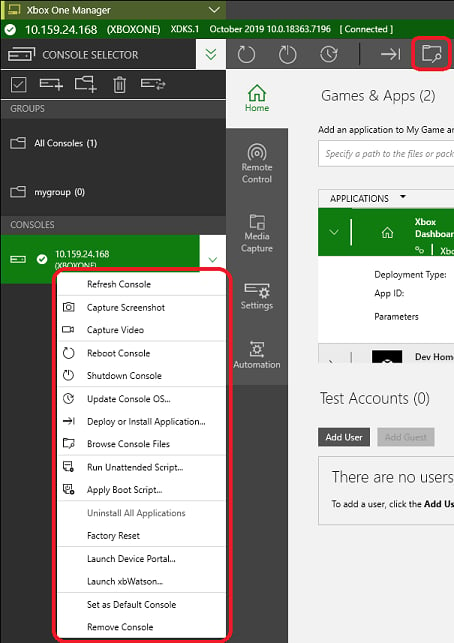
When you select Browse Console Files, XBOX Manager opens File Explorer. The console’s file system is displayed in the new window.