
Xblpcsandbox.exe because it signs out any accounts that are signed in to XBOX services-enabled apps when the sandbox changes.
For XBOX services operations, it suffices to sign-in with an account that is provisioned to the newly switched sandbox, which is similar to signing in with different accounts in retail. Once signed in, the XUser context understands the current sandbox.
Store operations require an XBOX User signed into an XBOX services-enabled app to scope browsing and purchasing of products to a sandbox. Simply signing in with an account in the Microsoft Store app defaults the sandbox scope to retail (or previous sandbox if one was set).
Therefore it’s important to sign-in to XBOX services first after switching sandboxes:
- From GDK command prompt:
xblpcsandbox<sandbox id> - Sign in on the XBOX App with account provisioned for sandbox
- Sign in on the Microsoft Store app with the same account
The XBOX App can pop up a dialog asking to switch the Store account to the newly signed in account.
- from retail to sandbox
- from one sandbox to another sandbox
- from sandbox to retail
When testing commerce in development sandboxes, make sure that all purchases on a single test account are done in the same sandbox.
XBOX App optimization
The XBOX App has an indicator in the menu that shows what sandbox is active: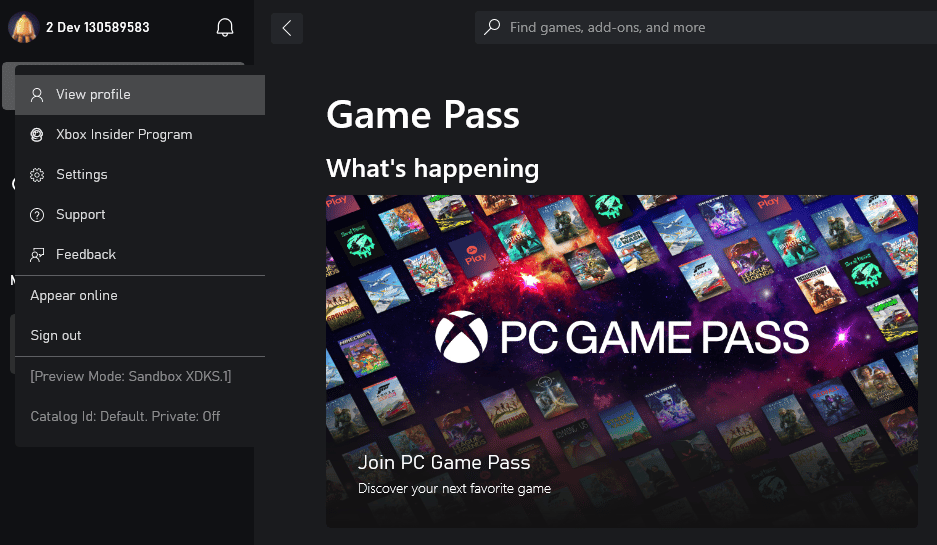
In-game store operations (using XStore API)
The XStoreContext that the game obtains is that of the store account, whether that is explicitly signed in on the Microsoft Store app or done as part of XBOX App sign-in. The best indicator of what account XStore API uses is the account that is used by the XBOX App for its store operations.