
Overview of disc requests
Figure: Disc requests page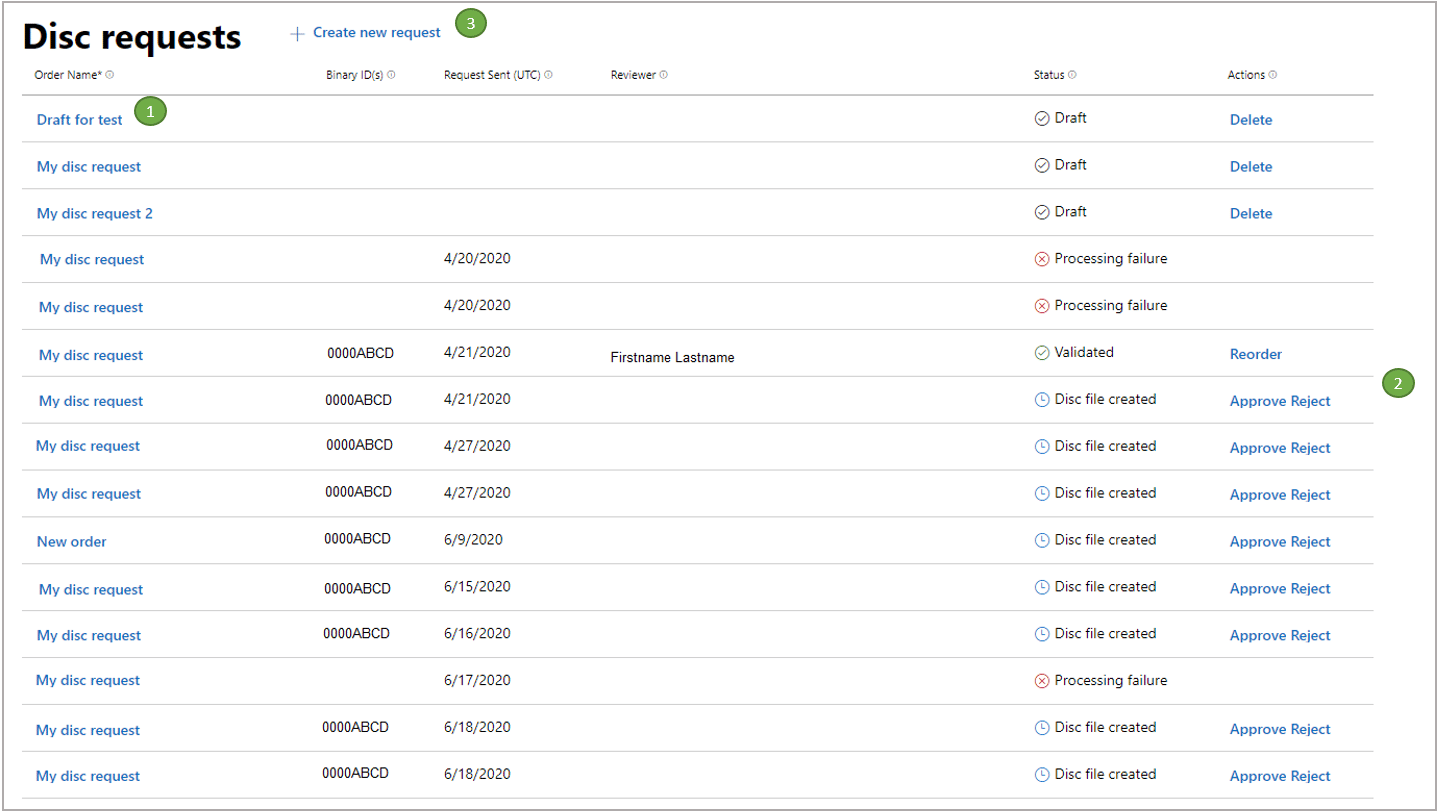
1
Select an order name to view its details.
Select an order name to view its details.
2
The Actions column displays all optional and required actions that are re...
The Actions column displays all optional and required actions that are related to the order.
3
To begin a new request, select the Create a new request link.
To begin a new request, select the Create a new request link. The product determines whether a single-product request flow or a bundle request flow is required.
Creating a disc for a single product
This request takes you through the steps to configure disc contents for one product. These steps are determined for you, based on the selected product chosen prior to entering the disc request tool.Create a new disc request
When you initiate a new request, you’re prompted to start by naming your order, and then configuring the disc contents.1
In the Order name field, enter a custom order name that will aid in track...
In the Order name field, enter a custom order name that helps you track the request. Use a friendly name to help you identify your product.
2
The product name is fetched automatically, based on product setup outside dis...
The product name is fetched automatically, based on product setup outside disc creation.
3
In the Listing instance dropdown list, choose one of the available store ...
In the Listing instance dropdown list, choose one of the available store listing instances for this product. Listings appear after they’re submitted to CERT or are used in RETAIL. You can select them if they have a featured promotional art asset. This is the image used on disc and is therefore required.
4
Region
is used to indicate content to be sold in China.
Step 1: Configure disc content for a single product
- When an order is initiated, the product details (including age ratings) are displayed throughout the order UI. Select Edit at any time to return to editing the order name or product listing instance.
- Packages and package types Adding at least one package is required for completing your order. In the previous example, you will notice two package types: XBOX One and XBOX Series X|S. This dual-type option will only appear when a product had been configured to support multiple platforms. If packages uploaded are all for XBOX One only, you’ll see a single dropdown list for packages.
- Save draft This option to save partial drafts isn’t currently available. To save a draft, you must have a viable draft and use the Save button on the summary page.
Step 2: Select authorized replicators
After you define the disc contents, it’s time to choose one or more authorized replicators (ARs) for retail disc manufacturing. This is usually based on the region that the final product is being distributed in. The files required to make the disc are sent directly to the replicators. However, the replicators won’t print discs until everything else is in place, including the following.- Your approval of the test discs.
- Approval of the test discs by Microsoft.
- A valid BOM.
- An order placed with the AR.
- New disc request created, including AR selection.
- Disc files are sent to ARs, ready for final replication (and to Microsoft test disc manufacturing sites for test disc production).
- Test discs are manufactured, shipped, and approved by the partner and by Microsoft.
- BOM is progressed to a Release to Manufacturing (RTM) state, which means the game has released to manufacturing.
- ARs are notified by Microsoft of the RTM state.
- If the AR has an order and PO from the partner, the AR can begin final product replication.
The selection of ARs is separate from the process of test disc manufacturing. The process of test disc manufacturing is handled automatically by Microsoft.
Step 3: Ship test discs
- Test discs are printed, and one primary recipient receives 20 discs, and up to two secondary recipients receive 10 discs. The primary recipient is required to complete the order.
- Test discs are sent to the recipients listed in this section. This is a preliminary step that allows the requestor to evaluate the product alongside the Microsoft Certification team prior to submitting to the BOM.
- Select Primary (20 discs) or Secondary (10 discs).
- Complete the contact information fields.
Step 4: Submit the order
This final step provides the requestor one last opportunity to review and/or edit their selections before the approval and manufacturing process is triggered. This step is required to complete the order.Order summary
After you submit an order, an email is sent to your Microsoft representative for review. You can view the order details and status anytime by selecting the order name on the disc order overview page.Reorders
A disc request can be reordered. This is a good option if you would like to sell more copies of an already released disc. This process involves sending the disc file that’s already been created and tested previously to an AR. There are no changes to the file itself. We take the original file exactly as it is and send it to the AR that’s selected by the publisher at reorder time. As a publisher, you must make arrangements with the AR for replication in the same way as a novel disc request. Because this disc has already been approved and replicated, no certification or test discs are created. The reorder option becomes available after you approve a disc request in the disc request management UI.Ordering discs for a bundle product
This section walks you through the workflow you see if you’re ordering discs for a bundle product instead of for a single product, and highlights the differences. The bundle ordering process is the same as a single product except for “Step 1: Configure disc content for a single product.” Configuring disc contents requires the requestor to list sub-products and their associated listing instances. Initiating a request for a bundle product triggers a different order UI.- The parent product is shown in the Bundle product section.
- In the Bundle listing instance dropdown list, select a listing instance.
Step 1: Configure disc content for a bundle product
- To add products, select Add products from this bundle. Bundle products orders require an extra step for selecting available products from the bundle to include on the disc. This allows the publisher the flexibility of selecting only a subset of the bundle’s digital product members to include on the physical disc. Each in-bundle product the publisher wants to include on disc requires associating its own listing instance and package. This is in addition to the parent product and listing instance. Each product configuration must meet the requirement of containing the featured promotional art piece and physical age ratings. This policy is subject to change with the new feature of manual age ratings from a bundle.