
Identify
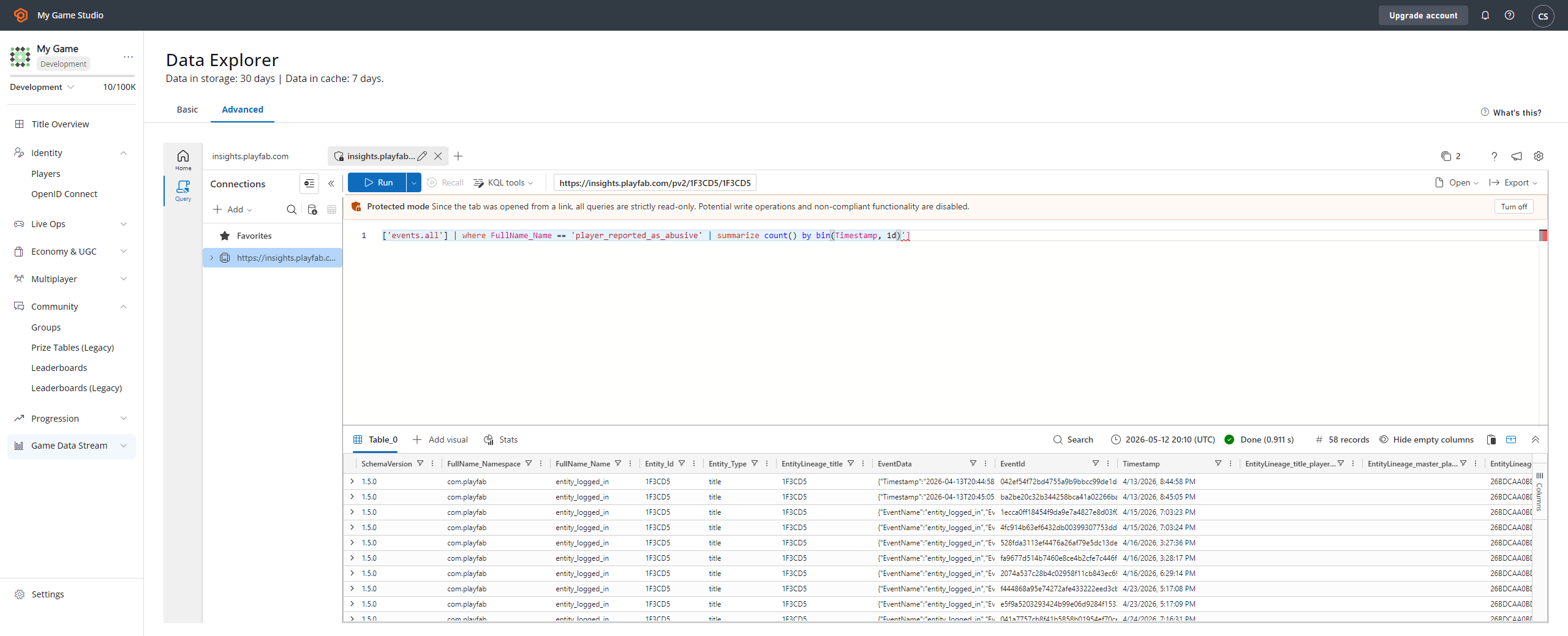
While your game might have a custom system to identify cheaters and rule-breakers, PlayFab offers a player-to-player reporting mechanism. In essence, you rely on your players to report other problematic players. To let the client report a specific player, use the following snippet in your client code.- A Report Event, which you’re able to locate via the Analytics tool (1).
- Select the player_reported_as_abusive event type (2).
- This shows:
- The Event Name (3).
- The reported Player ID (4).
Applying bans
Once the problematic player is identified, you might apply a ban. There are two ways to apply bans: manually through Game Manager, or programmatically through code.Creating a ban from Game Manager
Your community management rep might want to apply a ban using Game Manager.- Navigate to the Players section.
- Locate and select the problematic Player.
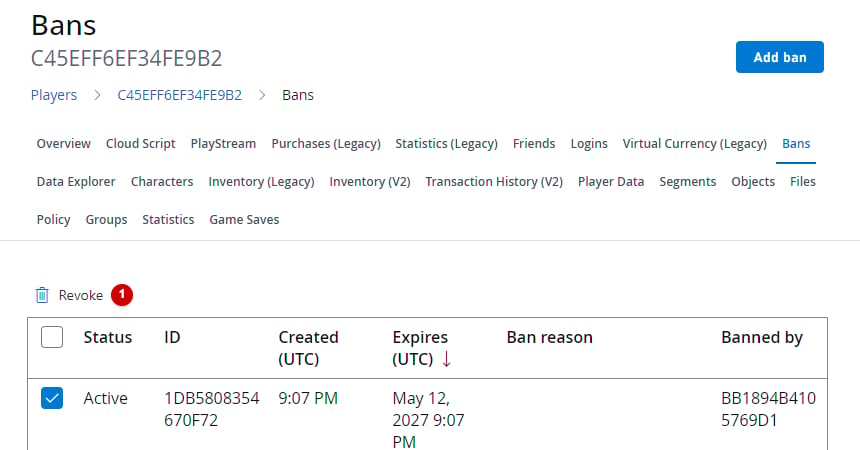
- Navigate to the Bans tab.
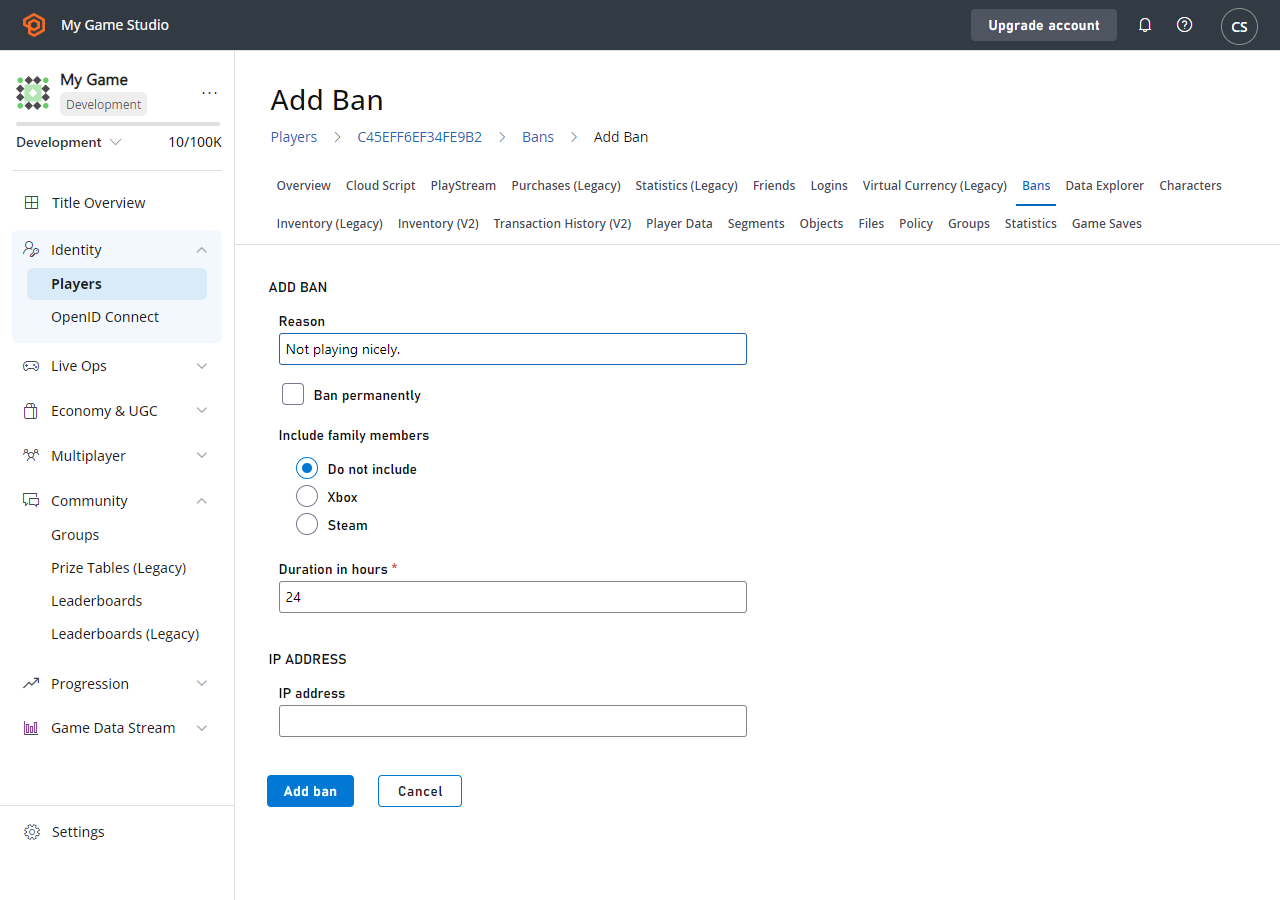
- Select Add Ban to display the Add Ban form.
- Type in the Reason for the ban, and the desired duration. Optionally, you can Ban by a specific IP ADDRESS (4).
- Last, select the ADD BAN button.
Creating a ban from a server or service
Alternatively, you might use the Services SDK to apply a ban via code by using the snippet provided below.The PlayFab server SDK methods provide more options, such as IP address bans.
You can use CloudScript functions as part of an automated system that may ban a player. To find out more about CloudScript, see our tutorial Writing Custom CloudScript.