
CloudScript using Azure Functions improves on what made CloudScript great with more supported languages and better debugging workflows.
This tutorial demonstrates Unity code samples, but CloudScript works similarly for all SDKs.
- Unity environment set up with the PlayFab Unity SDK
- The title ID is set in the
PlayFabSharedSettingsobject. - The project can successfully log in a user.
- The title ID is set in the
Getting started: helloWorld
OurhelloWorld example works on a brand new title, with no modifications in Game Manager. The default CloudScript file for a new title includes a handler called helloWorld. It utilizes a few basic features, input parameters, logging, currentPlayerId, and return parameters.
The following sample shows the default helloWorld function code (minus comments).
Deconstruct the code
The handler object is pre-defined in the PlayFab CloudScript environment. You should add any of your CloudScript functions to this object.-
helloWorldis a function made available to your title and SDKs, because it’s defined in the handler object. -
argsis an arbitrary object which comes from the caller. It’s parsed from JSON, and can contain any data formatted in any way.
-
Contextis an advanced parameter. In this example, it’s null. This parameter is server-controlled and safe. -
currentPlayerIdis a global variable, which is set to the PlayFabId of the player requesting this call. This parameter is server-controlled and safe. Note: When using ExecuteEntityCloudScript API this parameter is null unless the entity has a MasterPlayerID in its entity chain. -
log.info:logis a global object. It’s primarily used for debugging your CloudScript. Thelogobject exposes the following methods:info,debug, anderror. There are more details later in this tutorial. -
return: any object you return is serialized as JSON, and returned to the caller. You may return any JSON serialize-able object with any data you wish.
Executing CloudScript functions from a Unity game client
Calling a CloudScript function from within a client is straightforward. You first have to create anExecuteCloudScriptRequest, and set the ActionId property to the name of the CloudScript function you wish to execute (in this case it would be helloWorld), then send the object to PlayFab via our API.
You can only call CloudScript methods attached to the handlers JavaScript object.
Deconstruct the code
ExecuteCloudScriptRequest is the request type for any call to PlayFabClientAPI.ExecuteCloudScript.-
ExecuteCloudScriptRequest.FunctionNameis a string. The value should match the name of the function defined in CloudScript. In this case,helloWorld. -
ExecuteCloudScriptRequest.FunctionParametercan be any object, able to be serialized to JSON. It becomes the first args parameter in thehelloWorldfunction (refer to the args in the previous section). -
ExecuteCloudScriptRequest.GeneratePlayStreamEventis optional. If true, an event is posted to PlayStream, which you can view in Game Manager, or utilize for other PlayStream triggers.
ExecuteCloudScript line involves making the request to the PlayFab CloudScript server, and the Result and Error handling part, specific for the language.
For example, in Unity, JavaScript, or AS3, Error and Result handling is provided using callback functions.
The following is an example of error handling methods.
Intermediate Overview: Globals and advanced arguments
CloudScript is a set of JavaScript functions compiled with V8 and hosted on PlayFab’s servers. It has access to any server API listed in the PlayFab API reference documentation, along with a logger, the PlayFab ID of the player making the CloudScript request, and any information included with the request, all in the form of preset objects. CloudScript functions themselves are properties of a global handlers object. The following table shows a complete list of these predefined variables.
In addition, all handler functions are passed two parameters, detailed below.
CloudScript functions can be called through the
ExecuteCloudScript API, or by a preset PlayStream event action.
Full details about the response to ExecuteCloudScript can be found in the ExecuteCloudScriptResult.
Intermediate: FunctionParameter and args
In the previous section, we described how to populate therequest.FunctionParameter, and view that info in the args parameter. The CloudScript quickstart demonstrates how to upload new CloudScript.
Putting both together, we can provide another example of how to pass arguments from client to CloudScript. Take the previous example, and modify the CloudScript code and your client code as shown below.
It is important to point out that any data coming from your clients is susceptible to hacking and exploitation.
Intermediate: Calling the server APIs
As mentioned before, within CloudScript methods, you have access to the full set of Server API calls. This enables your cloud code to act as a dedicated server. Common server tasks:- Update player statistics and data.
- Grant items and currency.
- Randomly generate game data.
- Securely calculate battle results and more…
Advanced: PlayStream event action
A CloudScript function can be configured to run in response to a PlayStream event.- In any browser:
- Visit the PlayFab Game Manager.
- Find your Title.
- Under Build in the sidebar, go to the Automation tab.
- Go to the Rules tab.
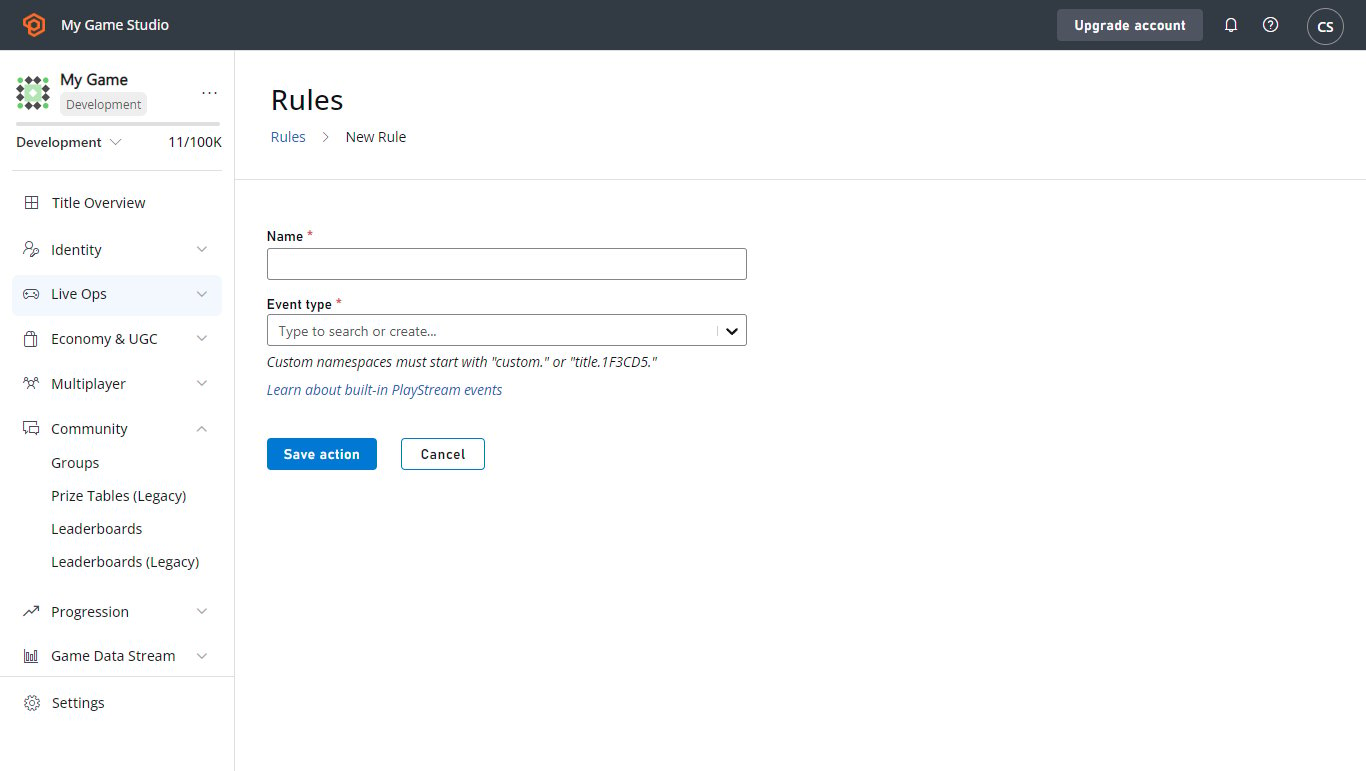
-
Use the New Rule button to create a new rule.
- Give the new Rule a name.
- Select an Event type that will be used as a trigger for a condition or an action.
- To make the Rule trigger a CloudScript function, add an Action with the button in that section.
- Then select the option in the Type drop-down menu.
- Select the helloWorld function in the Cloud Script Function drop-down menu.
- Select the Save action button.
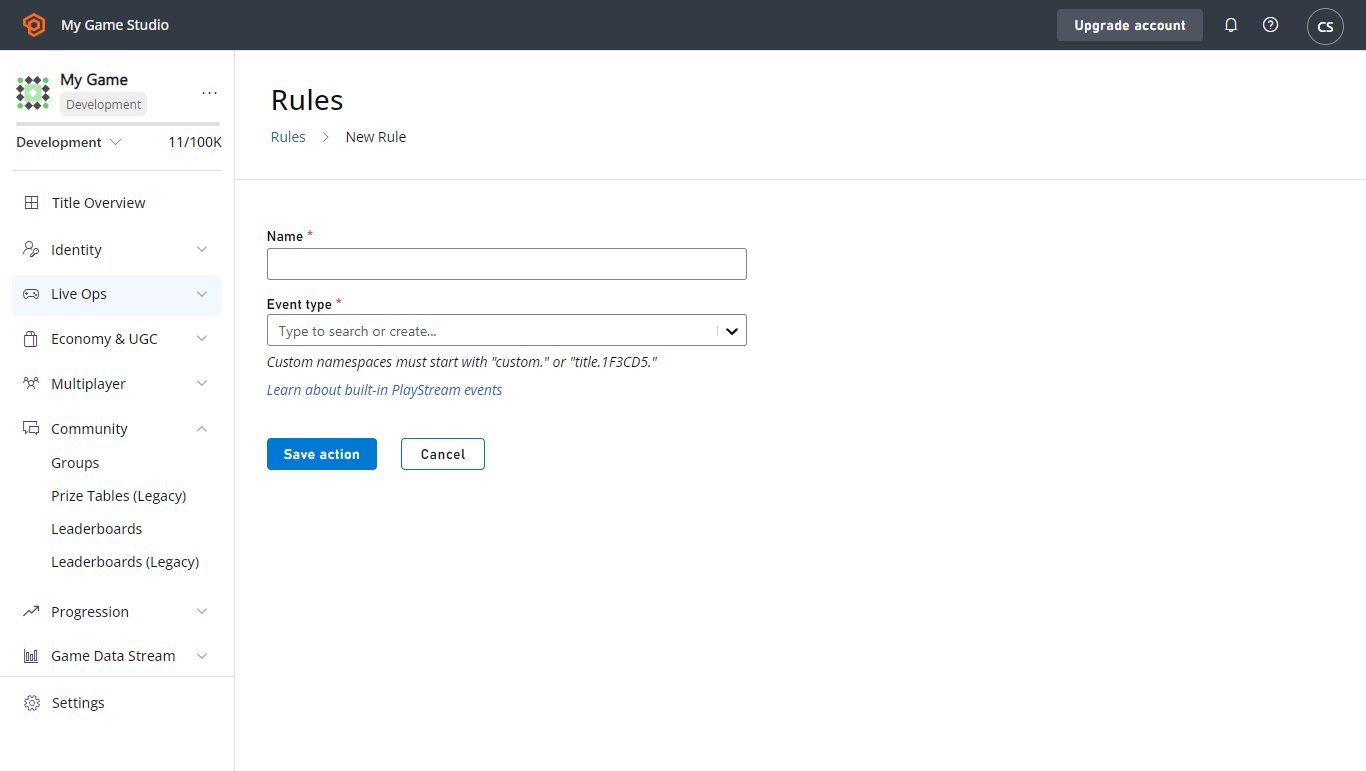
-
This Rule is now set to trigger on any event of your selected type. To test it:
- Check the Publish results as PlayStream Event box.
- Save the Action.
- Then trigger an event.
- In the PlayStream Monitor, a new event that corresponds to the CloudScript execution should be present which contains the appropriate information.
- For more information on checking a PlayStream event in the debugger, see the following section Advanced: Debugging CloudScript.
Event actions can only use the live revision when calling CloudScript functions. If you cannot find the helloWorld function in the drop-down, this is the most likely reason.
Advanced: Debugging CloudScript
Debugging is much easier with CloudScript using Azure Functions. Learn more on how to use local debugging for CloudScript using Azure Functions.
Logging
One of the most important tools for debugging code is logging. Our CloudScript provides a utility for performing the function. This takes the form of thelog object, which can log any message desired using the Info, Debug, and Error methods.
Additionally, the HTTP object will log any errors it comes across while making requests by setting the logRequestAndResponse parameter. While setting these logs up is simple, accessing them takes a bit of finesse.
Here is an example of a CloudScript function that uses all 4 types of logs.
logTest function can be called using ExecuteCloudScript as shown below.
GeneratePlayStreamEvent makes the CloudScript function call generate a PlayStream event, which includes the contents of the response. To find the contents of a PlayStream event:
- Go to either the Game Manager home page for your Title or its PlayStream tab.
- The PlayStream Debugger will display events as they come in.
-
When they arrive, select the small blue Info icon in the top right corner of the event, as shown below.

-
If we add the
LogScriptMonoBehavior to the scene, running the game will yield this in PlayStream.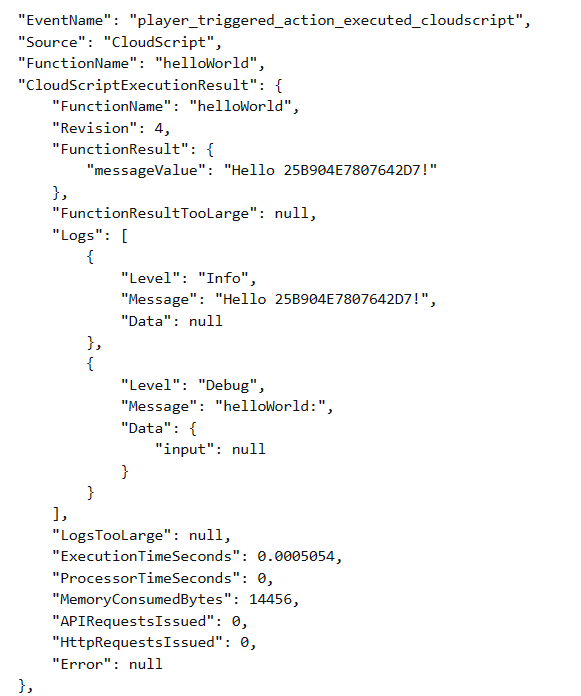
ExecuteCloudScript call includes a field called Logs, which is a list of log objects generated by the CloudScript function.
You can see the three log calls, as well as the log from the invalid HTTP request. The HTTP request log also makes use of the Data field, unlike the log calls.
This field is a JavaScript object that can be populated by any information relevant to the log statement. Calls to log can make use of this field as well, using the second parameter, as indicated below.
Data field in the result with their second parameter.
Since the logs are included in the result, the client-side code can respond to log statements. The error in the logTest function is forced, but the client code can be adapted to respond to it.
Advanced: Errors
In development, CloudScript errors will often not be manually triggered - as in the case oflog.error.
Fortunately, the response to ExecuteCloudScript contains an ExecuteCloudScriptResult which includes a ScriptExecutionError field. Adapting the last example from the logging section, we might use it as shown below.