Requirements
This is an advanced tutorial. Please make sure that all requirements shown below have been met, or you will not be able to complete this tutorial.
- Basic knowledge of how to create a player will be necessary, as there will need to be players in a leaderboard before it can perform any actions on those players.
- It is also worthwhile to read the Game Manager quickstart if you are unfamiliar with the Game Manager, as it is the place where prize tables are created.
- In order to use Prize Tables, you must have general knowledge of how resettable leaderboards work. Please read about leaderboards in our tutorial Using Resettable Statistics and Leaderboards.
- Additionally, virtual currencies must be set up. Please read our tutorial about Currencies and set up two currencies with the following parameters:
- Currency code: GO
- Display name: Gold
- Initial deposit: 200
- Currency code: SI
- Display name: Silver
- Initial deposit: 1000
Step 1 - Create a leaderboard
In the Game Manager:- Go to Leaderboards in the menu to the left.
- Select New Leaderboard.
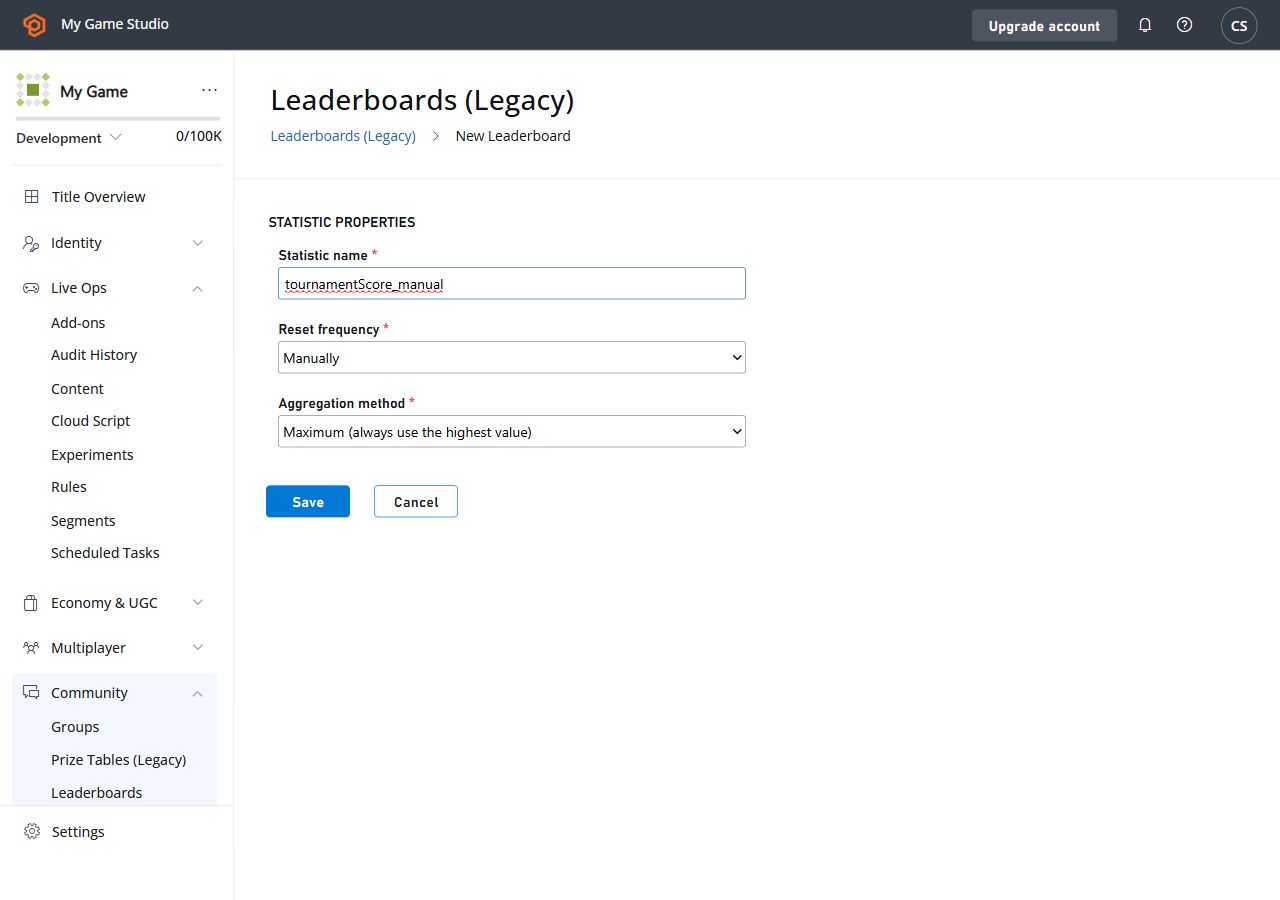
- Add a Leaderboard called tournamentScore_manual in the Statistic name field.
- Using the drop-down menu provided, set the Reset frequency field to Manually.
- Move to the Aggregation method field and select Maximum (always use the highest value) from the drop-down menu provided.
Step 2 - Create a prize table for the leaderboard
Now that a leaderboard has been created, a prize table can be associated with it. Go to:- Leaderboards in the menu to the left.
- Select the Prize Tables tab.
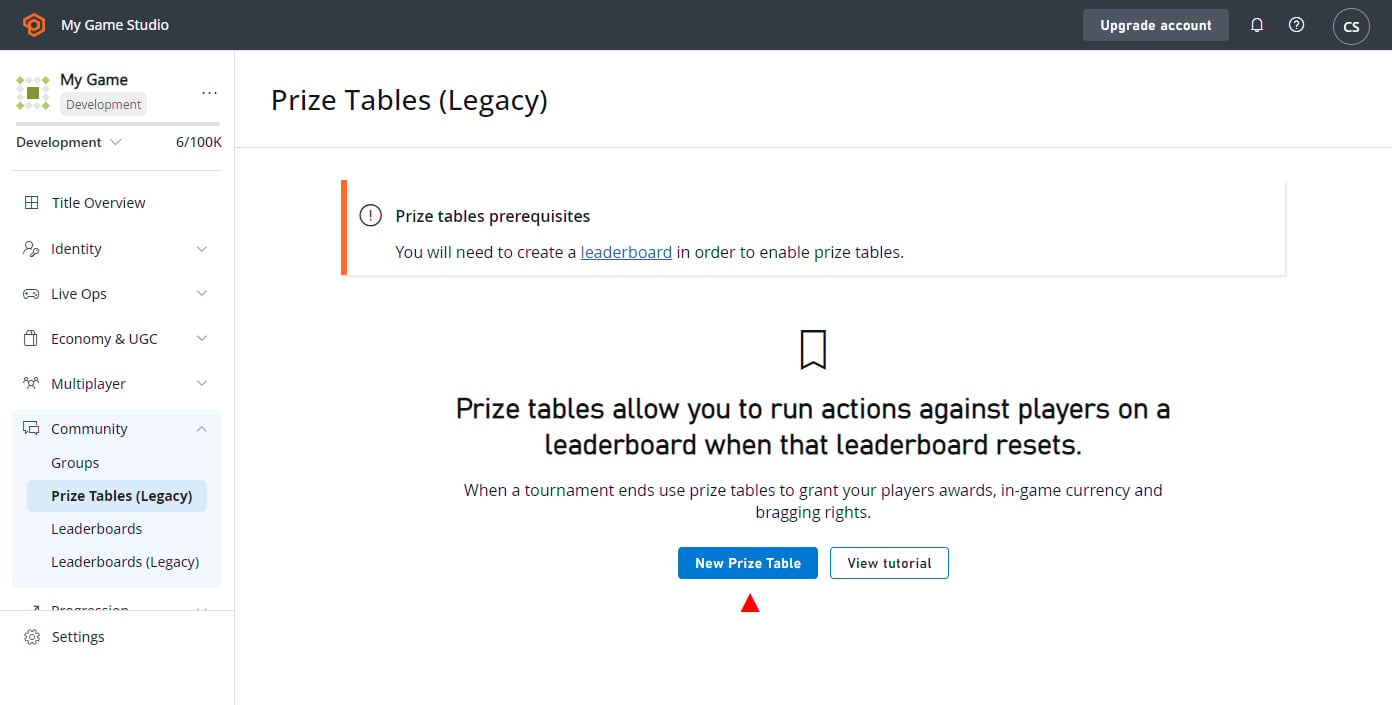
- Select the NEW PRIZE TABLE button to be taken to the New Prize Table view.
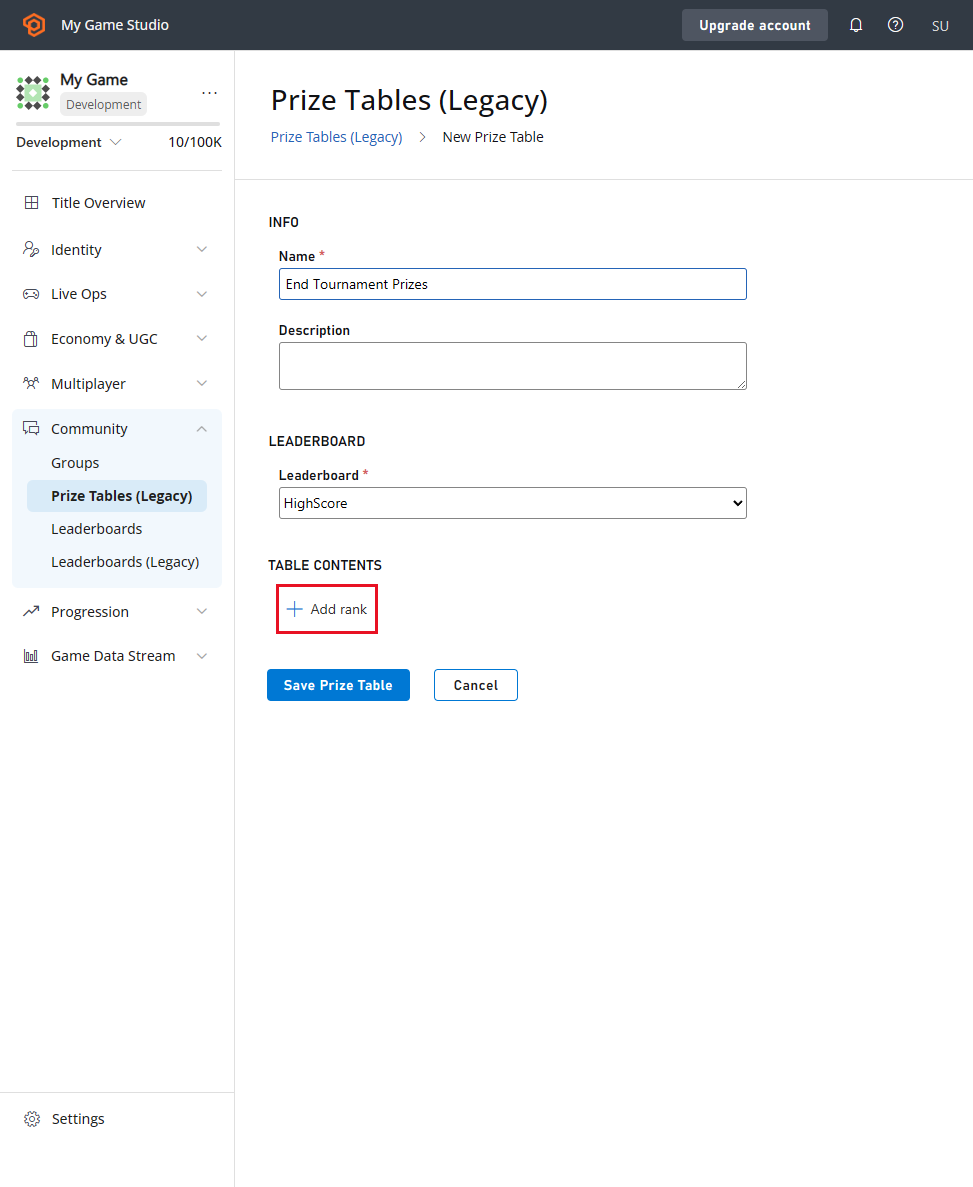
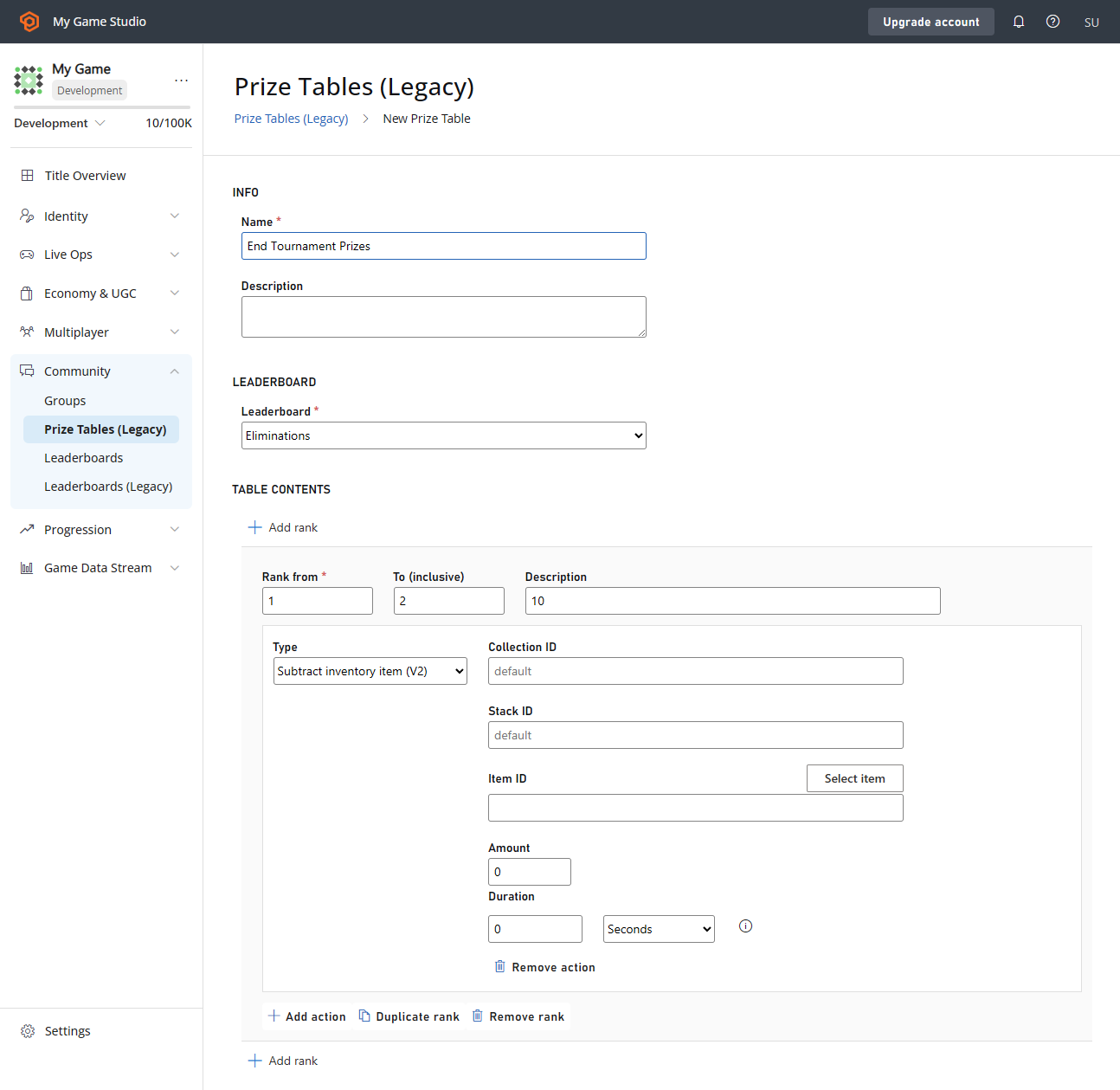
- Move to the INFO area, and enter the Name for the New Prize Table, entitled End Tournament Prizes.
- Choose tournamentScore_manual from the Leaderboard drop-down menu.
- Select + ADD RANK under the TABLE CONTENTS section.
- A Rank form will appear.
- Verify that the Rank from field has a value of 1.
- Verify that the To (inclusive) field has a value of 2.
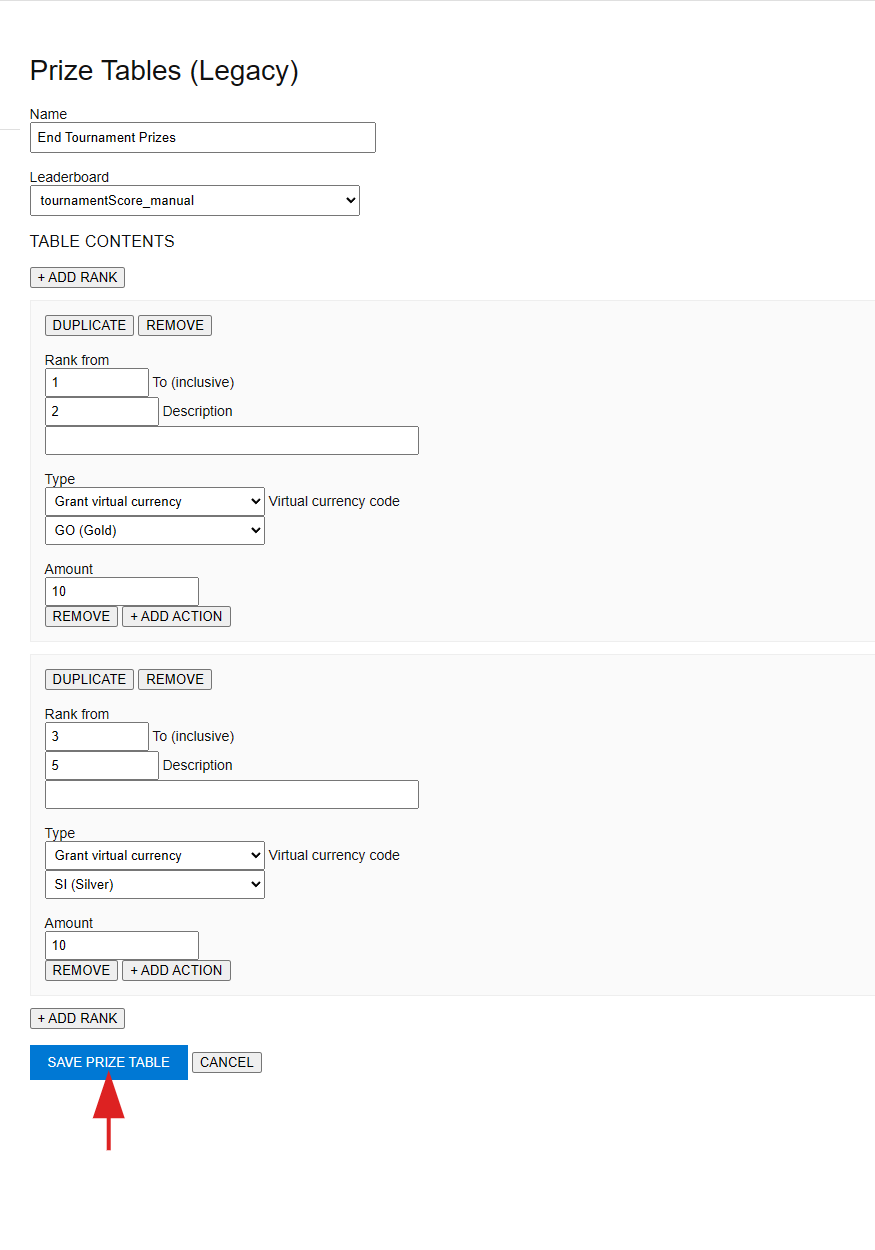
- In the Type drop-down menu, choose Grant virtual currency.
- In the virtual currency code drop-down menu, choose GO (Gold) with an amount of 10.
- Select +ADD RANK under the TABLE CONTENTS section (there is also a second one at the bottom, that also works).
- In the Rank form that appears, make sure that the Rank from field has a value of 3 and the To (inclusive) field has a value of 5.
- In the Virtual currency code drop-down, choose SI (Silver) with an amount of 10.
Step 3 - Populate the leaderboard with a player
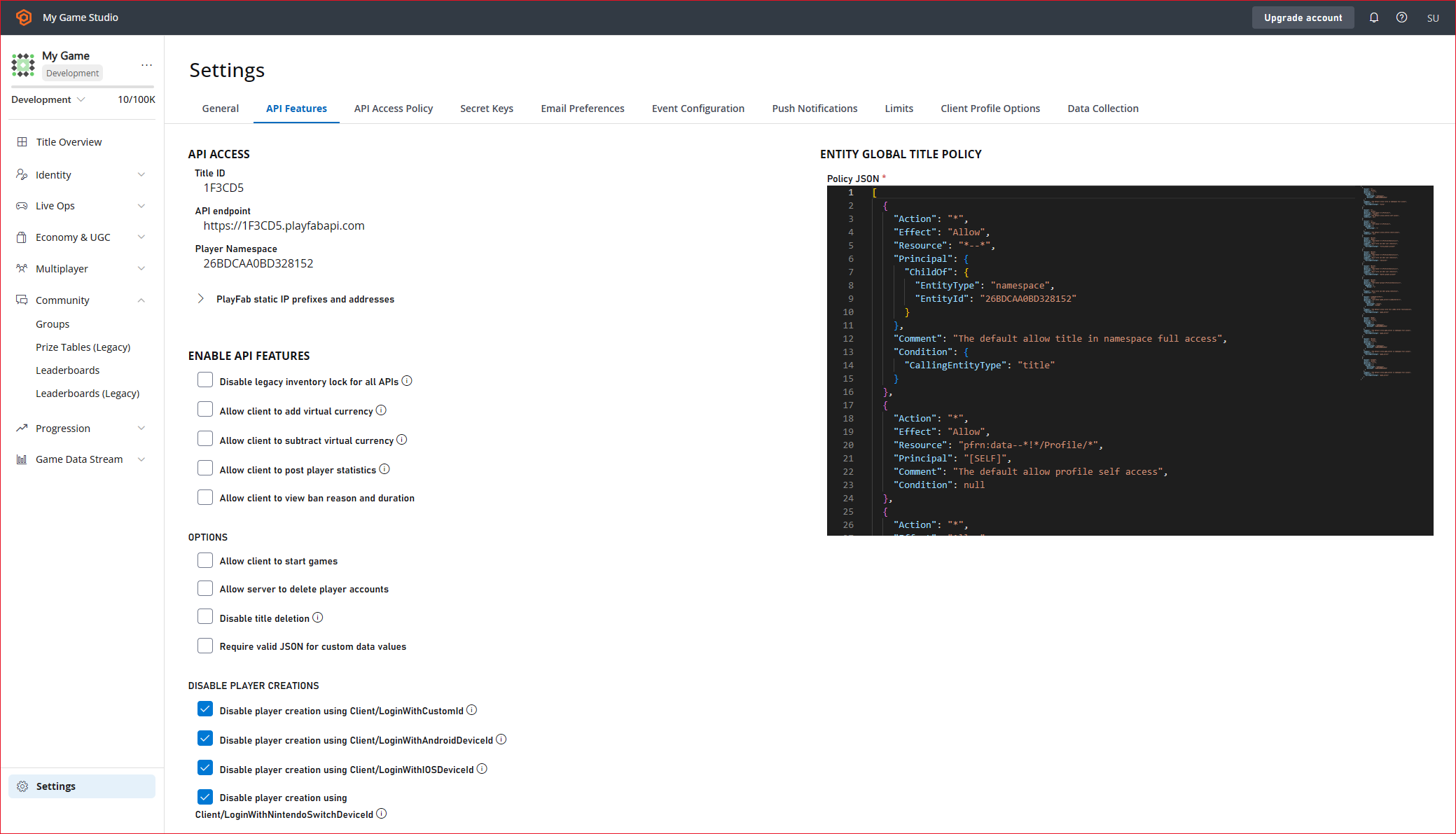
A leaderboard and prize table associated with it has now been created. The next step is to populate the leaderboard with players. To create players, we will use LoginWithCustomID. Then, we will use the players to populate the leaderboard with UpdatePlayerStatistics. Before we can use UpdatePlayerStatistics, we must enable it in API Features.- Select Settings in the menu on your left.
- Select the API Features tab.
- Check the box for Allow client to post player statistics.
- Then select the SAVE API FEATURES button at the bottom of the screen.
C# code example
The following C# code example creates 5 players, and logs them in using LoginWithCustomID. It then populates the leaderboard you created earlier (tournamentScore_manual) with the 5 players with values of: 105, 104, 103, 102, and 101 using UpdatePlayerStatistics.
Check results of the C# code example
To check that there are 5 players populated in the leaderboard with the correct values:- Select Leaderboards from the menu on the left.
- On the Leaderboards tab, go back to the Leaderboard list view.
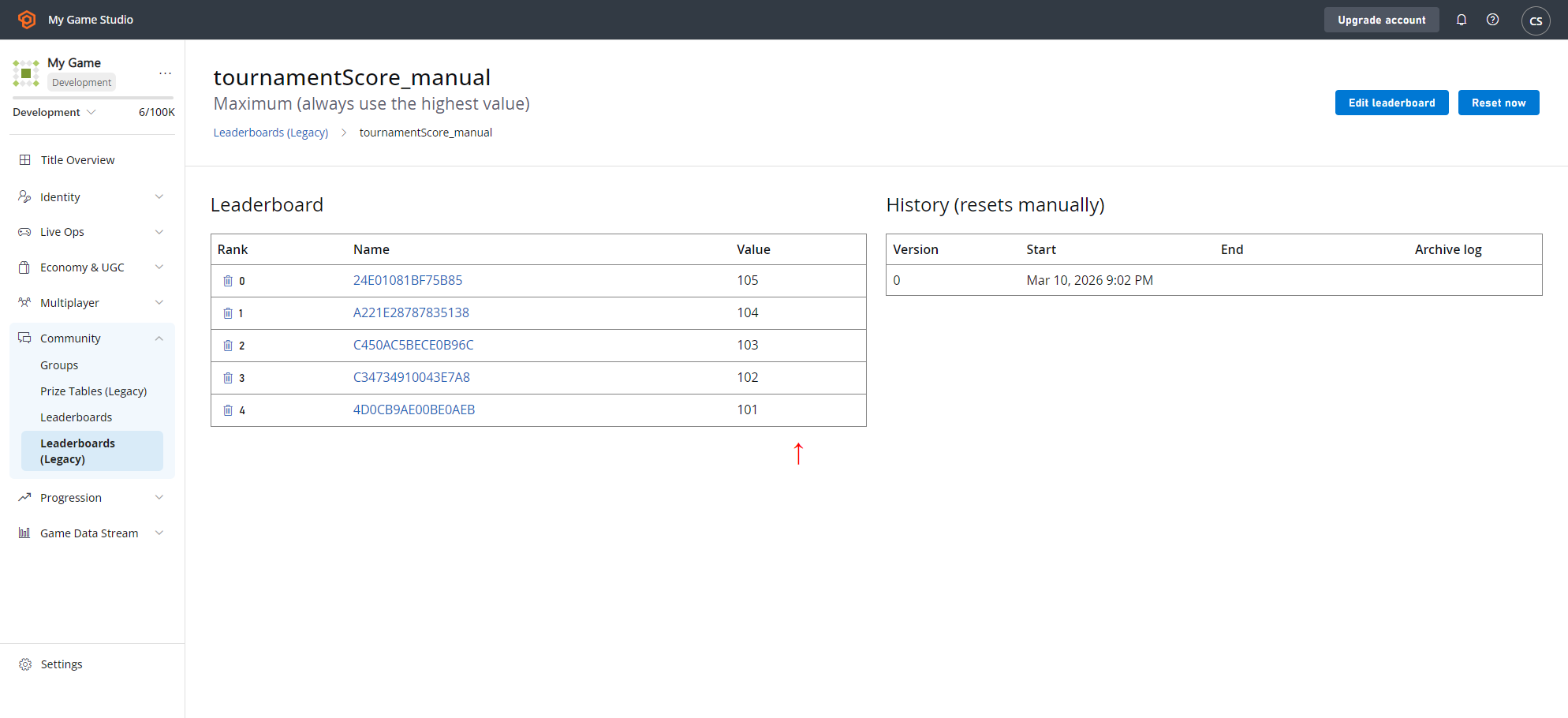
- Select tournamentScore_manual, and there should be 5 Players with the values of 105, 104, 103, 102, and 101.
Step 4 - Check player’s initial currencies
Before checking anything:- Return to Players in the menu to the left from step 2.
- Go to the Players tab, and find a player that was put into the tournamentScore_manual Leaderboard in step 3.
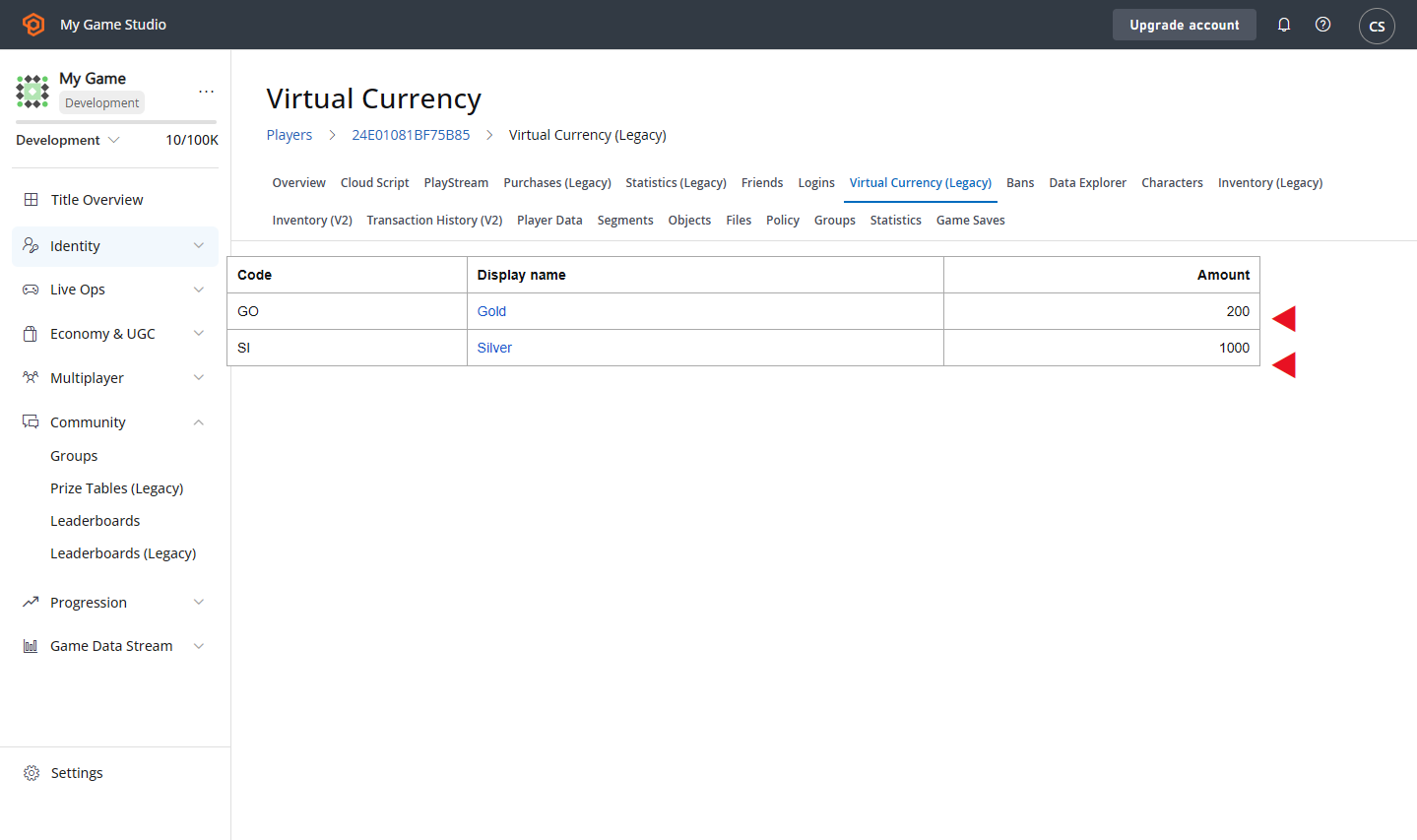
- Select the Player ID, and the Virtual Currency tab for that player.
- Record the values of the GO (Gold) and SI (Silver) Currencies for that player.
- Go to Players and find one that was put into tournamentScore_manual Leaderboard in step 3.
- Select the Player ID and the Virtual Currency tab for that player.
- Record the values of the GO (Gold) and SI (Silver) currencies for that player.
- Now do this for the remaining 4 of the 5 players that were put in the tournamentScore_manual Leaderboard in step 3.
- Make sure that you record the values of their GO (Gold) and SI (Silver) currencies (these will be important for confirmation that the Prize Table worked after resetting).
Step 5 - Reset the leaderboard to grant rewards
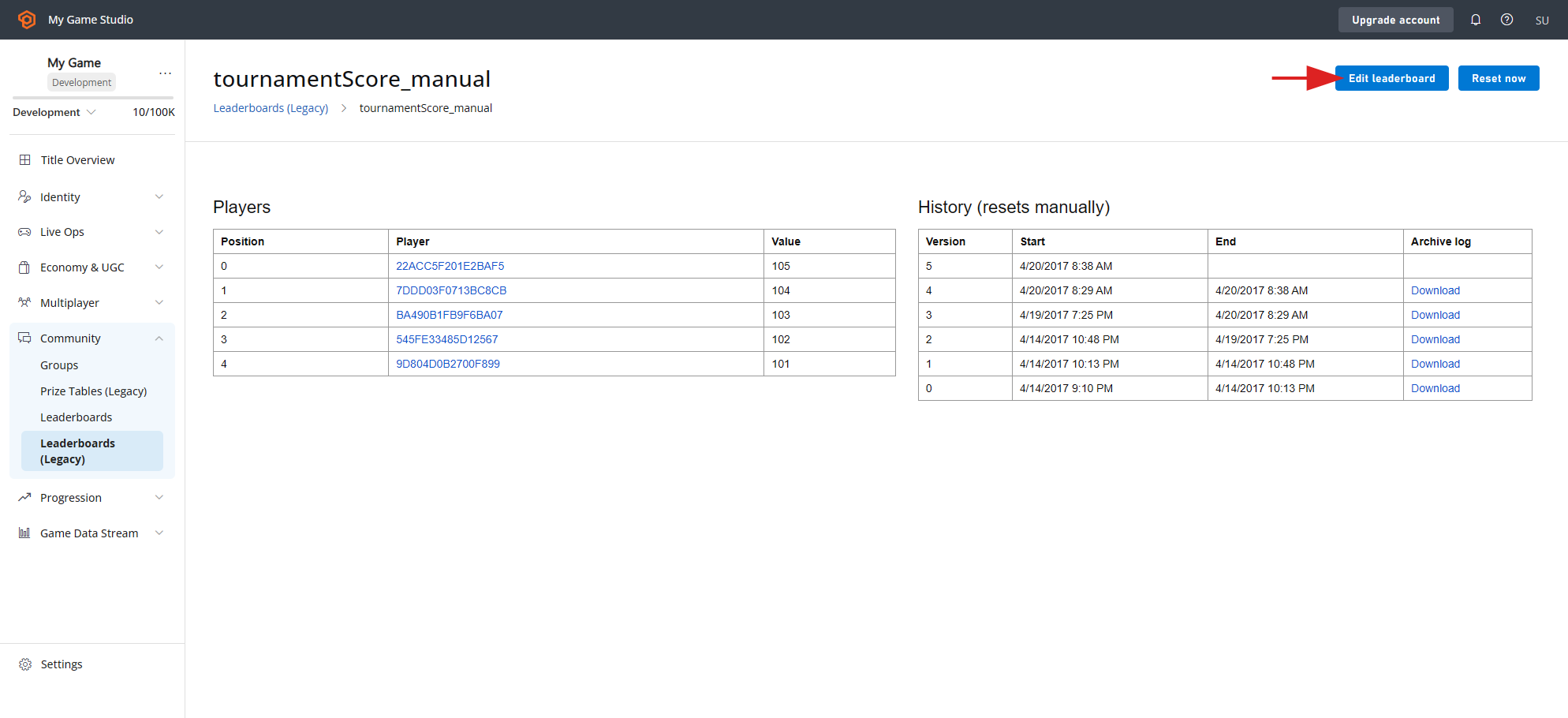
Now go to Leaderboards.- Go back to the Leaderboards list view.
- Select tournamentScore_manual.
- Make a note of the positions of the Players on the Leaderboard (these are zero indexed, so position 0 will be first place).
- Select the RESET NOW button.
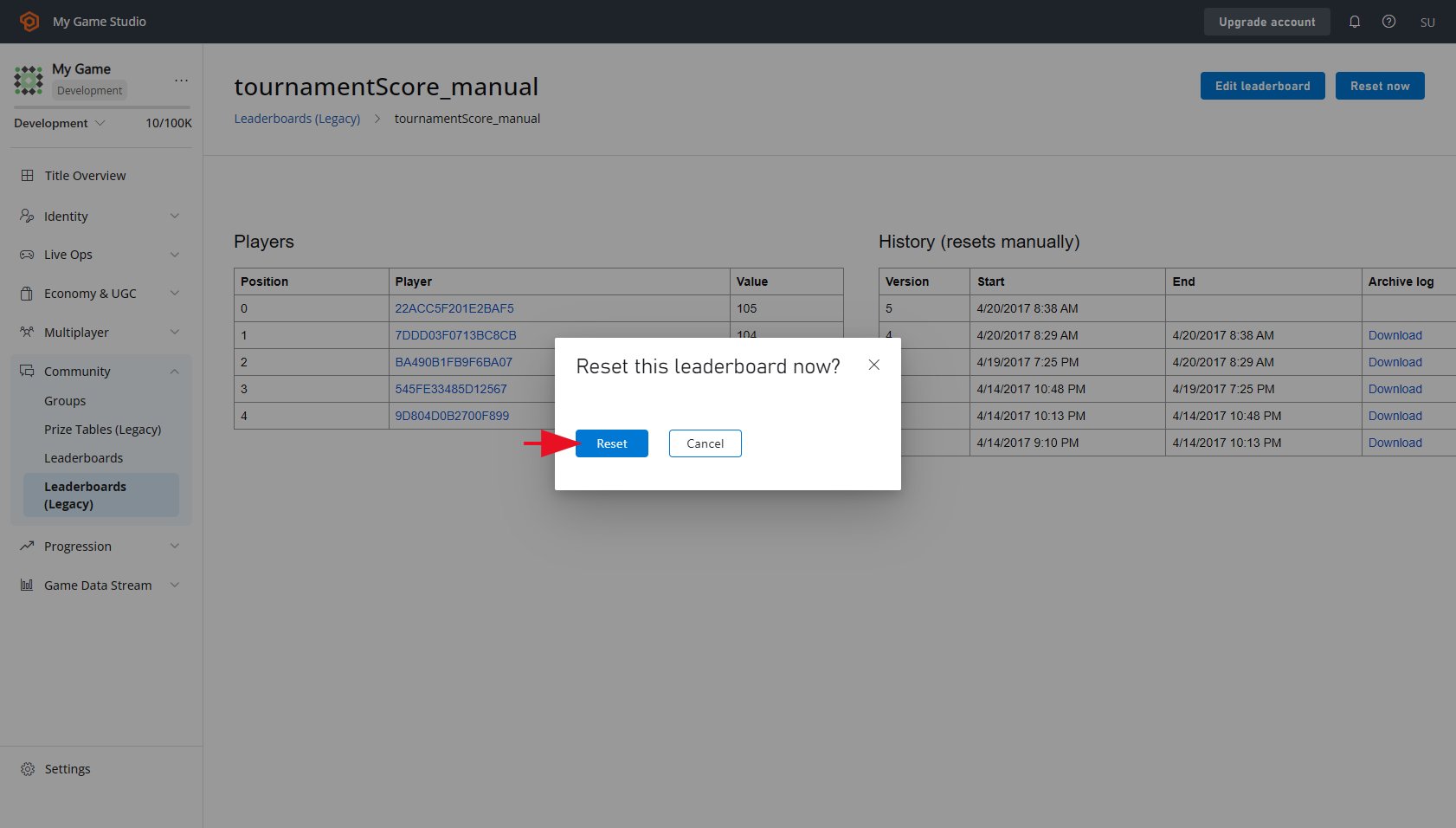
- Select RESET button to confirm the reset of the Leaderboard
- This will clear the Players list.
- Select the RESET NOW button at the top of the screen.
- When prompted to Reset this Leaderboard now?, select the RESET button to confirm the reset.
- This will clear the Players list.
Step 6 - Test that the prize table works
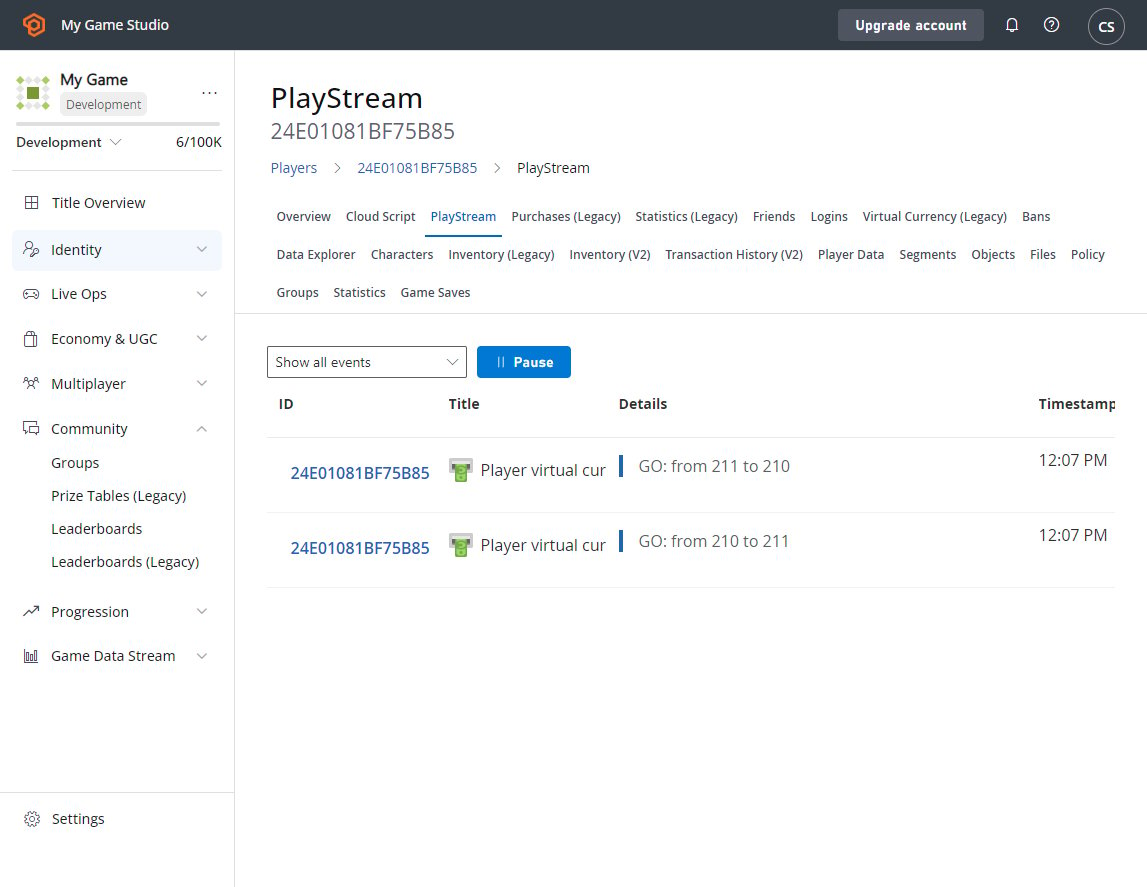
To see if the Prize Table worked, the players in the leaderboard can be checked to see if they were granted the correct amounts of currency. This can be quickly seen in a player’s PlayStream Debugger. To see this in the PlayStream Debugger:- Select Players from the menu on your left.
- The PlayStream tab will show a Player ranking on a Leaderboard event, followed by a Virtual Currency update.
- Select Players from the menu on your left.
- On the Players tab, move to the Virtual Currency area of the screen.
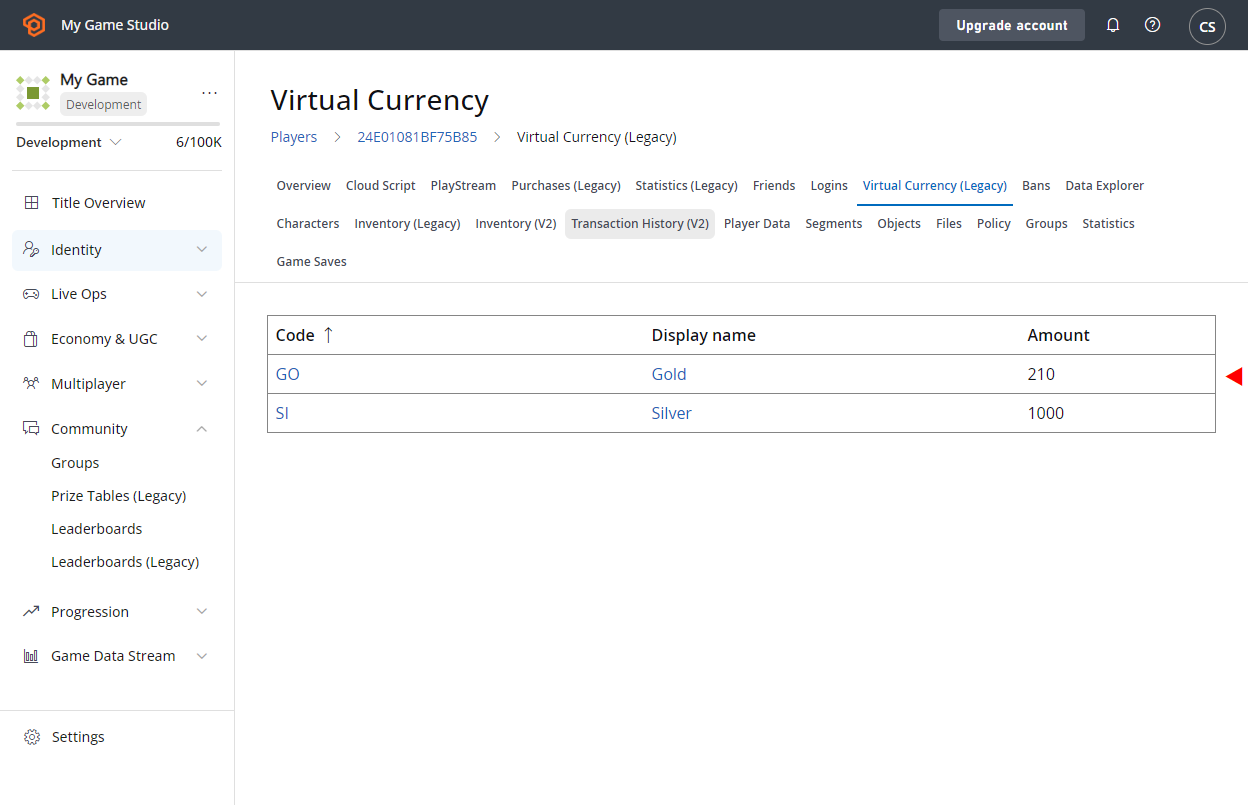
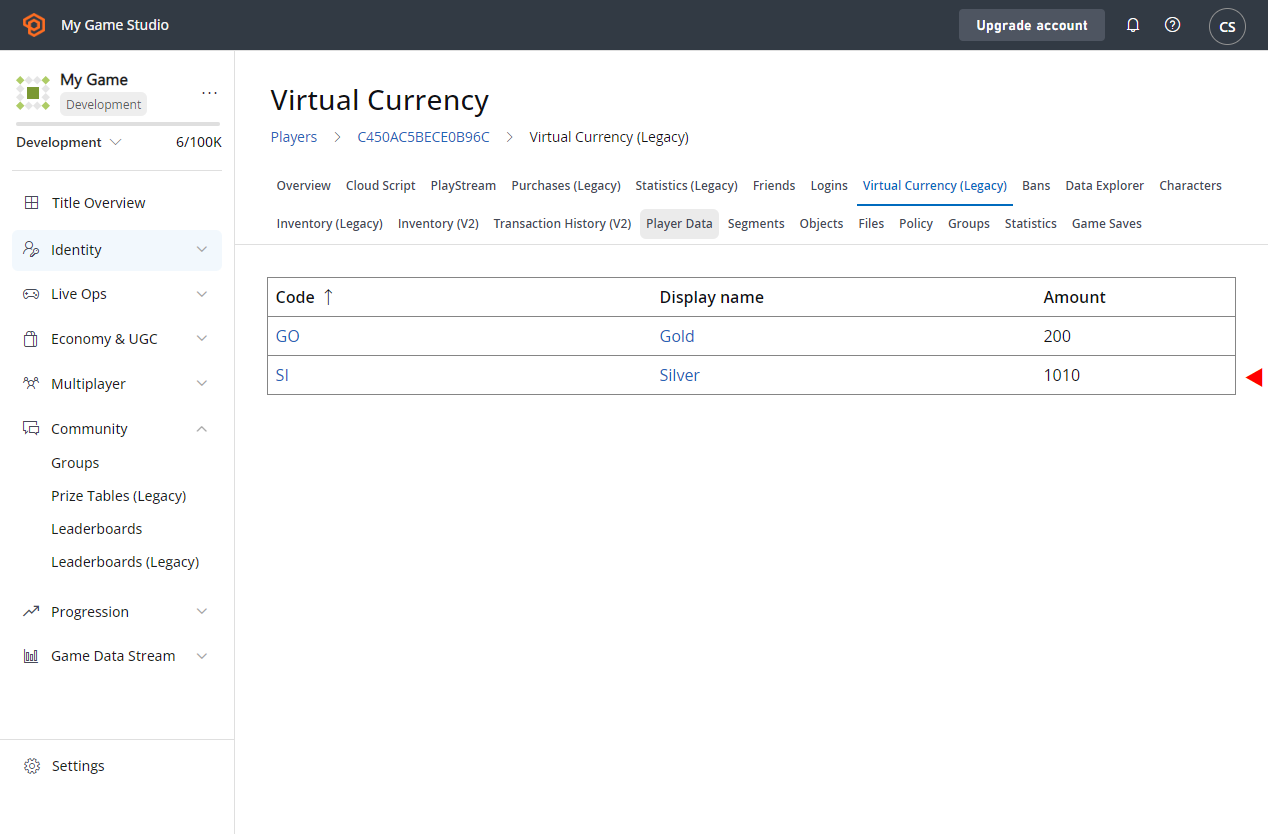
- Verify that the currency was granted correctly.
- This should be one more than the amount recorded earlier.
- Notice that Players in leaderboard positions 0 or 1 gained 10 gold with no silver being awarded.
- Meanwhile, Players in positions 2, 3, and 4 were granted 10 silver and no gold.
- This matches the actions set up for the prize table.
- Go into Players.
- Look at the Event History.
- This will show a player_virtual_currency_balance_changed event with specific details on amounts that changed for the Virtual Currency granted.