
Quickstart leaderboards
In this guide, we’re going to see how to set up the development environment for the Leaderboard service. We’re also going to learn how to create a quick leaderboard from our website Game Manager.Prerequisites
We’re going to need a PlayFab account to use the PlayFab Leaderboards service. For instructions to create an account, see AuthenticationCreating a leaderboard
We’re going to select Progression on the left menu.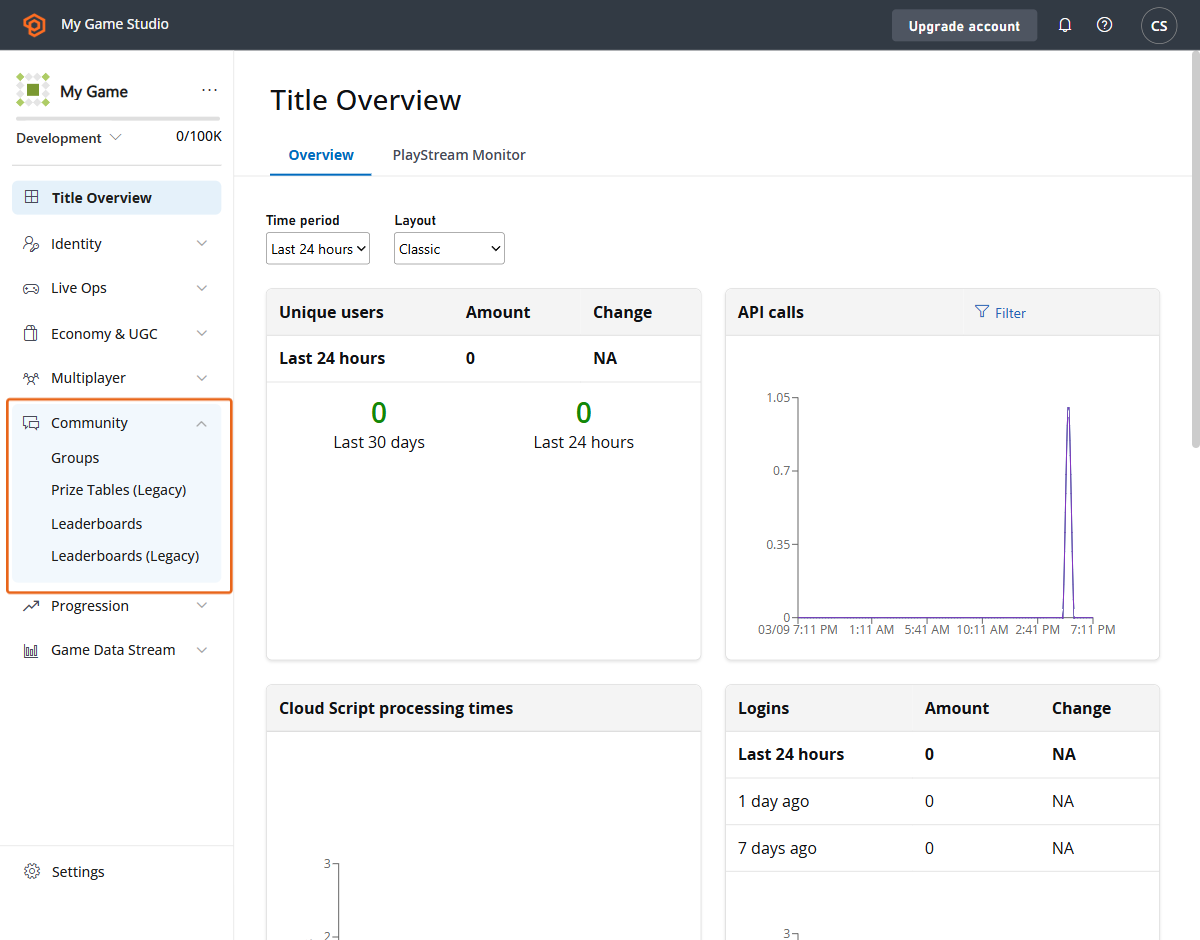
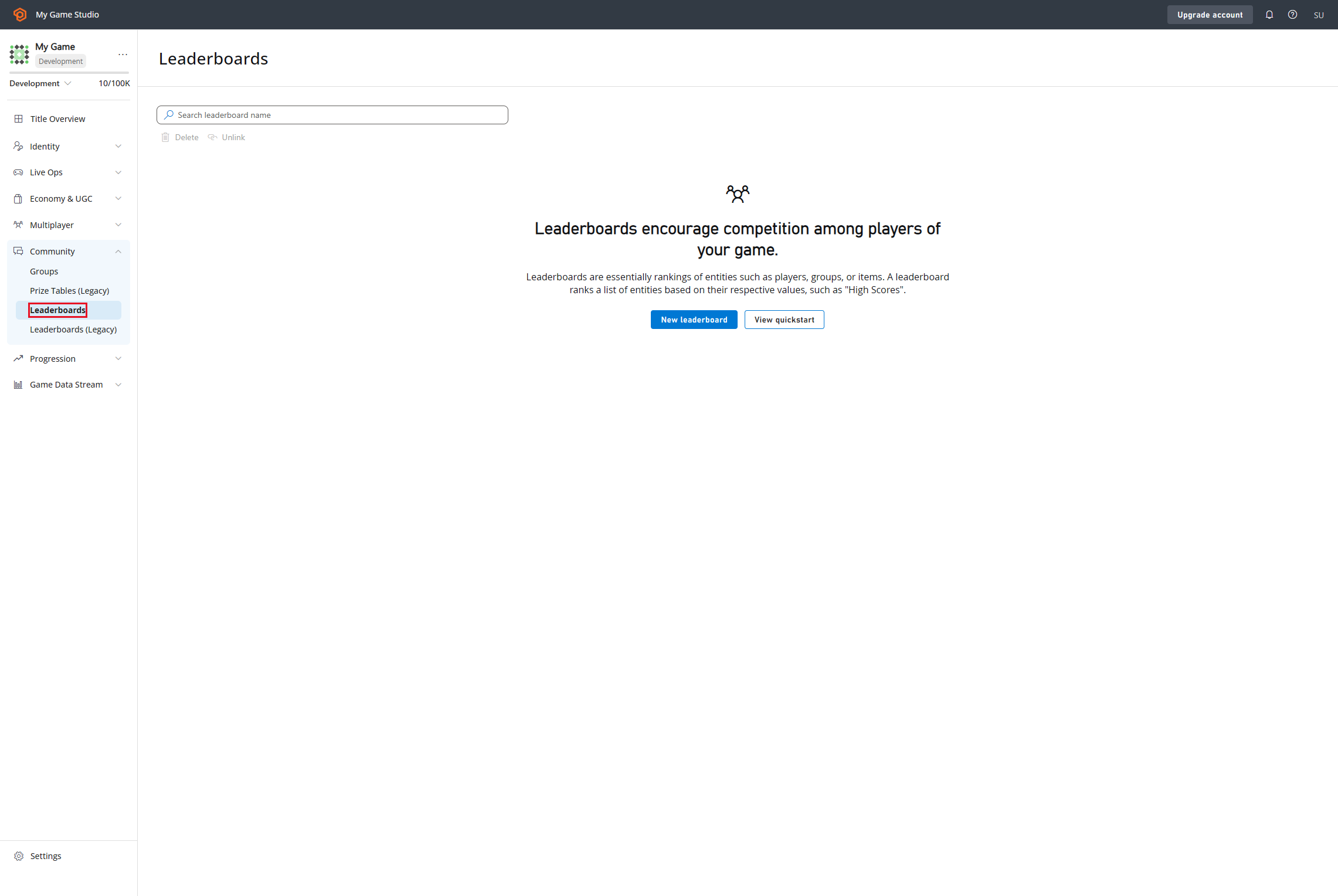
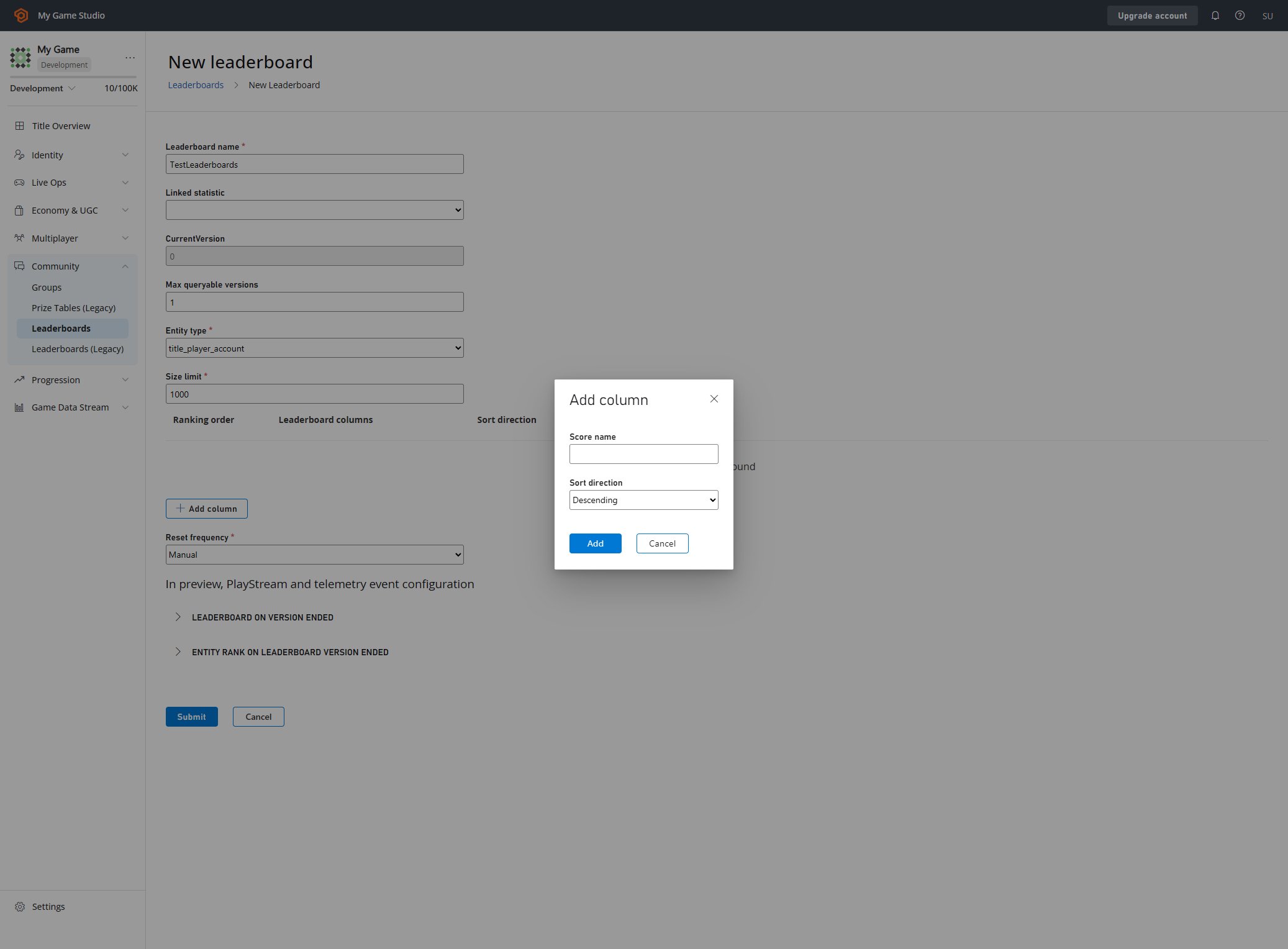
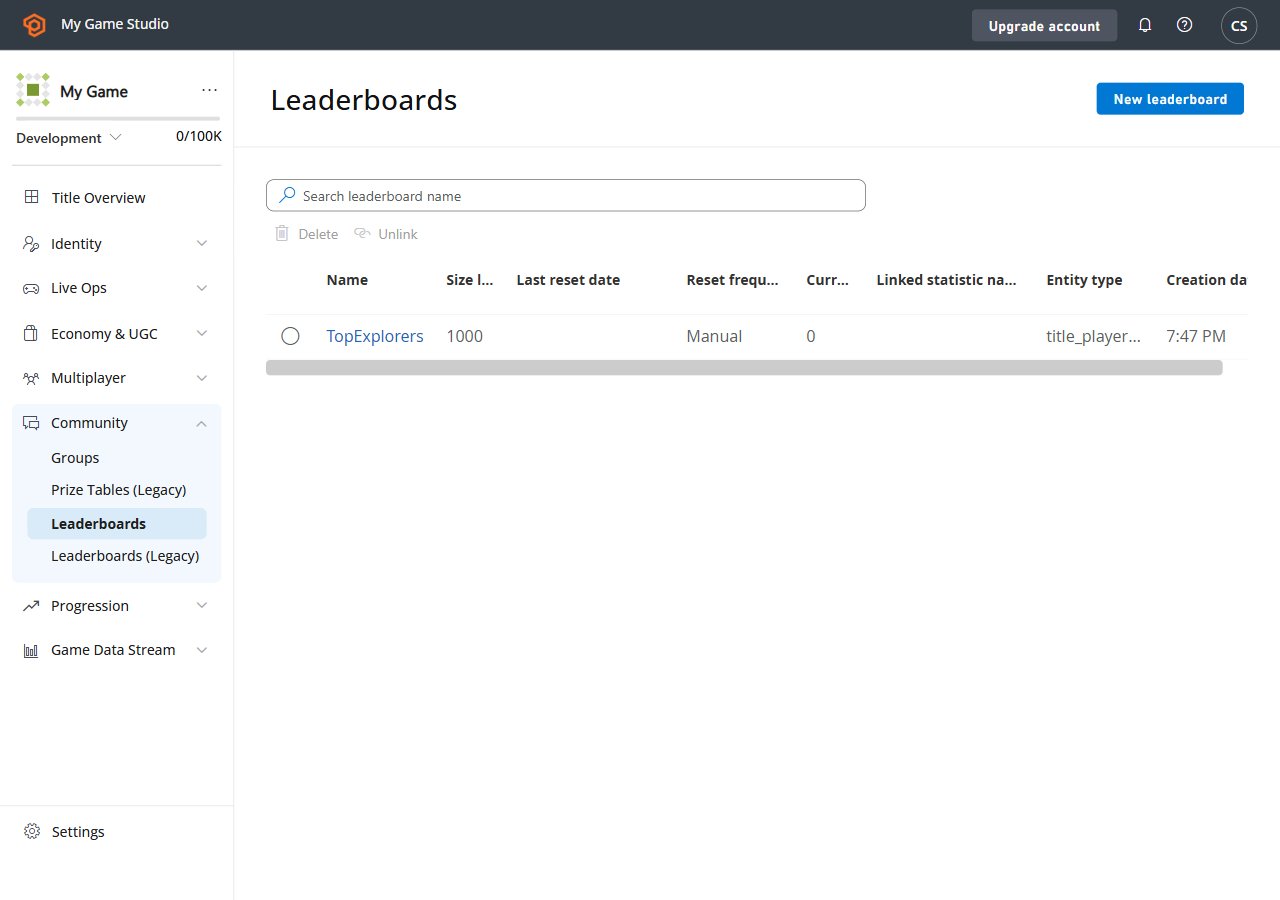
Setting up the environment
Here we’re going to learn how to set up the developer environment to use the C# SDK, but the concepts presented here can also work with other SDK or plain HTTP requests.Setting TitleId and DeveloperSecretKey
DeveloperSecretKey is needed when authenticating as Title Entity.Creating a title and getting the secret key
- Log in to https://developer.playfab.com/
- Create a title
- Find the Title ID in the API Features section under settings.
- Generate secret key:
- Cog next to title name in top left of title view
- Title Settings
- Secret Keys
- New secret key
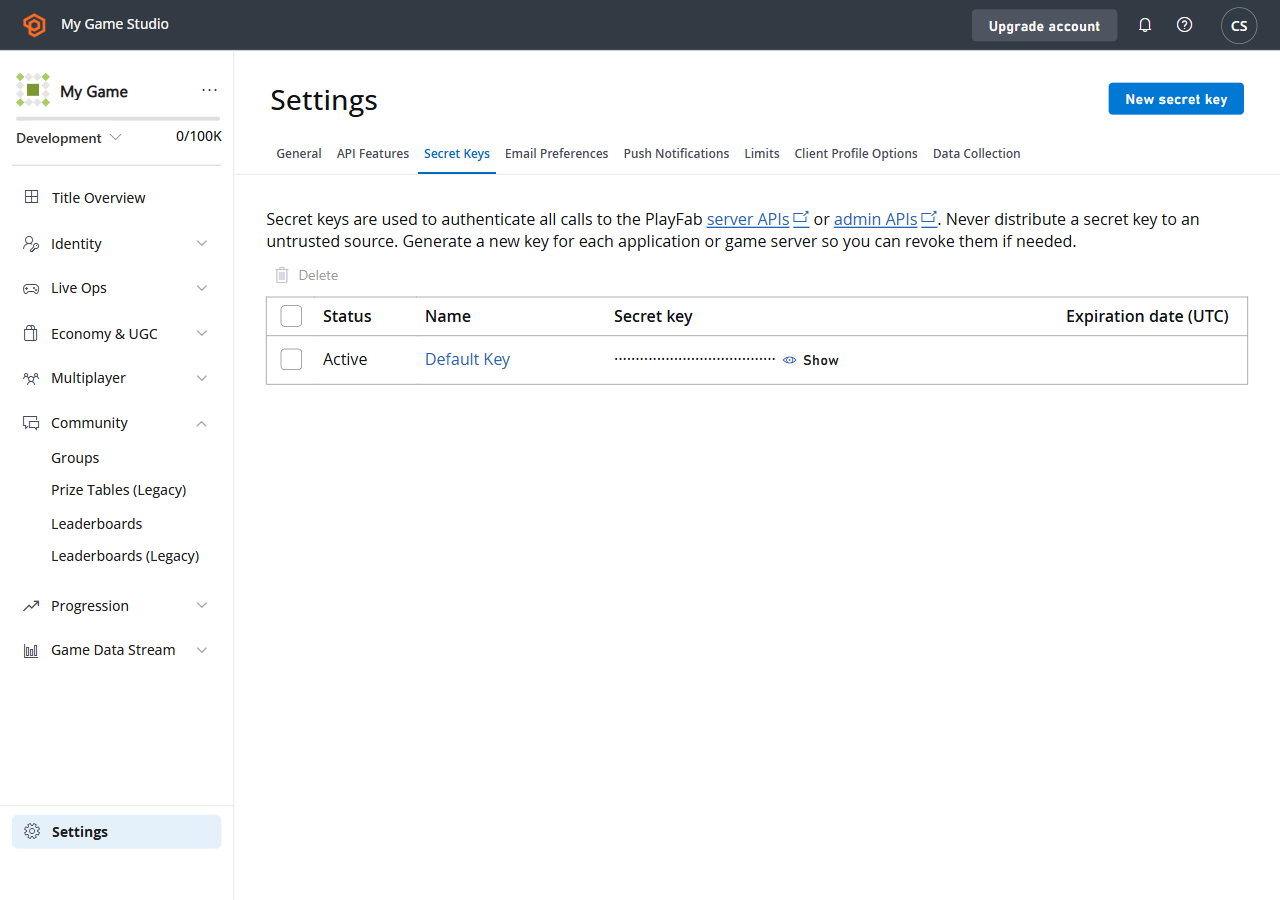
Login as Title
For write operations we recommend using the TitleEntity from your game server, this method is going to return theAuthenticationContext that is
going to be used across all the requests we made.
Login as Player (create Player)
This method creates a player based on an identifier which returns an entity of typetitle_player_account. More information here:
Entities quickstart
Set the display name property for an entity
In order to have theDisplayName property available as part of the response of the “Get Leaderboards APIs”,
we need to execute the following code per each entity that we created in order to map the entity to the custom
display name of the game.