
Layer (Experimental)
可叠加在基础触控布局之上的子触控布局。层目前以实验形式提供,可能会根据早期使用者的反馈更改其行为。
属性
命名的层对象包含以下属性。center - object,可选。显示在屏幕中央的控件轮盘。
left - object,可选。默认显示在玩家左手/拇指下的控件轮盘。
lower - object,可选。允许你将控件放置在下部控件行中三个 leftCenter、center 或 rightCenter 位置中任一位置的对象。
right - object,可选。默认显示在玩家右手/拇指下的控件轮盘。
upper - object,可选。允许你在上部控件行的 right 位置放置一组控件的对象。
备注
使用layer 时,在正常布局中通常放置 control 的每个位置(center、left、lower、right、upper 位置),你可以放入一个控件来替换之前显示的控件,或使用blank 控件来隐藏之前在该位置显示的控件。
要显示 layer,你必须有一个具有层操作 的button 控件,用于触发布局显示。
示例
此示例从一个简单的平台游戏布局开始,右上角有一个按钮,用于切换显示包含高级能力的层。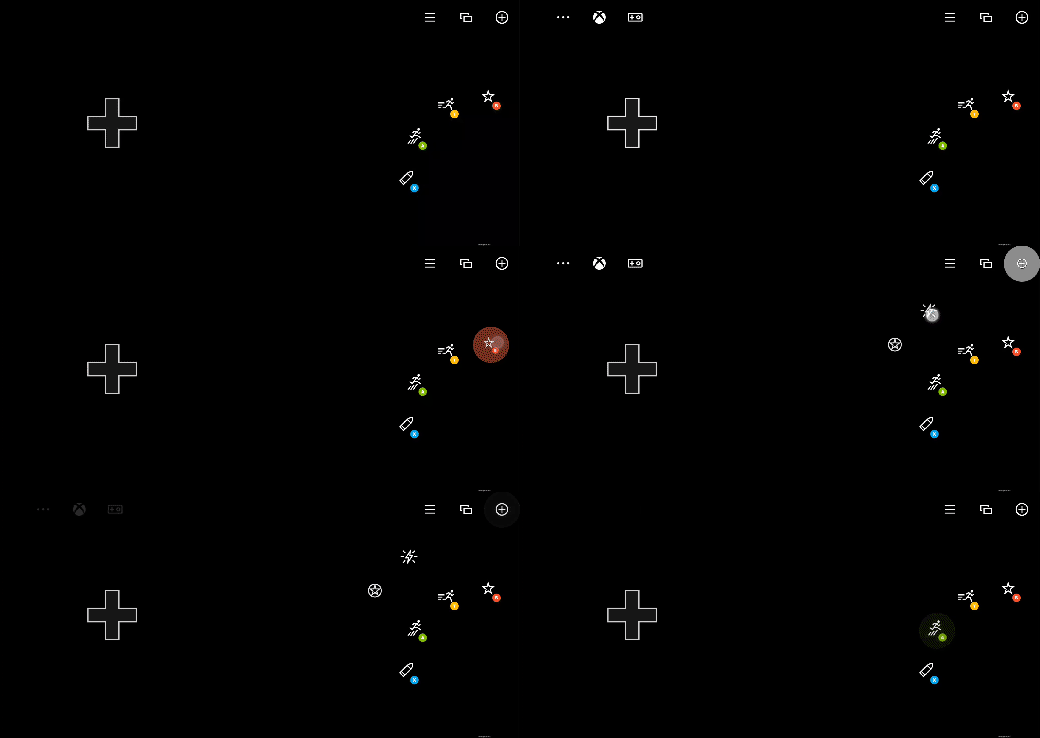
{
    "$schema": "https://raw.githubusercontent.com/microsoft/xbox-game-streaming-tools/main/touch-adaptation-kit/schemas/layout/v3.1/layout.json",
    "content": {
        "left": {
            "inner": [
                {
                    "type": "directionalPad",
                    "scale": 1.5
                }
            ]
        },
        "right": {
            "inner": [
                {
                    "type": "button",
                    "action": "gamepadY",
                    "styles": {
                        "default": {
                            "faceImage": {
                                "type": "icon",
                                "value": "dash"
                            }
                        }
                    }
                },
                {
                    "type": "button",
                    "action": "gamepadA",
                    "styles": {
                        "default": {
                            "faceImage": {
                                "type": "icon",
                                "value": "jump"
                            }
                        }
                    }
                }
            ],
            "outer": [
                null,
                {
                    "type": "button",
                    "action": "gamepadB",
                    "styles": {
                        "default": {
                            "faceImage": {
                                "type": "icon",
                                "value": "specialAbility"
                            }
                        }
                    }
                },
                null,
                null,
                {
                    "type": "button",
                    "action": "gamepadX",
                    "styles": {
                        "default": {
                            "faceImage": {
                                "type": "icon",
                                "value": "fire"
                            }
                        }
                    }
                }
            ]
        },
        "upper": {
            "right": [
                {
                    "type": "button",
                    "action": {
                        "type": "layer",
                        "target": "selectAbility"
                    },
                    "styles": {
                        "default": {
                            "faceImage": {
                                "type": "icon",
                                "value": "add"
                            }
                        }
                    },
                    "toggle" : true
                },
                {
                    "type": "button",
                    "action": "view"
                },
                {
                    "type": "button",
                    "action": "menu"
                }
            ]
        },
        "layers": {
            "selectAbility": {
                "right": {
                    "outer": [
                        null,
                        null,
                        null,
                        null,
                        null,
                        null,
                        {
                            "type": "button",
                            "action": "rightBumper",
                            "styles": {
                                "default": {
                                    "faceImage": {
                                        "type": "icon",
                                        "value": "ability2"
                                    }
                                }
                            }
                        },
                        {
                            "type": "button",
                            "action": "leftBumper",
                            "styles": {
                                "default": {
                                    "faceImage": {
                                        "type": "icon",
                                        "value": "ability"
                                    }
                                }
                            }
                        }
                    ]
                }
            }
        }
    }
}
另请参阅
Touch Adaptation Kit 参考Blank 控件
Layer 操作
Layout