
Never include your developer Secret Key in a client build that you send to your customers. Doing so exposes your title to abuse.
- Sign in to Game Manager.
- Select your Title.
- In the upper-right corner, select the gear icon.
- Select Title settings, then select the Secret Keys tab.
- Select New Secret Key.
- Enter the Name of the key, and an optional expiration date.
- Update your code to use the new key.
- Disable the old key. Select the old key and then on the Edit Secret Key page, select the Disable checkbox.
- Select SAVE SECRET KEY.
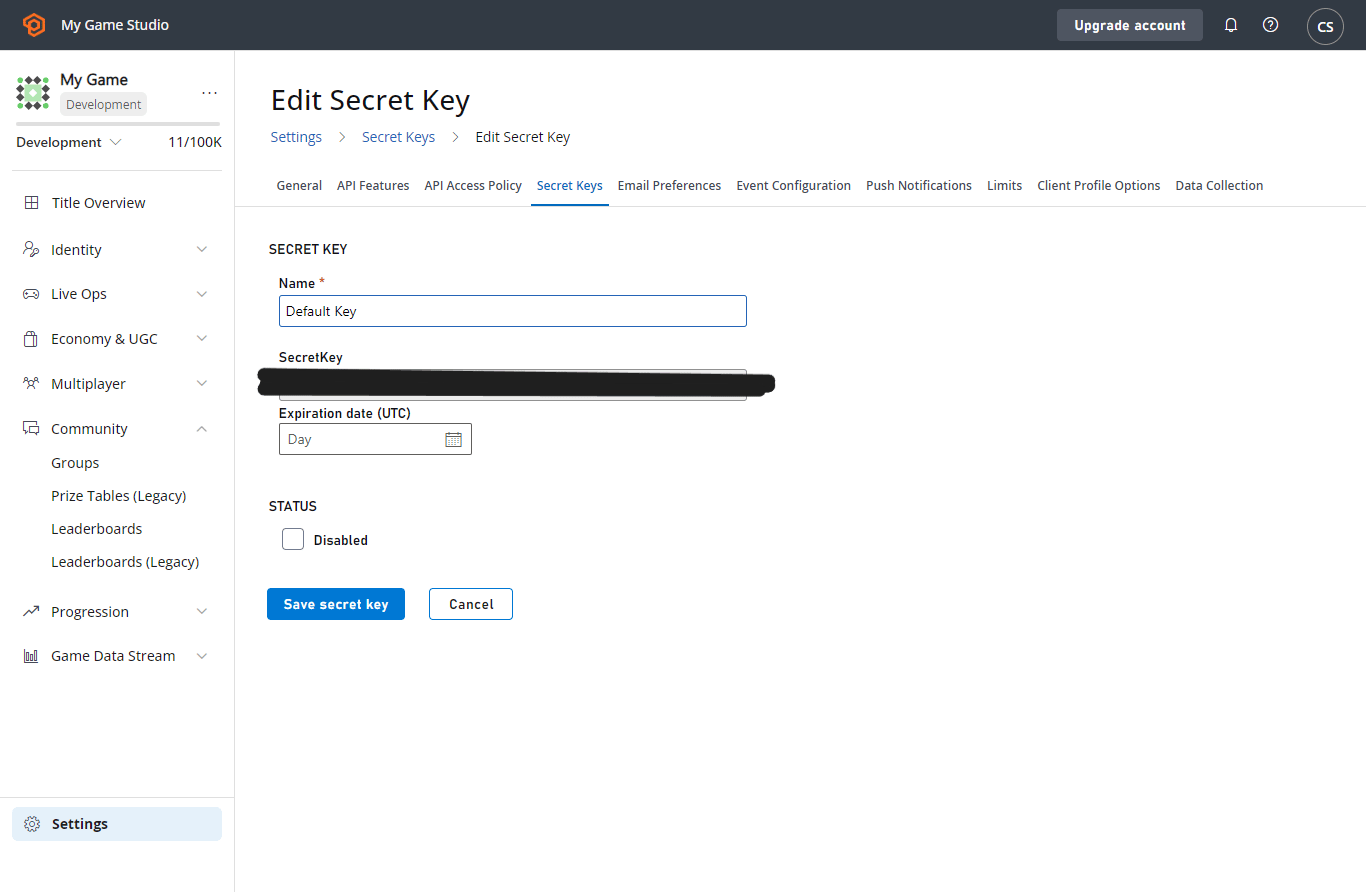
If your old keys are compromised, rotate the keys to return your Title to a secured state.
IP allowlist
IP allowlists for title secret keys are a security feature that ensures that a title secret key can’t be used from outside the IPs you trust. Each secret key can carry its own list of IPv4 or IPv6 addresses (or CIDR ranges) that are permitted to use it. When an IP allowlist is configured for a title secret key, privileged calls (Server and Admin APIs) made with that key are accepted only from source IPs that match an entry on the list. Calls from any other IP are rejected, even if the key itself is otherwise valid. Every change to a key, including allowlist edits, is captured in the existing PlayStream secret key changed event. Supported formats:- IPv4 and IPv6 addresses are both supported (for example,
203.0.113.7or2001:db8::1). - CIDR ranges are supported in either family (for example,
203.0.113.0/24or2001:db8::/32).
- In Game Manager, navigate to Title Settings > Secret Keys.
- Edit (or create) a secret key.
- Toggle Enable IP allowlist.
- Add your egress IPs or CIDR ranges, one per line (for example,
203.0.113.7or2001:db8::/32). - Select Save.
Double check the list before saving. An incorrect entry blocks every IP that isn’t on the list, which can lock your services out of the Server and Admin APIs.
API allowlist
API allowlists restrict a title secret key to a specific set of PlayFab APIs. Requests to APIs outside of the allowlist return HTTP 403 (NotAuthorized). Every change to a key, including API allowlist edits, is captured in the existing PlayStream secret key changed event.
A secret key without an API allowlist remains unrestricted. Existing secret keys are unaffected until you enable and configure an API allowlist.
Selecting every API creates a snapshot of the APIs that are available at that time. It isn’t a wildcard, and APIs added later aren’t automatically allowed. To keep a key unrestricted for current and future APIs, don’t enable an API allowlist.
- In Game Manager, go to Title Settings > Secret Keys.
- Edit or create a secret key.
- Turn on Enable API allowlist.
- Use Search APIs to find and select each required API, such as
/Server/GetUserData. - Select Save, and then confirm the change.
- Edit the secret key.
- Turn off Enable API allowlist.
- Select Save, and then confirm the change.