
Marketplace integration: Steam
This tutorial shows you how to successfully integrate a Steam application into your title in Game Manager.Prerequisites
- A SteamWorks Partner account.
- An app already created in Steamworks.
- A Title already created in Game Manager.
- A SteamWorks Group already created with your desired Admin Members and Application.
Step 1: Get your Steam Application ID
To integrate your Steam application into Game Manager, you need to obtain your Steam Application ID. Follow these steps:- Sign in to your SteamWorks Partner account.
- Navigate to Apps & Packages > All Applications.
- Select your desired app from the list.
- Your Steam Application ID can be obtained from either:
- The URL: https://partner.steamgames.com/apps/landing/**\{Your Application ID}**
-
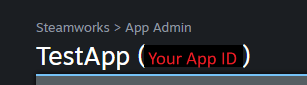
Right next to name of your app’s title (in this example, the app’s title is “TestApp”)
Step 2: Obtain your SteamWeb API Key
To integrate your Steam application into Game Manager, you also need to obtain your Steam Web API Key.- Sign in to your SteamWorks Partner account.
- Navigate to Users & Permissions > Manage Groups.
- Select your desired Group.
-
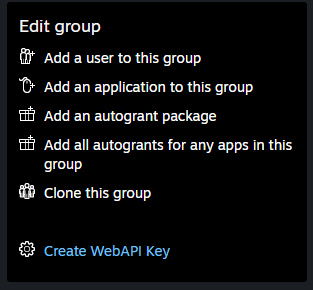
If no WebAPI Key was generated before, select Generate WebAPI Key from the menu on the right.
- This generates a new WebAPI Key and display it just below the previously selected button.
-
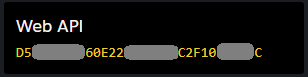
If a WebAPI Key was previously generated, copy the key from the Web API box on the right.
Step 3: Enable the Steam Add-on in Game Manager
After getting your Steam Application ID and your Steam WebAPI Key, you need to enable the Steam Add-on in Game Manager.- Sign in to your Game Manager account.
- Navigate to the Add-ons section on the left navigation menu.
- Select the Steam Add-on.
- Select Install Steam.
- Add your Steam Application ID and your Steam Web API Key.
- Select Install.