
XGameSave API enables you to manage blobs and containers for managing Game Saves data. We recommend XGameSaveFiles for Game Saves for Microsoft Game Development Kit (GDK) titles. Use XGameSave if XGameSaveFiles isn’t an option.
For the system API reference for XGameSave, see XGameSave (API contents).
The following terms appear often in XGameSave.
- Lock: A mechanism that grants exclusive access to a title’s Game Saves for a specific user on the device they’re actively using. It ensures that no other device can modify the Game Saves for the user while the lock is held.
- For example, if a user plays Title T on device A, it has a lock for Title T for the user.
- Provider: The intermediary process that communicates with the Game Save system and is responsible for managing the title data. The provider also manages the lock for a user on a device.
- Containers: Analogous to folders.
- Blobs: Analogous to individual files.
Provider management
To acquire a storage space, the game must initialize a provider. After connection, the title tries to acquire a lock to the title’s cloud storage by callingXGameSaveInitializeProvider or XGameSaveInitializeProviderAsync.
If the title fails to sync from the cloud because of connection loss, determine if users can continue playing in Offline mode.
The title must close the provider with XGameSaveCloseProvider when a title suspends or terminates. The provider can’t be reused across suspend-resume boundaries.
This issue applies only to
XGameSave. XGameSaveFiles automatically closes the provider.Container management
To avoid data loss when accessing containers, like creating containers before syncing completes, callXGameSaveEnumerateContainerInfo or XGameSaveEnumerateContainerInfoByName to view the containers a user has.
Use XGameSaveCreateContainer to get a container handle to a new or existing container. If the container already exists, its handle is provided. If the container doesn’t exist, a new container is created and its handle is provided.
Use XGameSaveDeleteContainer to delete a container. All blobs within the container are also deleted.
To prevent handle leaks, close all container handles with XGameSaveCloseContainer when the container is no longer in use or when the title suspends or terminates.
Blob management
Manipulating data within a container is done by callingXGameSaveCreateUpdate.
The following details outline how XGameSaveUpdate manages blob changes within a container and how each update is created, modified, and submitted.
- An update applies to one container.
- An update can write at most GS_MAX_BLOB_SIZE (16 MB).
- Multiple blobs can be modified in a single update.
- A single blob can only have one modification to it per update.
-
Submitting an update consumes the
XGameSaveUpdatehandle. Close the handle whether the submit succeeded or failed. - Updates are atomic. If any part of it fails, the entire update fails.
-
XGameSaveCreateUpdatecreates an update context to store all of your blob modifications. -
XGameSaveSubmitBlobWritewrites data to a new or existing blob and requires an updated context. -
XGameSaveSubmitBlobDeletedeletes the blob. -
XGameSaveSubmitUpdatesubmits the update context. -
XGameSaveCloseUpdatecloses the update handle. The title calls it after every submit to prevent leaks. -
Use
XGameSaveEnumerateBlobInfoorXGameSaveEnumerateBlobInfoByNameto access all blobs in a container.
Data written to blobs is represented as
Base64 when the data is exported in XML.Implementation
The following steps show the general flow of aXGameSave implementation.
- On title start or resume, initialize the provider.
- Enumerate and create container handles.
- Periodically submit
XGameSaveUpdateswith blob modifications and clean up the update handle on submit. - Close container and provider handles on title suspend or terminate.
Call
XGameSaveInitializeProvider when the title starts and when it resumes. This call ensures that the provider initializes correctly and stays active while the title runs. If it’s not called, the title can behave unpredictably.Code sample
For a code sample that shows how to use theXGameSave APIs, see GameSaveCombo.
Game Saves flow
Here’s a flowchart of the simplified Game Saves flow. It’s explained as follows.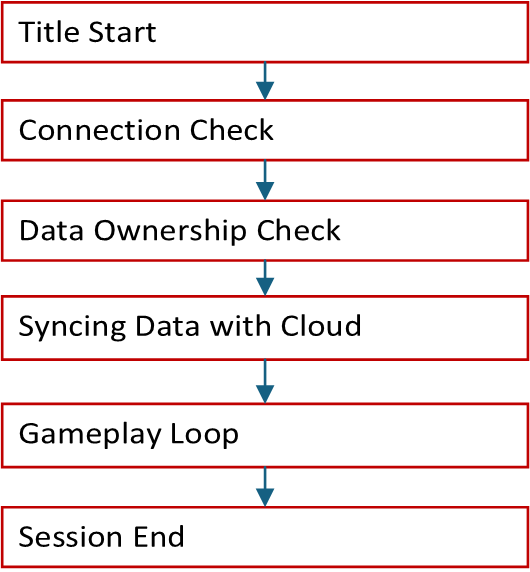
Title start
Title start occurs when the user launches or resumes the title.User sign-in
The title initiates user sign-in. This call is also where you invokeXGameSaveInitializeProvider.
For more information about user setup, see User Models.
Connection check
The title determines if it can connect to the XBOX network. If it can’t, it’s up to you to enable offline mode for your title.Data ownership check
The device checks if the user is currently playing on other devices. Only one device at a time can access the user’s data for a specific title.Syncing data with the cloud
The device syncs the Game Saves local storage data with the cloud. If there’s a conflict, the system prompts the user with a conflict resolution dialog. Dialog: Which one do you want to use? When the data on the device is newer than the cloud data, the title prompts the user to choose between using the local data or the cloud data.Gameplay loop
The title is freely able to read and write to Game Saves local storage.Game session end
When the game session ends, the system automatically attempts to upload data to the cloud. Ensure that your title callsXGameSaveUninitializeProvider during its exit flow to avoid leaving a provider initialized. A structured shutdown ensures that the data is saved cleanly before exiting.
For detailed sync information, see Understanding the Game Saves sync flow.
Limits and quotas
Limits
XGameSaveUpdate limits each update to 16 MB. As a result, XGameSave can only manage individual file updates up to 16 MB. This limit differs from XGameSaveFiles, which supports files up to 64 MB.
Quotas
The maximum data that a user can save per title is 256 MB. Use XGameSaveGetRemainingQuota to get the remaining quota. To get a storage extension for your title, contact your Developer Partner Manager (DPM).Best practices
- Don’t save data and then immediately query and ask for the same data back.
- Data dependencies across containers aren’t reliable. Each
XGameSaveSubmitUpdatecall applies all changes atomically or not at all. - The more blobs you use per update call, the more time is required to complete the necessary atomic operations of the file system operations to store the data.
FAQs
I’m upgrading my Game Saves implementation. What is the correct approach?
Use XGameSaveFiles.Can I use XGameSave with XGameSaveFiles?
Yes. However, do so only for migrations. For detailed information, see Interoperability between XGameSave and XGameSaveFiles.What file path does XGameSave save to?
Console: A temporary path is provided while the title is active. Console files can’t be accessed by using File Explorer. PC:%AppData%\Local\Packages\<PACKAGE_NAME>\SystemAppData\wgs\<HexXuid>_<SCID>\
Be aware that the PC path for XGameSave is different from XGameSaveFiles. It uses xgs.