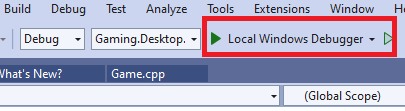
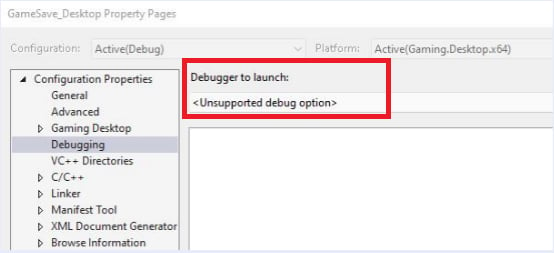
The debugger to use for projects using a version of Microsoft Game Development Kit (GDK) prior to June 2022 is named Local Machine. Remote debugging is not supported on versions of the Microsoft Game Development Kit (GDK) prior to June 2022.
Debugging packaged builds
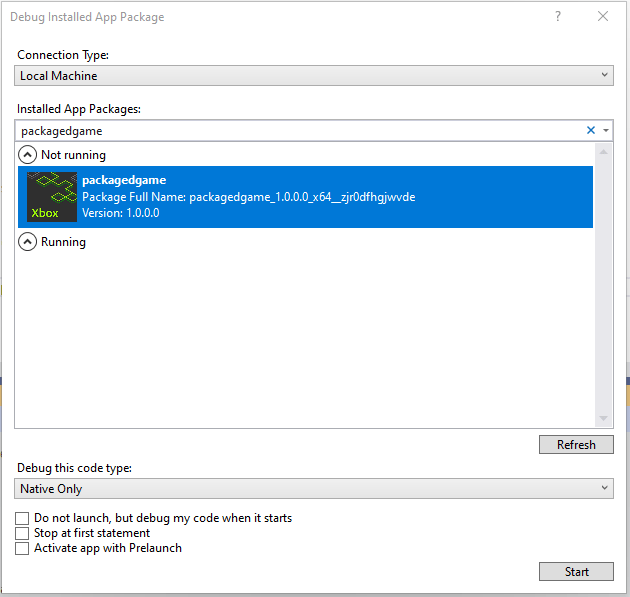
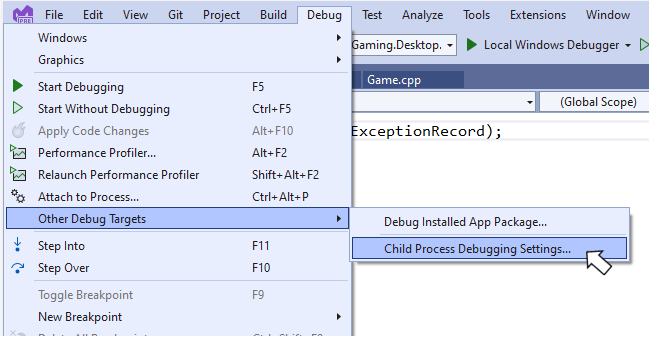
Before debugging a packaged build, the package must be installed using wdapp install. Once installed, the title can be debugged using the Debug Installed App Package feature in Visual Studio. Use the Debug menu to bring up the debugging dialog as shown in the following figure.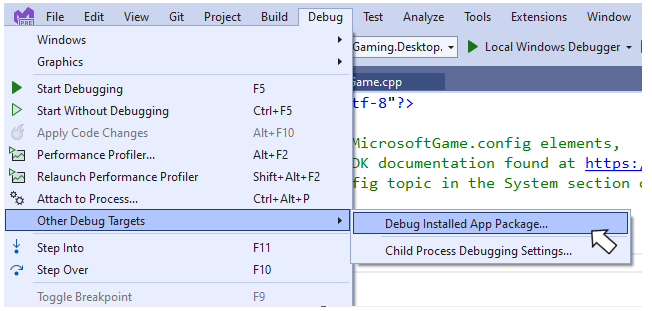
Debugging a game on a remote PC
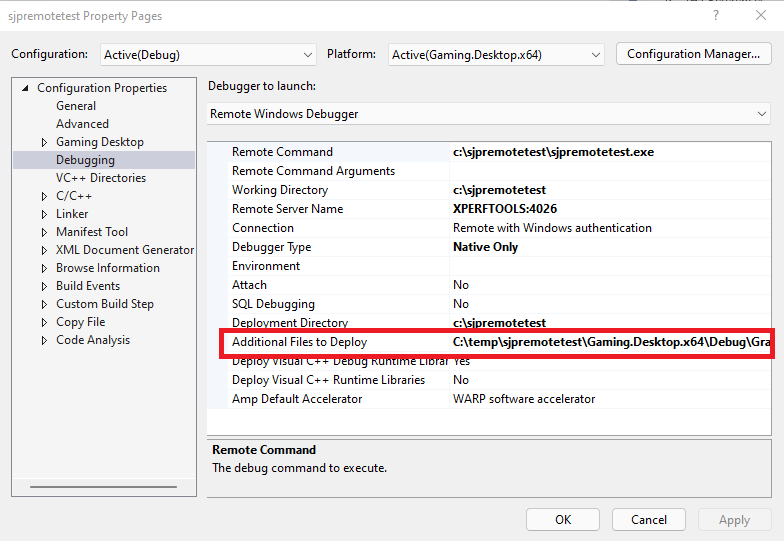
Debugging a title on a remote PC requires the Visual Studio remote tools. Install the tools and configure the remote debugger as described in Remote Debugging a C++ Project in Visual Studio. Select Remote Windows Debugger from the Debugger to launch dropdown on the project’s property page. Enter the name of the title’s executable, the desired working directory and so on. By default, Visual Studio will deploy the title’s executable and binary dependencies. To debug a remote Microsoft Game Development Kit (GDK) game, additional files, including the MicrosoftGame.config file, and the logo files, will also need to be deployed. Specify the additional files to deploy using the Additional files to deploy property on the Remote Windows Debugger property page as shown in the following figure.