
Quickstart: PlayFab REST API collection for Postman
Get started with the PlayFab REST API collection for Postman. Follow steps to install the package and try out example code for basic tasks. PlayFab is a complete backend platform for live games. Use the PlayFab REST API collection for Postman to:- Get an entity token
- Add/modify/delete entities in a title
- Configure title content
Prerequisites
- A PlayFab developer account
- The Postman native app
- An OS running TLS 1.2 or higher (Windows support for TLS 1.2)
Adding PlayFab Collections
-
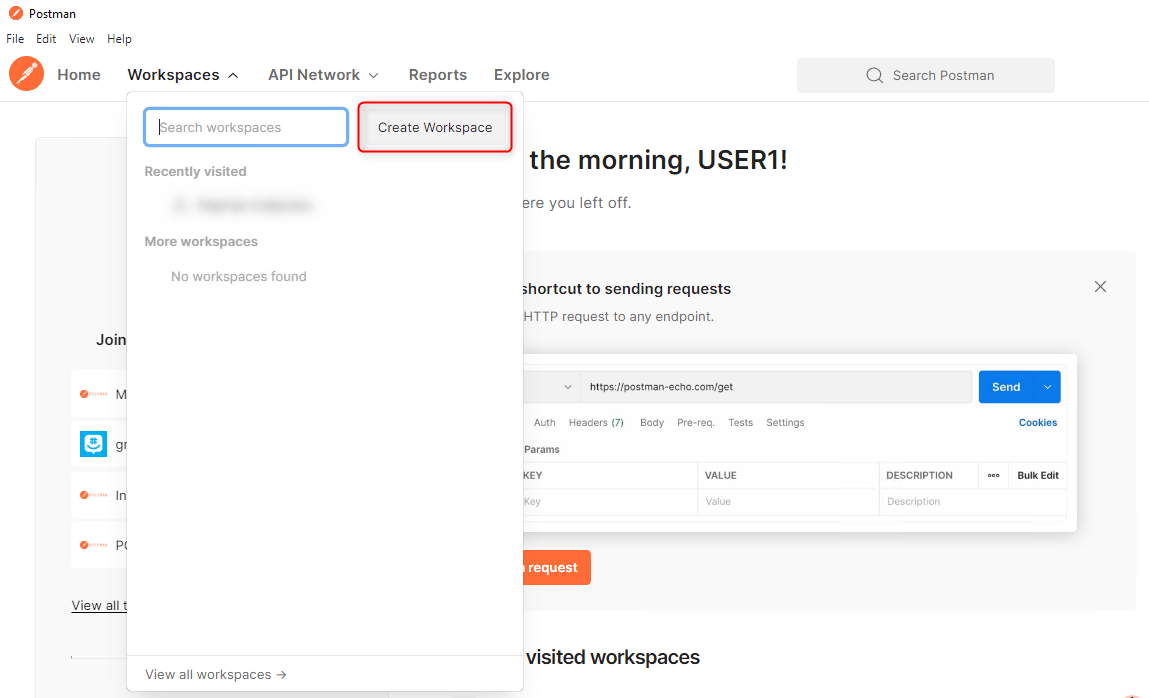
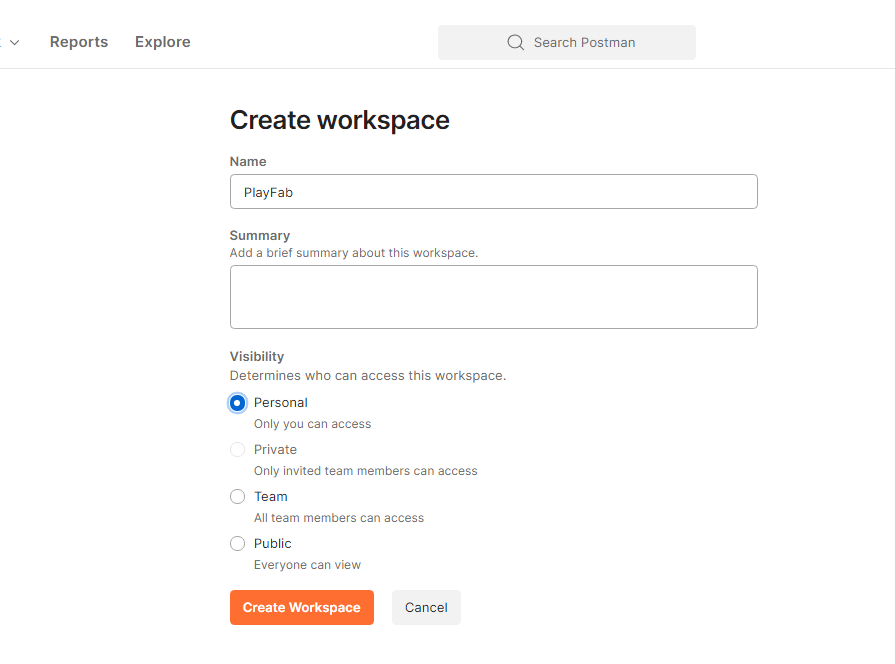
Create Workspace
[!div class=“mx-imgBorder”]
[!div class=“mx-imgBorder”]
-
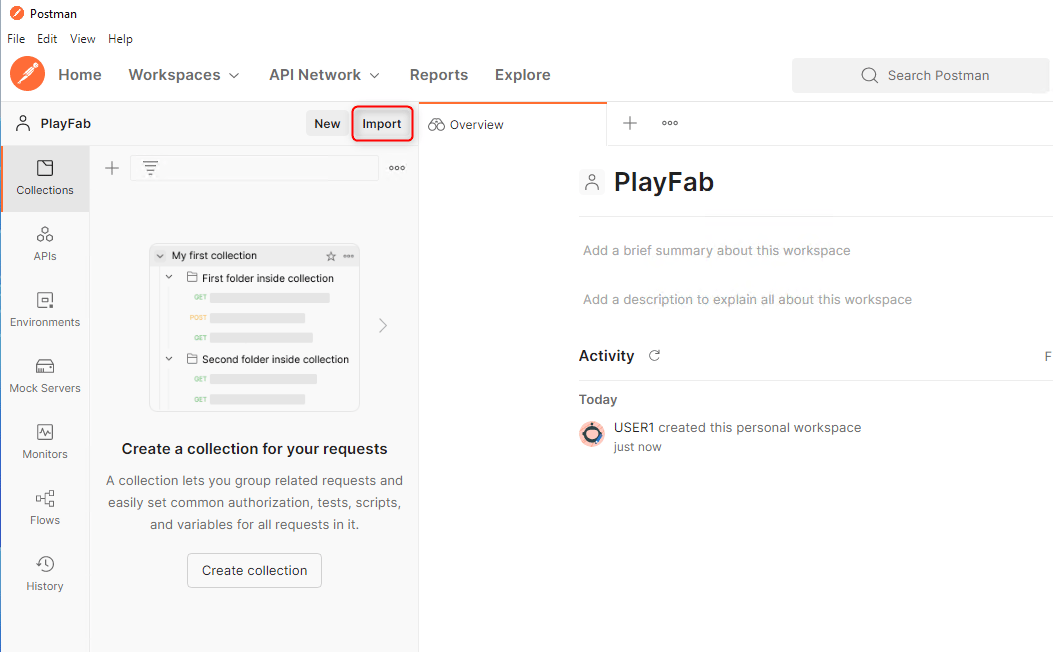
Select Import (top left of the window)
[!div class=“mx-imgBorder”]
-
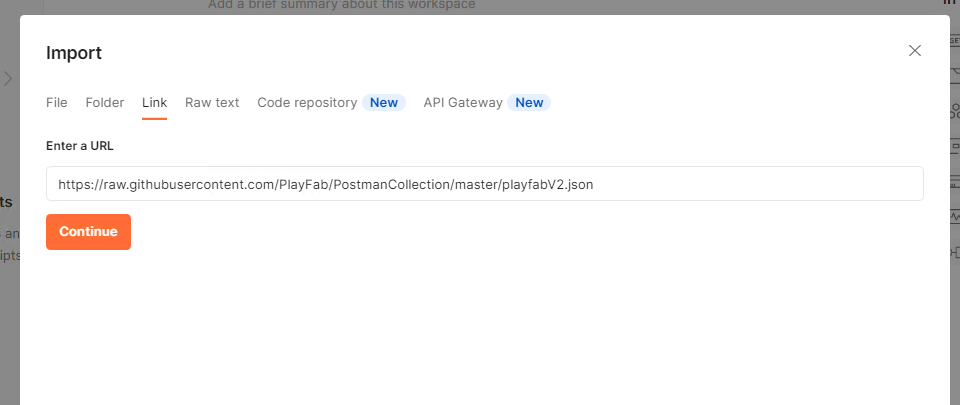
Select Link
[!div class=“mx-imgBorder”]
[!div class=“mx-imgBorder”]
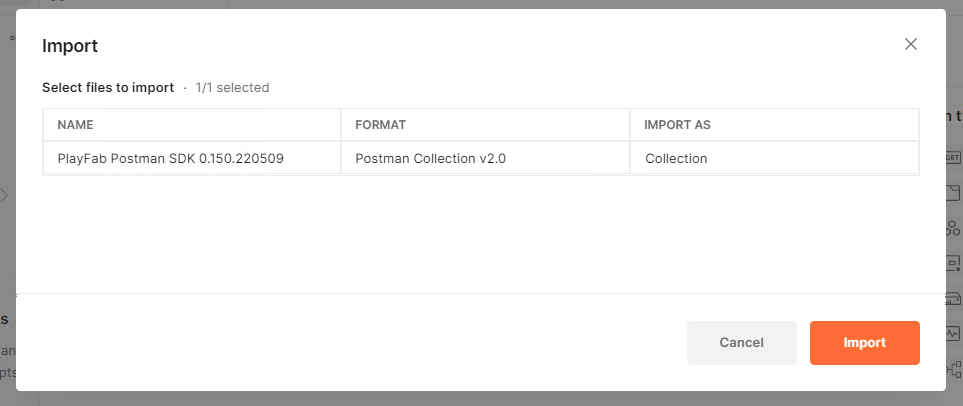
-
Paste the following link into the URL text box and select Continue and Import
https://raw.githubusercontent.com/PlayFab/PostmanCollection/master/playfabV2.json
- If you’re trying to download the beta SDK, go to the playfabV2.json file in the Postman Beta GitHub repository
-
Select View Raw
[!div class=“mx-imgBorder”]
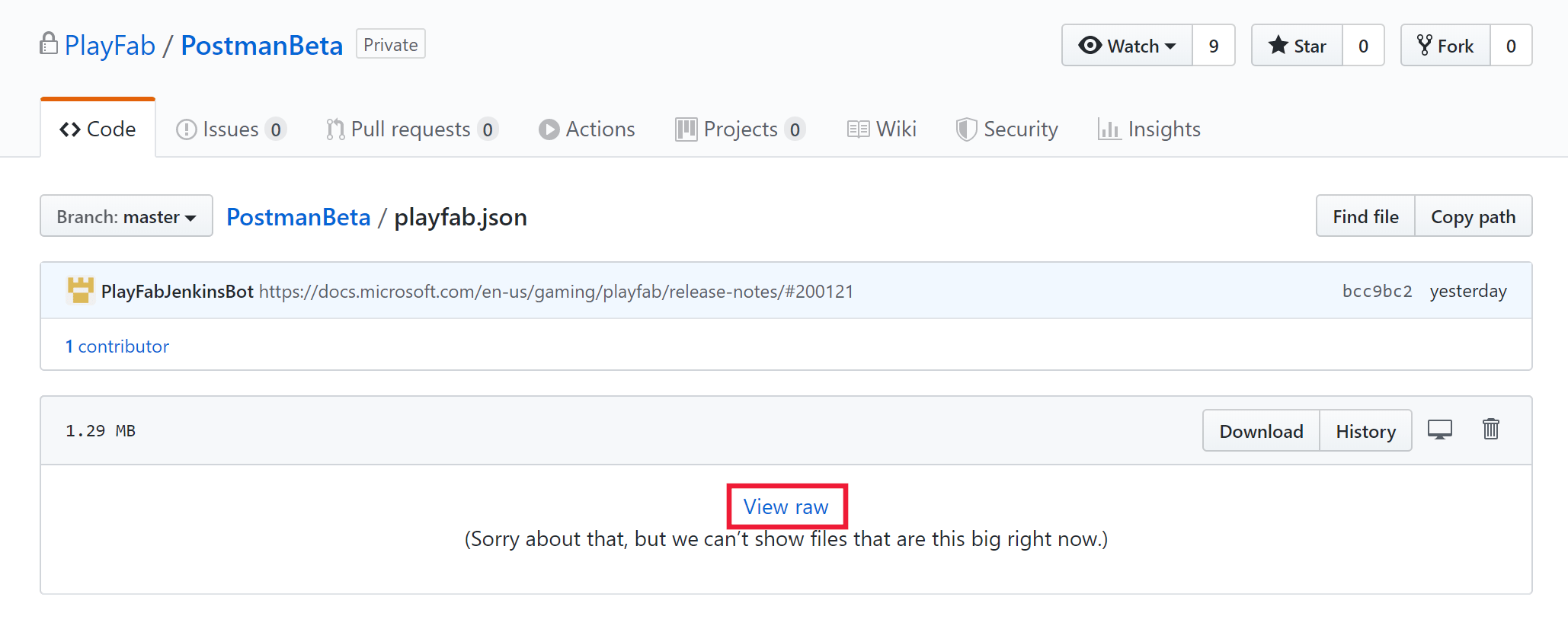
- Copy the URL from the browser, paste the link into the URL text box and select Continue and Import
-
You should now see the PlayFab Postman SDK under the Collections tab (top left of the window)
[!div class=“mx-imgBorder”]
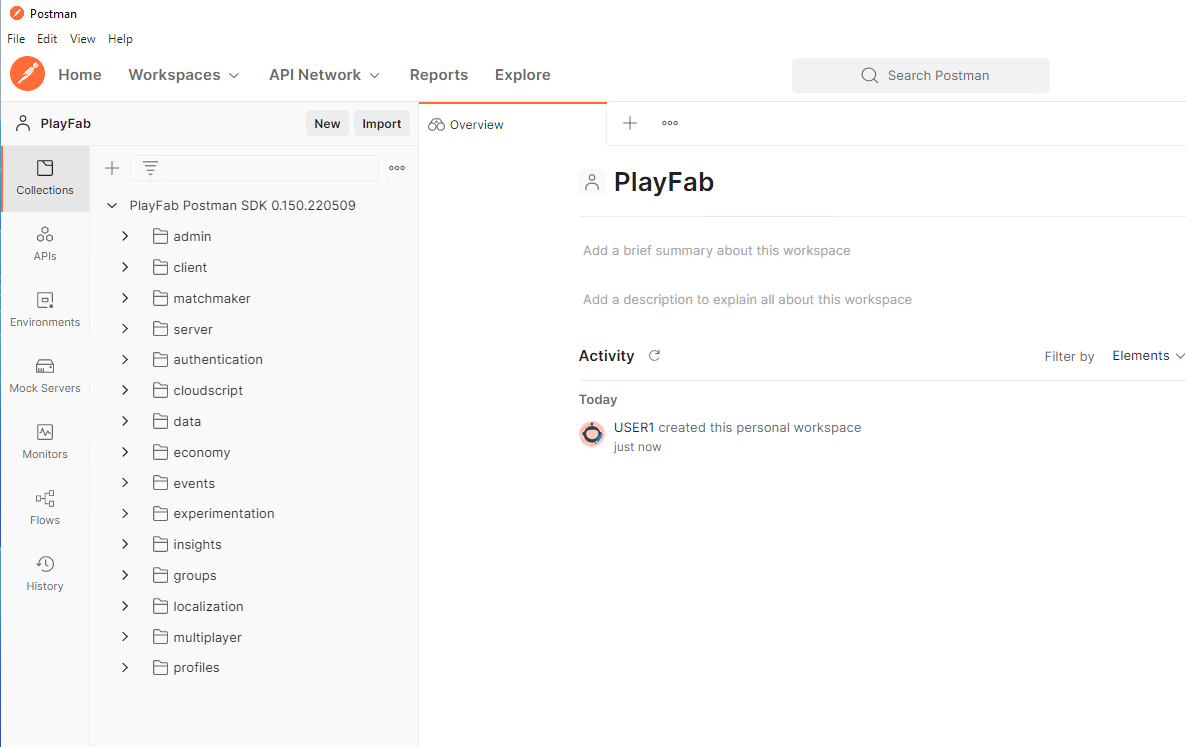
Adding Environment Variables
-
Select Environments and Create Environment to create a new environment
[!div class=“mx-imgBorder”]
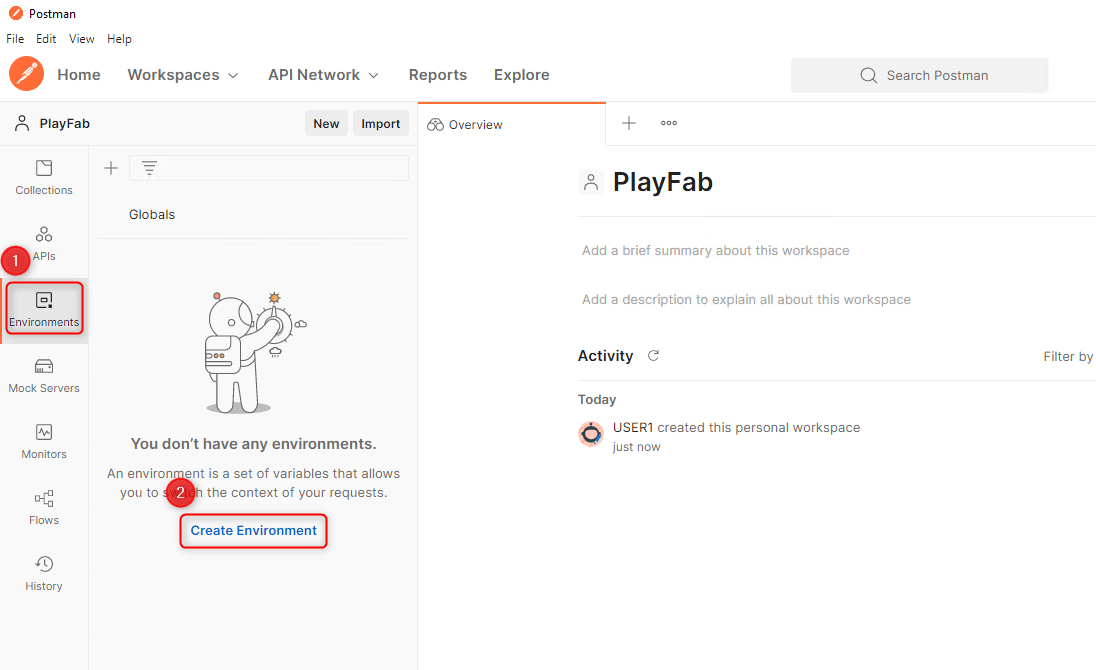
- Name your environment - we recommend “[titleId] - Test Environment”
You can find your title id by logging into Game Manager and copying the hex value below your title name on the My Studios and Titles main page.
-
Add the following 3 variables to the environment:
You can learn more about title secret keys and where to find them in the Secret Key Management documentation.
[!div class=“mx-imgBorder”]
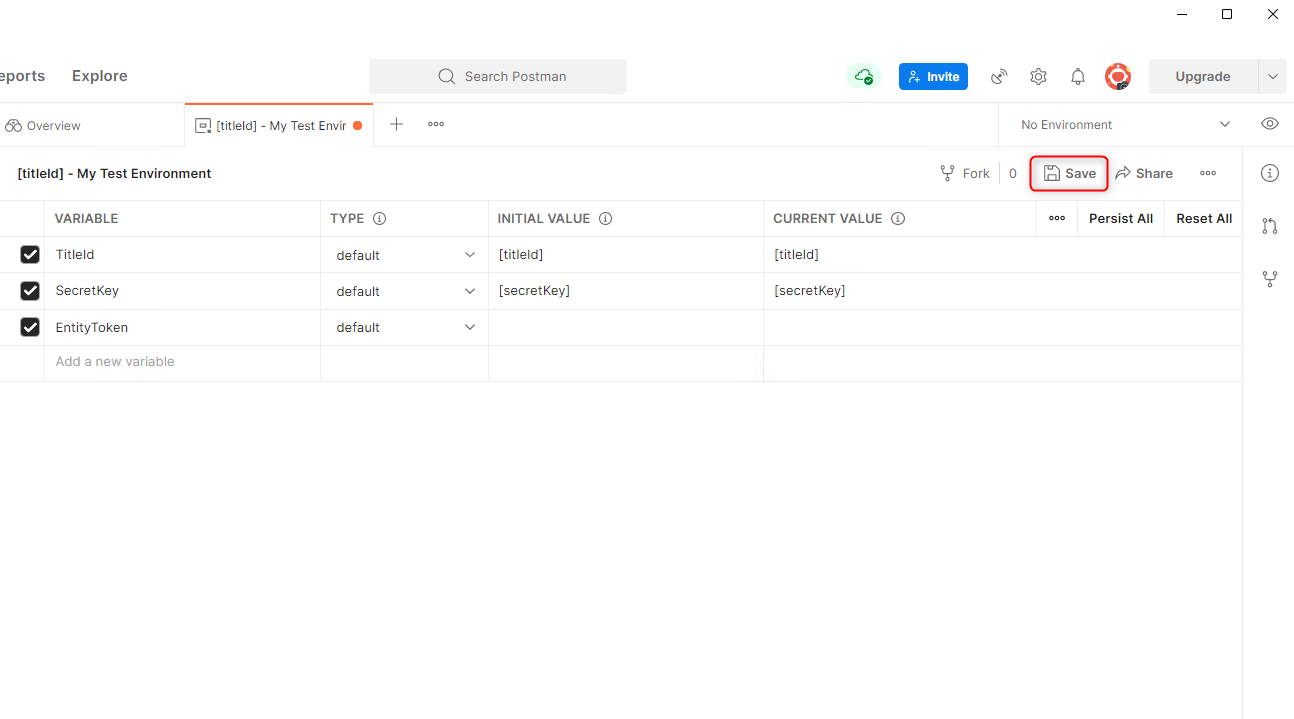
- When finished, select Save to save your new environment
-
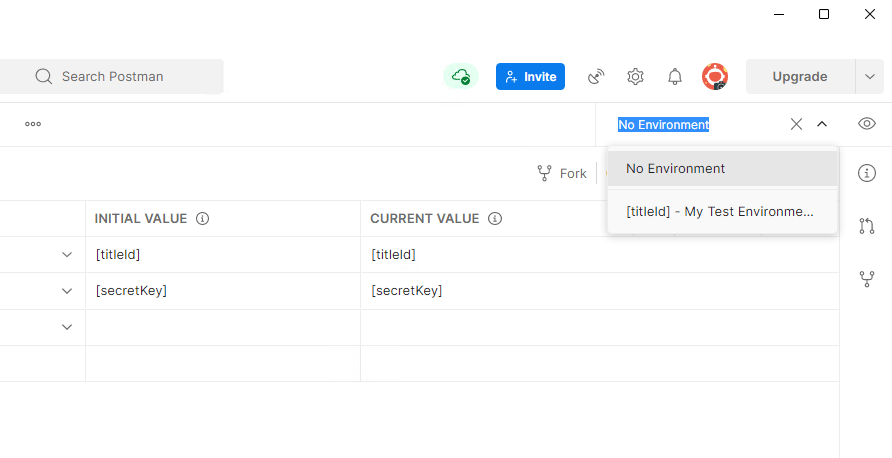
Select the environment dropdown to switch to your new environment (top right of the window)
[!div class=“mx-imgBorder”]
Getting a Title Entity Token
One way to interact with PlayFab’s Entity Programming Model is to get a Title Entity Token. This can be useful if you want to make changes to title config data, or if you want to make adjustments to a large number of players:-
Under the PlayFab Collections folder, expand the Authentication namespace and select
GetEntityToken -
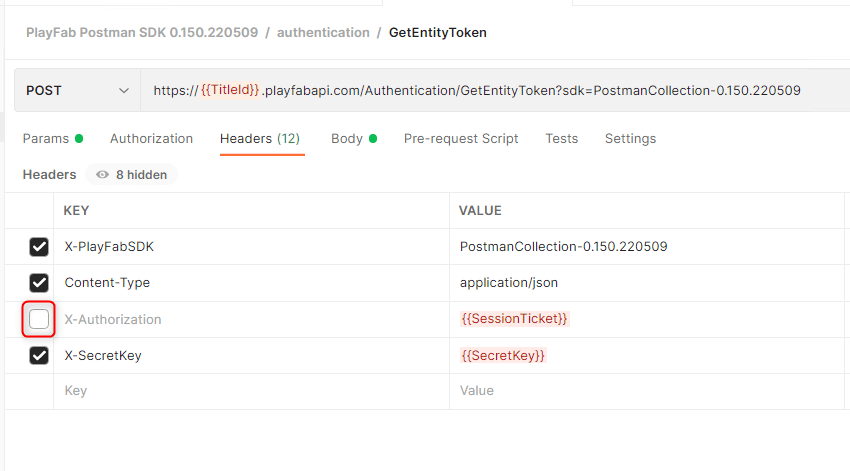
Under Headers, uncheck
X-Authorization[!div class=“mx-imgBorder”]
- Select Send
-
Set the returned entity token to your
EntityTokenenvironment variable-
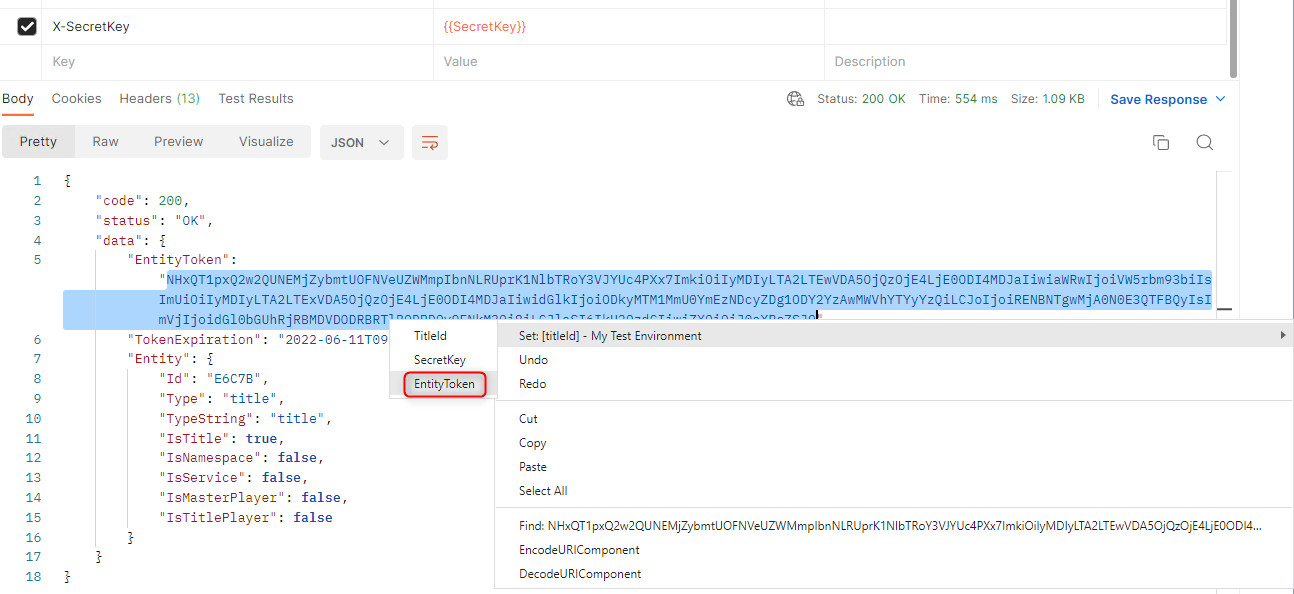
In the response, highlight the
EntityTokenstring - Right-click and select Set: [Environment] for your new environment
-
Select EntityToken
[!div class=“mx-imgBorder”]
-
In the response, highlight the
Entity tokens expire after 24 hours. Afterwards, you need to re-run
GetEntityToken to get a new entity token and update your environment variableGetting a Title_Player_Account Entity Token
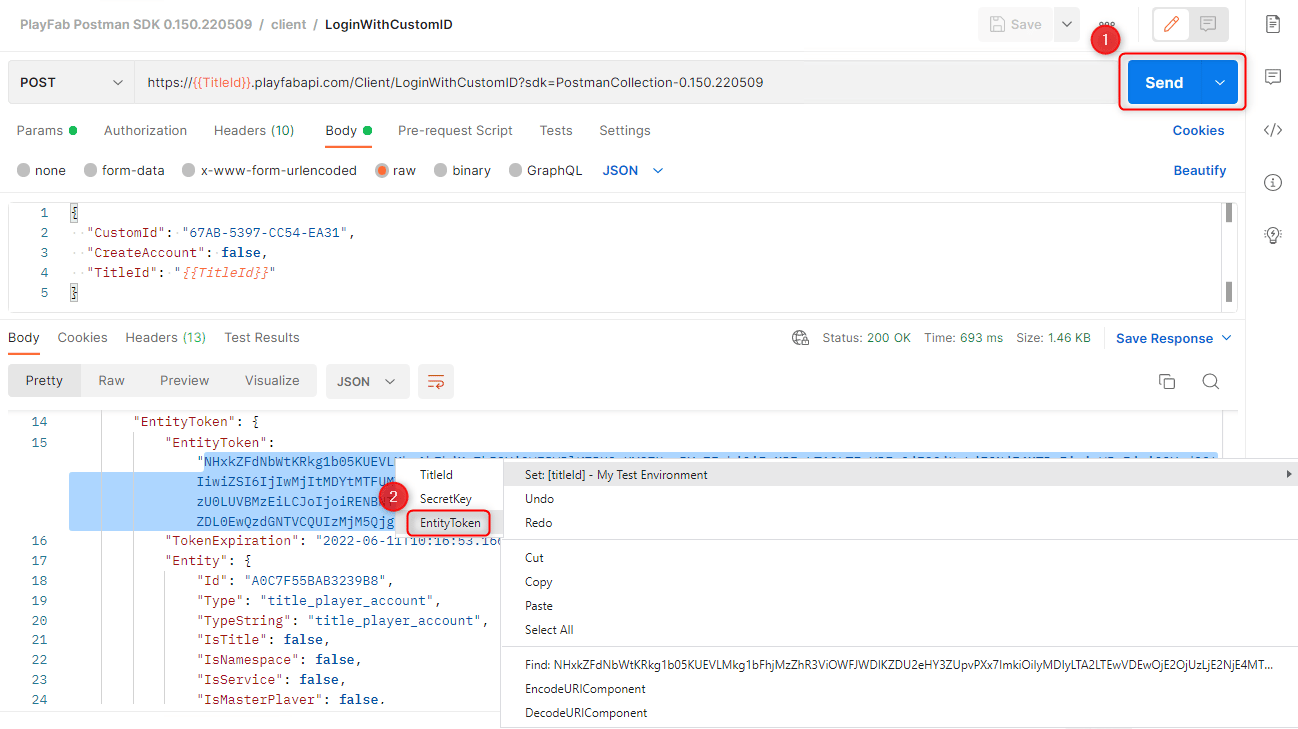
Another way to interact with PlayFab’s Entity Programming Model is to get a Title_Player_Account Entity Token. This is useful if you want to make changes to a single player:- Under the PlayFab Collections folder, expand the Client namespace and select
LoginWithCustomID - Under Body, change the
CreateAccountvalue fromfalsetotrue - Select Send
- Set the returned entity token to your
EntityTokenenvironment variable-
In the response, highlight the
EntityTokenstring - Right-click and select Set: [Environment] for your new environment
-
Select EntityToken
[!div class=“mx-imgBorder”]
-
In the response, highlight the
Troubleshooting
- Title ID / secret key mismatch
- If you’re trying to get a title entity token and receiving a
401: Unauthorizederror, make sure the title ID and secret keys are correct by logging into Game Manager
- If you’re trying to get a title entity token and receiving a
- Expired entity token
- If you previously obtained an entity token and are unsuccessfully attempting to call other APIs, your entity token might be expired. Get another entity token, save it into the
EntityTokenenvironment variable, and attempt to call the previous API again
- If you previously obtained an entity token and are unsuccessfully attempting to call other APIs, your entity token might be expired. Get another entity token, save it into the
- Incorrect entity token type
- There are different types of entities (see Available built-in entity types). Different APIs allow different entity types - for example, you might be attempting to call
GetLanguageListwith a title_player_account entity token instead of a title entity token
- There are different types of entities (see Available built-in entity types). Different APIs allow different entity types - for example, you might be attempting to call
- Incorrect environment:
- Make sure you’re using the proper environment by checking the environment dropdown (top right of the window)
Next Steps
You now have an entity token to pass into other API calls to start setting up your PlayFab title.[!div class=“nextstepaction”] PlayFab Quickstarts > [!div class=“nextstepaction”] API References >