Before we added support for push notification templates, developers were able to explicitly define their push notifications inside the rules or scheduled tasks that triggered them. These will continue to behave as they have before - however, in order to add additional languages, you must use templates.
Requirements
This is an advanced tutorial. It focuses on how to create a push notification template with localized strings, and then configure logic to trigger the sending of that template to your players. Please make sure that all requirements have been met or you will not be able to complete this tutorial. This tutorial assumes your title has already been configured to send push notifications.For an introduction to push notifications and instructions for how to enable them on your title, please refer to the Push notifications quickstart. It includes pointers for both iOS and Android (including configuring advanced payloads), as well as how to use Postman to validate behavior.
Create a push notification template
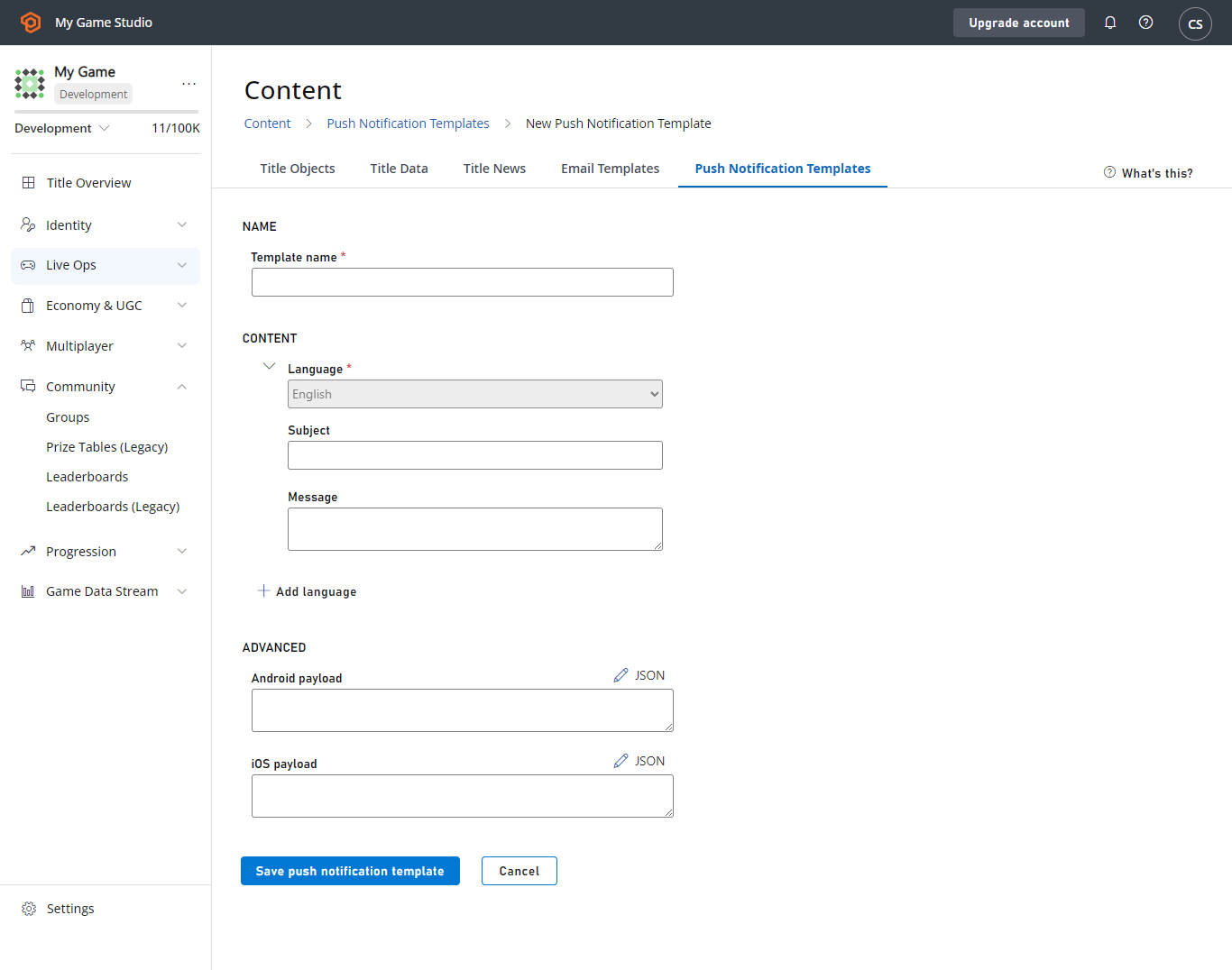
For the purpose of this tutorial, we’ll create a basic push notification to send to lapsed players, in the hopes that they return to our title. In the PlayFab Game Manager:- Select the Content section.
- Select the Push Notifications Templates tab.
- Select New Push Notification Template.
- Add a new language using the drop-down menu in the Language (Title default) field.
- Choose the language you want to add to the template, and type in the localized strings as shown below.
Trigger push notifications via rules, tasks, and player segments
The next step for our scenario is to leverage PlayFab triggered actions to send push notifications when a player meets our specified criteria. We want to entice players to return if they haven’t visited our game in over 30 days. This kind of criteria makes using player segmentation logic a natural fit for our lapsed player scenario, but please note that you can trigger these same kinds of actions on rules and scheduled tasks. Both of those are under the Automation menu in Game Manager. You can also use CloudScript, or our APIs to send a push notification. Let’s continue with the player segmentation example. First, we’ll set up a player segment for lapsed players:- Select the Players area.
- Choose the Segments tab, and New Segment.
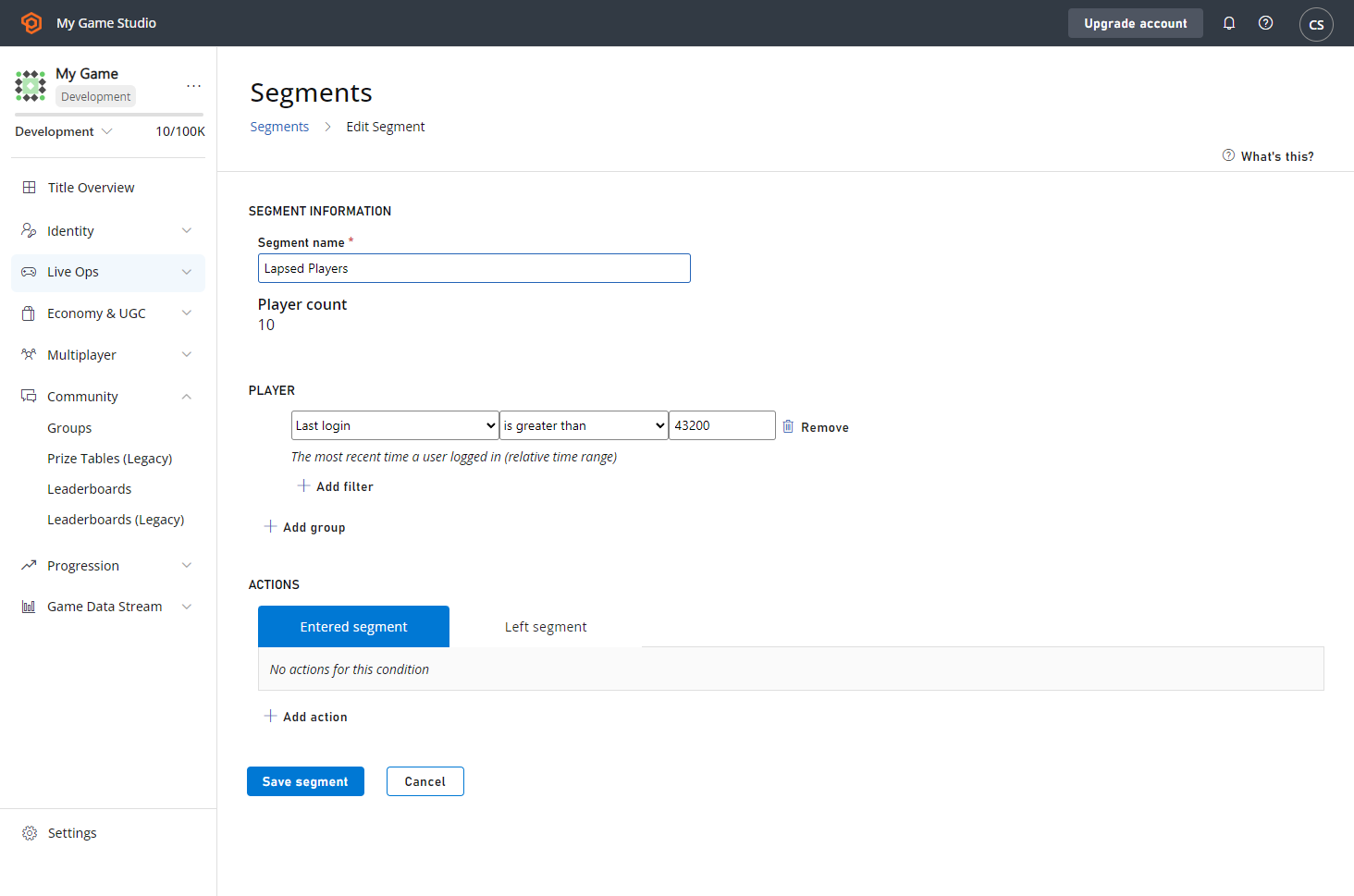
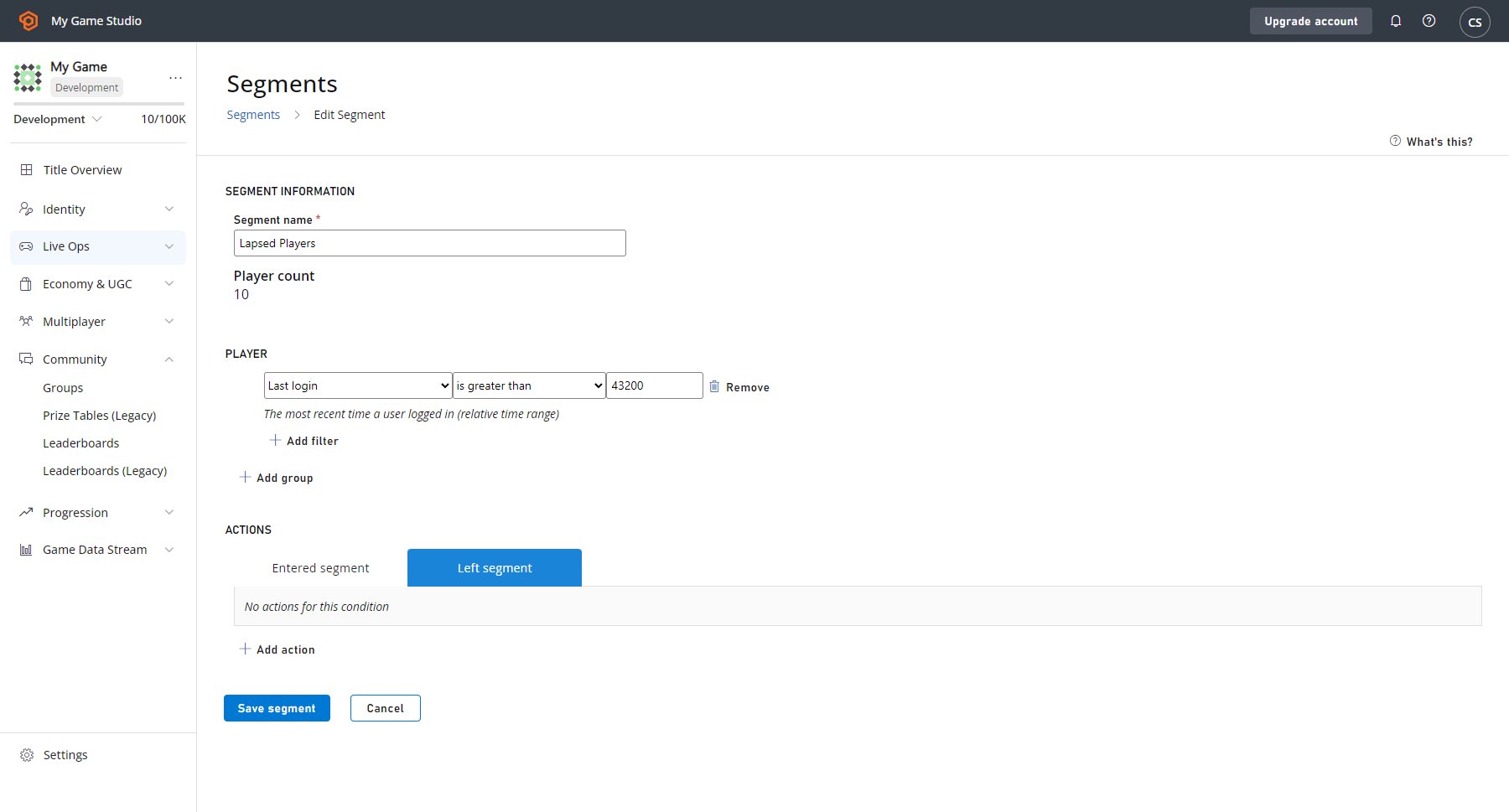
We’re defining “lapsed” as not logging into the game for over 30 days (43200 minutes).
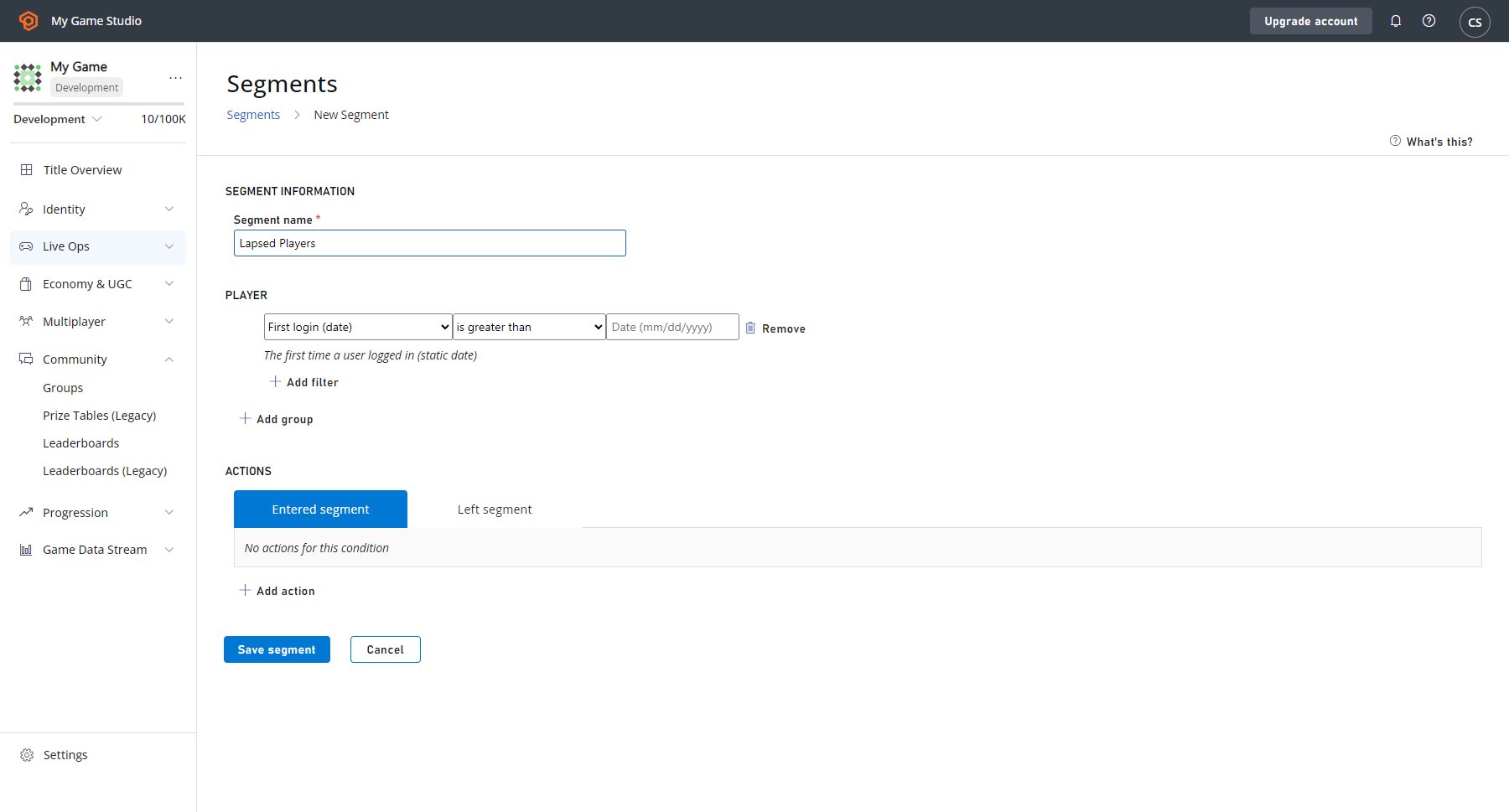
- With the entered Segment tab selected, select ADD ACTION that appears just above the Save Segment button.
- Then go to the Type field, and use the drop-down menu to select Send push notification.
- Go to the Push notification template field next to it, and select Lapsed Players template from the second drop-down menu.