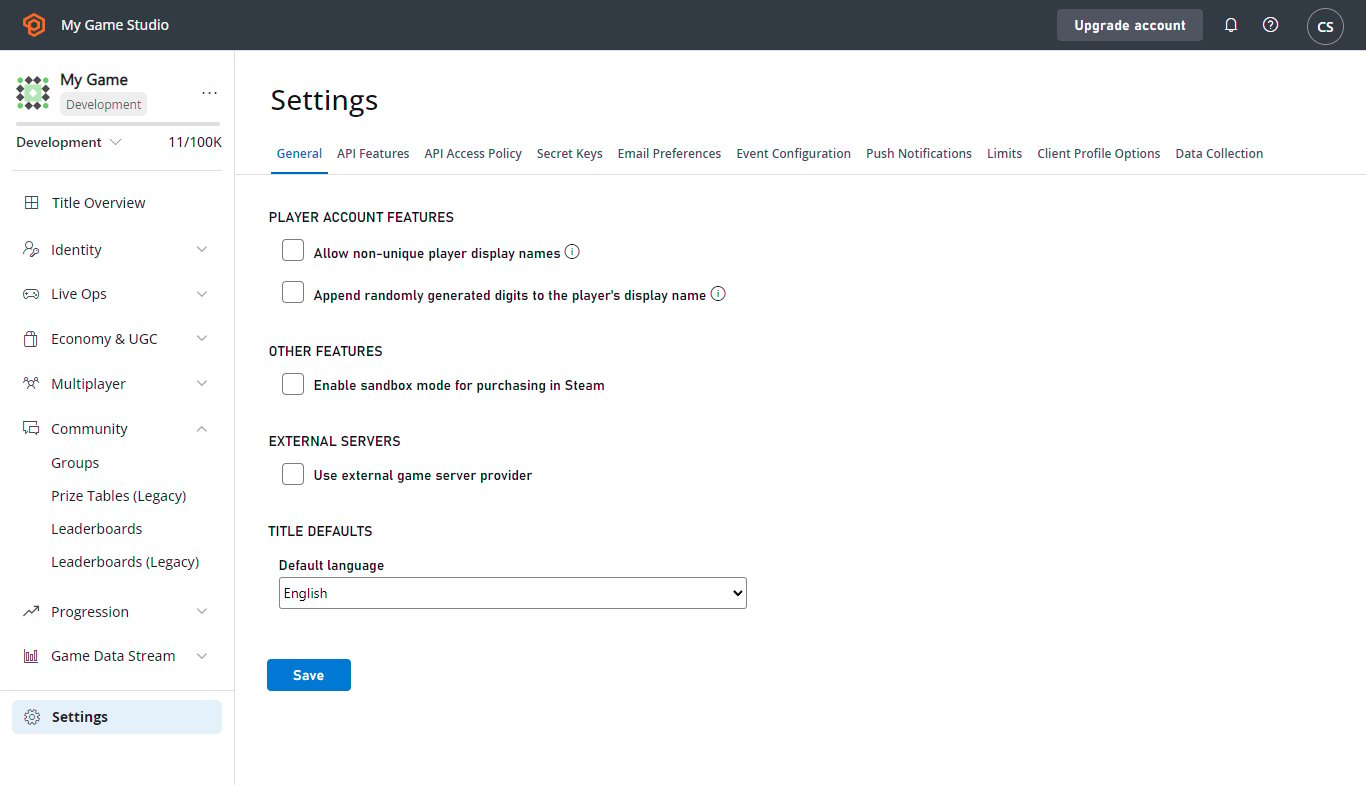
- Title default language: Indicates your title’s primary supported language. Once set, we’ll require your title to support this language to be used at least for features using localized strings.
- Player language: Indicates the player’s preferred language. This can be set on a per-title basis.
Players with a preference for a language that your title doesn’t support also receive strings, based on your title’s default language.
Requirements
This tutorial assumes you have the following working knowledge about using PlayFab:- A basic knowledge of how to create a player. This is necessary, because players must already exist with a username and password before calling preferred language logic.
- That you have read the Game Manager quickstart. If you’re unfamiliar with the Game Manager, this is the place where language information is viewed.
- That you have knowledge of how to work with player profiles, as it’s necessary to confirm that a preferred language has been added to a player’s profile.
- Take a moment to review the information provided on how to get a player’s profile in the Getting player profiles tutorial.
Section 1 – Player’s preferred language
Before setting your player’s preferred language, figure out how you want to collect it. You have a couple of options:- Ask them: Add an option on your game’s menu.
- Intuit their language: Use the language of the player’s device by calling the provided platform API (for example,
Locale.getDefault.getLanguage()for Android).
There are a lot of languages out there, and your title may not support them all. While not required, we recommend future-proofing your title, and storing the player’s actual preference. If you come back and add support for that language later, PlayFab’s logic will automatically start serving up the new strings (rather than the default).
Step 1 – Set the language
PlayFab allows you to choose from a specific list of languages to support. You can make a call to theGetLanguageList() method to see the language codes.
When using the
SetProfileLanguage API, the language string must be specified in the ISO 639-1 format (for example, “en”, “es”, or “ja”). At the current time, the code “zh” is not supported.C# Code Example
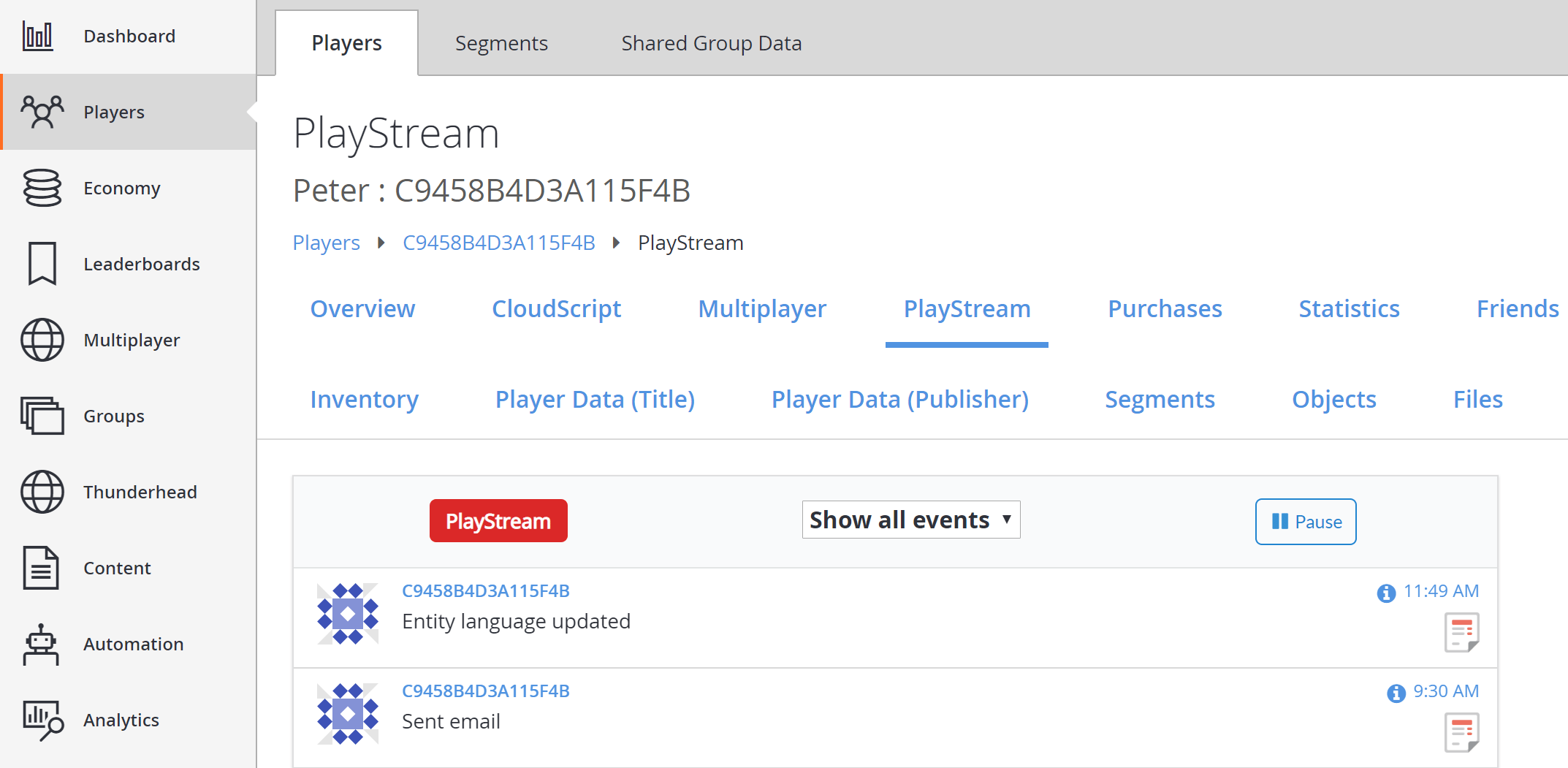
Step 2 – See that the language was updated
Go to the player’s overview. In Game Manager, go to Player > Overview. Check that their contact info section is updated with their preferred language. The language can also be updated with the Language dropdown menu displayed in the following image.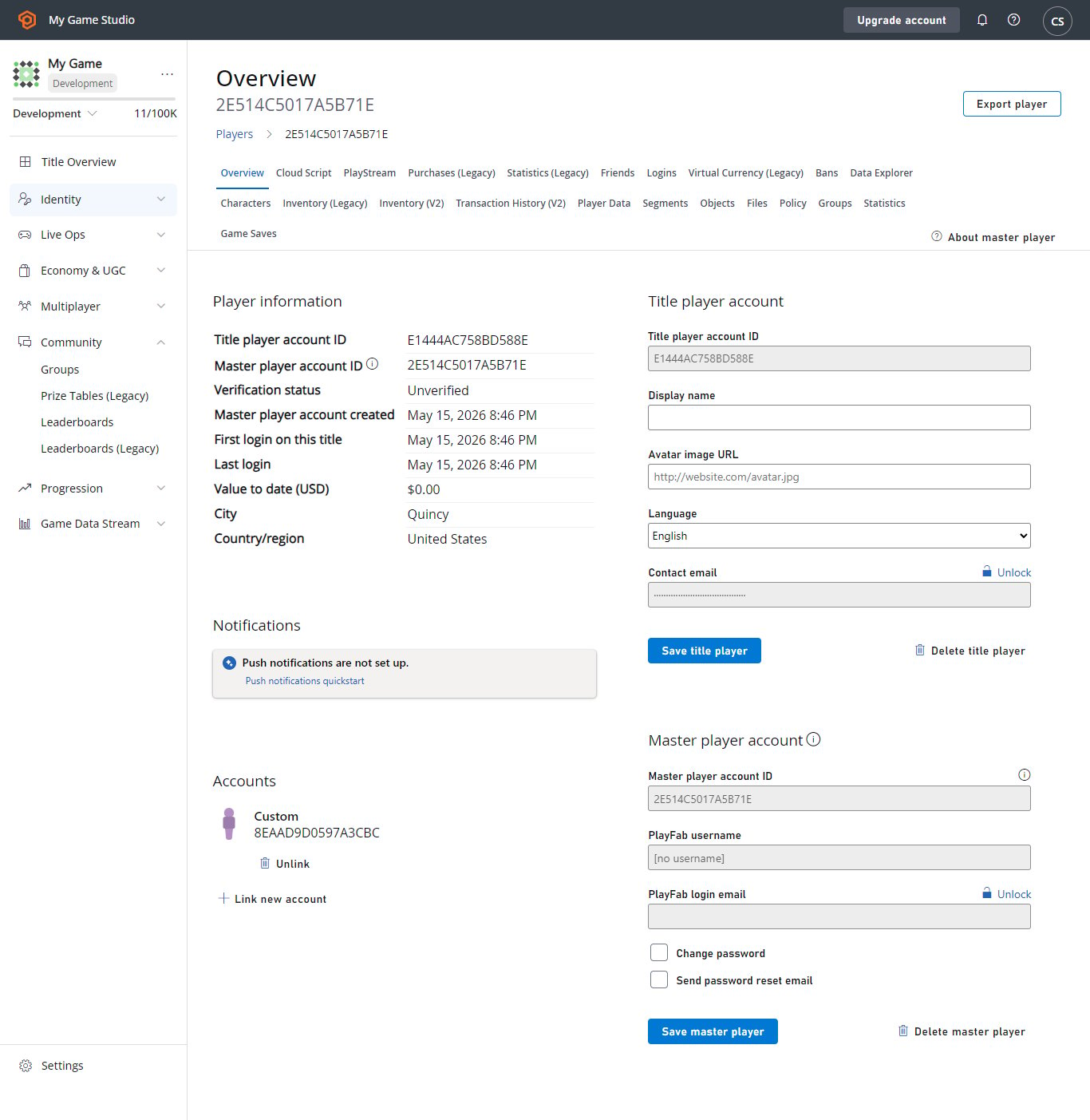
Section 2 – Set a title default language
Next, set a default language for your title. All localization features now associate a language with every translated version of the content. The title requires a default language. This ensures that if any player’s preferred language isn’t set or supported, the player can still receive the default version of the content. To begin, select Settings in the menu to the left, as shown below.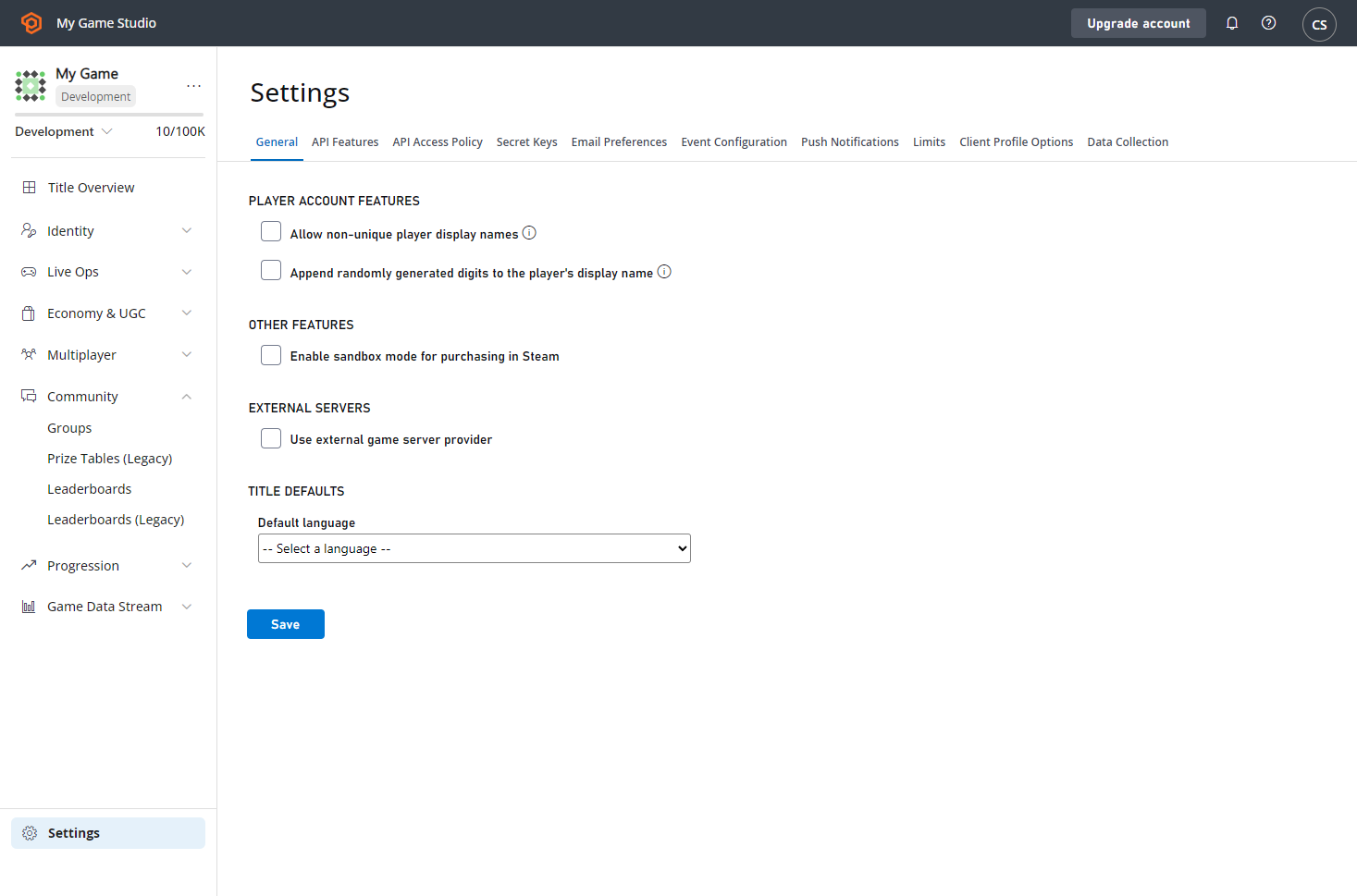
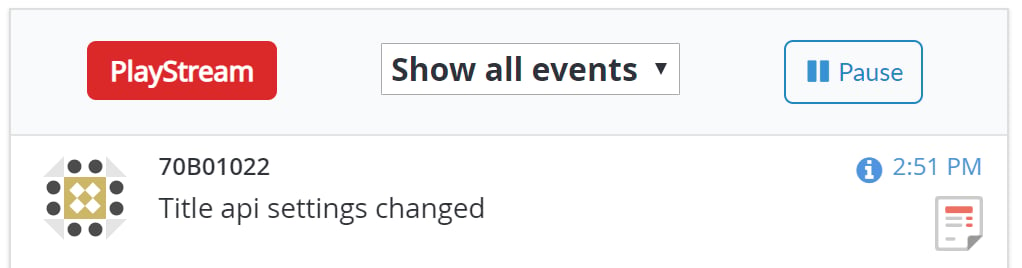
Section 3 – Updating a title default language
It’s important to remember that setting a default for your title tells PlayFab to use that language when you issue communications to players who don’t have a preferred language set or who have chosen a language, which doesn’t match one you support. Because the title’s default is used as a fallback language, PlayFab expects that all your communications to support your default language.You can always change your title default, but PlayFab requires that your current communications templates support the language you’re changing to.