
Advanced Segmentation with Custom Properties (Public Preview)
The Advanced Segmentation with Custom Properties feature is in private preview. We anticipate ongoing changes to it as we continue gathering feedback and optimizing for customer use.
Creating segments with Player Custom Properties
You can create segments with Player Custom properties either via API or Game manager.Via API
- Use the Create Segment API to create a segment.
- Add custom property predicates using the Update Segment API.
Via Game Manager
- Sign in to Game Manager.
- Go to the Players page.
- Go to the Segments tab.
- Create or update a segment.
- Add custom property predicates by selecting Add filter under Player.
- Save segment.
Exporting players from a segment with custom properties
- Create a segment that references custom property predicates.
- Use the ExportPlayersInSegment API to export player profiles
Scheduled Tasks
- Run scheduled task on a segment using custom property predicates.
Quick Start Scenarios
Set up Economy V2 Catalog and Inventory
- Create a Gold Bar currency as an item.
-
Create a Chocolate Bar currency as an item.
- Required parameters: Friendly ID, Title, and Start Date (March 1)\
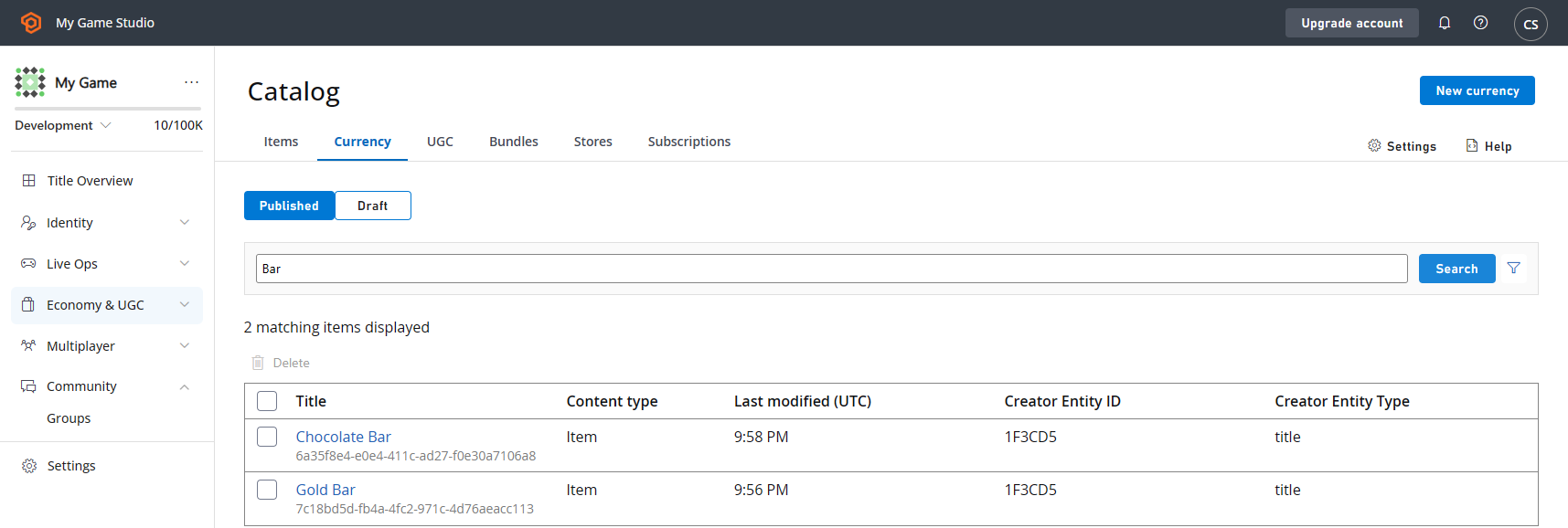
- Required parameters: Friendly ID, Title, and Start Date (March 1)\
-
Create a catalog item Chocolate Bar:
3a. Navigate to Settings -> Economy (V2) -> Catalog (V2).
3b. Under Catalog Settings, add a new Content Type - Chocolate Bar and select Save.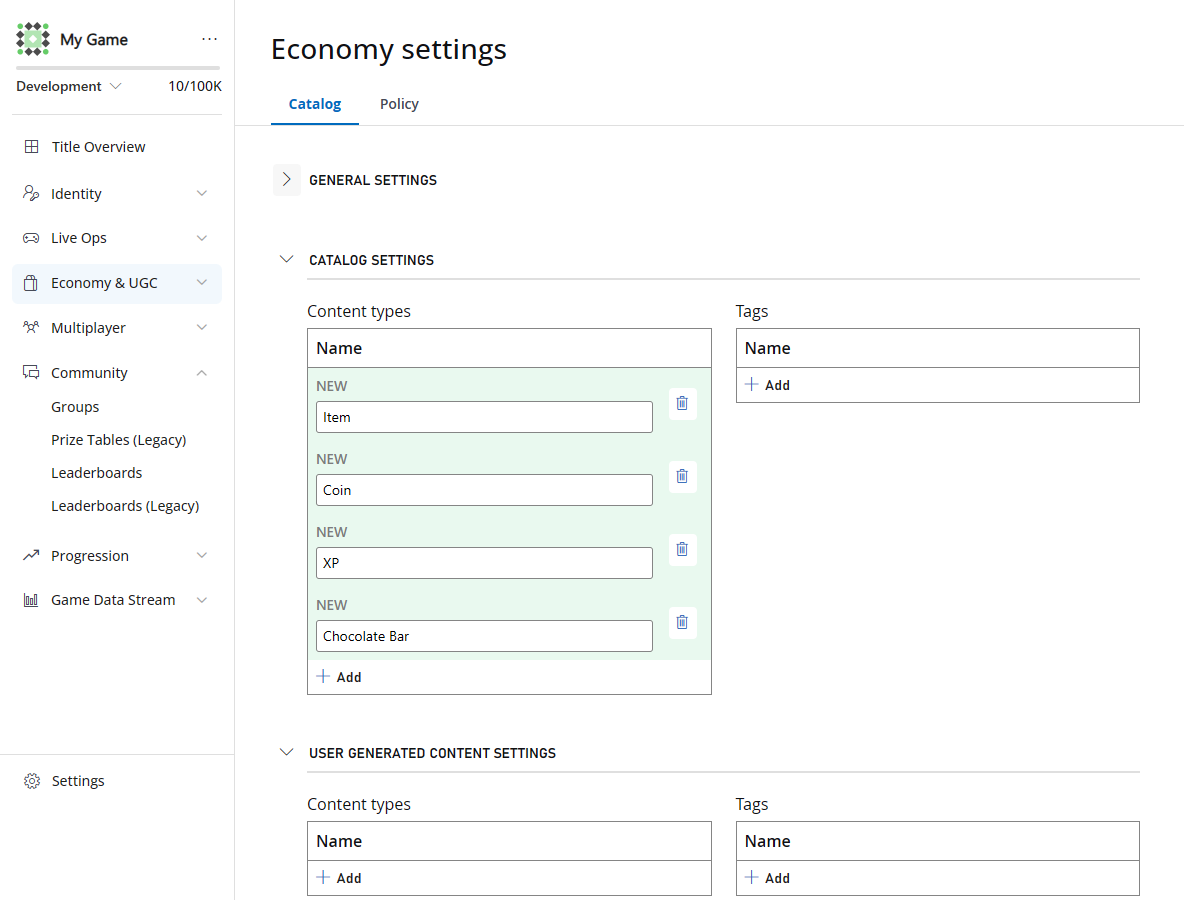
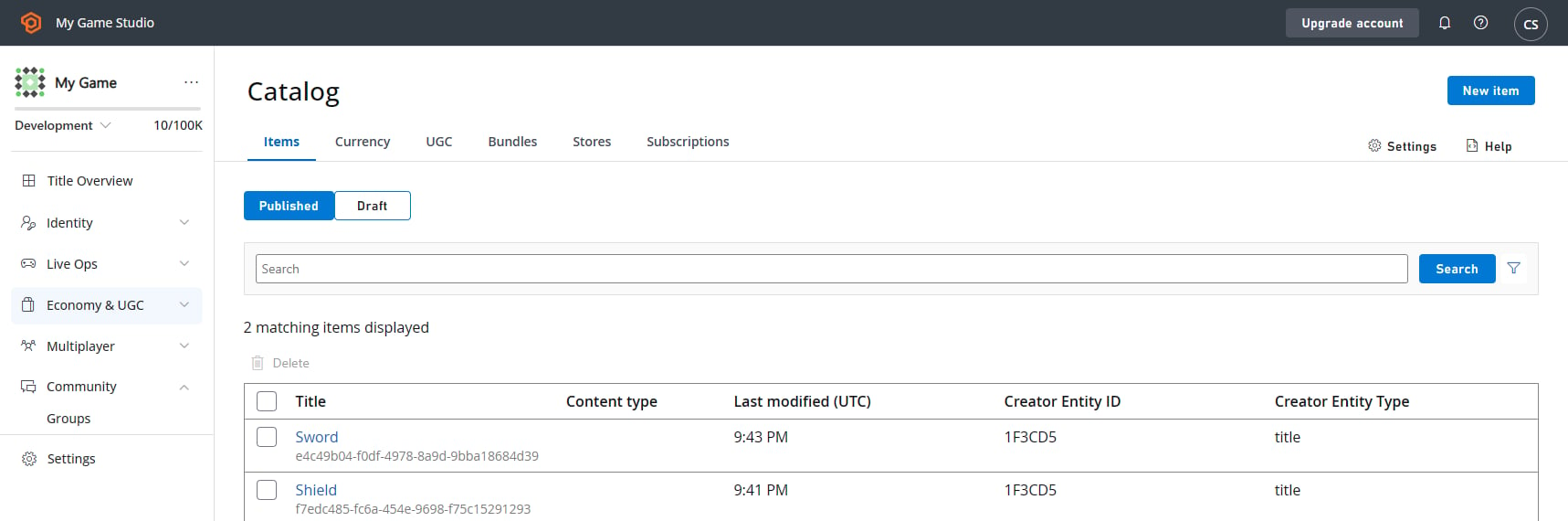
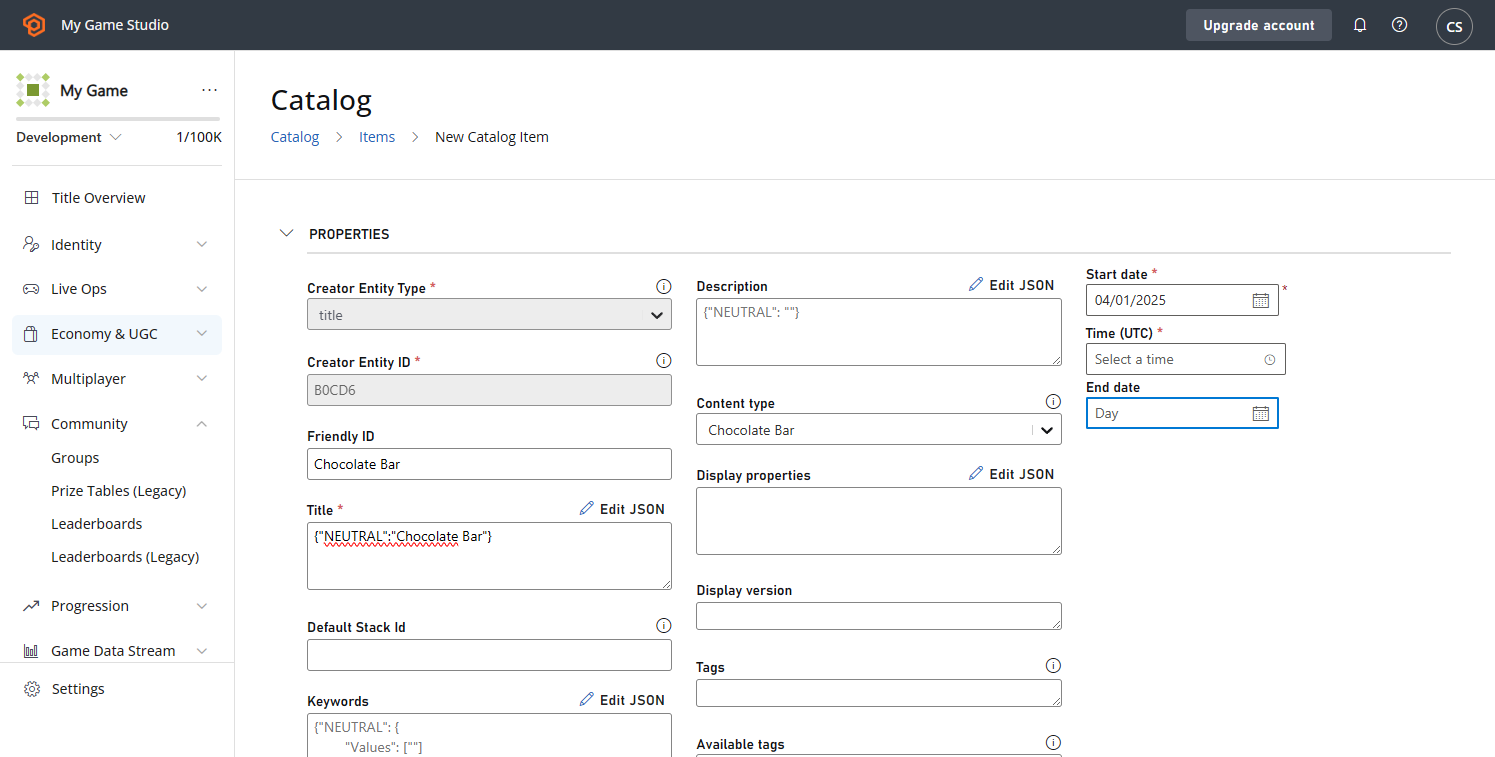
1. Create a Segment for Users Who Spend Between 25-50 Gold Bars (Virtual Currency Spent)
- Navigate to the PlayStream Rules page under Automation -> Rules.
-
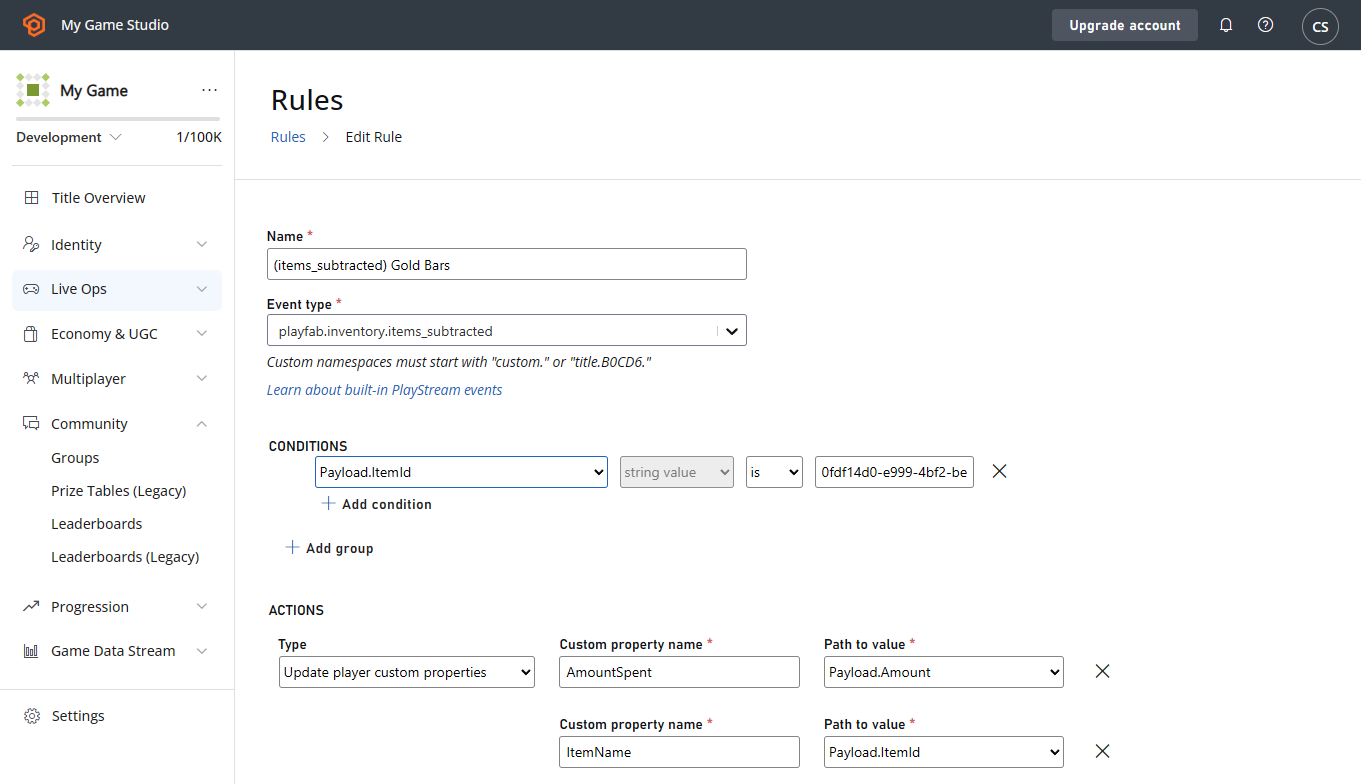
Create a rule for the
items_subtractedevent with the following configuration: Conditions:Payload.ItemId == <id of Gold Bar currency>- Optional:
Payload.Amountbetween 25 and 50 to prevent overwrites of other amounts
- Update custom properties
AmountSpent = Payload.AmountItemName = Payload.ItemId
- Navigate to the Segments page under Players -> Segments.
-
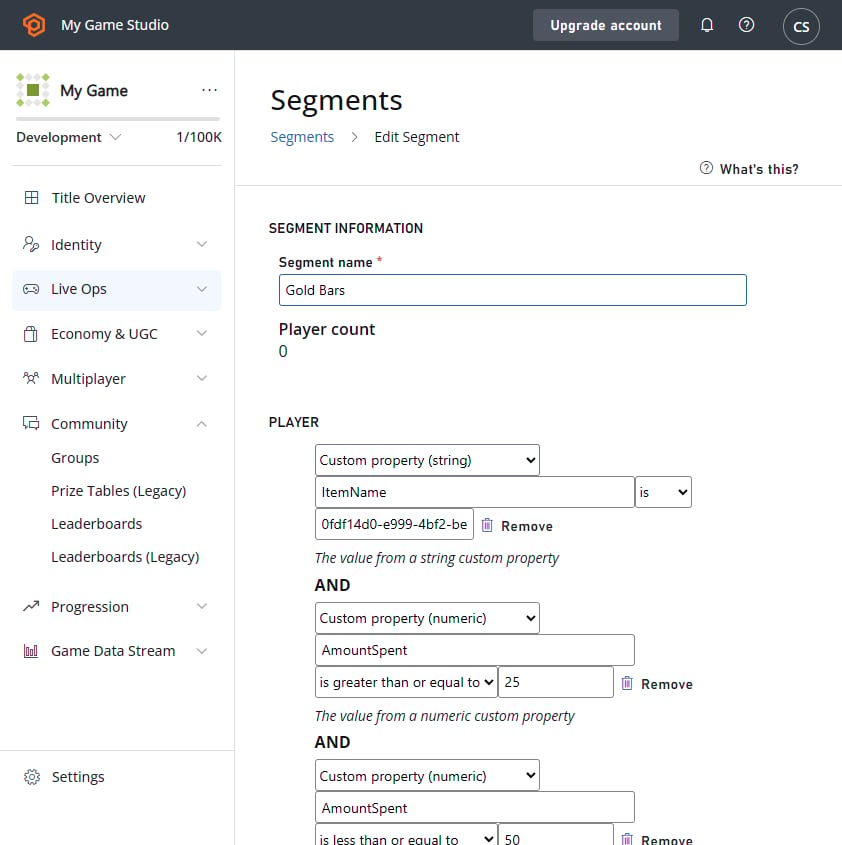
Create a new segment with the following configuration:
- Custom property (string)
ItemNameis<Gold Bar id> - Custom property (numeric)
AmountSpentis>= 25 - Custom property (numeric)
AmountSpentis<= 50
- Custom property (string)
2. Create a Segment for Users Who Were Granted Chocolate Bars and Used All of Them (10) After April 1, 2025 (Inventory Granted)
- Navigate to the PlayStream Rules page under Automation -> Rules.
-
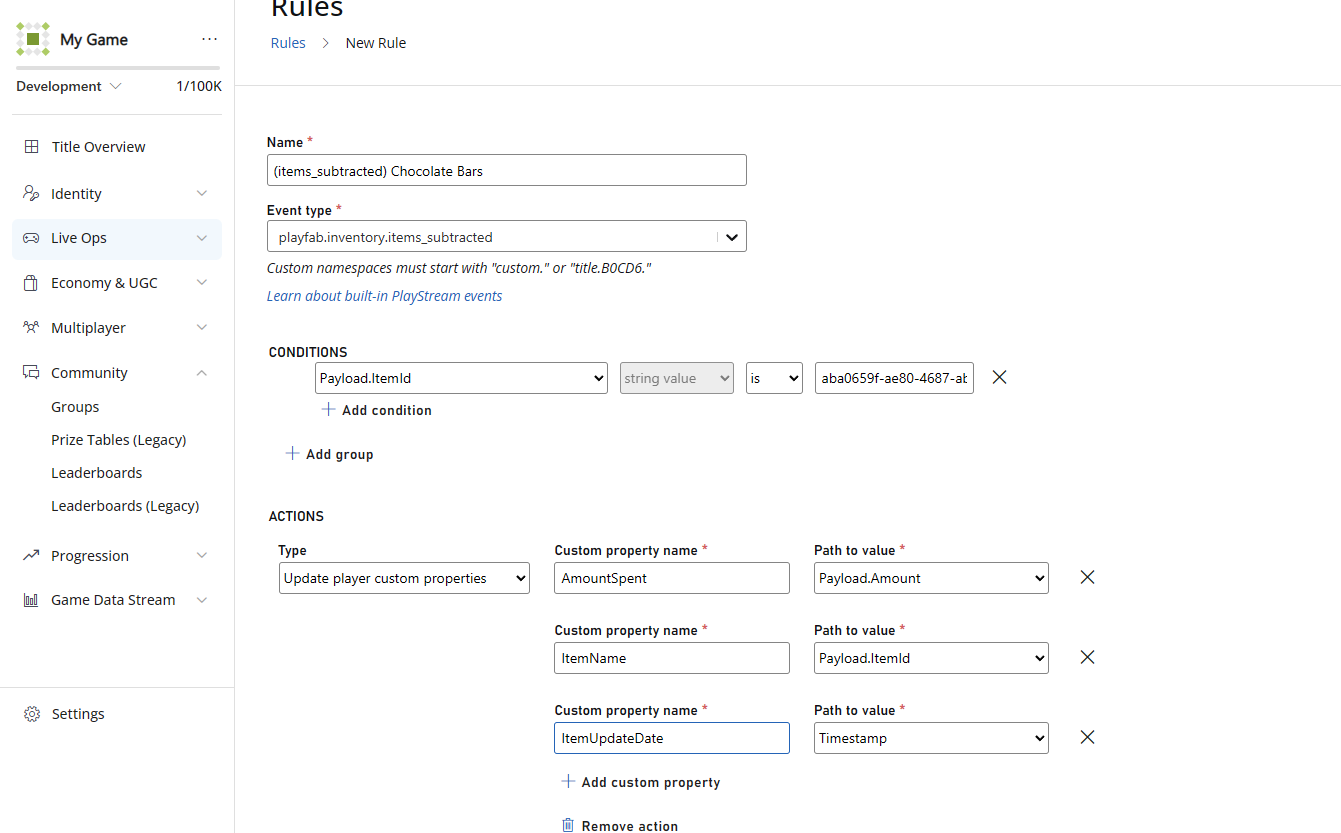
Create a rule for the
playfab.inventory.items_grantedevent with the following configuration: Conditions:Payload.ItemId == <Chocolate Bars id>
- Update player custom properties
AmountSpent = Payload.AmountItemUpdateDate = Timestamp
- Navigate to the Segments page under Players -> Segments.
-
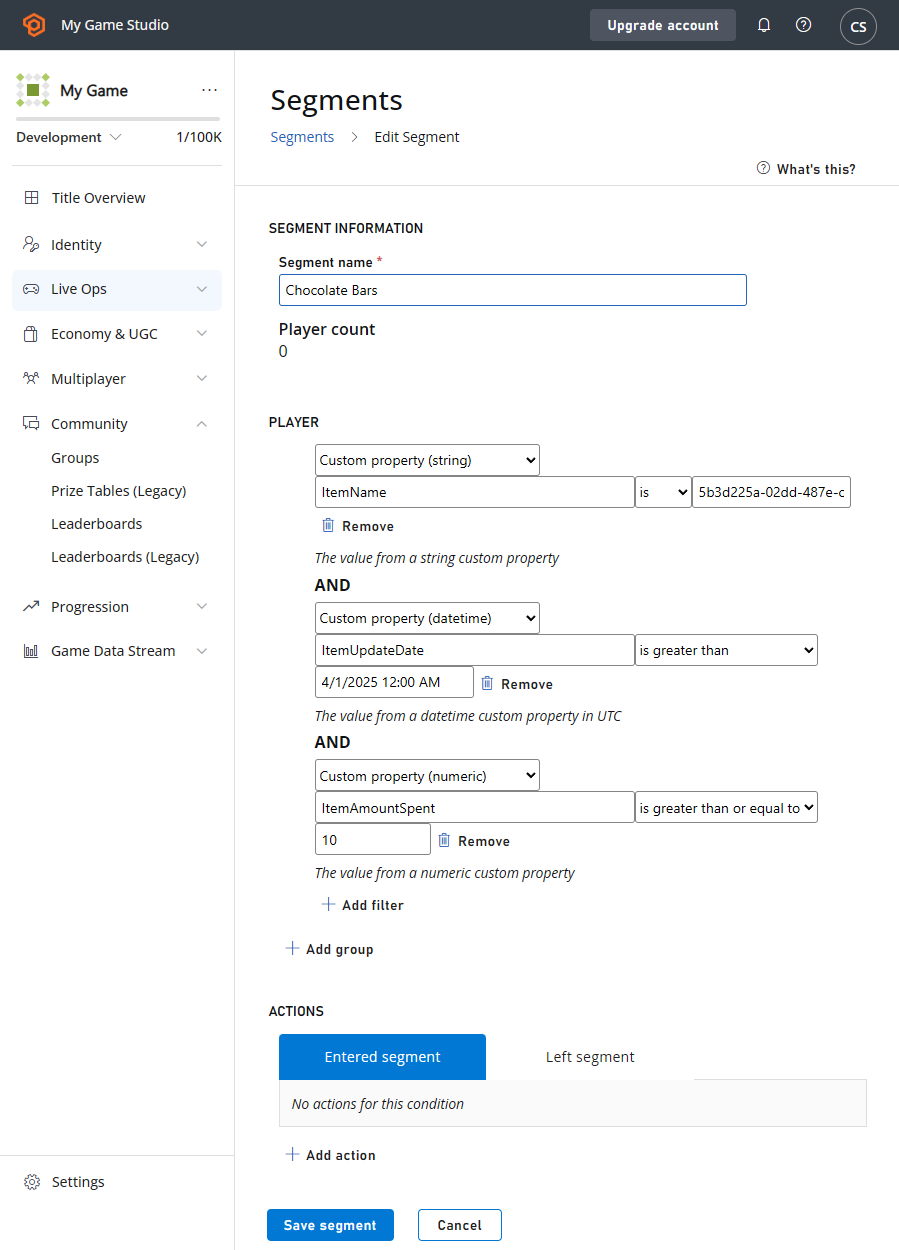
Create a segment with the following configuration:
- Custom property (string)
ItemName = <Chocolate Bars id> - Custom property (datetime)
ItemUpdateDate > 4/1/2025 - Custom property (numeric)
ItemAmountSpent >= 10
- Custom property (string)
-
How it Works: The rule will update the player custom property with the value from each individual event—it will not accumulate or sum values over time. For example, if a player spends 1 chocolate bar ten separate times, the
ItemAmountSpentproperty will be set to1each time, not10. As a result, the player would not be included in the segment that filters forItemAmountSpent >= 10. If you need to track cumulative or aggregated values (e.g. total items spent across multiple events), we recommend implementing custom logic using an Azure Function or CloudScript to calculate and update the total. -
Note: Gold Bars in Scenario 1 and Choclate Bars in Scenario 2 both write to the same property
ItemName. If you want to track multiple values, you’ll need multiple property names to prevent thrashing a player between 2 segments.
3. Create a Segment for Users Who Purchased 1 Chocolate Bar in One Purchase (Catalog Purchase)
- Navigate to the PlayStream Rules page under Automation -> Rules.
-
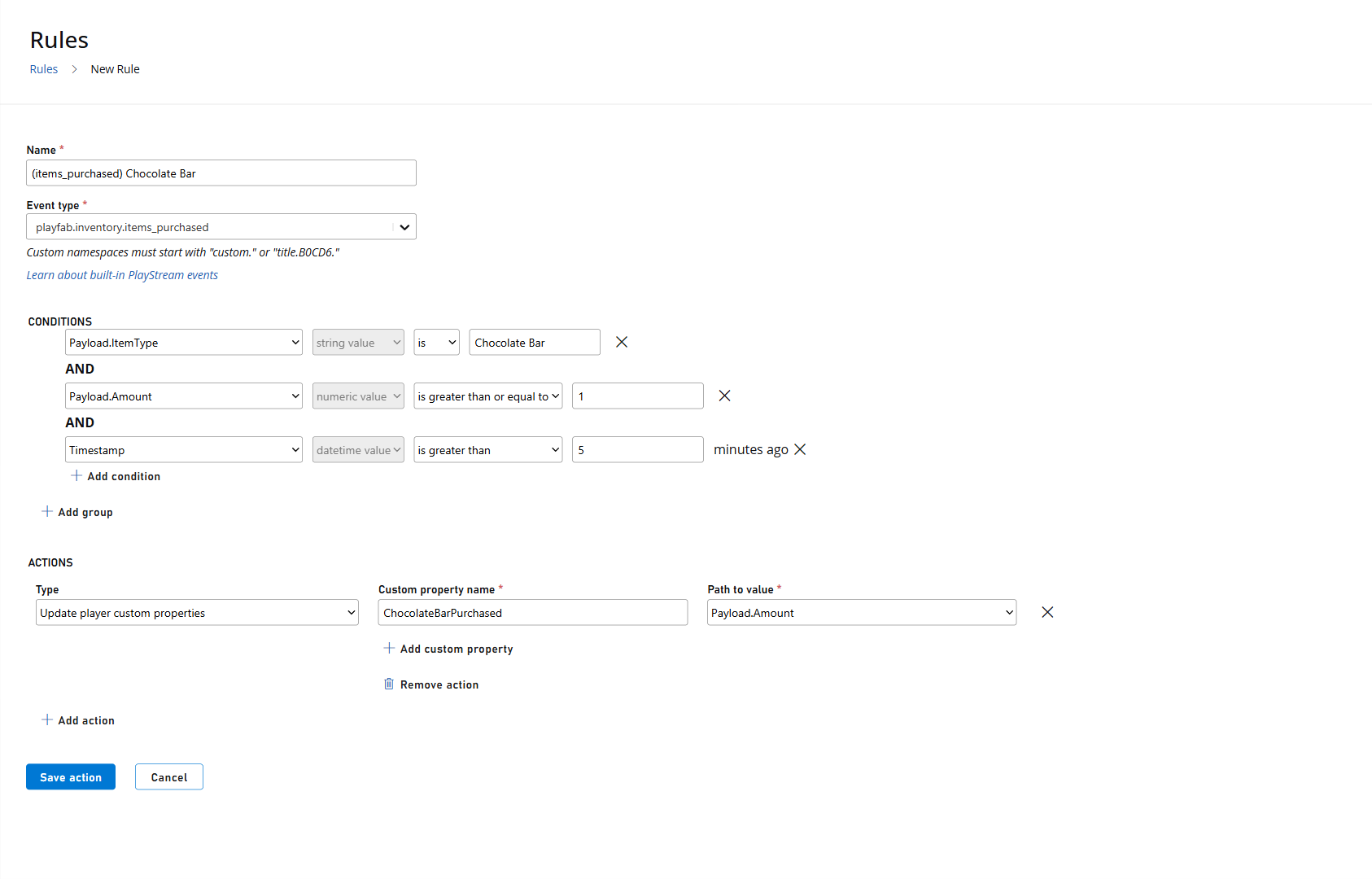
Create a rule for the
playfab.inventory.items_purchasedevent with the following configuration: Conditions:Payload.ItemType == ChocolateBarPayload.Amount >= 1Timestamp >= 5 minutes ago
- Update custom properties
ChocolateBarPurchased = Payload.Amount
- Navigate to the Segments page under Players -> Segments.
-
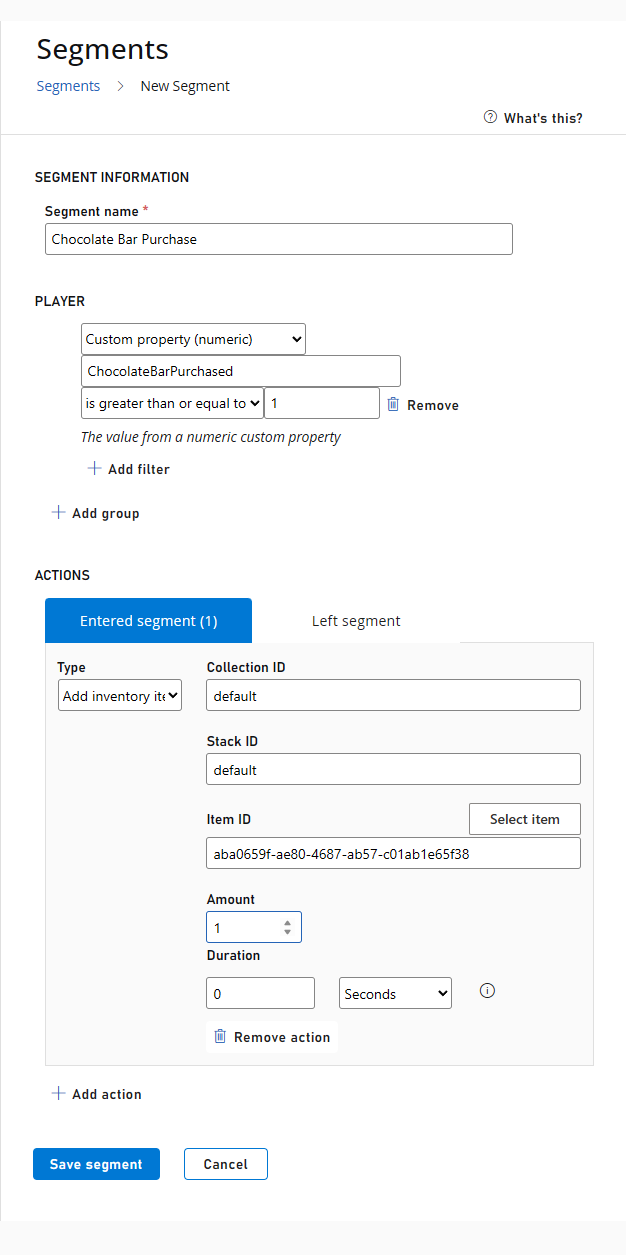
Create a segment with the following configuration:
- Custom property (numeric)
ChocolateBarPurchased >= 1
- Custom property (numeric)
- How It Works: Whenever a player purchases a Chocolate Bar, the rule condition triggers, executing the action to add the custom property. The player then enters the segment and can receive the configured reward or notification.