Ways to create a targeted offer
Here’s how you can use PlayFab to create targeted offers for your title.Segment-exclusive stores
These are stores that can only be accessed by players who belong to one or more segments. Segments are groups of players that share certain attributes or behaviors, such as location, virtual currency balance, last sign in date, or churn risk. You can create segments in PlayFab using various predicates, and assign actions that are performed when a player enters or exits a segment. Segment-exclusive stores allow you to create different stores for different segments, and show them only to the relevant players.For more information about configuring segments, see our player segment configuration guide.
Create a segment-exclusive store
Targeted offers reach players by using stores. To cater to different player segments, you can set up individual stores, each offering the same items but with varying prices. To ensure that these distinct price points align with their intended segments, you need to configure each store accordingly. For this example, we’re going to create a segment-exlusive store for pizzas targeting players that have eaten more than 10 pizzas. Here’s how:Prerequisites
- Have at least one player available in your title
- Have at least one item in your catalog
- Have at least one currency in your catalog (or an item you want to use as currency)
- Have a “pizzas eaten” leaderboard that can be used as a statistic
Create a segment
- In Game Manager, navigate to Build > Players > Segments.
- Select New segment on the top right of the page.
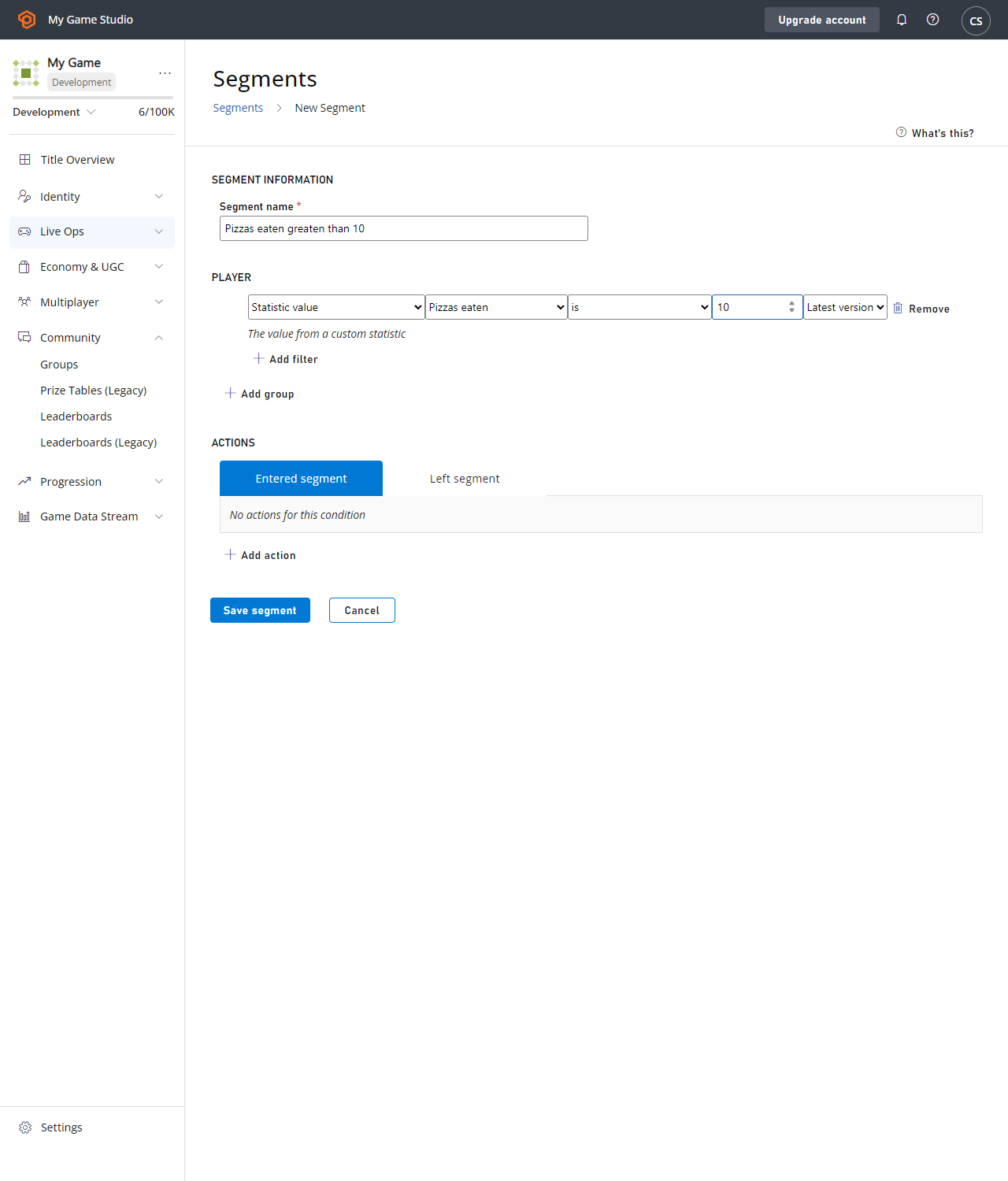
- Add your segment information, in this case, we’re going with “Pizzas eaten greater than 10” as the segment name.
- For the Player section, select statistic value, then pizzas eaten is greater than 10.
- Save your segment.
Create a segment-exclusive store
- In Game Manager, navigate to Engage > Economy > Stores.
- Select New store from the top right of the page.
- Fill out the details you wish your store has.
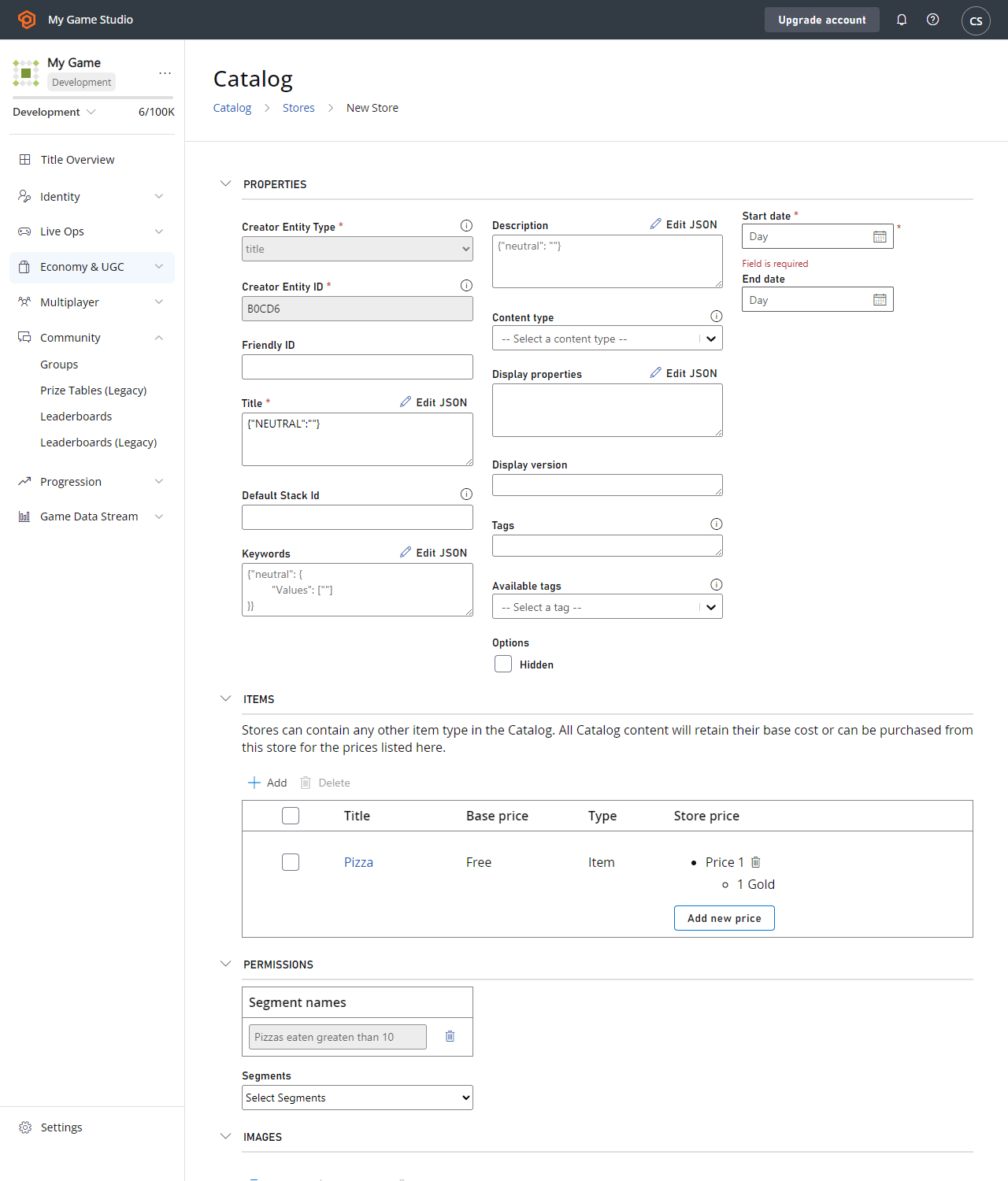
- Add an item to your store, we’re adding an item called “Pizza”.
-
Add a price to your item, we’re adding “Gold”.
-
Under Permissions, from the Segments drop-down menu, select your segment, we’re selecting “Pizzas eaten greater than 10”.
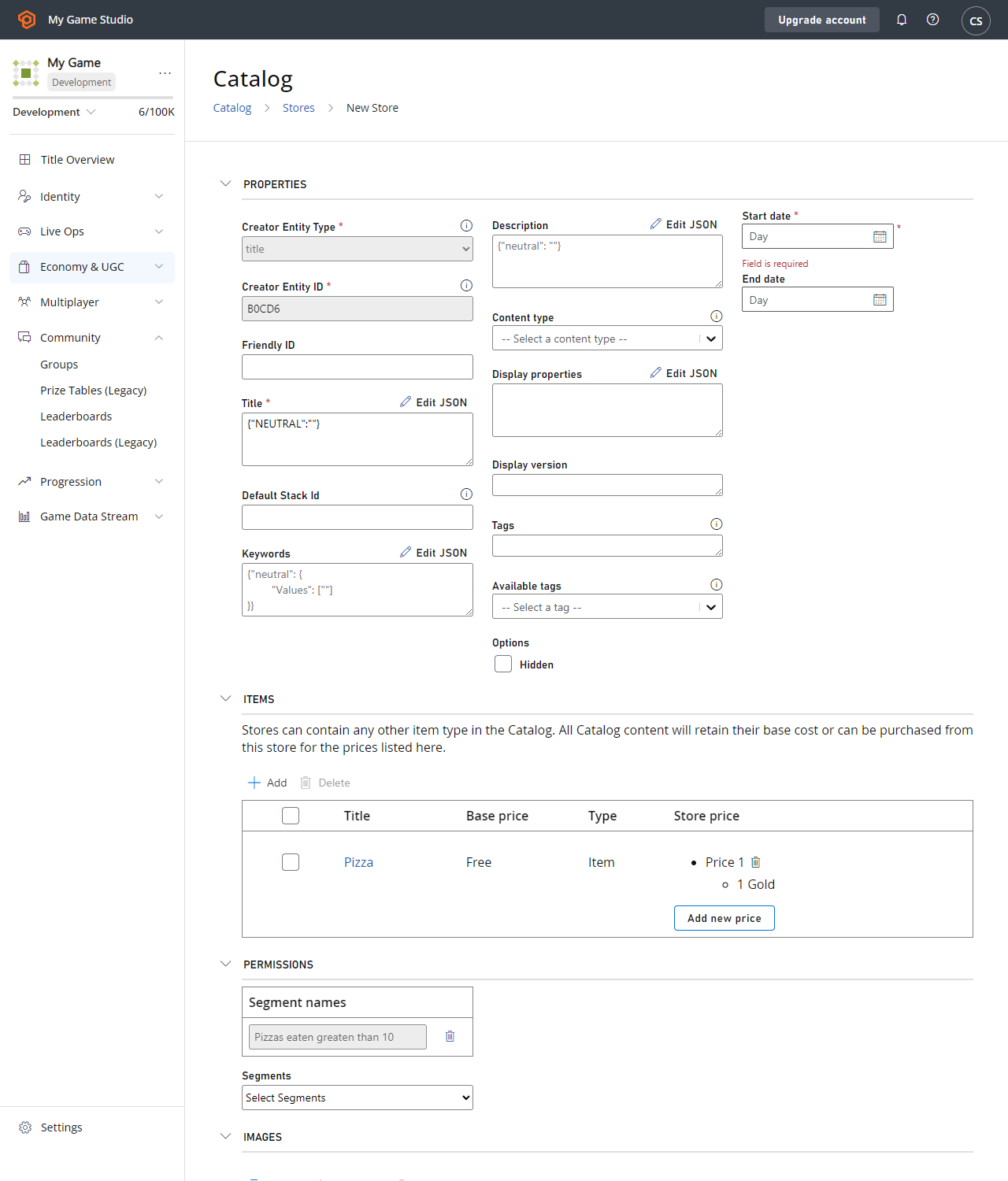
- Save your store.
Verify if a player is part of a segment
- In Game Manager, navigate to Build > Players.
- Search for the player you want to verify.
- Select the Segments tab where you see a list of all the segments a player belongs to.
-
You see a segment if the player complies with the condition you set when creating said segment.