
- 1. Create the initial product definition at Partner Center
- 2. Contact your Microsoft Representative to enable your app or game
- 3. Publish the game
- 4. Update the MicrosoftGame.config file
Prerequisites
- Have a prototype of your app or game, such as a demo and screen captures.
Caution
When creating a new App or Game, behind the scenes, Partner Center will register the title’s App Id within the Azure Entra ID tenant that the user is currently signed in with. This App Id is used for MSA authentication when your title is launched by a customer. If the Azure Entra ID tenant or this App Id is ever deleted, MSA authentication for your title will fail and there is no way to recover. To view the App or Game’s AppID in Azure Entra ID, an Entra ID Tenant Admin can access the Azure Portal, ensuring they log in using the same tenant that was active during the app or game creation. In the portal, select the Microsoft Entra ID service, go to Manage, and navigate to App Registrations. Choose All applications and search for the app or game name created in Partner Center. Ensure the correct Azure Entra ID tenant is being used when creating a new App or Game in Partner Center. If you are unsure or have any concerns please contact your Entra ID Tenant Admin, or Partner Center manager to verify the correct Entra ID is being used while creating a new App or Game.1. Create the initial product definition at Partner Center
- Go to Partner Center. The Partner Center dashboard Home page appears.
- Navigate to Windows & XBOX > Overview. The “Overview” page appears.
-
Click the Create a new… button, then select a product type, such as app, game, or game demo.
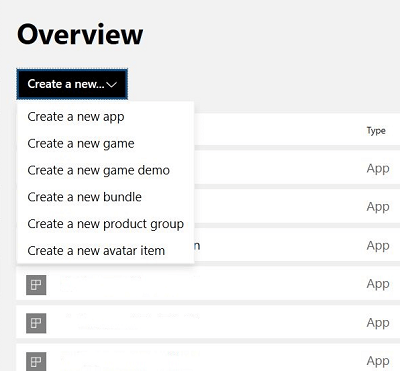
-
The “Create your app by reserving a name” page appears:
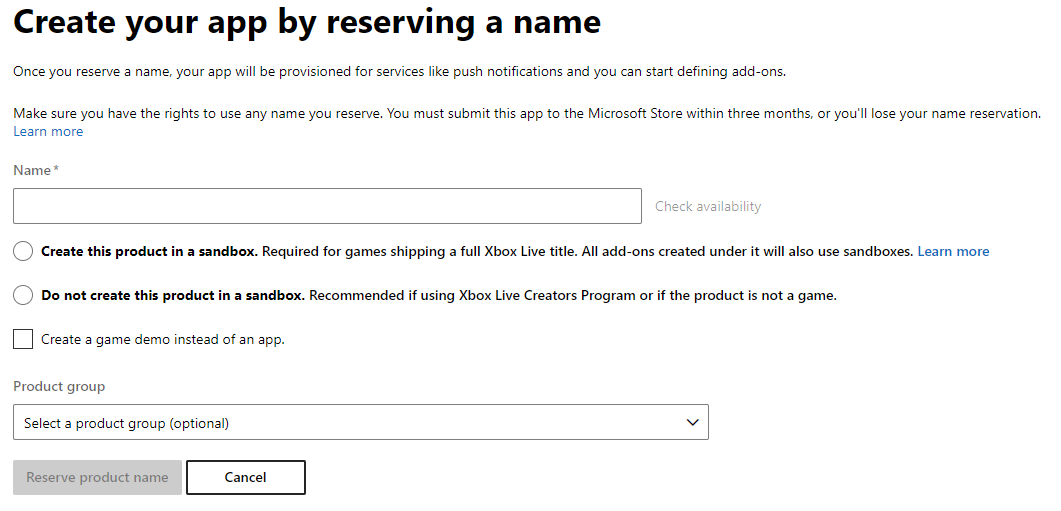
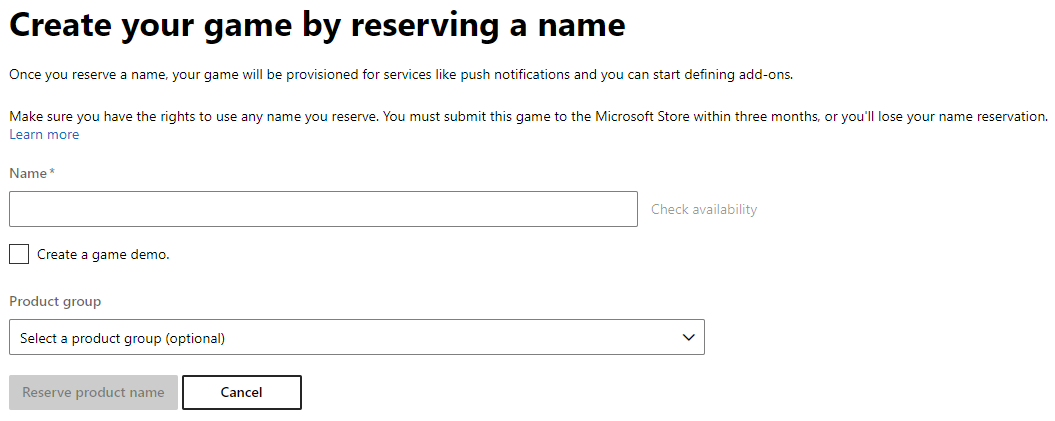
- In the Name text box, enter the name of your game or app. If you want your product to include a reduced, demo version of your game, select the Create a game demo check box so that a checkmark appears. If you know your Product Group, click the Product Group drop-down list and then click your Product Group.
-
Click the Reserve product name button. A “Setup” page appears, and initially the top of the page reads “Status: Incomplete”:
Figure: The “App setup” page:
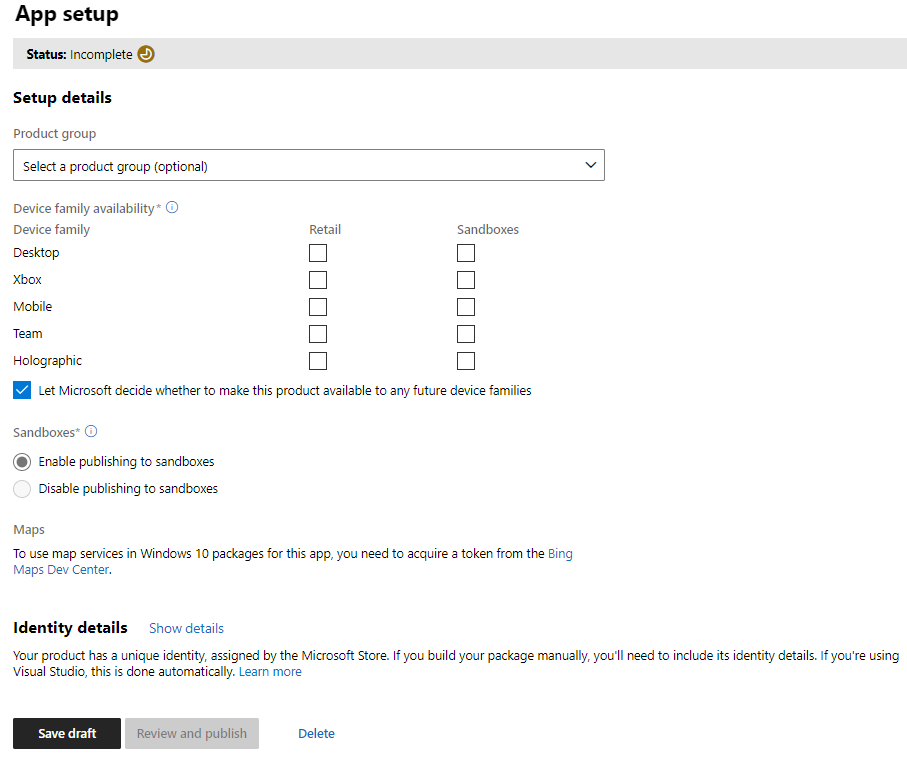
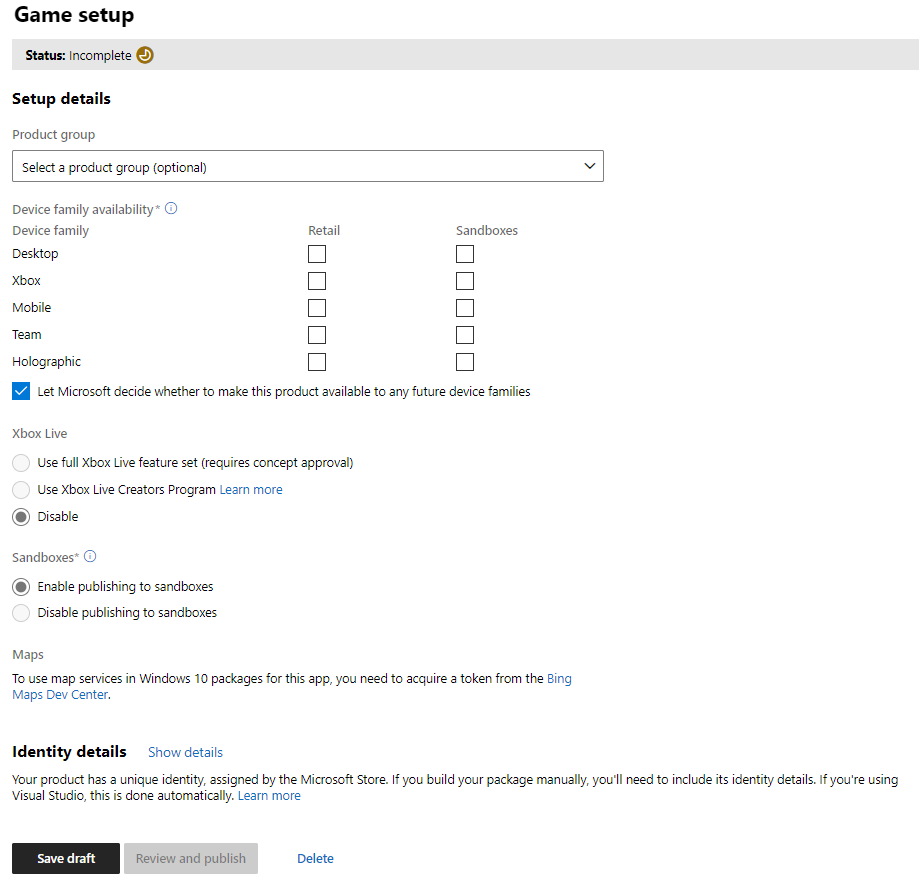
- Select settings for your product. For example, in the Device family availability section, you can select the XBOX > Retail check box.
- At the bottom of the “Setup” page, click the Save draft button. The top of the page now reads “Status: Complete”, and the Review and publish button becomes available.
-
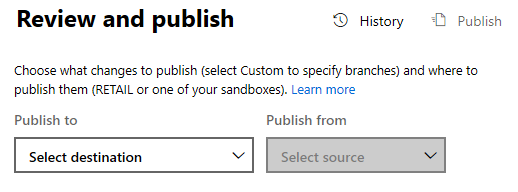
Click the Review and publish button. The “Review and publish” page appears.
-
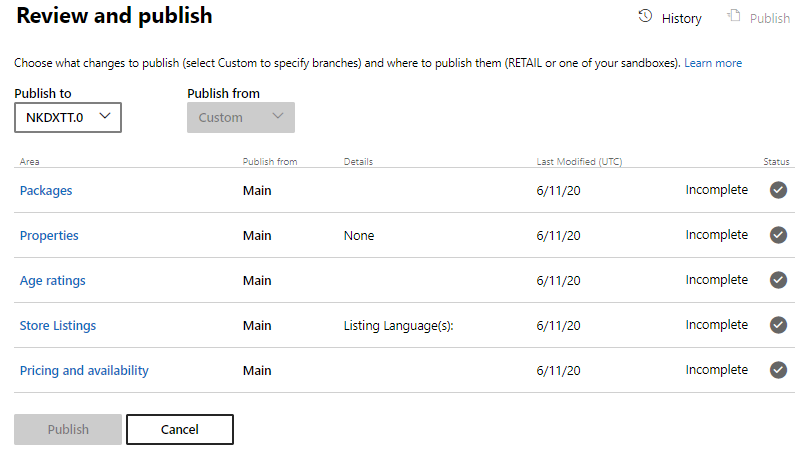
In the Publish to drop-down list, select a sandbox. Sections are added to the page:
2. Contact your Microsoft Representative to enable your app or game
- In Partner Center, select your app or game. The “Application overview” or “Game overview” page appears.
- Click App setup or Game setup. The “App setup” page or “Game setup” page appears.
-
Toward the bottom of the page, click the Identity details link. The “Identity details” section expands:
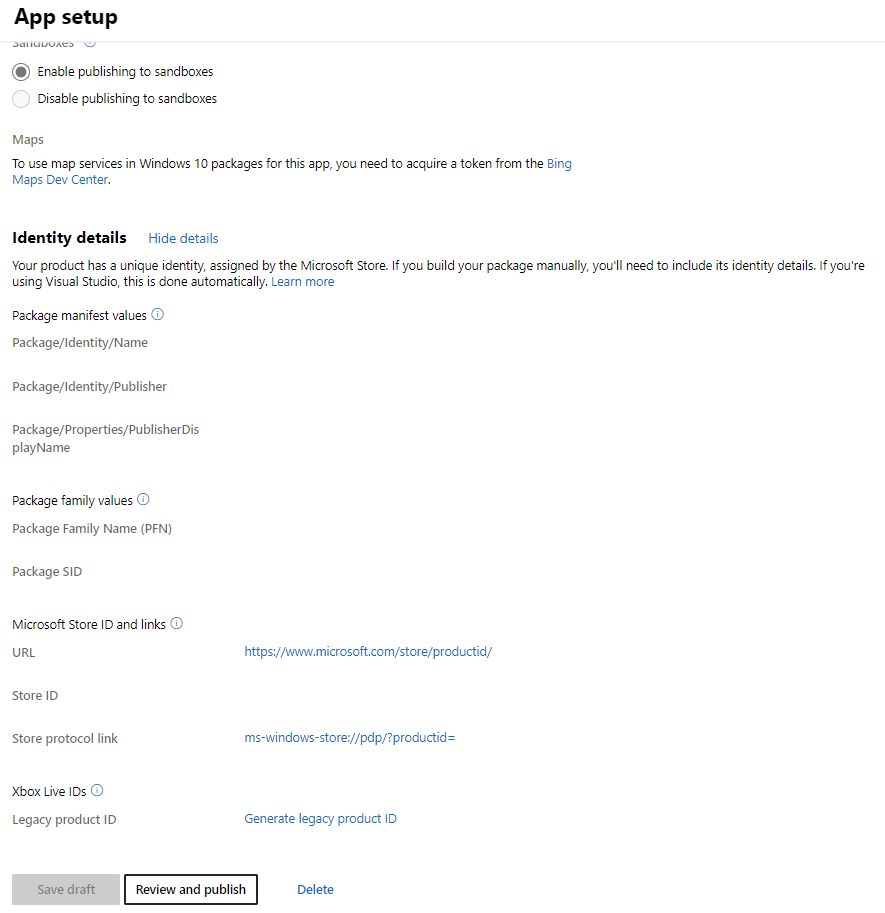
- Copy the Store ID.
-
Contact your Microsoft representative to ask them to add XBOX services capability to your title.
Include the Microsoft Store ID.
For example:
- Subject: Need to enable game for XBOX services
- Body: “Hi support, please enable XBOX services compatibility for my Partner Center product. The Microsoft Store ID is [your game’s store ID].”
3. Publish the game
In Partner Center, with your game selected as in the above procedures, do the following.-
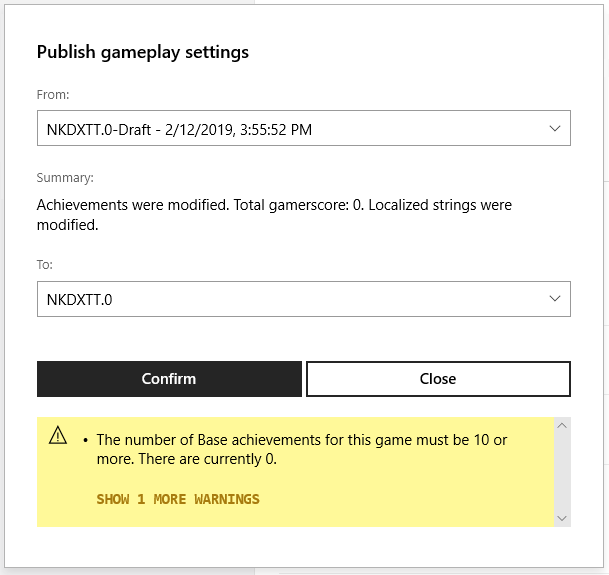
In the top right, click the Publish link.
The “Publish gameplay settings” dialog box appears.
-
Click the Confirm button.
At the bottom of the dialog box, the message appears: “Publishing configuration…” and then “Publishing configuration finished successfully.”
[!IMPORTANT] Though the UI says “finished successfully”, the XBOX network servers can take as long as 30 minutes to replicate the new info.
- Click the Close button. The “Publish gameplay settings” dialog box closes, and the “Gameplay Setting” page remains displayed.
4. Update the MicrosoftGame.config file
To ensure successful sign-in, the
MicrosoftGame.config file needs to match what is in Partner Center exactly. The MicrosoftGame.config Editor provides a Store Association Wizard which will automatically pull down all of the various IDs (MSA App ID, Title ID, Store ID, etc.) from Partner Center on your behalf.Within the Identity element of the MicrosoftGame.config file, the value of the Name and Publisher attributes must match the Package/Identity/Name and Package/Identity/Publisher values shown in the Game setup page in Partner Center.Also the values in the MSAAppID and TitleId elements must also exactly match the MSA App ID and Title ID (hexadecimal) values shown in Partner Center’s XBOX services -> XBOX Settings page. MSA App Id can be either a GUID or hexadecimal value.MicrosoftGame.config:
wdapp register command, see Title packaging, content updates, and streaming-installation testing.
For more information on running the game from the start menu and/or debugging, see MicrosoftGame.config Overview.