
Defold project setup
OS: This guide is written for Windows 10. It should also work well with a Mac.- Create an account and download defold, or log in at https://www.defold.com/ (Uses Google O-Auth): https://d.defold.com/stable/.
- If you haven’t completed the Defold “Getting Started Tutorial”, you should do that now.
- Create a new project on the Defold Dashboard, as shown below.

- Run Defold, and load your new project. You should see several windows that look something like the example shown below.
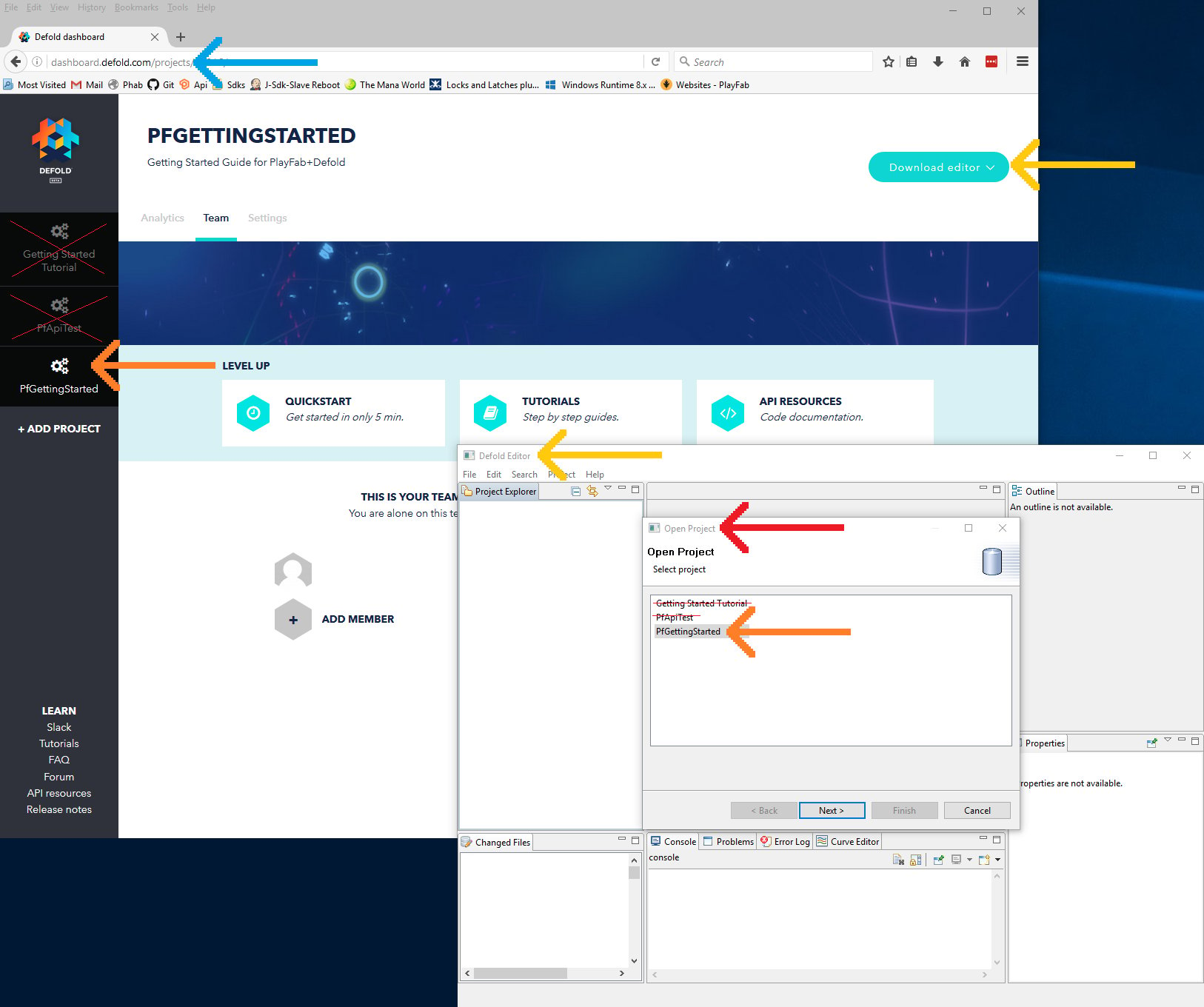
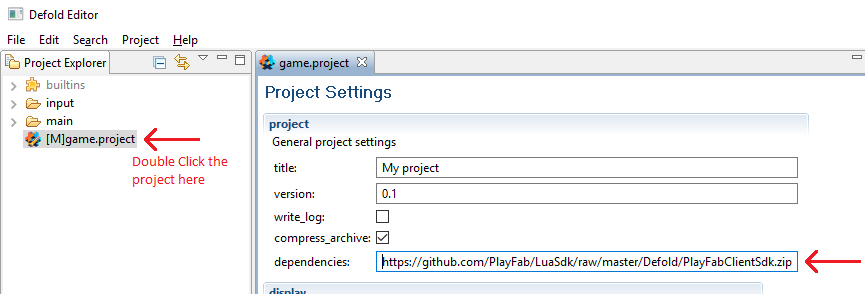
- Update the Project Settings, and include PlayFab in the dependencies: https://github.com/PlayFab/LuaSdk/raw/master/Defold/PlayFabClientSdk.zip
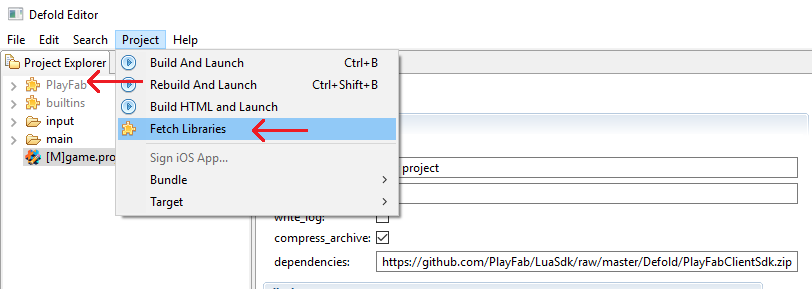
- Select: Project -> Fetch Libraries, and you should see a new built-in PlayFab folder, as shown below.
-
Create a few files:
- main/PfGettingStarted.gui
- Select the “main” folder -> new -> Gui File -> PfGettingStarted.gui.
- main/PfGettingStarted.gui_script
- Select “main” folder -> new -> Gui Script File -> PfGettingStarted.gui_script.
-
Hook up our new GUI in the main.collection.
- Select main.collection to open it.
-
In the Outline panel:
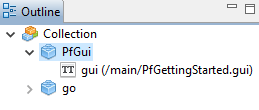
- Select Add Game Object (Optionally rename to PfGui).
- Select the new object, Add Component From File…
- PfGettingStarted.gui (Created above).
- Select the new object, Add Component From File…
- Select Add Game Object (Optionally rename to PfGui).
-
The Outline panel viewing main.collection should look like the example shown below.
Set up your first API call
This guide will provide the minimum steps make your first PlayFab API call. Confirmation will be visible in the game window.- In the Defold editor, double-click PfGettingStarted.gui_script.
- This should open the file for text editing.
- Update the contents of PfGettingStarted.gui_script as shown below.
To look up the correct format for the loginRequest object in this example, see the API reference for LoginWithCustomID.
-
In the Defold editor, right-click PfGettingStarted.gui -> Open With -> Text Editor. Unfortunately, this changes an internal setting in Defold, so:
- Open it again: right-click PfGettingStarted.gui -> Open With -> GUI Editor. This resets the default back to normal.
- Select the text-edit tab for PfGettingStarted.gui.
- Update the text contents of PfGettingStarted.gui as shown below.
Finish and execute
First, make sure everything is saved and select another tab. Then look for ” * ” markers - sometimes Defold doesn’t refresh. Then, build your game (Ctrl+b or dropdowns: Project -> Build and Launch). You should see the following text on your screen: “Congratulations, you made your first successful API call!” For a list of all available client API calls, see our PlayFab API References documentation. Happy coding!Deconstruct the code
-
PfGettingStarted.gui- Our instructions for
PfGettingStarted.guiare for expediency, not instruction. This file is a GUI definition, which adds a text box to the screen, binds it to our other script:PfGettingStarted.gui_script. You would NOT typically edit these files in text-form. - For proper instructions on how to build Defold GUI widgets, read this guide:
- GUI scenes in Defold
- Our instructions for
-
PfGettingStarted.gui_script-
Require statements and setup.
PlayFabClientApiallows you to make Client API calls - This is why you’re here.- IPlayFabHttps and PlayFabHttps_Defold:
- The PlayFab Defold plugins are built on the PlayFab LuaSdk. The Lua language doesn’t have a proper HTTPS module. Each game-engine that uses Lua implements their own. These two variables tell PlayFabSdk how to access HTTPS. You only need to do this once in your project, in the first scene. Otherwise it’s required boilerplate
-
PlayFabClientApi.settings.titleId = "144"- Every project using PlayFab should create a unique title in the PlayFab website, which we call Game Manager. Find your
titleIdin Game Manager, and replace144with yourtitleId.
- Every project using PlayFab should create a unique title in the PlayFab website, which we call Game Manager. Find your
-
function init(self)- Defold function - This is called when the gui is initialized.
-
local loginRequest = { TitleId = PlayFabClientApi.settings.titleId, CustomId = "GettingStartedGuide", CreateAccount = true }- Most PlayFab API methods require input parameters, and those input parameters are packed into a request object
- Every API method requires a unique request object, with a mix of optional and mandatory parameters
- For
LoginWithCustomIDRequest, there’s a mandatory parameter ofCustomId, which uniquely identifies a player andCreateAccount, which allows the creation of a new account with this call.
- For
- For login, most developers will want to use a more appropriate login method
- See the PlayFab Login documentation for a list of all login methods, and input parameters. Common choices are:
-
PlayFabClientApi.LoginWithCustomID(loginRequest, OnLoginSuccess, OnLoginFailed)- This performs the API call using the request, and provides callback functions for success and fail conditions.
-
function OnLoginSuccess(result)- The result object of many API success callbacks will contain the requested information.
LoginResultcontains some basic information about the player, but for most users, login is simply a mandatory step before calling other APIs.
-
function OnLoginFailed(error)- API calls can fail for many reasons, and you should always attempt to handle failure.
-
Why API calls fail (In order of likelihood)
- PlayFabSettings.TitleId isn’t set. If you forget to set titleId to your title, then nothing will work.
-
Request parameters. If you haven’t provided the correct or required information for a particular API call, then it will fail. See
error.errorMessage,error.errorDetails, orerror.GenerateErrorReport()for more info. - Device connectivity issue. Cell-phones lose/regain connectivity constantly, and so any API call at any time can fail randomly, and then work immediately after. Going into a tunnel can disconnect you completely.
- PlayFab server issue. As with all software, there can be issues. See our release notes for updates.
- The internet isn’t 100% reliable. Sometimes the message is corrupted or fails to reach the PlayFab server.
- If you’re having difficulty debugging an issue, and the information within the error information isn’t sufficient, visit us on our forums
-
local pfTestOutput = gui.get_node("pfOutput")- This is another Defold GUI function. It fetches the
pfOutputGUI object defined in our PfGettingStarted.gui file, and assigns it text to display to the user.
- This is another Defold GUI function. It fetches the
-
Require statements and setup.