
- Acquire necessary JAR files.
- Add JAR files to the classpath.
- Create minimal Java console application that executes Custom ID Login API Call.
Acquire necessary JAR files
In order to utilize the PlayFab JavaSDK, we need the PlayFab Client JavaSDK and its dependency, the Google GSON. Download the PlayFab Client JavaSDK JAR library here. Look for client-sdk-*.jar, and the corresponding Java Doc [Optional but useful]. You may download latest Google GSON here. Look for gson-*.jar.Project Setup with Intellij Idea
Once you have initialized a simple Intellij Idea Java Project, make sure to place the necessary JAR files as shown in the following example.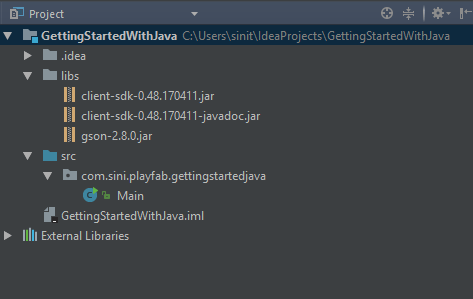
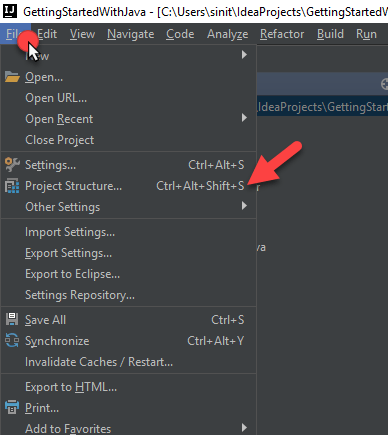
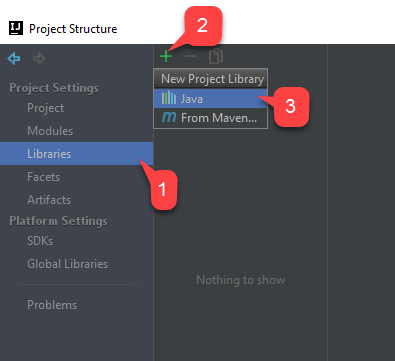
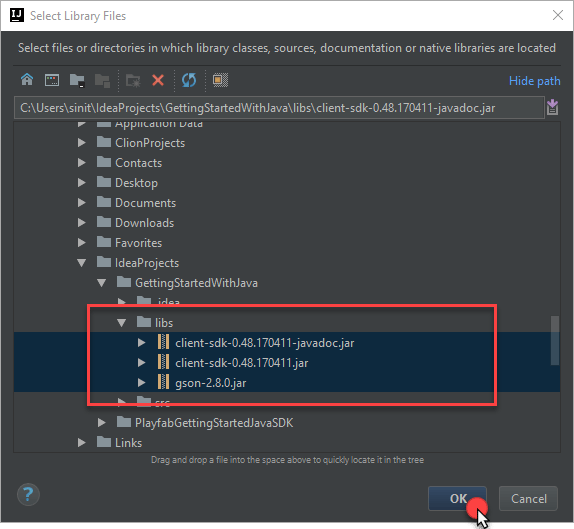
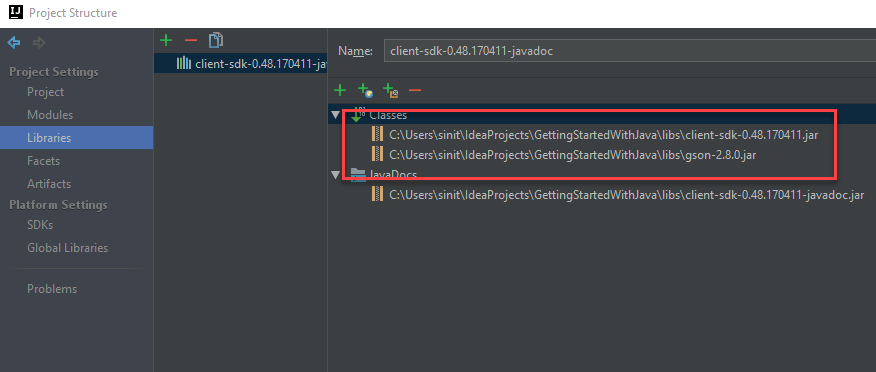
Project Setup with any IDE
The main requirement is to have JAR files added to the classpath. Consult the guide for your IDE on how to add JAR files to classpath.Set up your first API call
Use the code shown below as your main class code.Finish and Execute
To run the application:- Select the play arrow > in the top right corner. This will start program execution, and output panel will appear.
- Locate the debug message. This indicates that API call was successful.
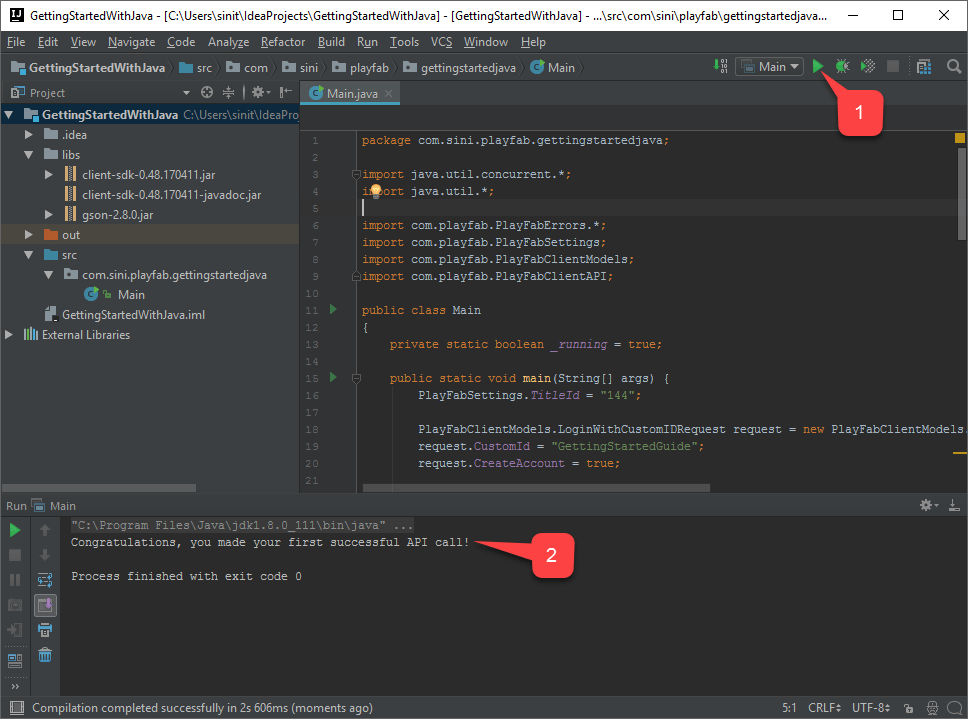
Deconstruct the code
This optional last section describes every line inGettingStarted.java in detail.
-
Imports
- This is the minimal set of imports used to make PlayFab API calls.
-
public static void
main(String[] args) {- Just a basic loop that kicks off an API call, and waits for it to complete.
-
PlayFabSettings.TitleId = "xxxx";- Every PlayFab developer creates a title in Game Manager. When you publish your game, you must code that titleId into your game. This lets the client know how to access the correct data within PlayFab. For most users, just consider it a mandatory step that makes PlayFab work.
-
PlayFabClientModels.LoginWithCustomIDRequest request = new PlayFabClientModels.LoginWithCustomIDRequest();- Most PlayFab API methods require input parameters, and those input parameters are packed into a request object.
-
Every API method requires a unique request object, with a mix of optional and mandatory parameters.
- For
LoginWithCustomIDRequest, there’s a mandatory parameter ofCustomId, which uniquely identifies a player andCreateAccount, which allows the creation of a new account with this call.
- For
-
For login, most developers will want to use a more appropriate login method.
- See the PlayFab Login documentation for a list of all login methods, and input parameters. Common choices are:
LoginWithAndroidDeviceIDLoginWithIOSDeviceIDLoginWithEmailAddress
- See the PlayFab Login documentation for a list of all login methods, and input parameters. Common choices are:
-
FutureTask<PlayFabResult<com.playfab.PlayFabClientModels.LoginResult>> loginTask = PlayFabClientAPI.LoginWithCustomIDAsync(request);- This begins the async request to
LoginWithCustomID, using the Java FutureTask framework.
- This begins the async request to
-
While (running)
{ if (loginTask.isDone()) { OnLoginComplete(loginTask); } }- Run a trivial main loop, and asynchronously wait for the loginTask to complete.
- When finished call
OnLoginComplete.
-
OnLoginComplete (loginTask)-
result = loginTask.get();- Fetch the async result (this won’t cause a block, because we confirmed the FutureTask is already complete.
-
if (
result.Result != null), then the API call was successful.-
When successful, the
result.Resultobject of many API callbacks will contain the requested information. -
LoginResultspecifically contains some basic information about the player. But for most users, login is simply a mandatory step before calling other APIs.
-
When successful, the
-
If (
result.Error != null), the API call has failed.- API calls can fail for many reasons, and you should always attempt to handle failure.
- Why API calls fail (In order of likelihood)
PlayFabSettings.TitleIdisn’t set. If you forget to setTitleIdto your title, then nothing will work.- Request parameters. If you haven’t provided the correct or required information for a particular API call, then it will fail. See
error.errorMessage,error.errorDetails, orerror.GenerateErrorReport()for more info. - Device connectivity issue. Cell phones lose/regain connectivity constantly, and so any API call at any time can fail randomly, and then work immediately after. Going into a tunnel can disconnect you completely.
- PlayFab server issue. As with all software, there can be issues. See our release notes for updates.
- The internet isn’t 100% reliable. Sometimes the message is corrupted, or fails to reach the PlayFab server.
- If you’re having difficulty debugging an issue, and the information within the error information isn’t sufficient, visit us on our forums.
-