CloudScript using Azure Functions supports more languages and has improved debugging workflows.
The Writing custom CloudScript tutorial covers writing the CloudScript code itself.
- You should be familiar with the basics of PlayFab.
- The C# samples shown correspond to using the PlayFab Unity SDK.
- JavaScript samples correspond to using the PlayFab CloudScript service.
Your first CloudScript revision
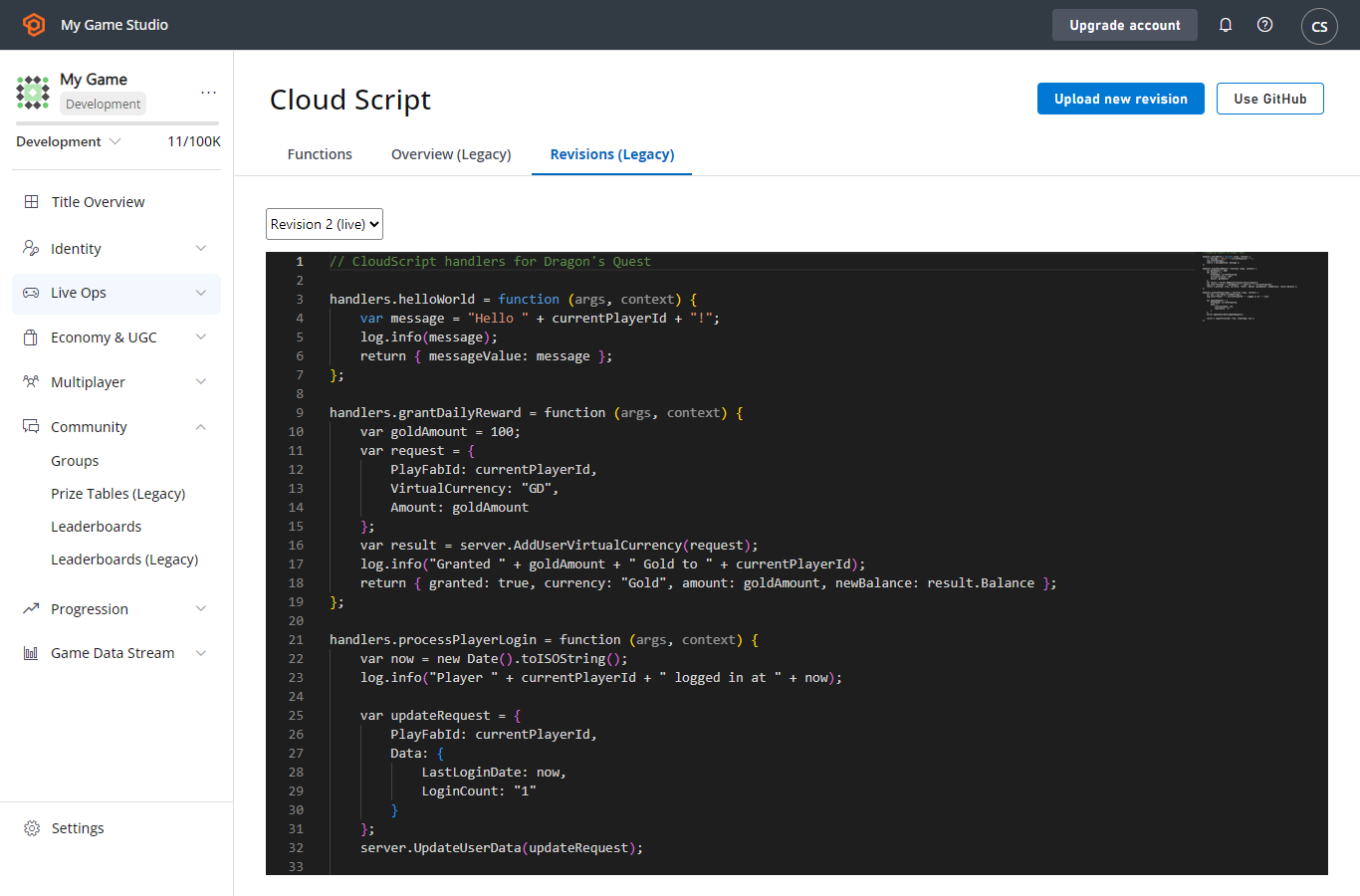
After creating a title, PlayFab automatically includes an example script as your first revision. This revision includes a number of methods that you can use for learning and testing CloudScript. To see these functions:- Open Game Manager.
- Select your title.
- Select Automation on the left side bar.
Uploading your own revisions
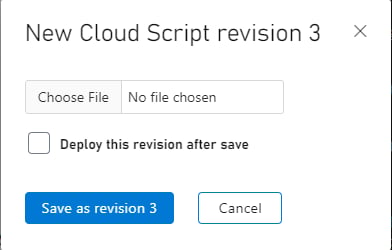
You can upload your own custom methods via the Game Manager. Each file you upload will create a new revision. During the upload, the PlayFab service runs a simple LINT check over your CloudScript for syntax errors. If it finds an error:- An error message will be displayed.
- Fix the error, and select SUBMIT again.
- By default, new uploads must be deployed by selecting the DEPLOY REVISION # TO LIVE link. This enables you to update or roll back to/from multiple versions of CloudScript.
GitHub integration
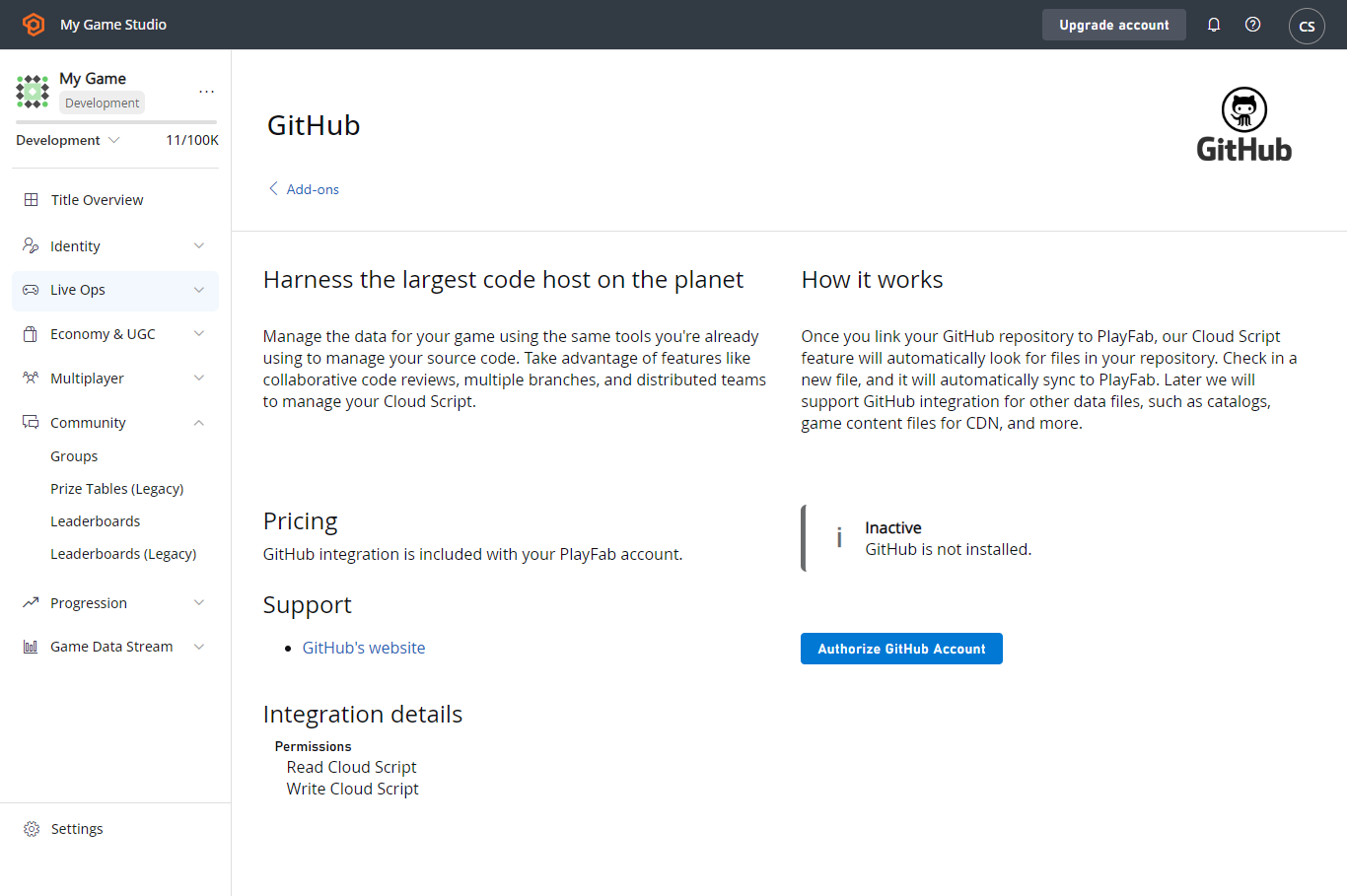
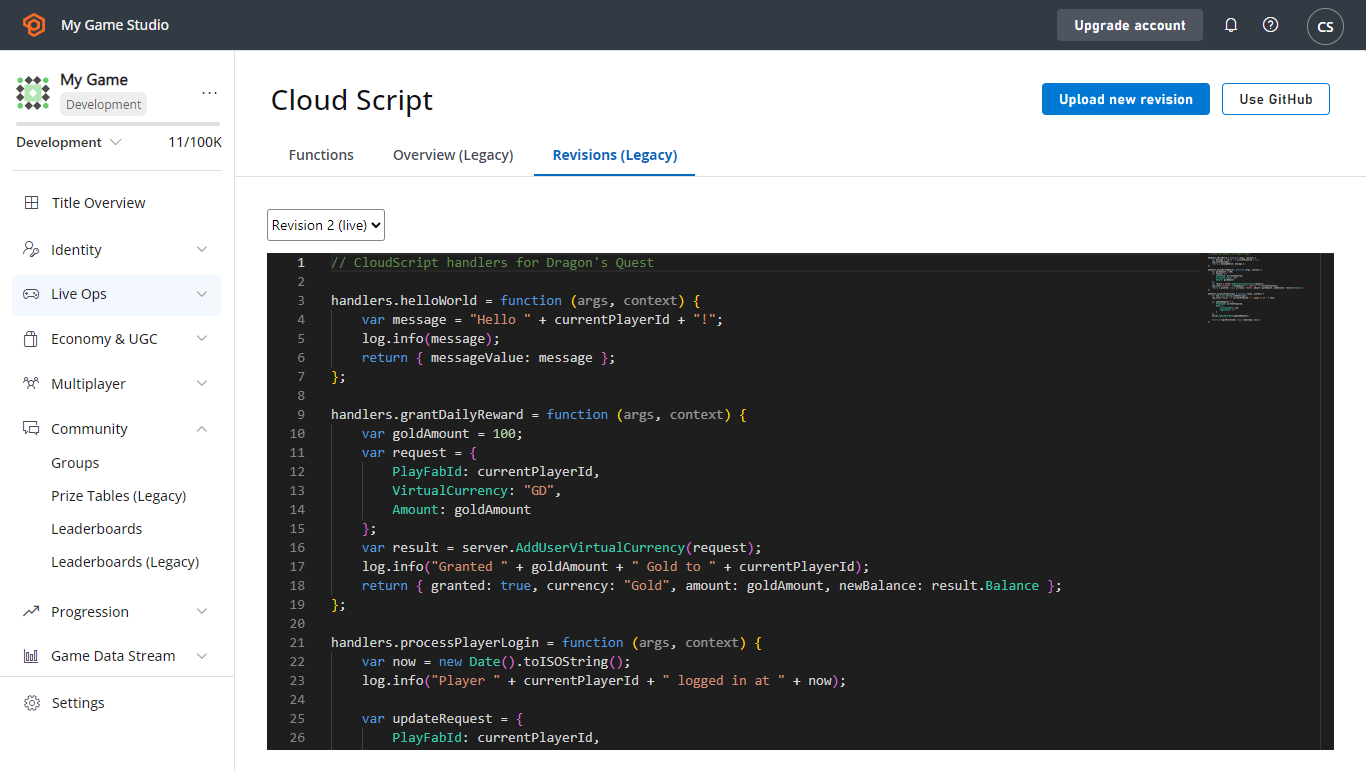
You may also use GitHub to manage your CloudScript revisions. You must have a GitHub account, and you must be logged in.- Select the USE GITHUB button (the gray button in the previous screenshot).
- The next window will have an orange AUTHORIZE GITHUB ACCOUNT button.
- Create a new, empty repository in GitHub.
- Return to the GitHub page in the PlayFab Game Manager (refresh tab).
- At this point, you should be able to select your GitHub repository, and bind it to your title.