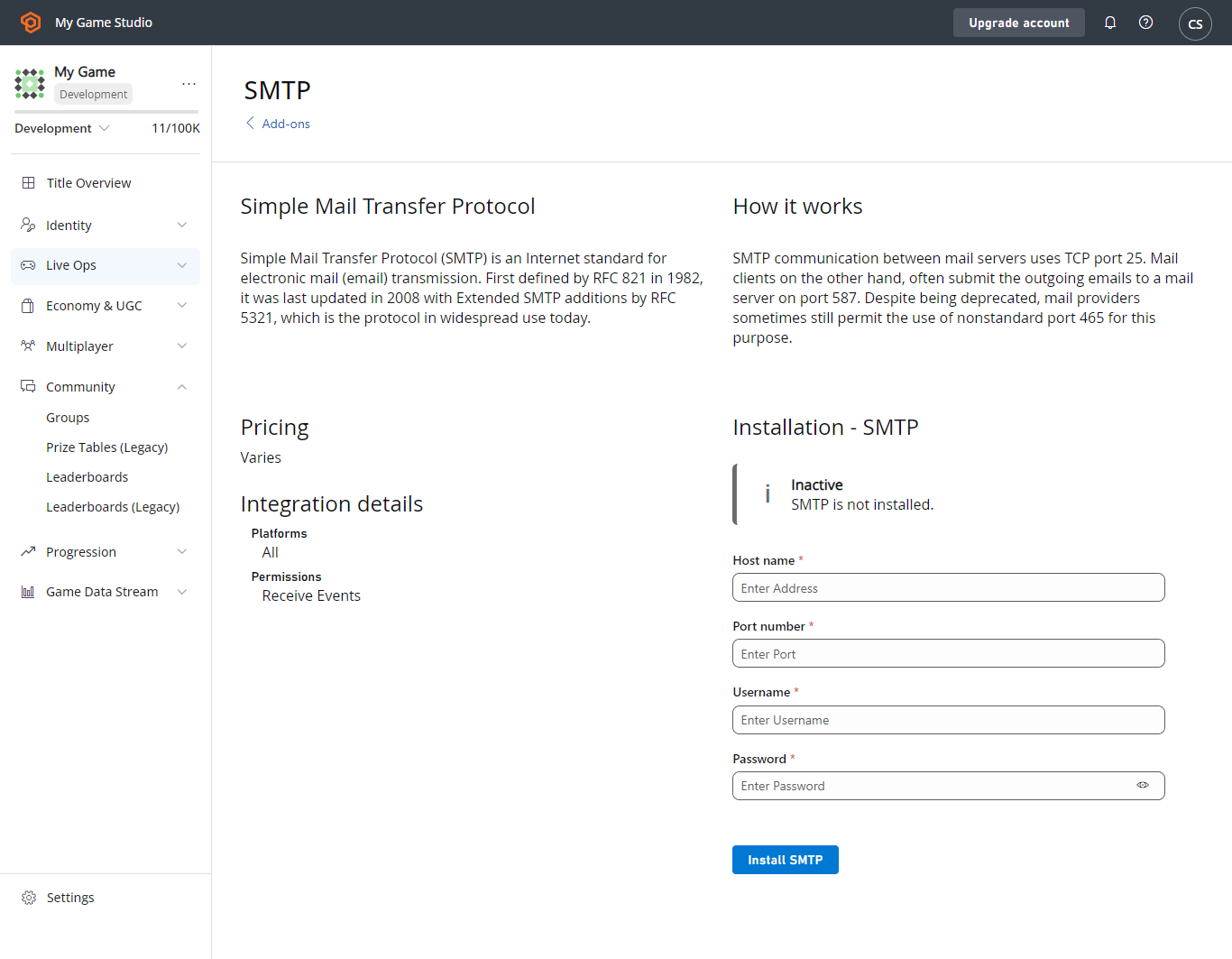
Requirements
Game Manager will be required, as the SMTP server for the title is set up using an add-on. Read our Game Manager Quickstart if you are unfamiliar with it.Go to the add-on page and install SMTP
In Game Manager:- Go to Add-ons.
- Under the Marketing section, select the SMTP add-on. This will redirect you to the Add-on page.
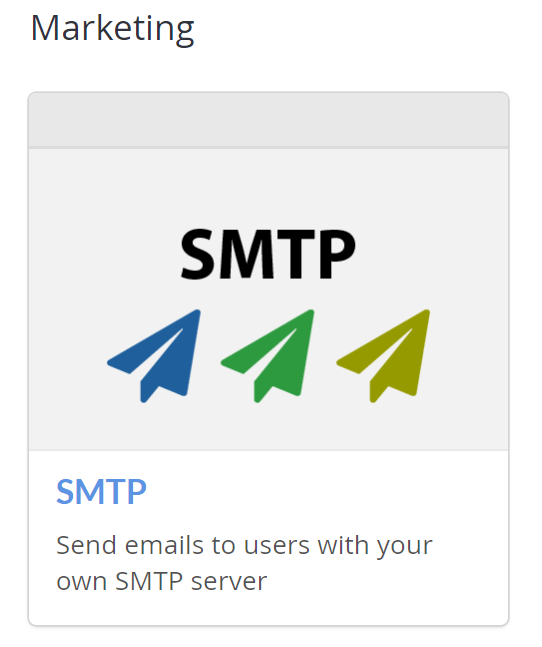
- Select the INSTALL SMTP button.
Configure SMTP
A form should appear with the Host name, Port number, Username, and Password fields.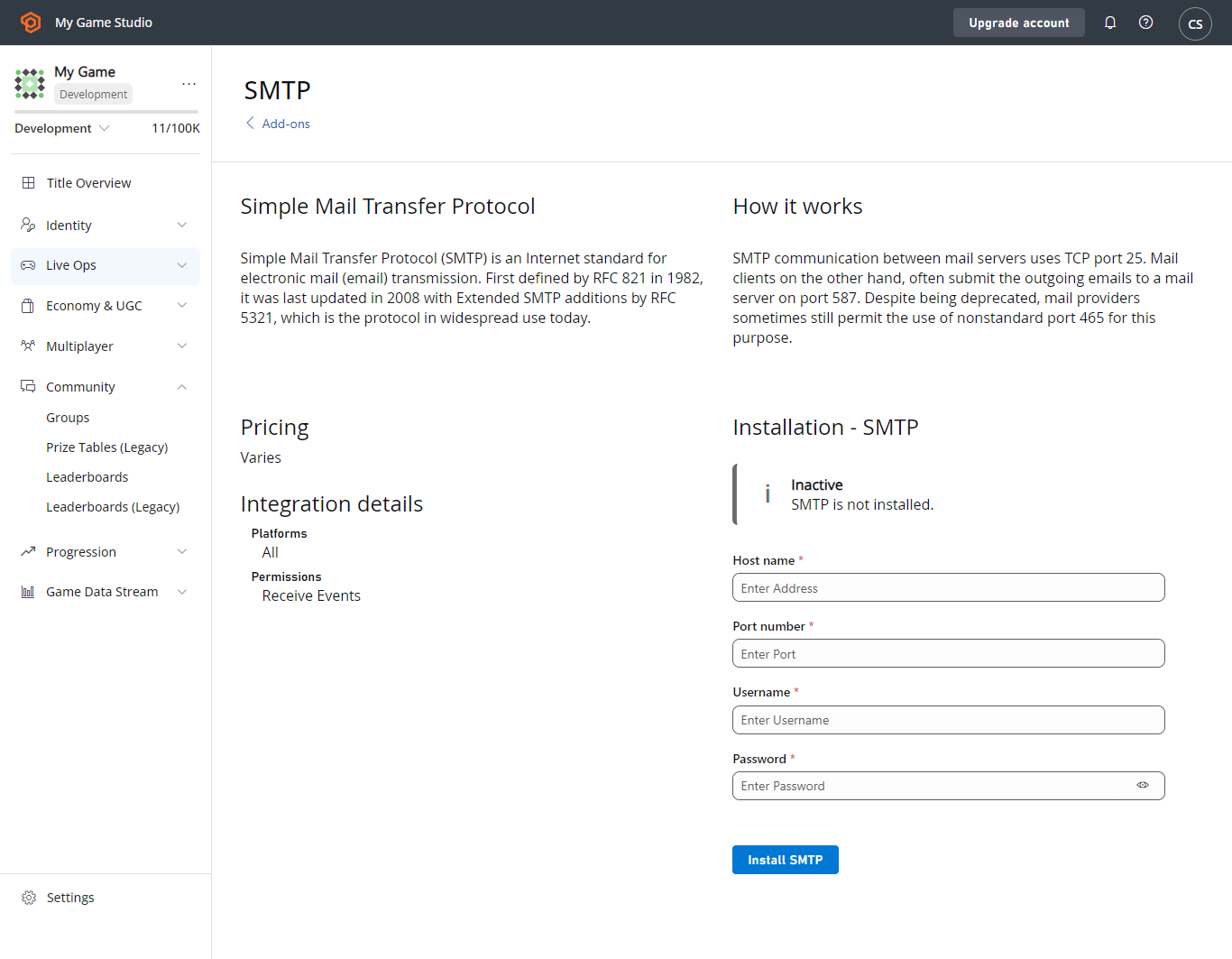
- Fill out the form with Host name, Port number, Username, and Password for your SMTP server.
- Select the SAVE SETTINGS button, and the add-on should now be installed.
If your SMTP server requires SSL/TLS, use port 587.
Testing
To test this feature, you can use the Gmail SMTP server, provided you have a Gmail account. To use Gmail, fill in the fields as follows:- Host name: smtp.gmail.com
- Port number: 587
- Username: (your gmail address - e.g., “support@playfab.com”)
- Password: (your password)
If you have 2-factor authentication enabled, you will need to create an App password. See Sign in using an App password for more information.