Configuring your data connection to Azure Data Explorer (ADX)
Data Connections now allows you to export to Azure Data Explorer for near-real time ingestion and distribution of your data. After you configure a data connection with your ADX cluster information, PlayFab exports your data into the ADX cluster specified.Don’t have a ADX cluster yet? See Create a free Azure Data Explorer cluster.
Create an Azure Data Explorer Data Connection in PlayFab
Step 1: Navigate to the data connections tab
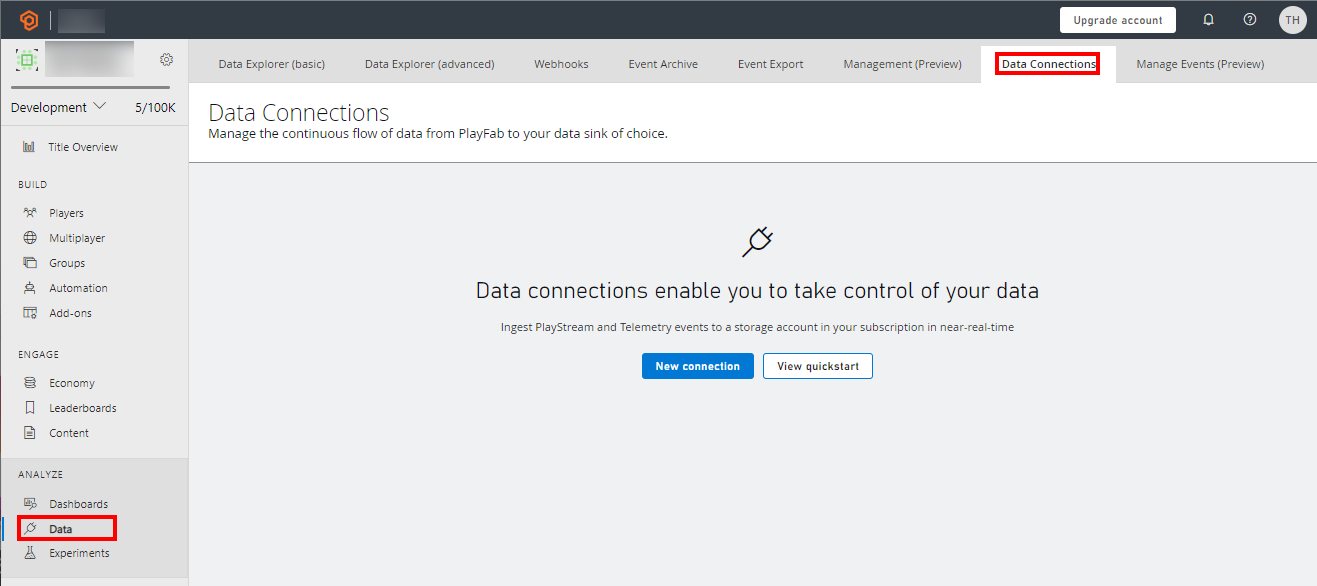
- Sign in to PlayFab and navigate to your title.
- Select the “Data” section in the left-hand menu
- Select the “Data Connections” tab
Step 2: Configure a new Data Connection
- Select the “New Connection” button.
- Choose the “Destination Type” to be “Azure Data Explorer”
- Populate the fields using the following values
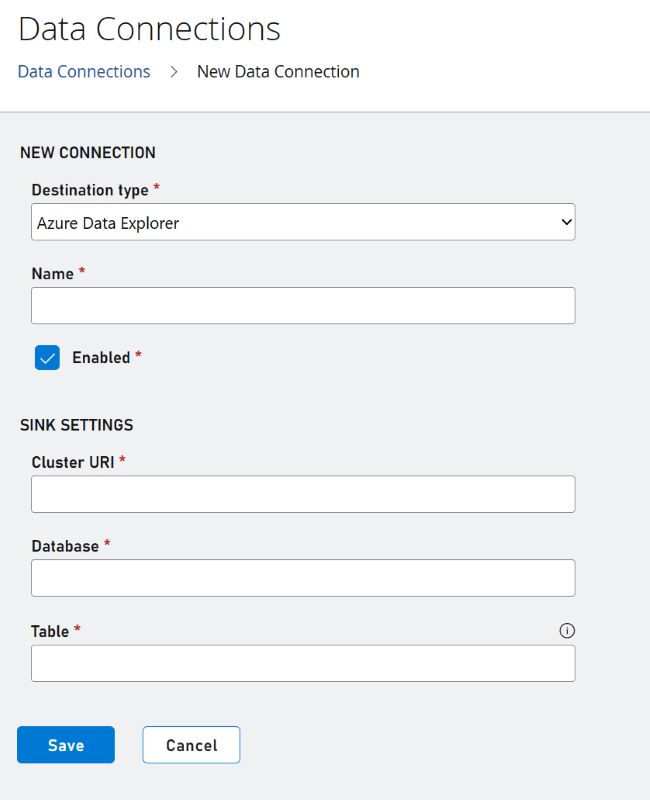
We recommend using a table name that does not exist. If you use an existing table and the schema is not what PlayFab is expecting, then the schema will be modified.
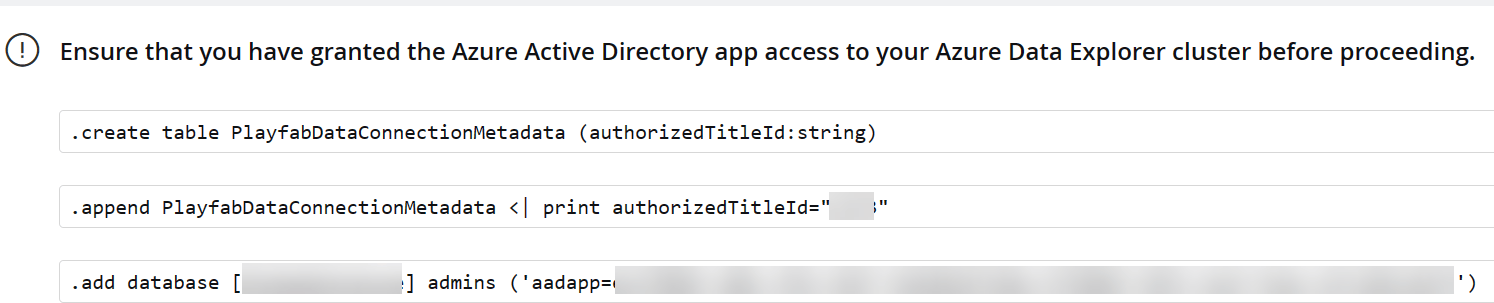
Step 3: Run commands
- Run the following commands in order as they appear in the onboarding flow individually in your ADX clusters