Requirements
- A PlayFab developer account.
- An installed copy of the Unity Editor. For information on installing the Unity Editor, see Installing Unity in the Unity documentation. You can also install a version of the Unity using the Visual Studio feature installer.
The PlayFab Unity3D SDK supports Unity Editor version 5.3 and higher.
- A Unity Project. For information on creating a Unity Project, see the Quickstart guide.
If you are unfamiliar with Unity, recent installation packages give you the option of installing game creation walkthroughs. You can use one of the walkthroughs to create a sample game to use in the following quickstart.
- The PlayFab Unity3D SDK.
Terminology
Entities are any PlayFab concept that can contain data. The built-in entity types are:- title - A title contains global information available to all players. This is similar to TitleData. It’s identified by the title ID (
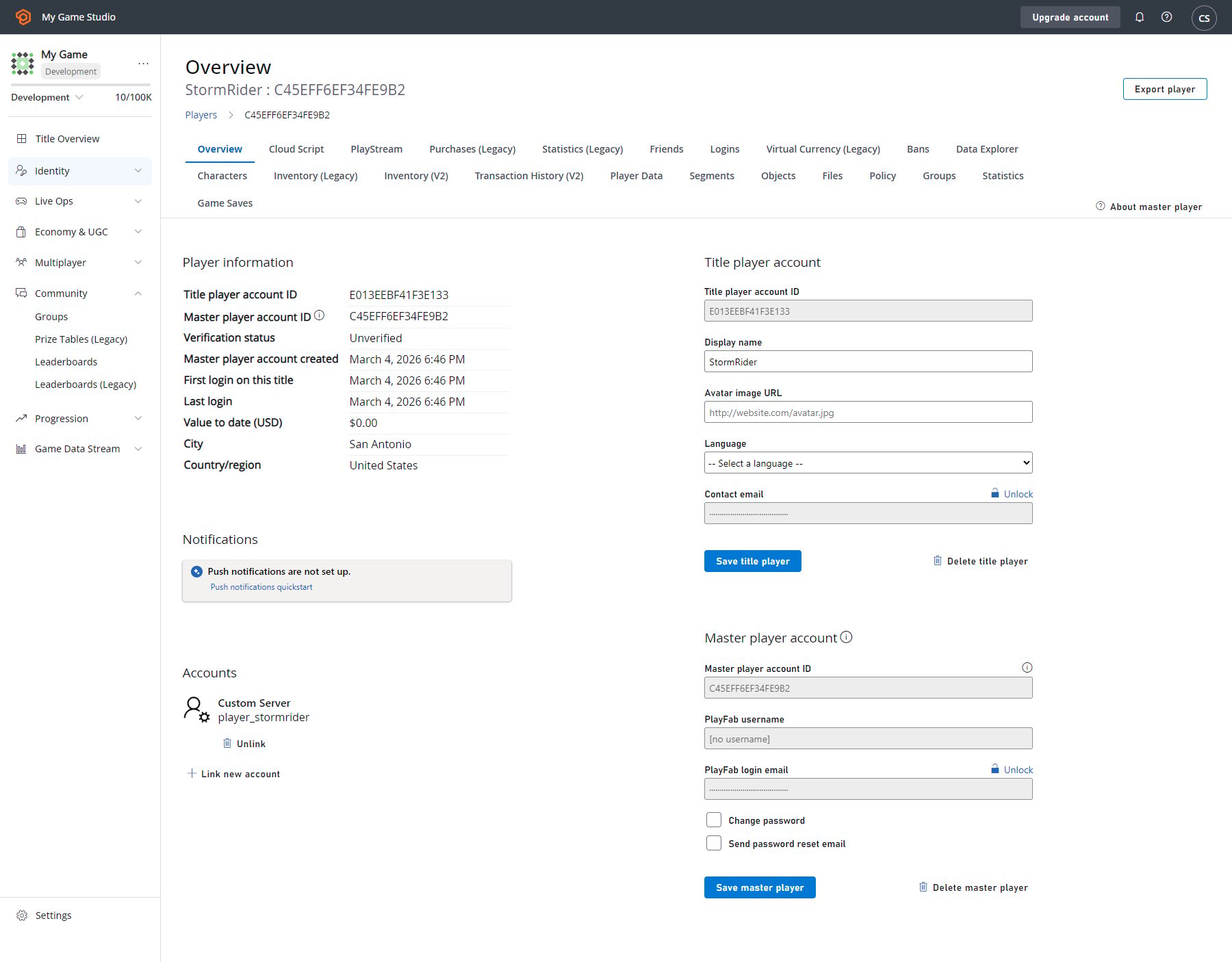
TitleId) of the game/application. - master_player_account - This entity Type allows you to share information about a player across multiple games within a namespace. It’s identified by the player ID (
PlayFabId) of the player, which is returned as part of any login or any call to retrieve account information for the player account (for example, the PlayFab Client API GetAccountInfo). - title_player_account - Identifies a player account that contains some information for the current title. This is identified by the entity ID (
EntityKey.Id) you get back in the EntityKey object on any login. - character - Identifies a character that the player owns which contains information that you can retrieve. It’s identified by the character ID (
CharacterId) of the character.
Entity initialization
To call any of the Entity API, you must obtain the entityID and entity Type. You use the ID and Type to make calls to other Entity API methods. These are members of an EntityKey object.
You do this by calling any of the login methods, such as LoginWithCustomID.
ID and entity Type by calling the GetEntityToken method.
Entity objects
Entity objects allow you to read and write small JSON-serializable objects attached to an entity. All entity types support theGetObjects and SetObjects methods.
The following code snippets show how to set and read an Object on a title_player_account entity.
Use the SetObjects method to set entity objects on a player or a title.
Entity files
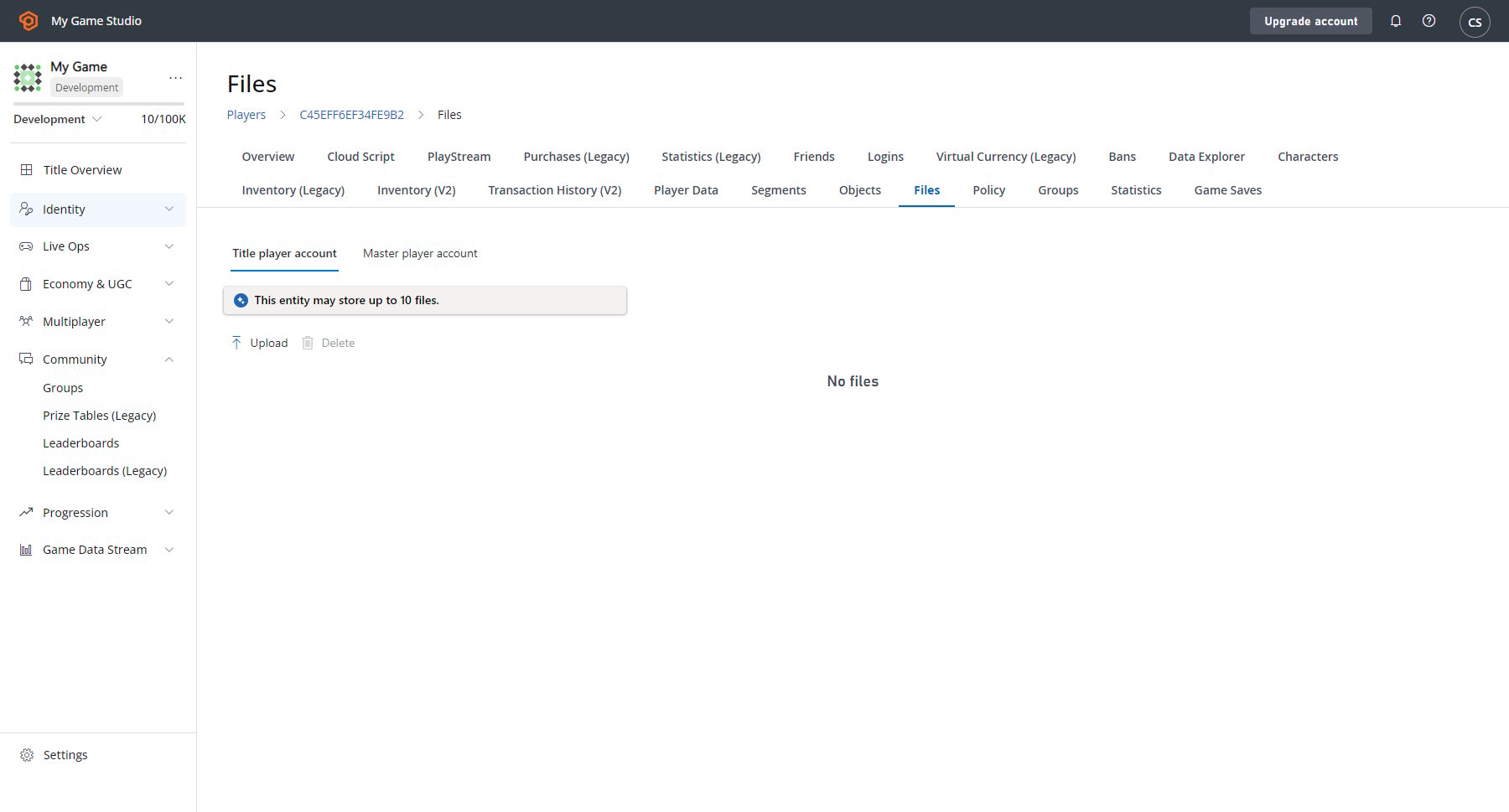
Entity files allow you to read and write files attached to an entity, in any format. Use the GetFiles method to retrieve entity files.- login and retrieve the entity
IDand entityType. - Initialize the atomic upload operation.
- Upload all of the files.
- Finalize the atomic upload operation.
Each file action requires many steps and multiple API calls, so don’t try to access the same file in multiple ways at the same time. If you are very careful, you might not need a locking mechanism. If you want to do something complicated, your locking mechanism may be much more complex.
Game Manager and entities
The Game Manager allows you to manipulate objects and files for players. The player overview shows both the title player and master player account information.